
Bulk upload your client list
How to import an existing client book into Marloo from one .xlsx file: the file format and size limit, which columns Marloo reads, who should upload it, the steps, and what to do with a CRM export instead.
If you're moving an existing client book into Marloo, you can import the lot in one go with an XLSX upload rather than adding clients one at a time.
File format
Upload an .xlsx file (10 MB max) with your client information. CSV files are not accepted. Marloo imports the following fields and may fill in others where it detects them.
Note: each row needs a client name or an email address. Email is optional, so don't add placeholder emails.
- Client name
- Email address
- Client tags (for example Ongoing or Prospect)
- Group name (for couples or households)
Address, phone number and date of birth may be filled in afterwards where Marloo detects them in the file.
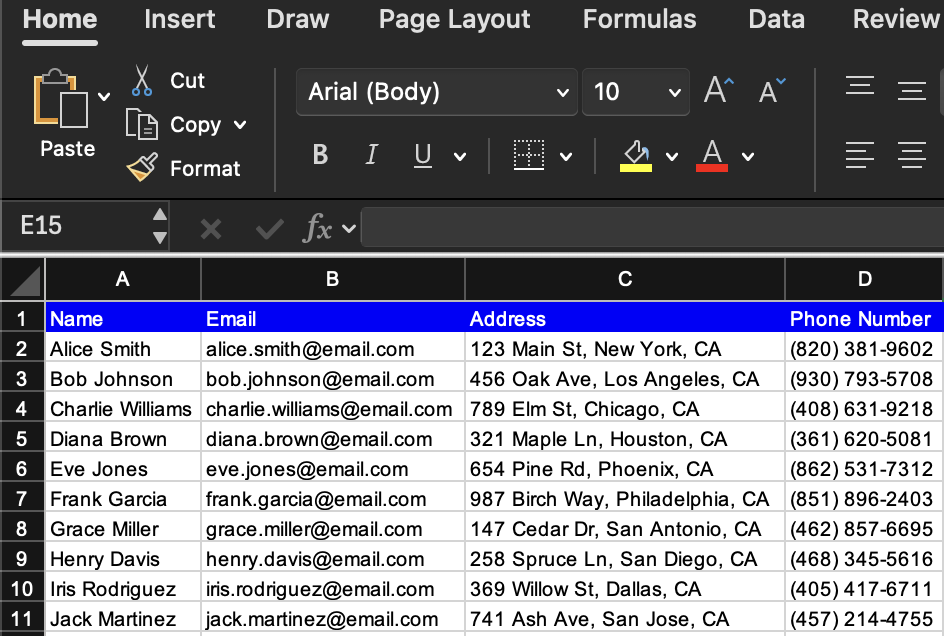
Column headers don't need to match those labels exactly (but should be labelled clearly). Marloo detects the columns automatically, so there is no mapping step. The order matters less than the content of each column.
Here's an example of what Marloo can import.
Who uploads it
The bulk upload is done by each individual advisor in their own Marloo account. The person who uploads the file becomes the advisor (Advised by) on every client it creates, so an Account owner or Support team member who uploads one master list ends up as the advisor on all of them. Each advisor uploads their own file.
Note: If multiple users upload a list with the same clients, duplicates won't be created but it can fill data that is in one but not the other.
Upload the file
- Open the Marloo web app and go to Clients.
- Click + (top right), then choose Upload list.
- Select your .xlsx file. The upload starts as soon as you choose it. Columns are detected automatically, so there is no mapping step.
Your file is processed automatically. This can take up to an hour, and your clients appear in Clients once it's done.
Uploading a CRM export
Exports from a CRM go through the CRM import rather than the client list upload, and each export is reviewed before it is imported, so it can take longer than a plain client list. You'll find CRM import under Settings > Integrations. See Move your clients to Marloo from another CRM.
If the upload fails
If the file is rejected or the columns are not detected, Marloo can check the file and complete the import on request.
Related articles
- Create, group, merge or split client records - adding clients one at a time.
- Manage your client list - sorting, tagging and filtering the list once it's in.
- Move your clients to Marloo from another CRM - the reviewed CRM import path.
Still stuck? Talk to a human.
Email the Marloo team with what you are seeing. If you are in the app, the blue chat button in the bottom-right corner is the fastest way to reach us.


