
Refine your document template
How to improve a document template over a few rounds of generate, review, update and regenerate, and what belongs in the template rather than the generation prompt.
Many inaccuracies in a generated document trace back to the template, which makes refining the template an effective way to improve every draft after it. Most teams get to a template they'd send within two or three cycles of generate, review, update, regenerate.
Why templates matter
A template isn't just a structure. It is a set of instructions that tells Marloo how to handle each section: what to include, what to leave out and how to format it. The more precise those instructions, the better every document.
The template sets how sections work for every client; the generation prompt carries what is specific to one client and one run. What belongs where is set out in Get better first drafts from document generation.
The refinement cycle
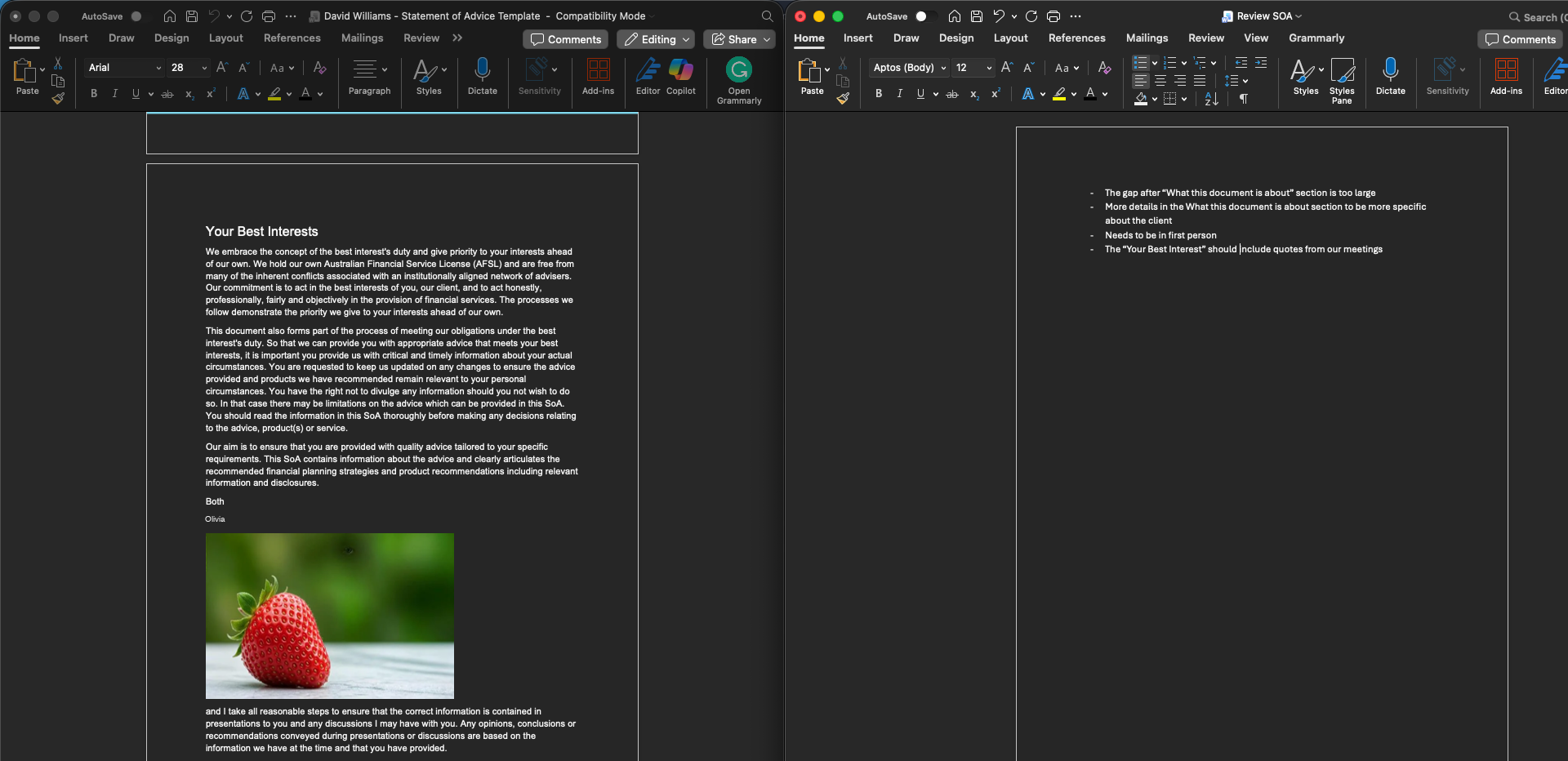
- Generate a document for a test client with comprehensive context.
- Export it to Word and review it line by line.
- Note everything that isn't right. Keep the notes in a document.
- Upload the review notes to the template editor (see below).
- Work through each point one at a time with Ask Marloo.
- Regenerate and compare.
- Repeat until you're happy.
What to look for
When you review the generated document, note:
- Sections that are too vague or too detailed
- Missing information that should have been pulled from context
- Sections that appeared when they shouldn't have, or didn't appear when they should
- Formatting issues: bullet points vs paragraphs, table structure
- Standard wording that was changed when it should have been kept word for word
- Generic text where client-specific detail was expected
- Incorrect data handling: wrong figures, missing calculations
Keep the notes in a document so you can attach them to the template editor chat.
The template editor
Go to Templates > Documents and click your template: the outline is on the left, the template in the middle and the Ask Marloo chat on the right, and changes save automatically. How each part works, including white and blue text, is in Template editor.
Upload your review notes first
The most effective refinement starts with your review notes.
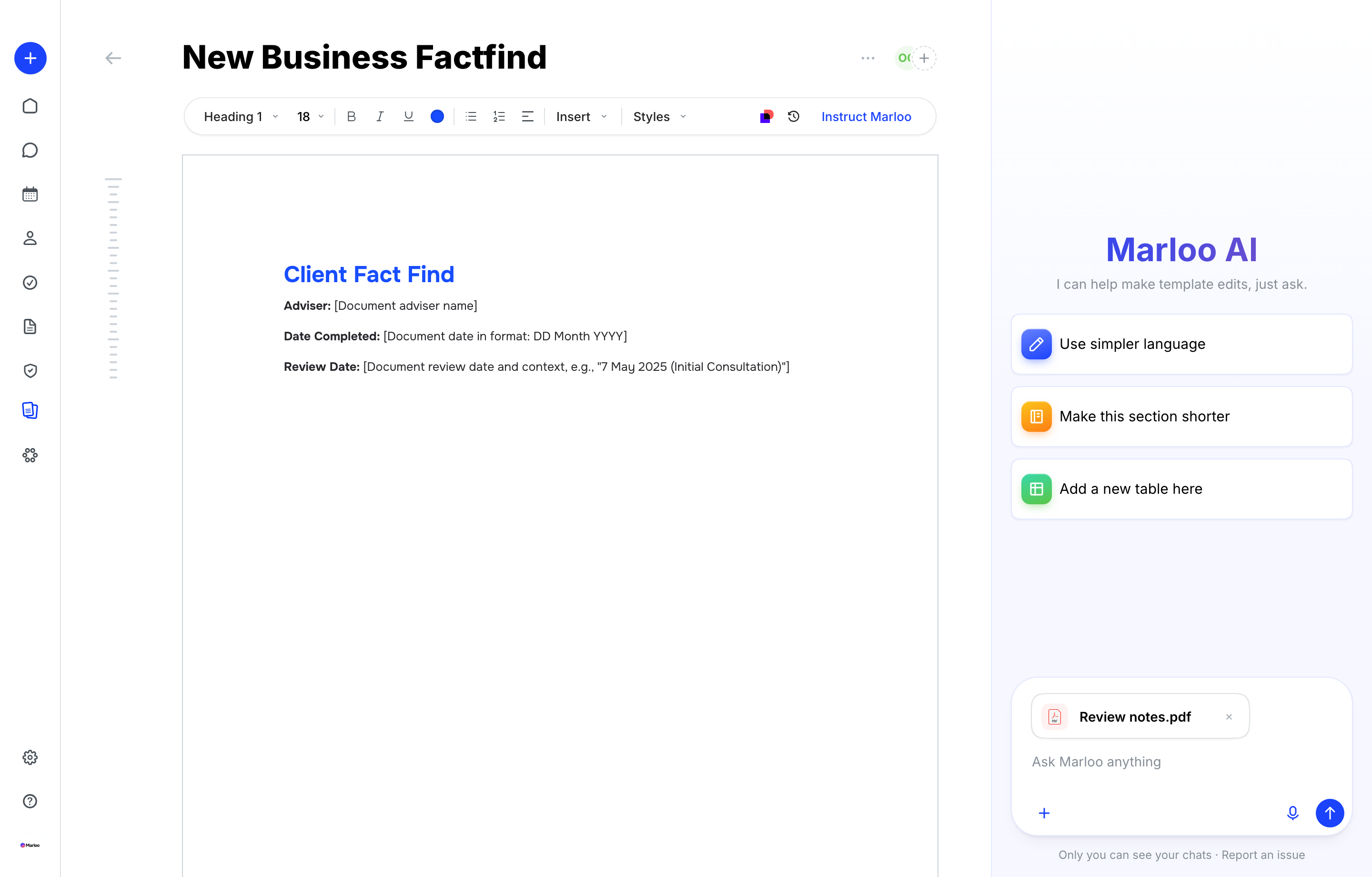
- In the chat panel, click + then Attach file and attach the Word document with your review notes.
- Ask: "I've uploaded my review notes. Please go through each point and suggest template edits accordingly."
- Apply the suggestions one by one. Working through each point individually gives you more control and makes it easier to catch a change that doesn't look right.
Make targeted changes
The chat works section by section, so always use the exact section name and ask for one change per message.
Example instructions:
- "Make the Reasons for Seeking Advice section far more detailed."
- "Add a conditional rule: only include the Consequences of Replacing Products section if the client has existing insurance and we are recommending replacement."
- "Ensure the Basis of Advice section always uses bullet points, not paragraphs."
If Marloo doesn't get it right
Break the request into smaller, more specific instructions. Tell it exactly which section to change and what the result should look like.
If the chat stops responding well after a long back-and-forth, click Chat history at the top of the panel and start a fresh chat with one clear instruction. Why that works, and how to undo a change: Template editor.
Global Instructions in the template
Global Instructions is the instruction block at the top of a template, and the most useful part of it: rules written there apply to the whole document. Marloo's default templates open with a block headed "GLOBAL INSTRUCTIONS - APPLY TO ENTIRE DOCUMENT". Use it to do three things. Open each one for how and an example.
List your mandatory and conditional sections
Keep an index of which sections always appear and which depend on the client's situation, as a table with the columns Section, Mandatory, Conditional and Comments. Having the rules in one place is what stops a section drifting in and out between generations. You can ask Marloo to build it.
Example prompt:
Review this template and add an index to Global Instructions that lists every mandatory section and every conditional section. For each conditional section, state when it should be included and when it should be left out. Keep the existing section content; only update Global Instructions.
Tell Marloo to leave out empty sections
If generated documents come back with blank or irrelevant sections, add this instruction.
Example instruction:
Omit any section from the final document if there is no relevant content for that section.
Set your formatting rules once
Set the rules for decimal places, dollar formatting, bullet points and any other stylistic preference that should hold throughout. Worked examples are under Inconsistent formatting below.
Global Instructions belong to one template. Rules that should apply to every advisor and every template at your firm go in Company instructions under Knowledge > Company instead: see Understanding the Knowledge tab in Marloo.
Common refinement patterns
The same handful of problems account for most refinement work. Open the one that matches what you're seeing: each pairs the symptom with the template change that fixes it.
Tables not populating correctly
If financial tables (needs analysis, asset allocation, cash flow) aren't pulling the right data:
- Add explicit instructions about where to source each value.
- Use "Absolute Verbatim Table Copy" for tables that must be reproduced exactly as they appear in the context.
- Add row count verification rules.
- Spell out prohibited actions: "Do not merge cells, do not change column headers."
- Simplify the table itself. Merged cells and conditional formatting make tables harder to render.
Example instruction:
For the Needs Analysis table: pull Life Cover Required from the insurance needs analysis in Notes. Pull Other Provisions from the client's non-retirement investments and property value in Files. Always include a separate row for Property if the client owns property.
Sections appearing when they shouldn't
Add a conditional rule to Global Instructions, with explicit wording. "Do not include this section if..." is clearer than "This section is optional."
Example instruction:
Only include the "Consequences of Replacing Products" section if the client has existing insurance and we are recommending that it be replaced. Otherwise do not include the entire section.
A section appears on some generations and not others
If a section comes through on one generation and is missing on the next, the fix is an instruction, not an escalation. It is most common with a sub-section inside a larger template, such as a review email at the end of an annual review template.
Add an instruction telling Marloo to always include that section, and set out the structure and headings it should use every time. Name the headings: without them Marloo may keep some of the content and drop the structure, or drop the section altogether.
Example instruction:
Always include the "No Change Review Email" section at the end of the document. Use the same structure every time, with the headings Summary, What We Reviewed and Next Steps, in that order.
To stop the same thing happening elsewhere, keep the mandatory and conditional index in Global Instructions up to date (see above).
Generic text instead of client-specific detail
The template instruction needs to be more specific about what to include and where it comes from.
Instead of:
Document the client's situation.
Try:
Document the client's current financial position including income, expenses, assets, liabilities, and any recent life changes. Reference specific figures from the client questionnaire in Files and discussions from tagged meetings. Each point should be a separate bullet point with a specific dollar amount or detail.
Output is light on strategy detail
Strategy wording comes from two places: the instructions in your template, and the context you select at generation.
The main lever is company context. If your firm has approved paragraphs for each strategy, upload them as strategy wordings under Knowledge > Company and reference them by name in the template instruction for that section (see Referencing company context files by name below). Setup: Understanding the Knowledge tab in Marloo.
If the output is still light, add more detail to the template instruction for that section.
Instead of:
Explain the recommended strategy.
Try:
Explain the recommended contribution strategy. Cover, in this order: what we are recommending and the amount, why it suits this client's stage and cash flow, the tax outcome with figures, the trade-offs or restrictions the client should understand (including early-withdrawal rules and contribution limits), and what happens if they do nothing. Reference the client's own words from the meeting where they described their retirement intentions.
One more check when strategy detail is thin: generate for a well-documented client with meetings, a current client questionnaire and uploads before judging the template. See Get better first drafts from document generation.
Standard wording changed, fixed text overwritten or headings read as instructions
These three symptoms have one cause: the text, or a heading such as "Summary of Advice", is sitting in a blue template instruction, so Marloo writes from it instead of copying it. Select it and click Instruct Marloo to switch it to white fixed text, and keep headings as plain labels: see Template editor.
Referencing company context files by name
A template section can draw on a company context file for standard wordings, but only if the section's instruction names the file. Without the reference Marloo won't know to use that file, even when it is selected at generation.
Example instruction:
Reference the standardized wordings in "Standard Insurance Advice Wordings.docx" when writing this section.
The file still has to be selected in the Company context tab at each generation. Setup: Understanding the Knowledge tab in Marloo.
Inconsistent formatting
Add formatting rules to Global Instructions, for example:
- "Always state percentage figures to two decimal places (for example 7.50%, not 7.5%)."
- "Always state dollar amounts with commas (for example $150,000, not $150000)."
- "Use bullet points for the Basis of Advice section, not paragraphs."
- "State each basis point as a separate paragraph or bullet point."
Risk and disclaimer wording
Add your standard conditional risk wording to the template, with the condition for each:
- If the client is taking on additional debt: [your standard debt risk wording]
- If recommending the client retains money in a cash account: [your standard cash risk wording]
- If moving funds from a government-guaranteed deposit: [your standard guarantee loss wording]
Tips
- Start with one test client. Use the client with the most complete context for your first few cycles; why in Get better first drafts from document generation.
- Keep a refinement log. Note what you changed and why. It helps if you need to roll something back or explain the template to colleagues.
- Use the right level of control. Template for repeatable rules, generation prompt for one-off client specifics; the split is in Get better first drafts from document generation.
- Templates are shared. A change affects everyone in your organization, so if you're unsure about a change, choose Save a copy from the template's menu and test it on your copy first. If the template is locked, see Template troubleshooting.
- Book a refinement session. If you're struggling to get the template right, contact us. We run dedicated sessions where our team refines it with you hands-on.
- It gets easier. The first template takes the most effort. Once the structure and instructions are right, later templates follow the same patterns.
Troubleshooting
| Problem | What to do |
|---|---|
| Ask Marloo doesn't make the change I asked for | Break it into smaller, more specific instructions with the exact section name and what the result should look like. If the chat has been going back and forth, click Chat history and start a fresh chat. |
| Template changes don't show in the next generation | See Template troubleshooting. |
| Fixed text is being rewritten | See Template editor. |
| Gaps or [TBC] placeholders in the output | Marloo couldn't find that information in the selected context, or the section's instruction doesn't say where to look. Causes and fixes: Get better first drafts from document generation. |
| Conditional sections still appearing | Put the rule in Global Instructions and use explicit wording: "Do not include this section if..." |
Related articles
- Generate your first advice document - end-to-end guide to your first document
- Get better first drafts from document generation - day-to-day habits that lift every draft
- Template editor
- Understanding the Knowledge tab in Marloo
Still stuck? Talk to a human.
Email the Marloo team with what you are seeing. If you are in the app, the blue chat button in the bottom-right corner is the fastest way to reach us.


