
How to clear your Chrome cache for Marloo
Clear cached files in Google Chrome when Marloo shows a blank page, stale data or fails to load.
-
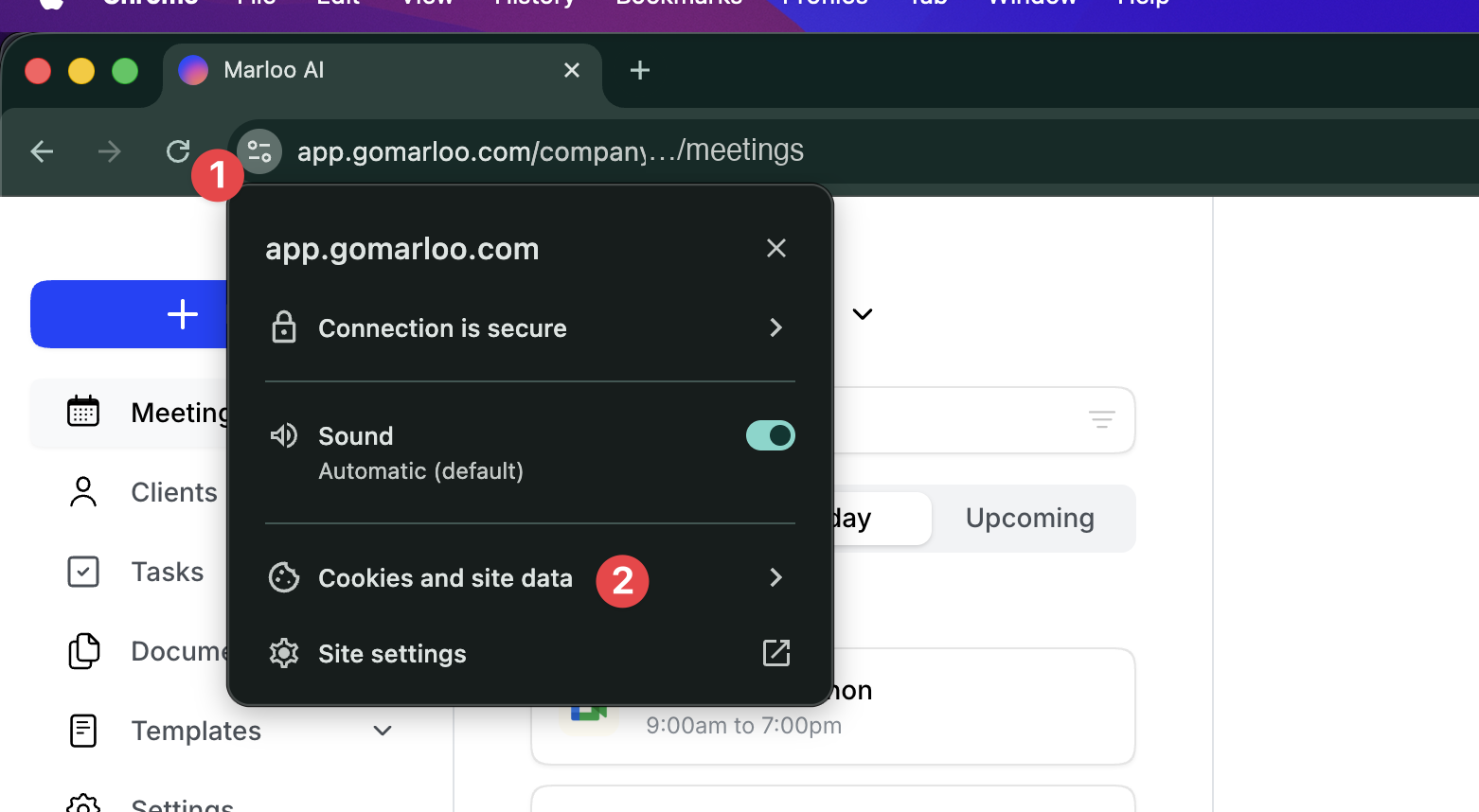
Open the site info menu. With Marloo open in Chrome, click the small tune icon on the left side of the address bar, just before the URL.
-
Select "Cookies and site data". From the menu that appears, click Cookies and site data.
-
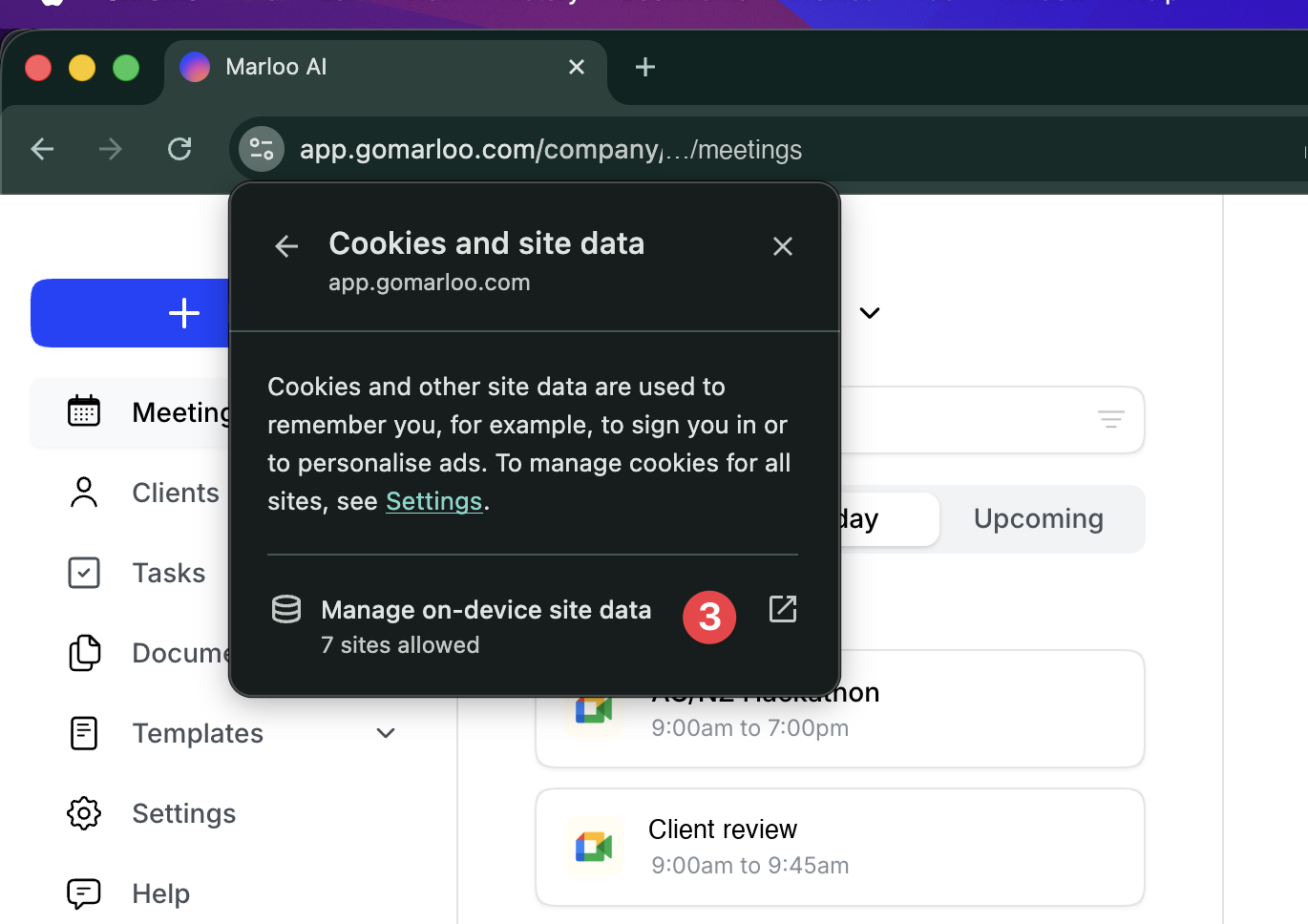
Open the on-device data manager. Click Manage on-device site data at the bottom of the panel.
-
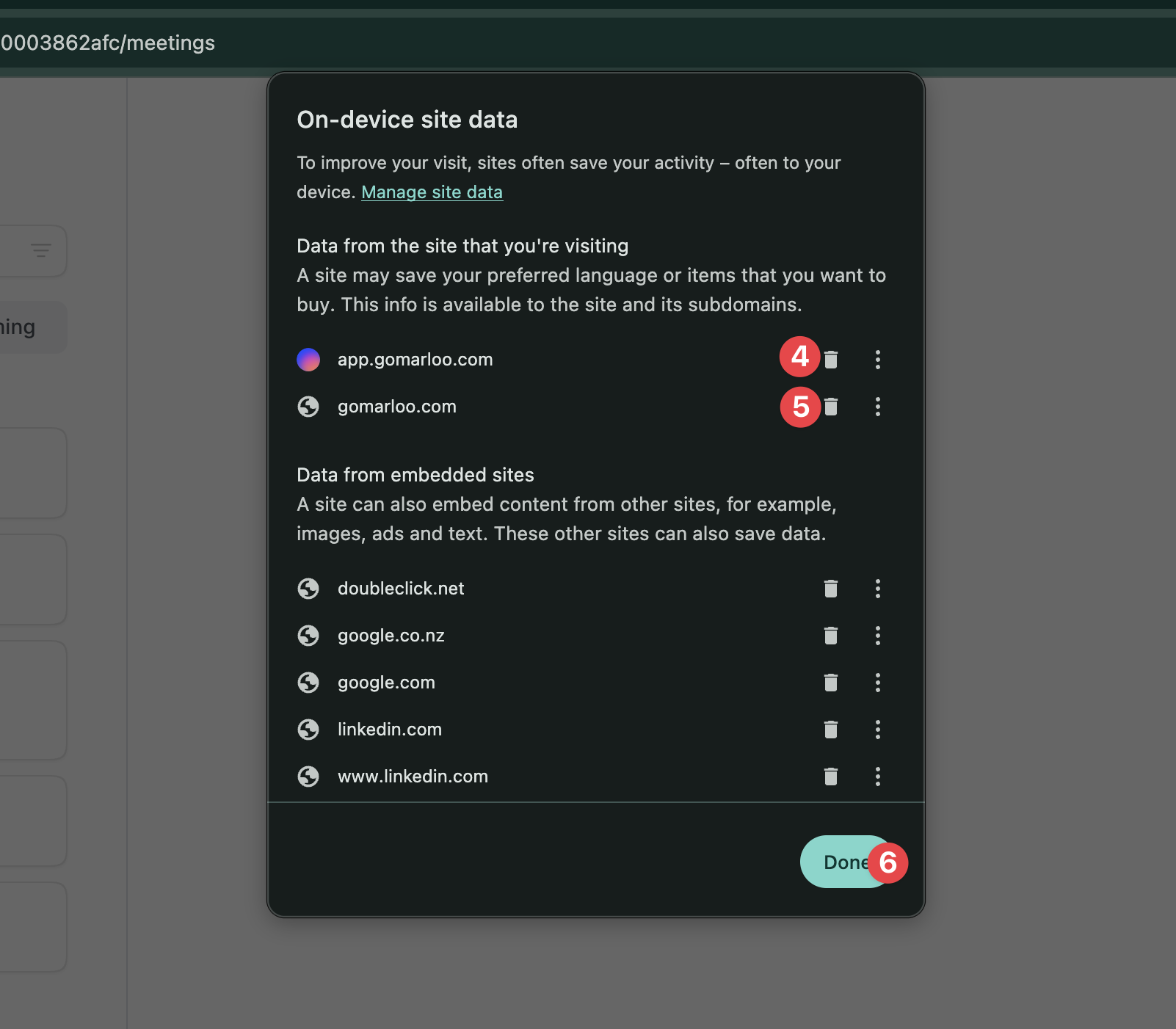
Delete app.marloo.com. Click the trash icon next to
app.marloo.comto remove its stored data. -
Delete marloo.com. Click the trash icon next to
marloo.comto remove its data as well. -
Click Done. Confirm your changes by clicking Done at the bottom right of the panel.
-
Reload Marloo. Refresh the page (Cmd+R on Mac, Ctrl+R on Windows) and sign back in.
Still having issues?
If clearing the cache didn't fix things, try one of these:
A hard refresh: Cmd+Shift+R on Mac, or Ctrl+Shift+R on Windows
Opening Marloo in an incognito window, which rules out interference from browser extensions
Quitting Chrome completely and reopening it
If the problem persists, get in touch with our support team and we'll help you get back on track.
Still stuck? Talk to a human.
Email the Marloo team with what you are seeing. If you are in the app, the blue chat button in the bottom-right corner is the fastest way to reach us.


