
Record phone calls on Android
A guide to using your Android's built-in call recording feature and uploading the audio to your Marloo account.
Marloo can't record a call made with your phone's own dialer directly. Instead, record it with your Android phone's built-in call recording, where your device has one, then upload the audio file to Marloo.
Before you start
Built-in call recording varies by Android device and manufacturer. Some devices (such as certain Samsung and Google Pixel models) include a call recording option. Others do not.
Check your phone app's settings to see if call recording is available on your device, and make sure it's allowed.
Record a call on a device with call recording
-
Dial the number or answer an incoming call as you normally would.
-
During the call, look for a Record button on the call screen and tap it. Where it sits varies by device; you may need to tap the three dots first. You're responsible for telling everyone that the call is being recorded and for getting any consent your local rules require.
-
Tap Stop Recording when you're done, or let the recording save automatically when the call ends.
-
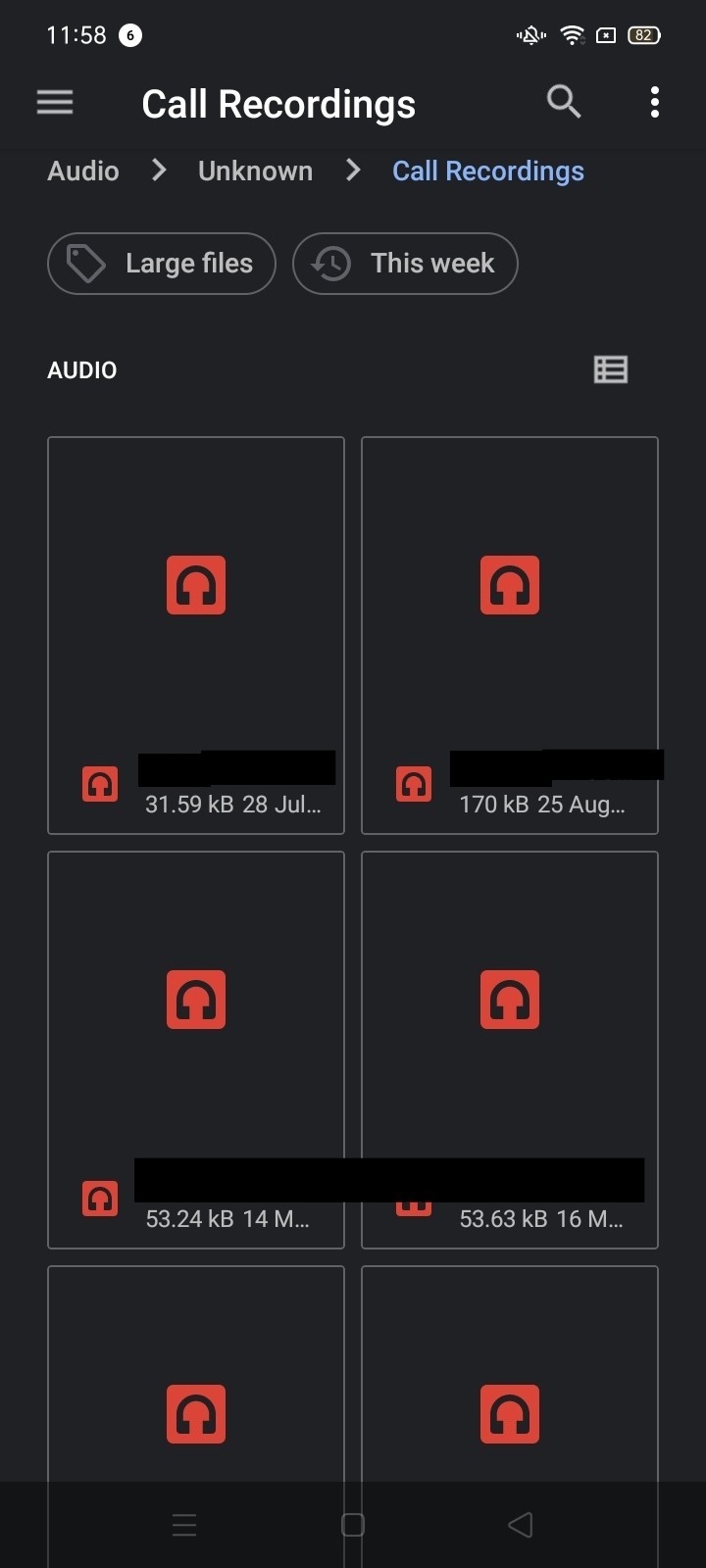
Open your phone's file manager to find the recording. Recordings are typically saved in Audio or Audio > Unknown > Call Recordings.
Upload to Marloo
Open the Marloo app, or sign in to the Marloo web app in your phone's browser.
- Tap New meeting (or open an existing meeting).
- In the app, tap the paperclip button beside Start recording (its label is Upload a recording). On the web, click Upload on the meeting's Transcript tab.
- Select the recording file from your phone's storage.
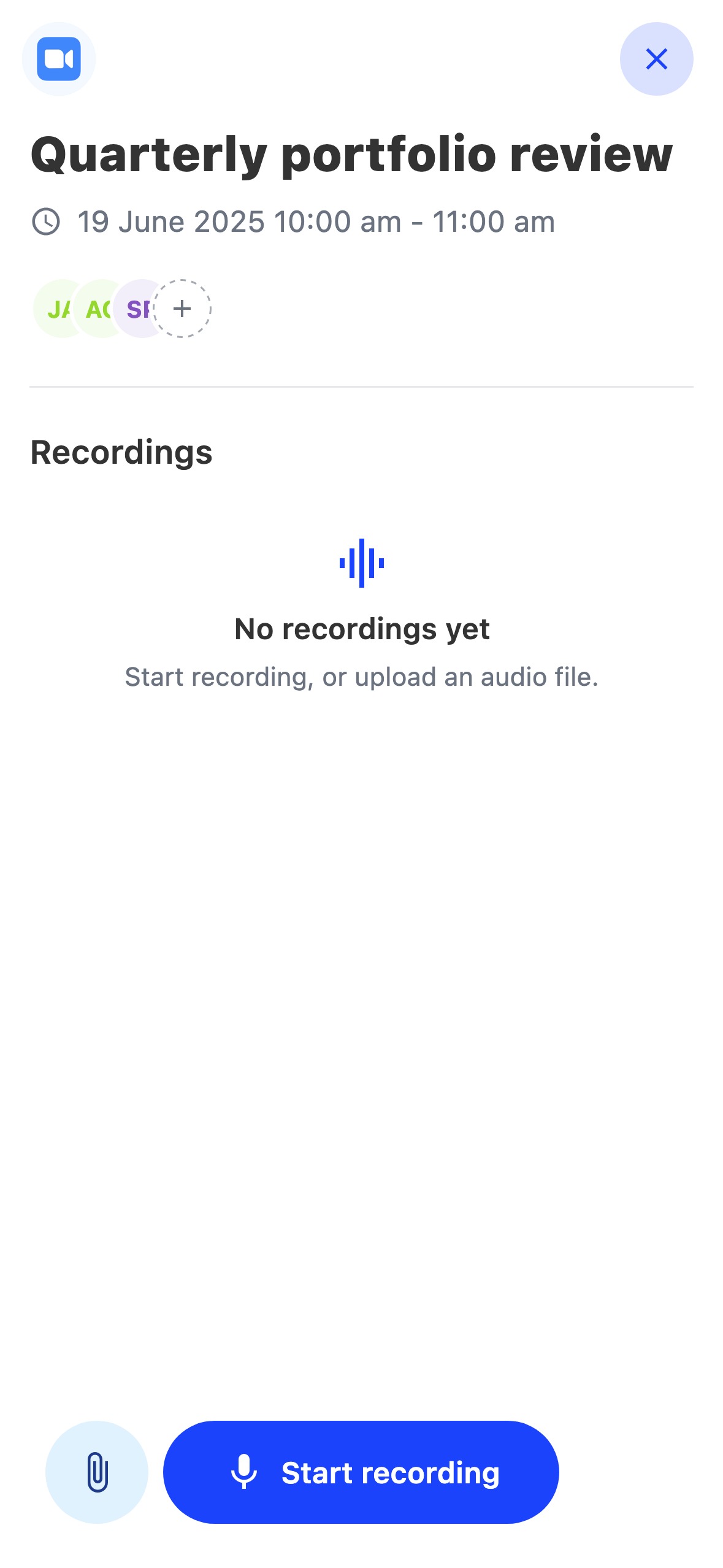
The recording is processed and transcribed. Once it's done, you can generate a summary and tag it to a client in the Marloo web app.
Devices without call recording
If your Android device doesn't have call recording, try one of these. Neither plays a recording notice, so tell the other person yourself.
- Record on another device: Put your phone on speaker in a quiet room and record from Marloo on your laptop, or through the Marloo app on another phone or tablet. This is also the route for a call on an office landline or desk phone: put the call on speaker in a quiet room, sit your laptop or another device beside it, and start a new recording from the Marloo web app or the Marloo app.
- Third-party recording app: Find a call recording app on the Play Store, then upload the file it creates in the Marloo app.
Supported audio formats
Marloo accepts the common audio formats (MP3, M4A, WAV, AAC and more): see Supported formats.
Frequently asked questions
Can Marloo record the call directly?
Not a call made with your phone's own dialer. Record the call separately and upload the audio file to Marloo. If your firm is on the Firm plan, calls you place from inside the Marloo mobile app are recorded automatically: see Call clients from the Marloo mobile app (VoIP).
What if my device doesn't have a call recording option?
Not all Android devices have call recording. Use one of the other approaches in Devices without call recording: record on another device, or use a third-party app.
Why is the transcript blank after I uploaded my recording?
Check that the audio file is not corrupted and that the conversation is audible. If you recorded via speakerphone with another device, make sure the recording device was close enough to capture clear audio.
Still stuck? Talk to a human.
Email the Marloo team with what you are seeing. If you are in the app, the blue chat button in the bottom-right corner is the fastest way to reach us.


