
Create and use meeting templates
Make a meeting template from a Marloo template, an uploaded file or from scratch, so summaries come out in your format.
This article shows you how meeting templates shape the structure of your summaries. Create one template per meeting type you run (meeting notes, discovery meeting, annual review); you generate a summary by opening a meeting's Summary tab and selecting a template.
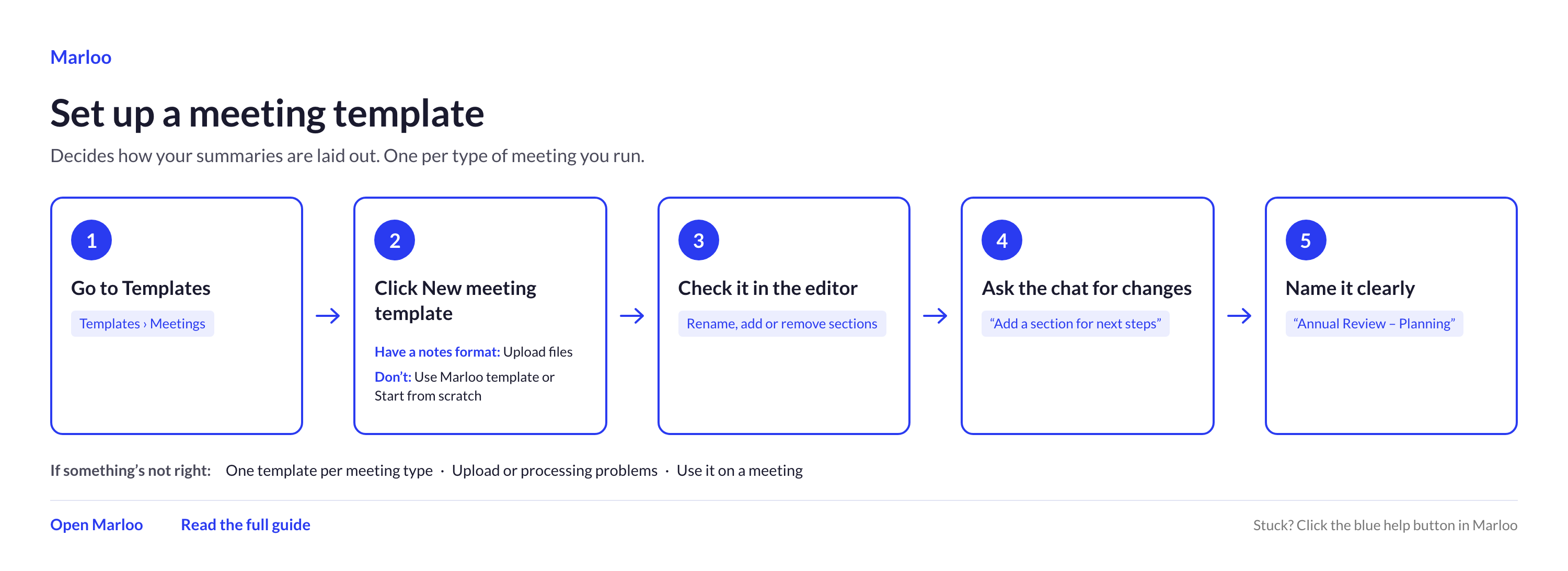
Quick flowchart: build a meeting template in 5 steps
What are meeting templates?
Meeting templates tell Marloo how to structure and format the summary it generates from your transcript and any notes you've added. They define the headings, sections, and instructions that shape the output.
We suggest creating separate templates for each type of meeting you run, for example your meeting notes, discovery meeting, initial consultation, and annual review. Each template captures the specific sections and details relevant to that meeting type, so your summaries are structured exactly the way you need them.
Templates are managed from Templates > Meetings.
Creating meeting templates
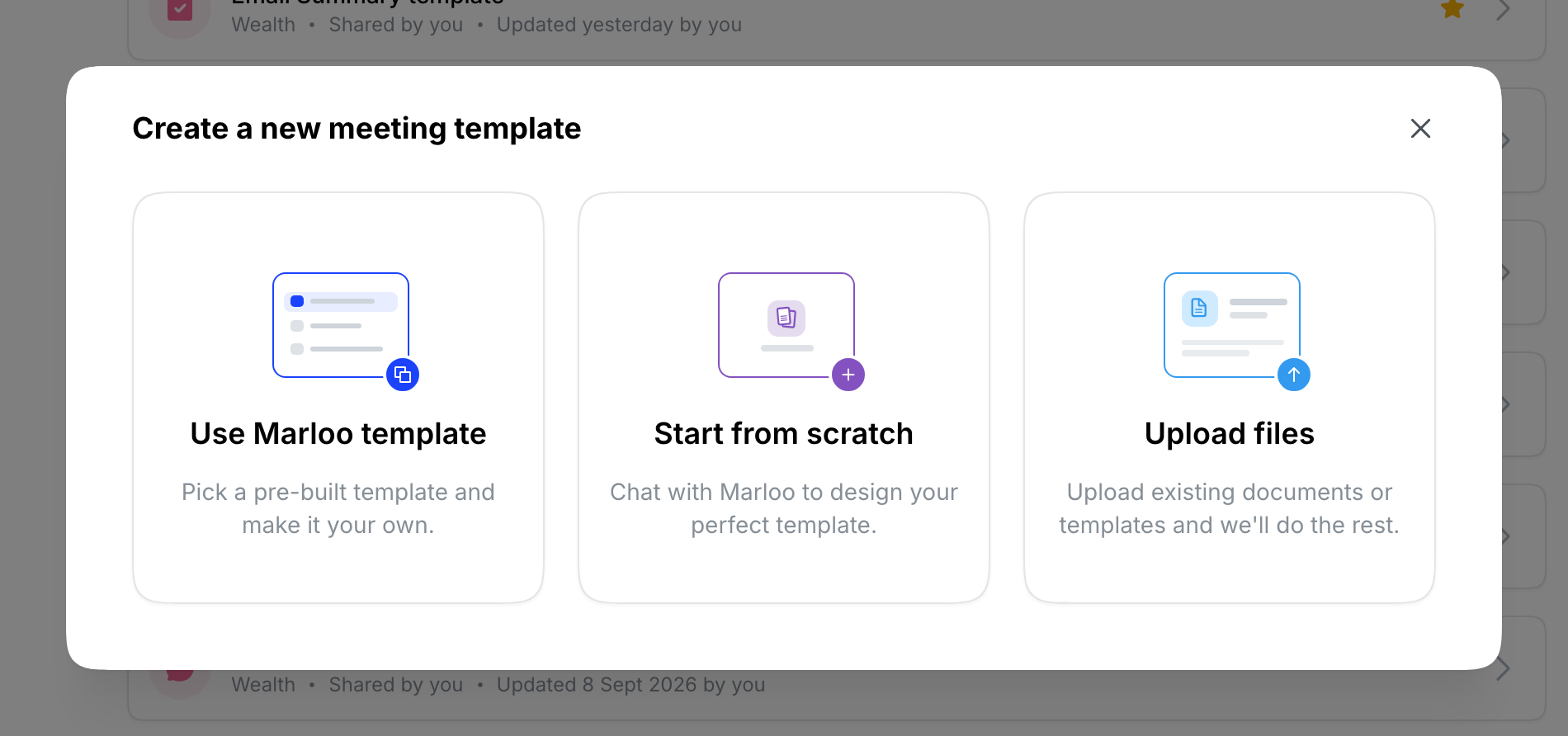
There are three ways to create a meeting template in Marloo. Go to Templates > Meetings and click New meeting template to get started.
Option 1: use a Marloo template
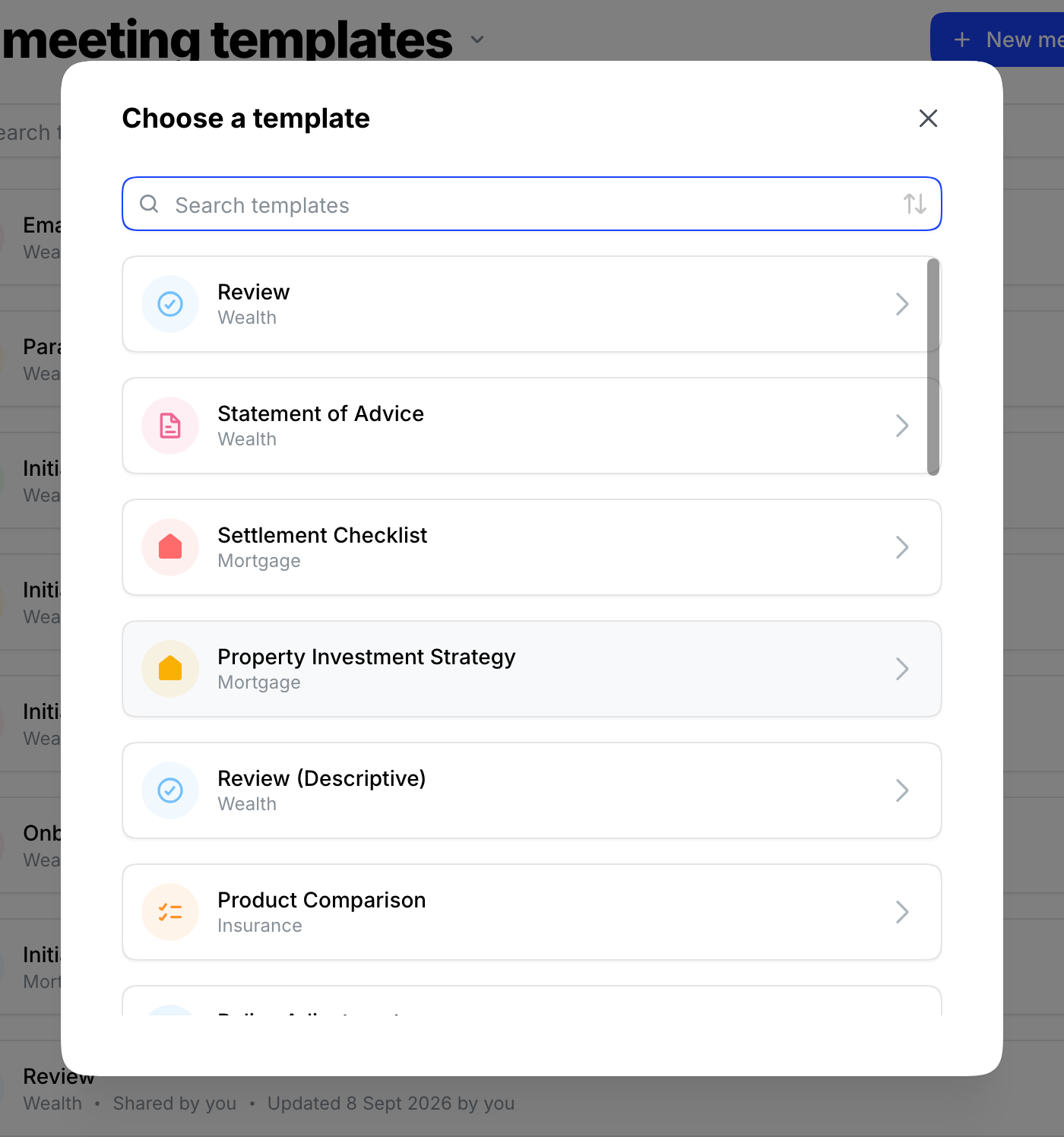
Marloo includes a library of pre-built templates. These are a fast starting point: they're structured for common meeting types and ready to customize.
- Select Use Marloo template.
- Search or browse the library and select the template that best matches your meeting type.
- Marloo makes you an editable copy and opens it in the editor. Customize the sections, headings, and instructions to match your preferred format. Changes save automatically.
Tip: The templates Marloo sets up for you at sign-up depend on the advice type you selected. If you don't see what you need, use the Start from scratch option or upload your own.
Option 2: upload a file
If you have an existing notes document you want to turn into a Marloo template, you can upload it directly. Marloo analyzes the document and turns it into a template.
- Select Upload files.
- Upload your document. Files can be in .docx, .doc, or PDF format.
- Marloo opens it in the template editor, with your headings as fixed text and the rest as template instructions.
- Review the result and make any adjustments. Changes save automatically.
You can select several files at once under Upload files. Marloo averages across them to build one template, so if you have variations of the same format, upload several together to build a stronger template.
Once converted, the template has two kinds of text. Fixed text (white) is headings, labels and other text Marloo copies word for word into the summary. A template instruction (blue) tells Marloo what information to find and include. Table structures from uploaded documents are preserved and pull through automatically into the template.
Option 3: start from scratch
Build a template manually or use the Ask Marloo panel in the template editor to help you construct it.
- Select Start from scratch.
- Enter a name for your template in the title at the top of the editor.
- Either type your template structure directly into the editor, or ask Marloo in the panel to help you build the template.
- Changes save automatically as you go.
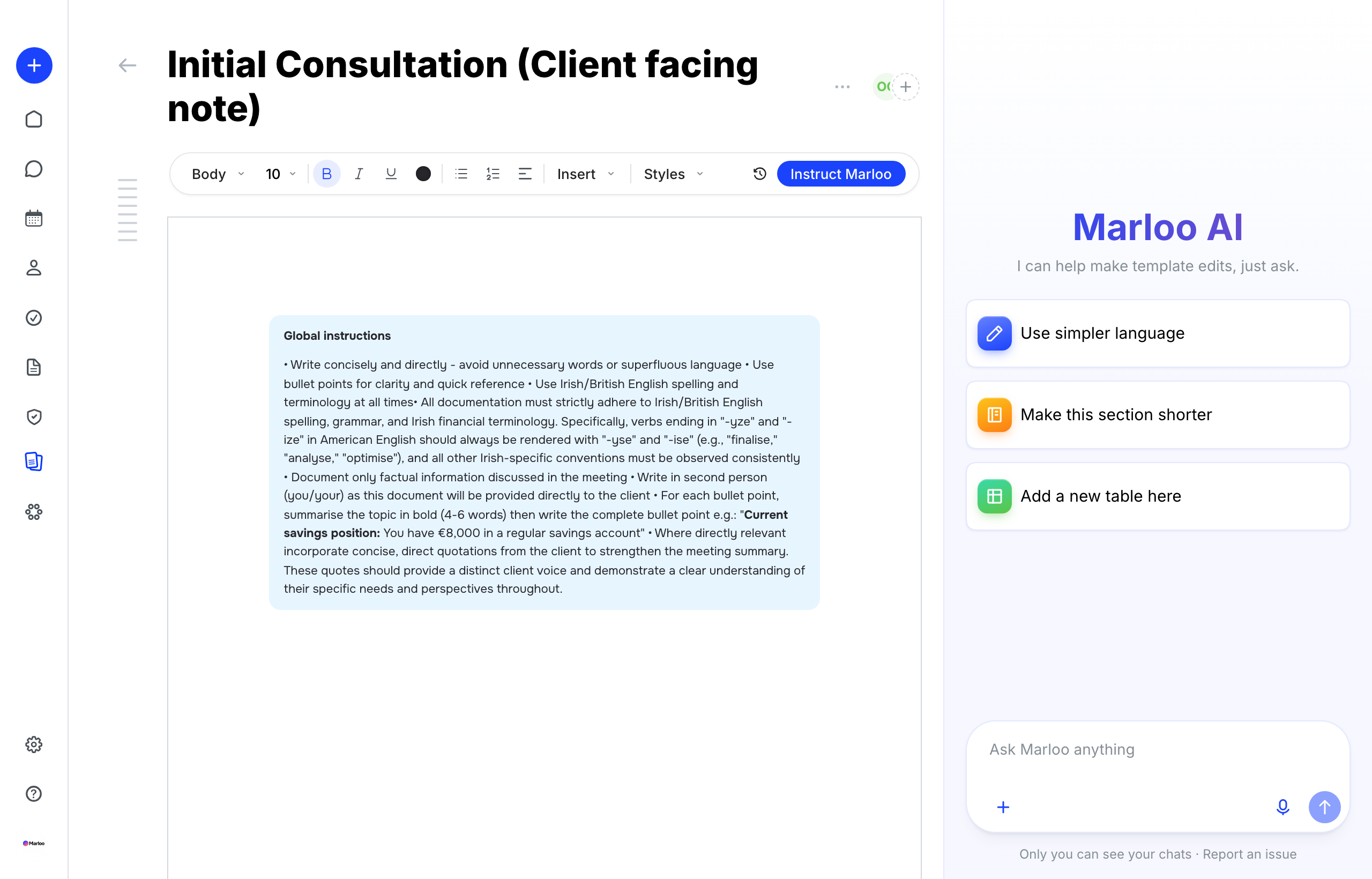
In the Ask Marloo panel, you can describe the kind of meeting and the sections you need, and Marloo will draft a structure for you. You can also attach reference files to the chat using the + button, for example a sample set of notes to show Marloo the format you're aiming for.
Tip: Attaching a file in the chat gives Marloo a concrete example to work from. This is especially useful if you have an existing notes format you want to replicate.
Why templates matter
Using the right template for each meeting type gives you several advantages:
- Consistency: Every meeting of the same type follows the same structure, making your notes predictable and easy to review.
- Time savings: Marloo generates the structured summary from the transcript. You review and refine rather than write from scratch.
- Compliance: Templates can prompt for the information your record-keeping obligations require, so gaps are easier to spot when you review the summary.
- Personalization: Templates reflect your preferred language, format, and level of detail, so the output sounds like you.
Tips
- Name templates clearly. Use names like "Initial Qualification - Discovery" or "Annual Review - Planning Focus" so it's obvious which template to pick at the point of generating a summary.
- Keep templates focused. A template that tries to cover every possible meeting type produces mediocre summaries for all of them. Build separate templates for distinct meeting types.
- Use Ask Marloo to refine, not just create. If a generated summary isn't quite right, open the template in the editor and ask Marloo to adjust the instructions rather than manually editing every summary.
- Check table structures after upload. Tables from your uploaded document pull through automatically, but review them in the editor to confirm the structure imported as expected.
- Start from a Marloo template when in doubt. It's faster to customize a pre-built template than to build from scratch, even if you end up changing most of it.
Still need help?
See Template troubleshooting for upload, analyzing, and library issues.
Related articles
- Generate, edit and export a meeting summary - How to generate, compare, and edit meeting summaries
- Template editor - Using the template editor and the Ask Marloo panel
- Template troubleshooting - Common template issues and fixes
Still stuck? Talk to a human.
Email the Marloo team with what you are seeing. If you are in the app, the blue chat button in the bottom-right corner is the fastest way to reach us.


