
Set up your first document style
Get your firm's branding onto Marloo exports: upload one existing document, add your cover page, export.
Quick flowchart: brand your exports in 6 steps
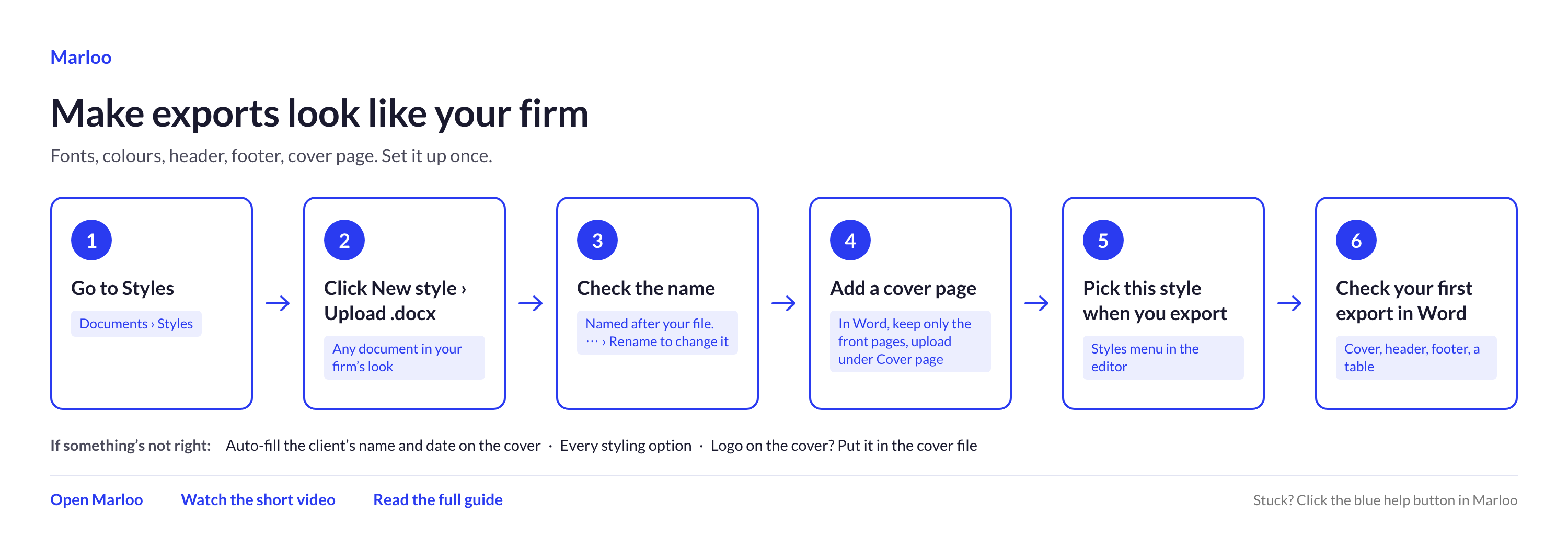
Open Documents > Styles.
Marloo can read your firm's styling straight out of a document you already have. You do not need to set fonts, colors, spacing or tables by hand.
Three steps: upload an existing document, add your cover page, then pick your style before you export. Do this once and every future export is branded with your company's style.
1. Upload an existing document
Find any document that is representative of your firm's styling.
- Open Documents in the left sidebar and click Styles.
- Click New style, then choose Upload .docx in the Create a new style window and pick your existing document. (Choose Start from scratch instead if you would rather build a style by hand.)
- Marloo names the style after your file. To change the name, click the three dots on the style's card and choose Rename.
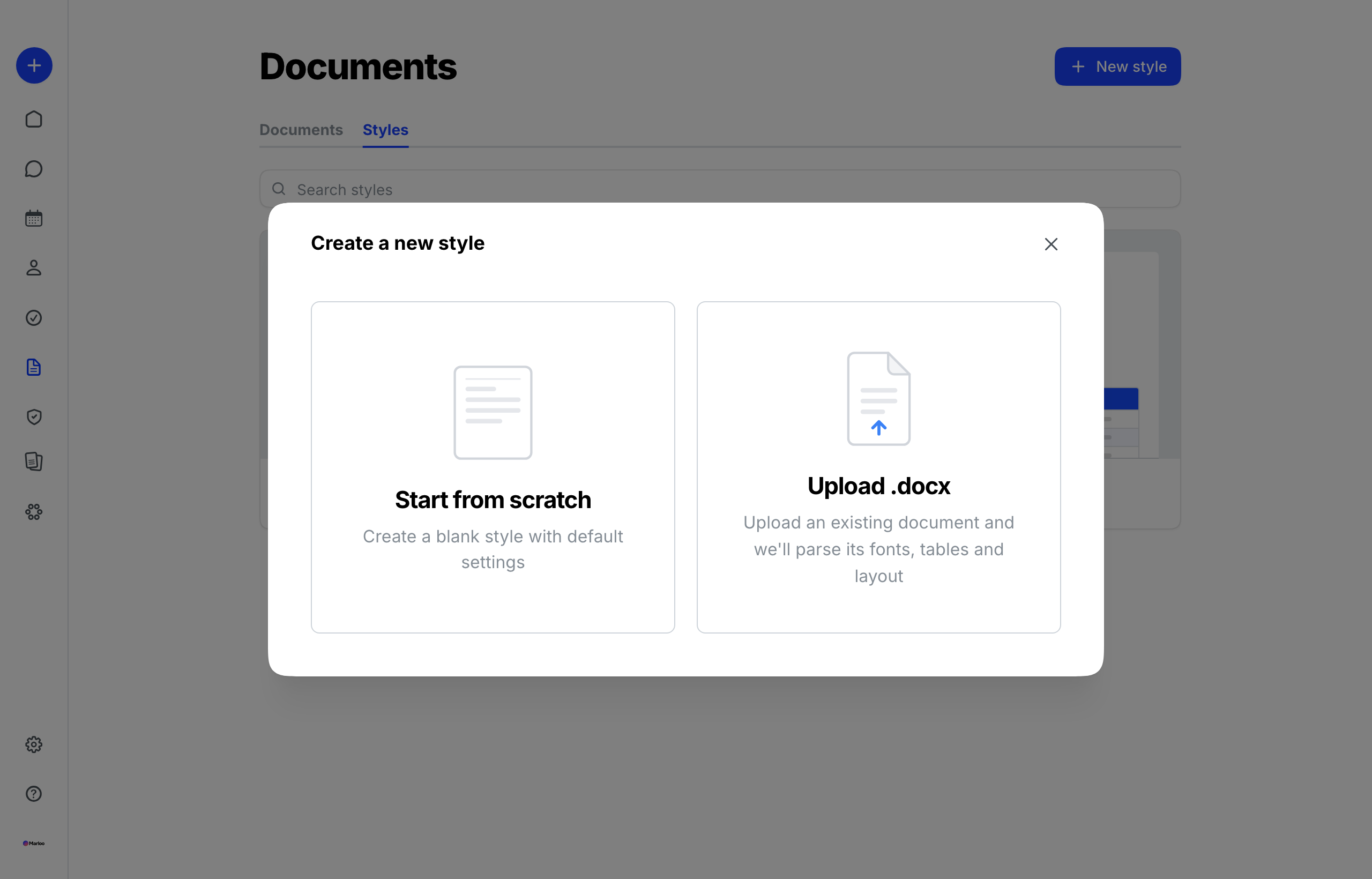
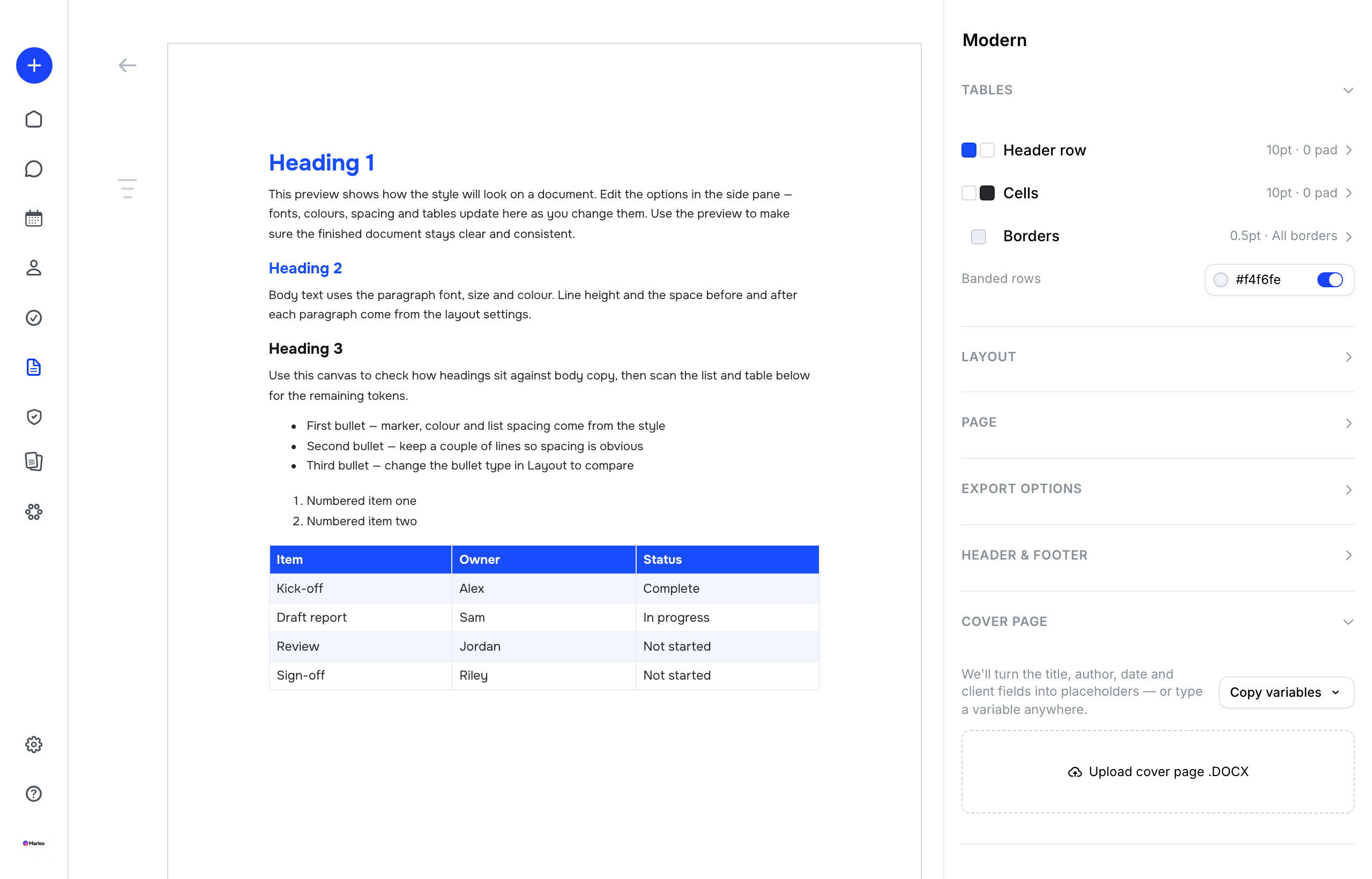
Marloo extracts and applies its fonts, colors, spacing, tables, and your header and footer. When your .docx file has finished uploading, once you click on the style, it will open a style pane, which looks like this.
Marloo also pulls a cover page from the first pages of your file, with the title, client, date and author turned into placeholders. Check it under Cover page and replace it if you want a different one (see step 2). Custom fonts downloaded to Word are currently not supported.
2. Prepare and upload your cover page
Marloo inserts your cover page ahead of the generated body on every export.
The fastest way to make one is to take an existing document with your desired cover pages and delete everything except the front pages.
Note that you can keep as many front pages as you like. One .docx can hold a cover page, then a cover letter, then a disclaimer page. Marloo inserts every page in the file, in order, ahead of the generated body.
Trim the file in Word
The goal is to strip every page except the cover page(s).
- Open your document in Word.
- Scroll to the first page you want to get rid of, that is, the page immediately after the last front page you want to keep.
- Click at the very top left of that page, just before its first character. Your cursor needs to be there, not anywhere else.
- Select everything from your cursor to the end of the document:
- Mac: Command + Shift + Fn + Right Arrow
- Windows: Ctrl + Shift + End
- Press Delete. Only your front pages are left.
- Save it as a new file (File > Save a Copy) so you don't overwrite the original financial plan.
Upload it
- Open your style in Documents > Styles.
- Go to the Cover page section.
- Upload the .docx you just saved.
Optional: let Marloo fill in the details
Type a placeholder into your .docx and Marloo replaces it with the real value on every export.
You only need placeholders for the values that change each time, for example client, client address and date.
| Placeholder | What it inserts |
|---|---|
{{CLIENT}} | The client's name |
{{CLIENTADDRESS}} | The client's address |
{{DATE}} | The export date |
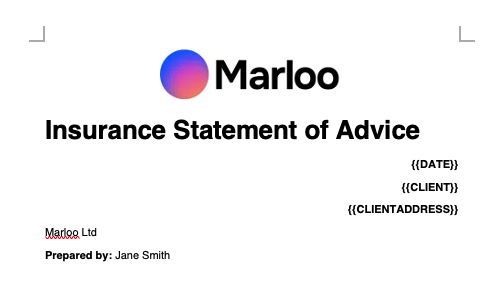
So Prepared for {{CLIENT}}, {{DATE}} comes out with the real name and date.
There are eighteen placeholders in total. Click Copy variables in the style editor to see them, or see Customize your document styling for the full list.
3. Pick your style when you export
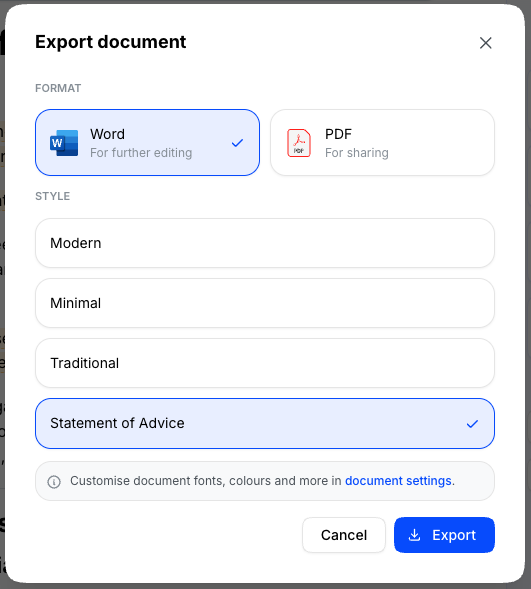
Before you export, pick the style from the Styles menu in the document editor toolbar. Marloo remembers the style you pick for that document.
A few things worth knowing
- In the Export options section, you can choose to include page breaks or a table of contents in exports.
- You can preview your table headers in the Tables section.
- You are able to merge table cells via chat.
- Check your first export. Open it in Word and look at the cover page, header, footer and a table. If something is off, open the style and adjust it. See Customize your document styling for what each section controls.
- Cover pages are per-style. If you create a second style later, upload the cover page file on that one too.
- If you want your logo on the cover page, put it in the cover page .docx. The Logo under Settings > Company settings is not automatically included: that one is your notetaker's avatar.
- You can have more than one style, for example a full financial plan style and a shorter letter style. They all appear in the Styles menu, alongside the three built-in styles (Modern, Minimal and Traditional).
Next steps
- Customize your document styling - the full reference for every styling option
- How to add cover pages to Marloo exports - more detail on cover pages and placeholders
Still stuck? Talk to a human.
Email the Marloo team with what you are seeing. If you are in the app, the blue chat button in the bottom-right corner is the fastest way to reach us.


