
Connect your email and see client emails in Marloo
Connect your inbox so client emails show on the right client: past emails, who can see them, clients with two addresses, and disconnecting.
Not set up yet? Connect your inbox under Settings > Integrations first: open Outlook Email and Calendar or Gmail and Calendar and click Connect on the Outlook Email or Gmail card.
Ask Marloo anything about a client's email history
Ask Marloo searches across synced emails and gives you the answer with a link back to the source:
- "When was the financial review meeting organized with Jane?"
- "What did the client say about their Q3 priorities?"
- "Which email did we send the engagement letter in?"
It reads attachments and images in the email body too, so information sent as a PDF or screenshot is searchable alongside the rest.
Generate documents with richer context
Synced emails feed into document generation as additional context, alongside your notes, client uploads, documents, meeting transcripts and summaries.
The more context Marloo gets, the better outputs it generates.
Draft emails faster without losing your voice
Ask Marloo to draft an email and it uses the full client context, past emails, notes, documents, meeting; to write something that sounds like you.
Click Compose to open the draft pre-populated in Outlook or Gmail, then review and send from there.
After a meeting, send quick follow-ups summarizing what was agreed or send notes to colleagues for internal.
Share context across your team
Emails are private by default: only the person whose inbox is connected can see their own emails.
To give your team visibility on a client's emails, go to that client's Emails tab, click the privacy dropdown and select Share emails.
Sharing is per client by default: you set it on each client individually.
You can also share your client emails automatically. It's a personal setting, not a firm-wide one: each person turns it on for themselves, and it shares only the client emails synced from their own connected inbox. It never shares a teammate's emails.
To turn it on:
- Go to Settings > Integrations and open Gmail and Calendar or Outlook Email and Calendar.
- Click the ⋯ menu on your Gmail or Outlook Email card, then click Settings.
- Turn on Automatically share client emails.
- Click Share automatically to confirm.
That page now lists the clients you're sharing under Clients where you are sharing emails with your team.
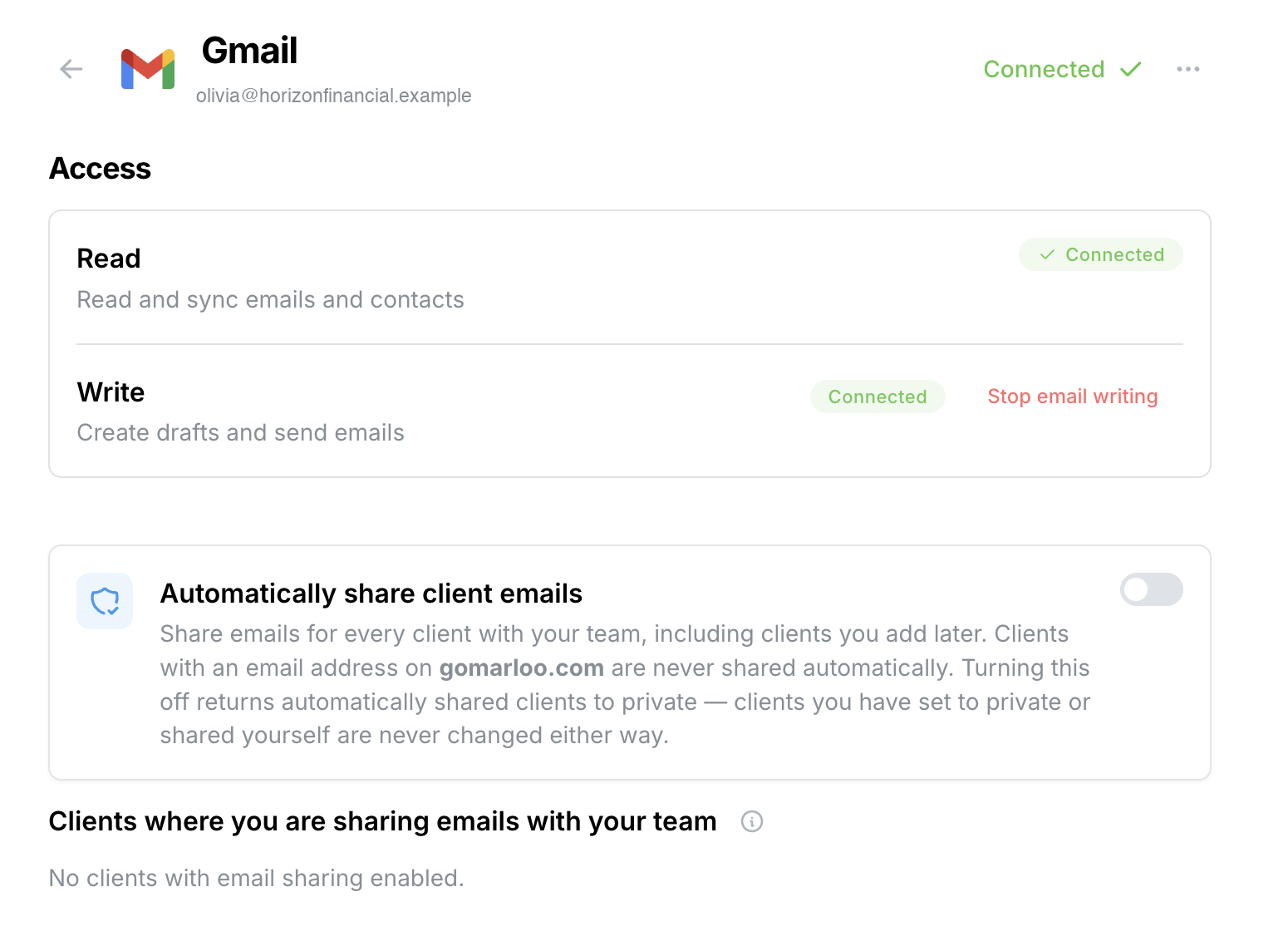
Once it's on:
- It covers every client you correspond with, including clients you add later.
- Clients with an email address on your firm's own domain are never shared automatically.
- Any client you've already set to Share emails or Hide emails stays as you set it.
- On a client's Emails tab, the privacy dropdown shows Automatic (shared) or Automatic (private). You can still pick Share emails or Hide emails on any client to override.
- Turning it off returns automatically shared clients to private. Clients you set yourself don't change.
Everyone on the team who wants their emails shared automatically needs to turn it on in their own settings.
If just one teammate who is part of an email chain shares the client, the whole team gets visibility on that thread.
When you merge duplicate client records, email sharing follows the primary client's setting.
So if you had already shared a client and then merge it into a primary that has sharing turned off, that client's emails go back to private. After merging, check the Emails tab privacy dropdown to confirm it is still set the way you want.
Getting past emails into Marloo
The email integration works in two steps. When you connect your inbox, Marloo starts syncing new emails from that point in time forward.
Emails sent or received before you connected do not appear automatically.
To bring those in, use the Import past emails button. If the client already has some emails in Marloo, the button is replaced by a note reading "Not all emails are loaded into Marloo"; click Click here in that note instead. This backfills the client's full email history. There is no time or count cut-off on the backfill: it imports all past emails with that client, not just a recent window.
To backfill a client's email history:
- Open the client's profile.
- Click the Emails tab.
- Click Import past emails.
You only need to do this once per client.
On a group, Import past emails imports the past emails of every member with a saved email address. You can also run it from one member's own profile. Either way, the emails roll up to the group's Emails tab.
If you connected your inbox recently, the Import past emails button appears once your inbox has finished its initial setup. If it is not showing yet, check again later. If an import fails, the button changes to Retry email import, and you can retry it 15 minutes later.
Add a saved email (.eml file)
You can also file a saved email to a client without connecting an inbox. Save the email as an .eml file, open the client's profile and drag the file anywhere onto the page. Marloo files it to that client and opens the Emails tab, where it appears with the client's other emails. On a group, it's filed to the member you're viewing.
Only .eml files you drag onto the page are filed as emails. Anything else you drop, including Outlook .msg files, is uploaded to the client's Files tab, as is an .eml file you add with the Add button on Files.
Which emails appear on a client
An email appears on a client's Emails tab when that client's saved email address is in the From, To or Cc of the message.
Messages that only go between your team and a third party do not appear on the client, even if the subject names them.
Syncing emails for clients with multiple addresses
If a client uses more than one email address, add the second address directly from their profile:
- Click the client's existing email address.
- Type the new address.
- Click Add email.
Marloo will sync emails from both addresses to the same client.
Alternatively, create a second client profile using the second address and merge it into the original. The result is the same. Emails follow the same sharing settings as the primary client.
Deleting emails and disconnecting your inbox
Deleting an email in Outlook or Gmail does not delete it from Marloo. Marloo keeps its own copy of each email it syncs, and it only reads your inbox, so deleting an email in Marloo never changes your mailbox either.
Delete an email from a client
- Open the client's profile and click the Emails tab.
- Click the three-dot menu on the email and choose Delete.
The email disappears from the client's Emails tab, and Marloo clears its content and attachments. Your inbox is not affected.
Disconnect your inbox
When you disconnect email in Settings > Integrations (the ⋯ menu on your Gmail or Outlook Email card, then Disconnect), you remove Marloo's access to your inbox. Emails it already synced stay in Marloo unless you select the checkbox in the confirmation window that deletes your emails from Marloo.
Selecting it deletes the emails synced from that inbox. Any email a colleague also has from their own inbox stays in Marloo for them.
Still stuck? Talk to a human.
Email the Marloo team with what you are seeing. If you are in the app, the blue chat button in the bottom-right corner is the fastest way to reach us.


