
Track clients through a pipeline
Set up a pipeline on the Clients page and move clients through its stages, for firms on the Firm plan.
A pipeline turns your client list into a board of stages, so you can see at a glance who is at Fact find, who is waiting on advice and who is complete.
Pipelines are part of the Firm plan. If your firm is on the Firm plan and you can't see your pipeline tabs on the Clients page, contact Marloo support. Two things worth knowing before you start: a client can be on several pipelines at once, and Ask Marloo can move clients for you and tell you who has been stuck the longest.
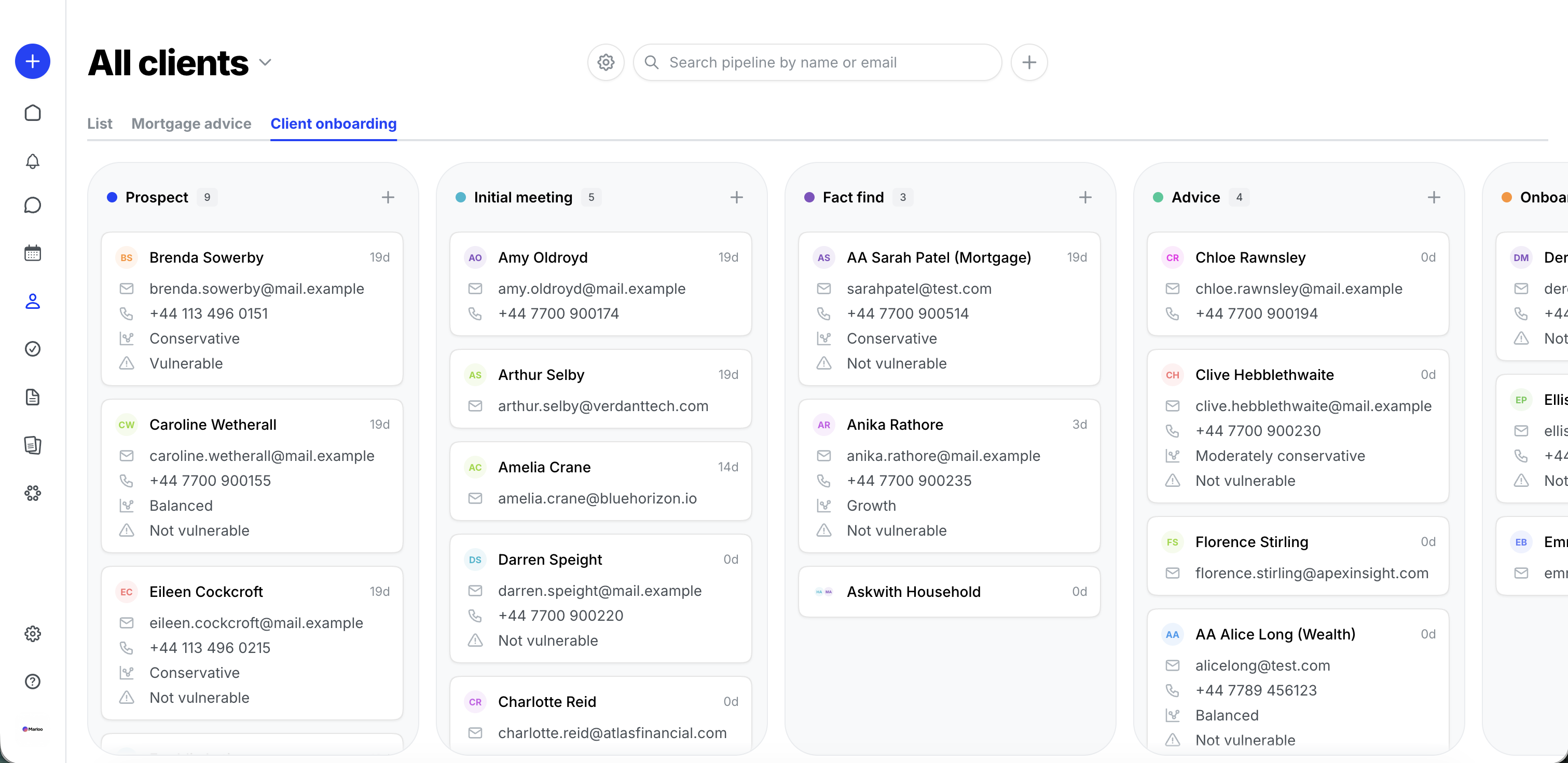
Create your first pipeline
If your firm has no pipeline yet, the Clients page shows No pipelines yet with a Create pipeline button. The setup screen asks you to choose a template or start from scratch.
- Click Create pipeline.
- Pick a template, or choose Start blank. Client onboarding is selected by default, and picking a template names the pipeline after it.
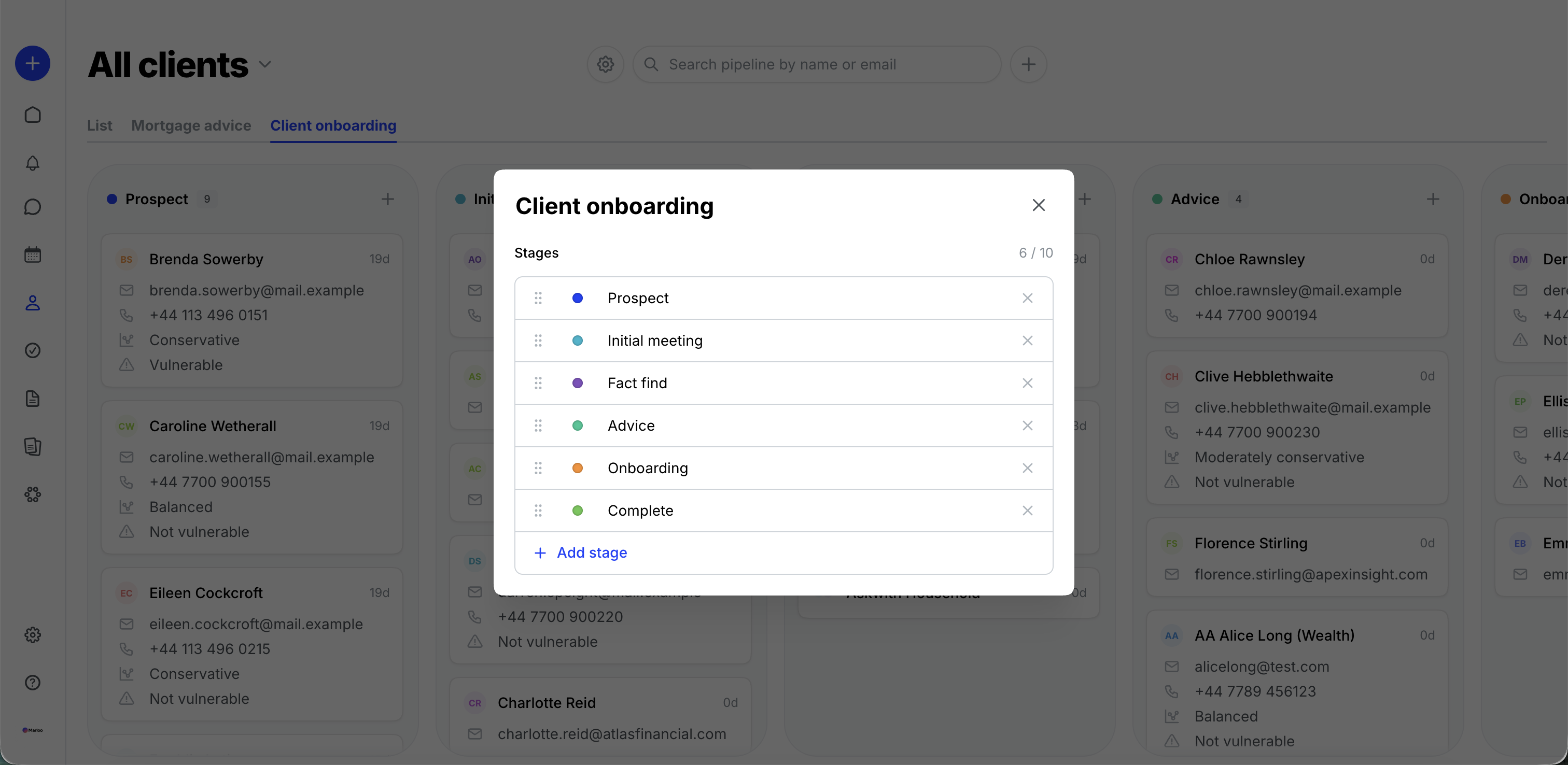
- Change the pipeline name if you like, then adjust the stages: rename or recolor a stage, drag to reorder, remove one, or click Add stage.
- Click Create pipeline. Your new pipeline appears as a tab on the Clients page, next to List.
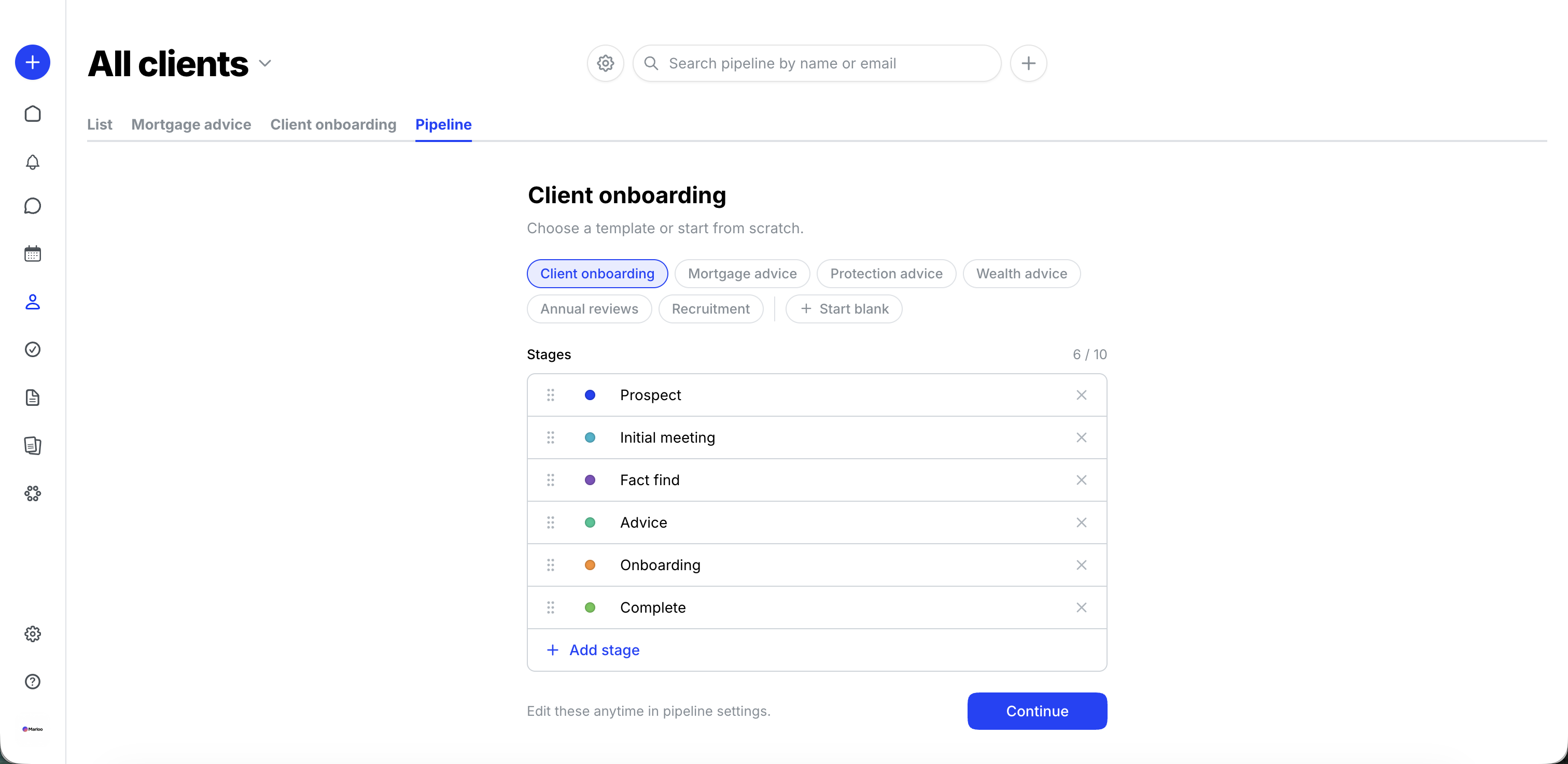
Examples of templates and their stages:
- Client onboarding - Prospect, Initial meeting, Fact find, Advice, Onboarding, Complete
- Mortgage advice - Enquiry, Discovery, Documents, Application, Offer, Complete
- Protection advice - Enquiry, Needs review, Quote, Application, Underwriting, In force
- Wealth advice - Discovery, Fact find, Strategy, Advice, Implementation, Complete
- Annual reviews - Review due, Contacted, Meeting booked, Review meeting, Follow-up, Complete
- Recruitment - Applied, Screening, Interview, References, Offer, Hired
You can edit a pipeline's stages at any time later.
Add and move clients
- Open the pipeline tab and click the + at the top of a stage.
- Search by name or email and pick the client. They appear as a card in that stage.
If a client is already on another stage of that pipeline, they're tagged "In <stage>" in the search results, and adding them moves them to the new stage rather than creating a second card.
To move a client, drag the card to another stage, or open the card's menu (or right-click) > Move > the stage you want.
To move several at once: Shift-click to select a range, Cmd-click (Mac) or Ctrl-click (Windows) to add or remove single cards, then drag the selection or choose Move from a card's menu. Press Escape to clear the selection.
To take a client off a pipeline, open the card's menu > Remove. This removes one card at a time, and the client record stays in your client list. To find a card on a busy pipeline, use the search box at the top of the pipeline.
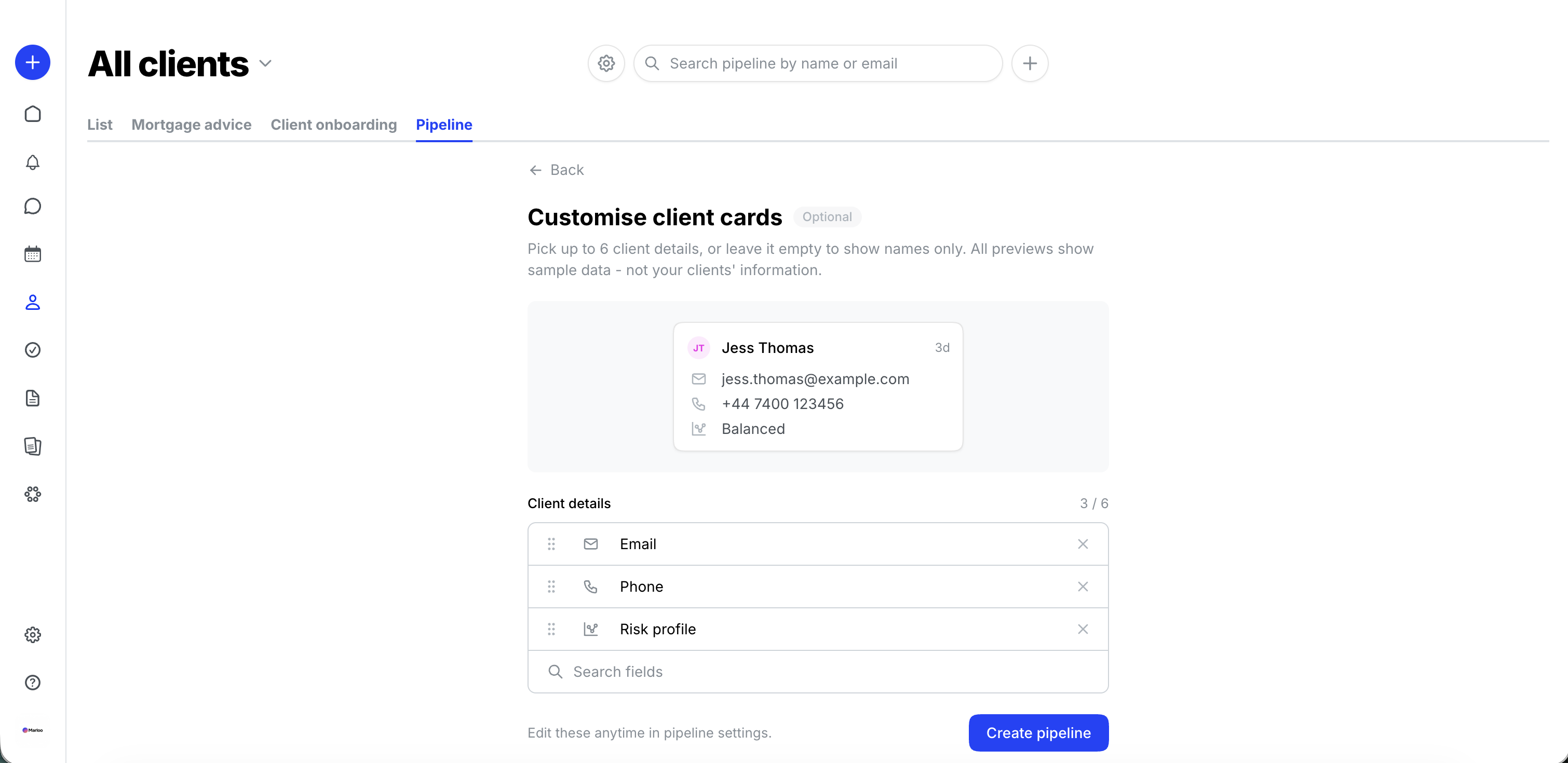
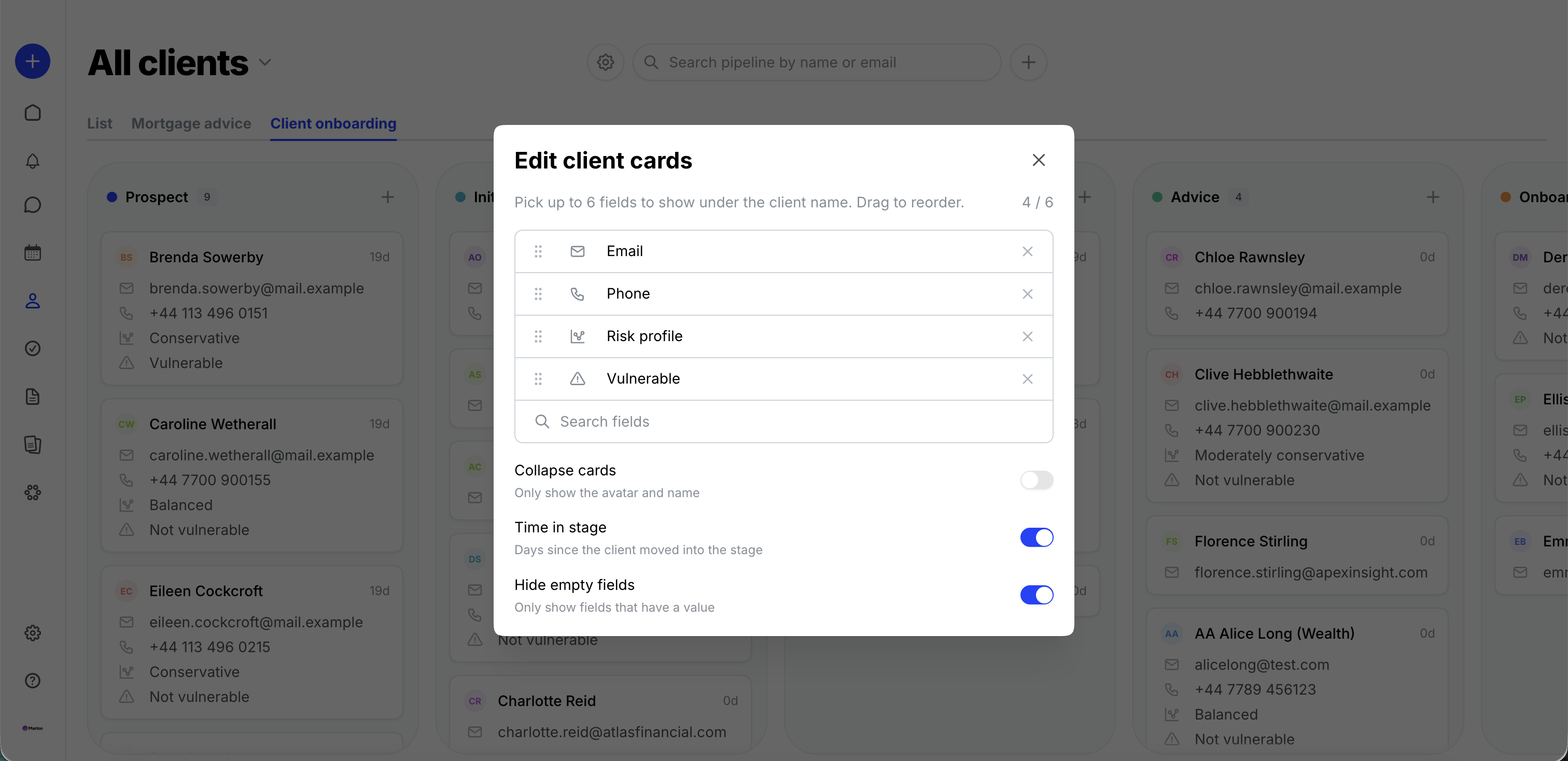
Show client details on cards
Cards can show a client's key details so you do not have to open each client. Pick up to 6 fields from the client's structured details, fact find and your firm's client fields, drag them into the order you want, and choose whether to show how many days the client has been in their stage.
- When you create a pipeline, the optional second step, Customise client cards, lets you choose the fields with a live preview on a sample client.
- On an existing pipeline, open the client card settings from Pipeline settings (gear icon). Switches let you hide empty fields, hide time in stage, and collapse cards.
- Client fields your firm adds in Settings > Company are listed with the other client details. A card leaves one out for a client type the field isn't shown for.
- Ask Marloo can read and change card settings too, for example "show phone and risk profile on the onboarding cards".
Change your stages
You can reshape a pipeline whenever you need to:
- Add a stage with Add column (+) at the end of the board.
- Rename or recolor a stage from the stage's menu > Rename or Change color, then Save.
- Reorder stages by dragging them.
- Rename the pipeline itself from Pipeline settings (gear icon) > Edit pipeline. Changes save as you go.
To delete a stage, open the stage's menu > Delete stage. Marloo shows how many clients are in it and asks you to confirm. Those clients are taken off the pipeline (their client records aren't deleted), so move them to another stage first if you still want to track them. The last stage in a pipeline can't be deleted.
Run more than one pipeline
A client can be on several pipelines at once: for example, on your Client onboarding pipeline and your Annual reviews pipeline. Within a single pipeline they appear once, in one stage at a time.
- Go to Clients > Add new > New pipeline.
- Choose a template or start blank, as you did for your first pipeline, and click Create pipeline.
- Switch between pipelines using the tabs on the Clients page. Tabs run oldest first.
To delete a pipeline, open Pipeline settings (gear icon) > Delete pipeline. The pipeline and its stages are deleted; the clients aren't. Your last pipeline can't be deleted (the option is grayed out), so your firm always has at least one.
Use Ask Marloo with your pipelines
Open Ask Marloo from the Clients page while a pipeline tab is open. Its suggested questions name that pipeline, but Ask Marloo isn't told which pipeline you're looking at, so name it in your question. You can also ask on the Chat page or on a client. From there it can work with any pipeline:
- Tell you who is in a stage, how many clients are in each stage, and where a particular client is up to.
- Move clients to a stage, or take them off a pipeline.
- Create a pipeline from a template or from your own stages.
- Rename, add, reorder, recolor or remove stages, and delete a pipeline.
It can also analyze how a pipeline is flowing: how long each client has been in their stage and who has been stuck longest, how many clients reached each stage and where they were taken off, the median days per stage to spot the bottleneck, and how many clients reached the last stage each month. Try prompts like:
- "How long do clients usually sit in Fact find?"
- "Which clients have been in their stage for more than two weeks?"
- "Which stage loses the most clients?"
Note: Ask Marloo asks you to confirm before it deletes a pipeline or a stage that still has clients in it.
Things to know about pipelines
- A pipeline holds up to 10 stages. Stage names are up to 60 characters and must be unique within the pipeline; the pipeline name is up to 80 characters. There are 12 stage colors to choose from.
- Everyone in your firm can see and edit every pipeline; there are no per-pipeline permissions. Private clients stay hidden from people who can't otherwise see them.
Related articles
Still stuck? Talk to a human.
Email the Marloo team with what you are seeing. If you are in the app, the blue chat button in the bottom-right corner is the fastest way to reach us.


