
Use Ask Marloo in documents and summaries
Use Ask Marloo to correct, restructure, change the tone of, or add to a summary or generated document, and check its sources.
Ask Marloo can correct, restructure, change the tone of, or add to a summary or generated document. Be specific about what you want changed and where, and use the undo button in the editor to reverse any change Marloo makes.
Edit summaries with Ask Marloo
Open Ask Marloo beside your summary to request changes. Ask Marloo understands the meeting transcript, notes, and current summary content.
Targeted corrections
Use specific instructions to fix individual details:
- "Update the retirement date in paragraph 3 to March 2028."
- "Change all references to [incorrect term] to [correct term]."
- "Update the 401(k) balance to reflect the figure discussed in the meeting."
Structural changes
Reorganize content without regenerating:
- "Rewrite the action items as a numbered list."
- "Shorten the introduction to two sentences."
- "Move the risk profile discussion above the insurance section."
Tone and voice
Adjust how the summary reads:
- "Rewrite the summary in first person."
- "Make the language more formal throughout."
- "Adjust the tone to be suitable for a client-facing email."
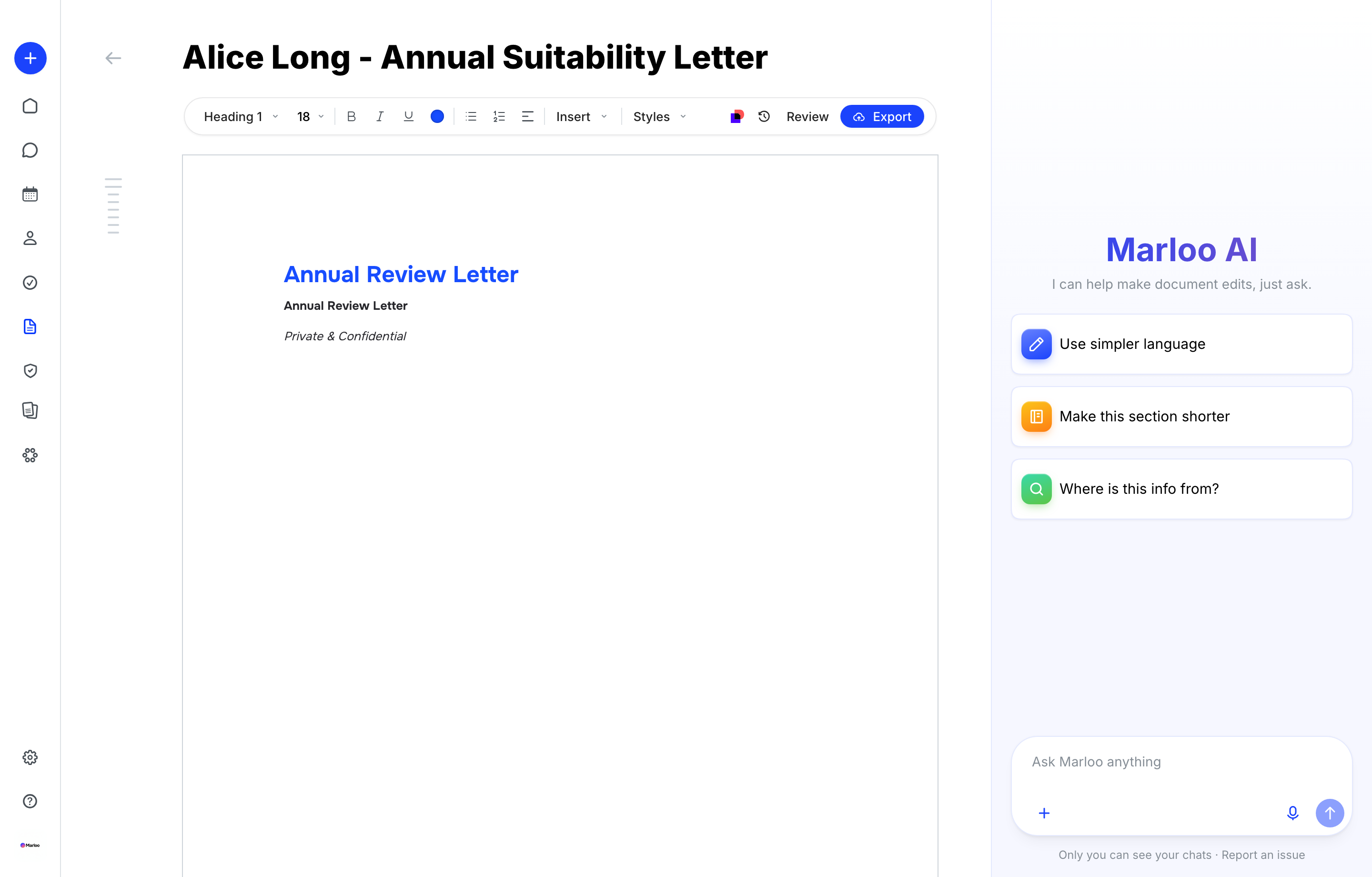
Edit documents with Ask Marloo
When editing a generated document, Ask Marloo can access the context files used for generation, the template, the generated content itself, and the client's meetings, files, notes and other documents.
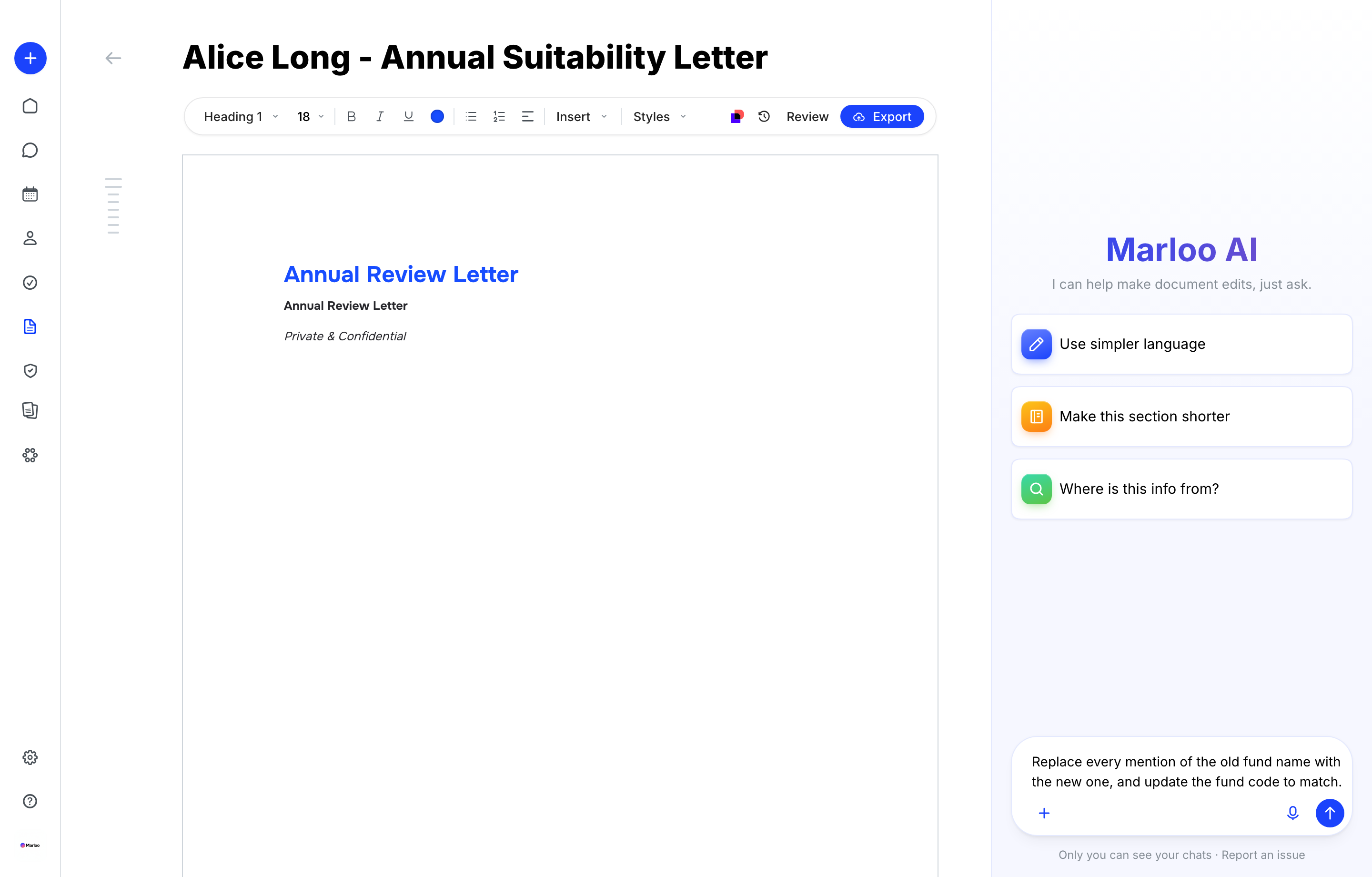
Find and replace across the whole document
You can replace terms across all sections at once. Be explicit in your request:
- "Replace all instances of [term A] with [term B] throughout the entire document."
This works across all sections in a single command, saving you from editing each section individually.
Section-level edits
Make changes to specific parts of your document:
- "Rewrite the risk profile section to emphasize the conservative stance."
- "Expand the 401(k) section to include the employer contribution details discussed in the meeting."
Fixing generated content
If a table or a single figure has come out wrong, you do not need to regenerate the document. Open the document, open the Ask Marloo panel beside it, and describe the change:
- "Add a row to the cash flow table for rental income."
- "Replace the government subsidy figure with the reduced rate."
Marloo updates the document in place.
Adding content
Insert new sections or paragraphs:
- "Add a disclaimer paragraph at the end of the document."
- "Add a section summarizing the agreed next steps."
- "Include a paragraph on the client's insurance needs after the risk profile section."
Adding hyperlinks
You can turn any text in a generated document into a link without leaving the editor.
- Select the word or phrase you want to link.
- Type your instruction into the Ask Marloo anything box that appears under the selection, including the full URL, for example "Add a hyperlink to this PDF:
https://example.com/pds.pdf". - Press enter. Marloo applies the link to the text you selected.
This is handy for linking out to prospectuses, fund fact sheets, or your firm's Form ADV brochure rather than pasting long URLs into the body text. Hyperlinks carry through to the exported Word document and PDF, so your client can click straight through from the document you send them.
Checking sources
In documents and summaries, you can ask Marloo where a specific piece of information came from. Ask "Where did you get the figure in the assets section?" and Marloo will reference the source document in the chat.
This is useful for verifying that generated content accurately reflects your meeting transcripts and uploaded files.
Frequently asked questions
Why didn't my edits save?
Edits save automatically. If changes appear to have reverted, refresh the page. If the issue persists, contact support.
Why did find and replace only change one instance?
Be explicit in your request. Use phrasing like "Replace all instances of [X] with [Y] throughout the entire document" to make sure every occurrence is updated.
Can Ask Marloo in a document see meeting notes or client history?
Yes. Inside a document, Ask Marloo searches the client's records and can look up their meetings, files, notes and other documents, as well as the files used to generate the document. For questions that also span synced emails, open Ask Marloo from the client profile.
Related articles
- Generate your first advice document - Get started with generating documents in Marloo
- Refine your document template - Improve your templates for better output
- What is Ask Marloo? - Overview of Ask Marloo and what it can access in each place
- Use Ask Marloo in a meeting - Add notes and documents to give a meeting more context
- Use Ask Marloo on a client - Query across all client data with source citations
Still stuck? Talk to a human.
Email the Marloo team with what you are seeing. If you are in the app, the blue chat button in the bottom-right corner is the fastest way to reach us.


