
Create and apply task templates
Save a set of tasks as a template, then apply it automatically after a meeting or by hand from Tasks.
Task templates let you save a reusable task, with its title, description, relative due dates, priority and subtasks. Use them for recurring workflows like annual review follow-ups or new client onboarding steps.
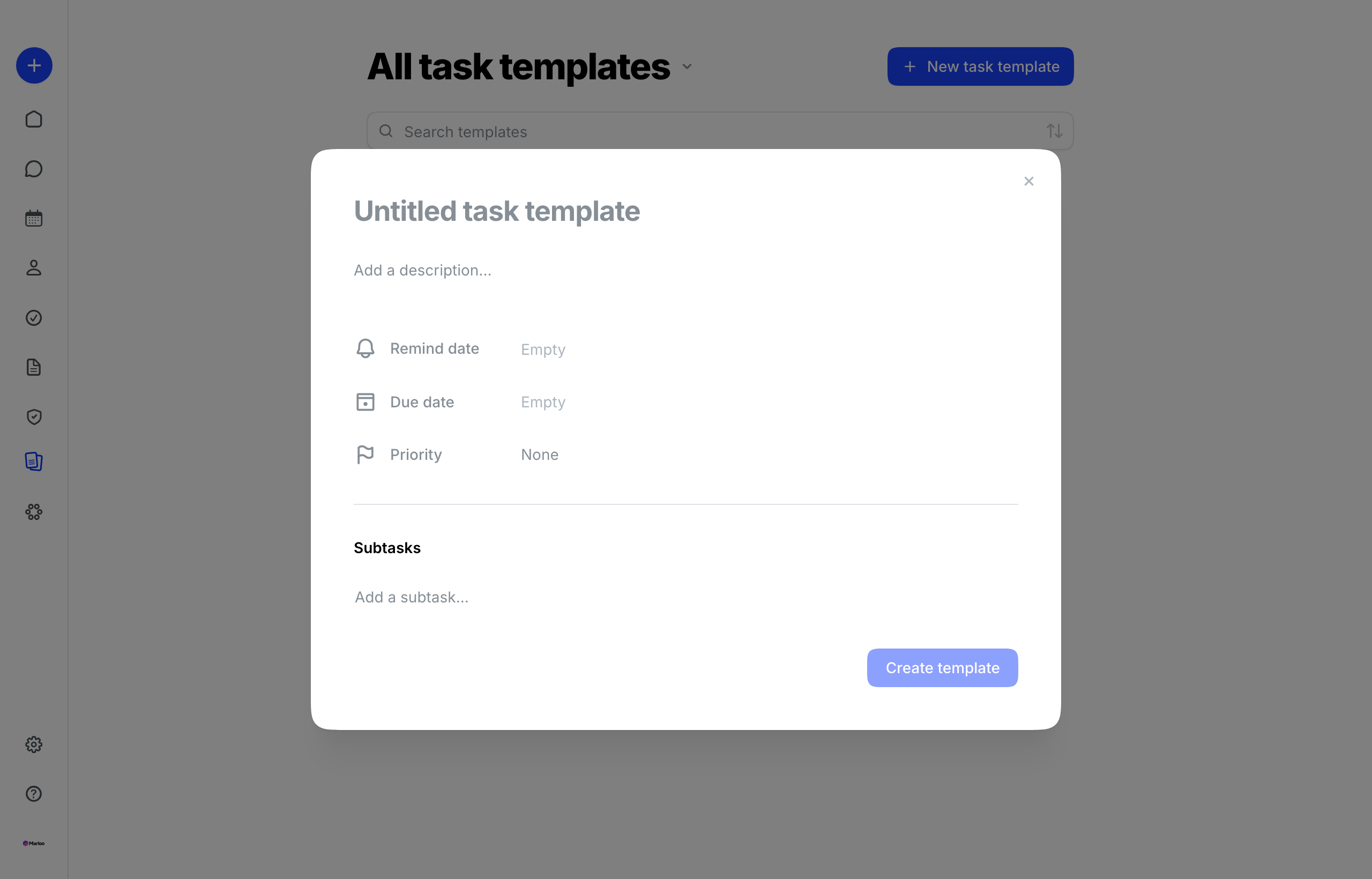
Creating a task template
Task templates are managed under Templates. Each template stores everything needed to recreate a structured task, including dates, priority and subtasks.
- Go to Templates > Tasks in the left sidebar.
- Click New task template.
- Enter a title and description for the template. Write them as the workflow in plain words: Marloo compares the title, description and subtasks with what was discussed in each meeting to decide when to use the template.
- Set relative date rules for the remind date and due date. Enter a rule such as +1 week or +2 weeks from creation, then click Apply to confirm each one. Dates that have not been applied will not be saved with the template.
- Set the priority.
- (Optional) Add subtasks to break the task into steps. Type each subtask and hit Enter to save it.
- Click Create template to save.
Using a task template
Automatically after a meeting
Once Tasks is on, Marloo checks every saved template after each meeting summary. There is nothing to switch on per template. A template is used only when the meeting substantively covers the workflow it describes; a passing mention is not enough. If the discussion only partly overlaps, Marloo creates a one-off task instead, never both for the same work. Dates and priority play no part in matching.
Write the description as what happens after the meeting, in plain words. For an Annual review follow-up template:
- Weak: "Annual review"
- Good: "After an annual review meeting with the client: send the updated client questionnaire, confirm any changes to goals or risk profile, and book next year's review."
Once the meeting summary is created, Marloo reads the transcript. If the meeting substantively covers that workflow (for example, you and the client go through the client questionnaire, discuss changes to their goals or risk profile, and agree to book the next review), Marloo uses this template to create the task. If the review only comes up in passing, it won't.
A matched task takes the template's title, description, subtasks, remind date, due date and priority, with relative dates counted from the day the task is created rather than the meeting date. Tasks are created straight away, not as suggestions, and appear under To-do. For how tasks are generated in general, who they are assigned to, the client, and the Generate tasks button for older meetings, see Tasks.
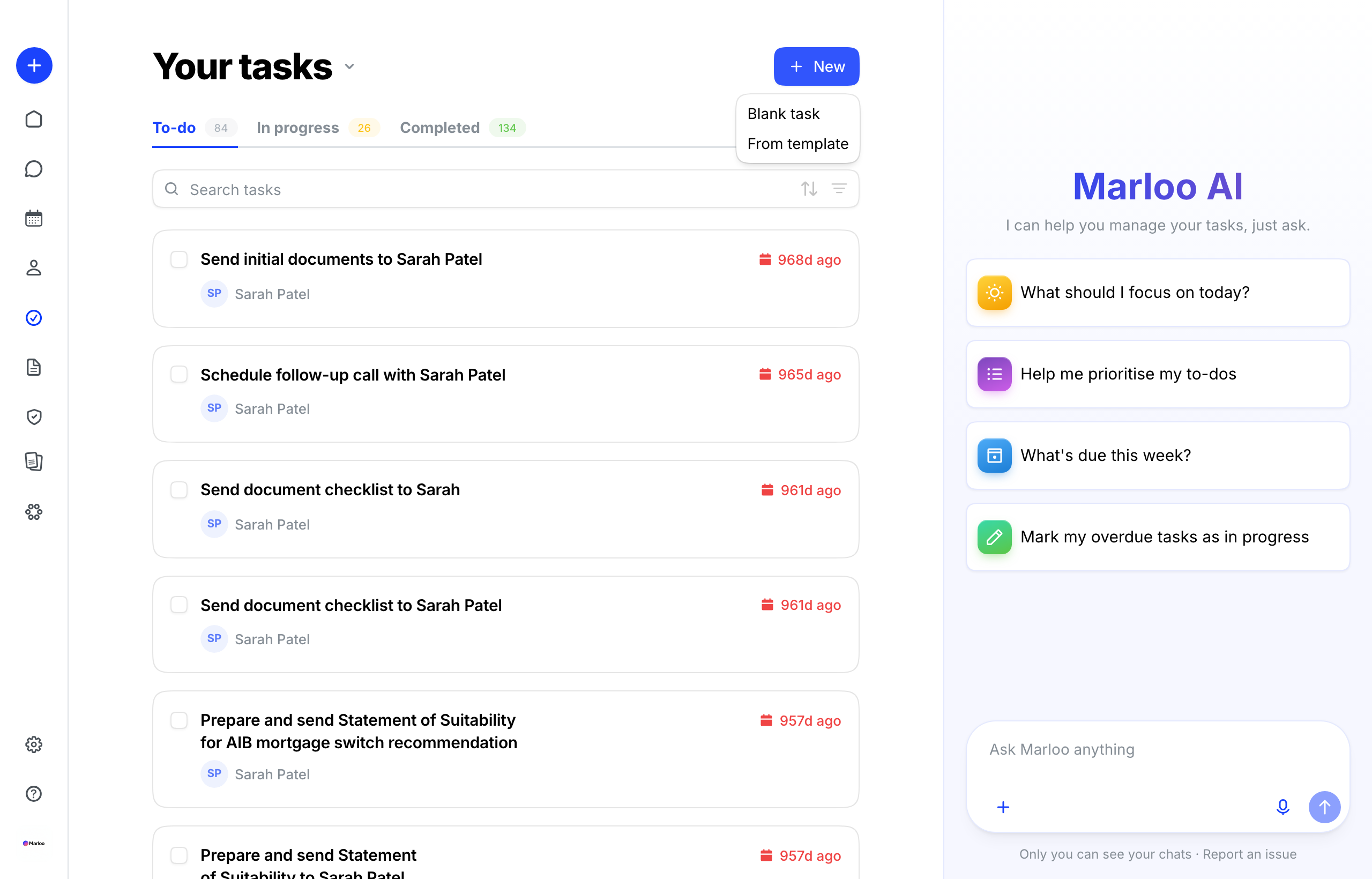
Manually from the Tasks page
- Go to Tasks > New > From template.
- Select the template you want to use.
- Assign a client and a team member.
- Marloo will auto-populate the due date, remind date, priority, and subtasks based on the template rules. Dates are calculated from the creation date.
Tips
- Always click Apply after setting a relative date. If you select a date rule but don't click Apply, the rule won't be saved to the template.
- Use task templates for recurring workflows. Annual review follow-ups and new client onboarding steps are all good candidates.
- Break complex tasks into subtasks. Subtasks make it easier to track progress on multi-step processes and delegate individual steps to different team members.
- Filter by Assignee or Client in the Task view to quickly find tasks created from a template, especially after onboarding a new client.
Still need help?
See Template troubleshooting for date, subtask, and "From template" issues.
Related articles
- How templates work in Marloo - Overview of all template types in Marloo
- Manage, share, and organize your templates - Managing, sharing, and organizing templates
- Template troubleshooting - Common template issues and fixes
Still stuck? Talk to a human.
Email the Marloo team with what you are seeing. If you are in the app, the blue chat button in the bottom-right corner is the fastest way to reach us.


