
Tasks
Manage your post-meeting action items with AI-generated tasks, customizable workflows and the **Tasks** page.
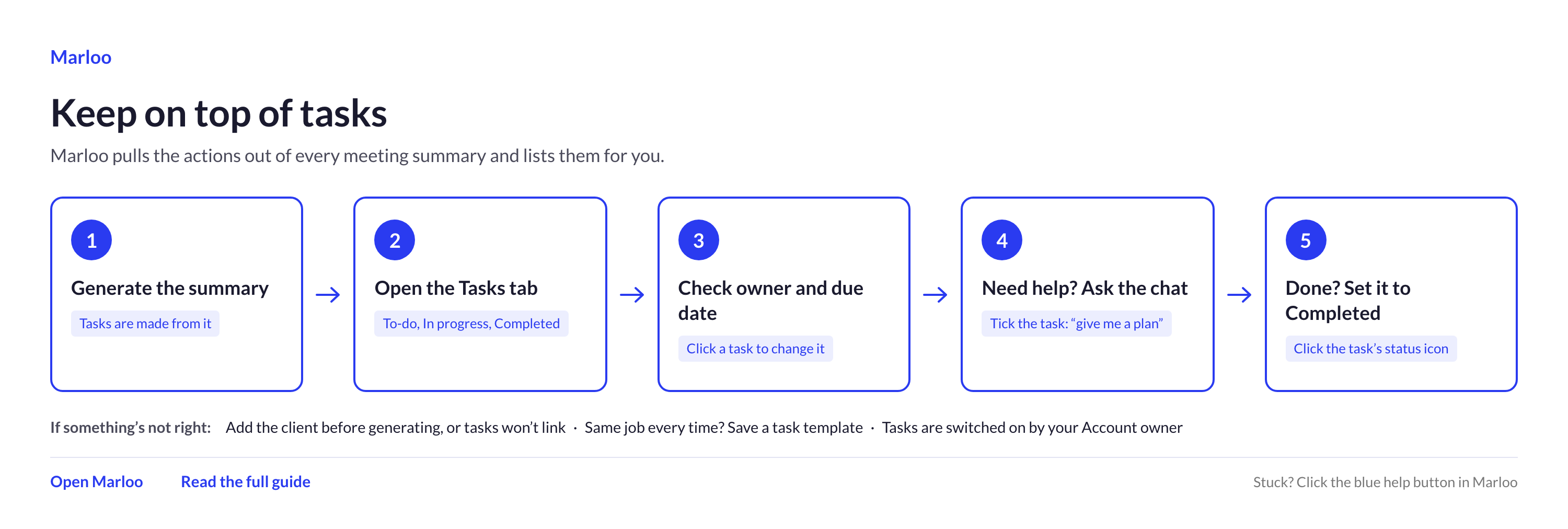
Quick flowchart: from summary to done in 5 steps
How tasks are generated
Tasks must be turned on by an Account owner before the rest of the team can see them. Once they're on, tasks are generated automatically after a meeting summary is created, not at transcription time. Once you generate the meeting summary, Marloo reads its content and creates the relevant tasks. They appear on the Tasks page under To-do. These can include:
- Ad hoc reminders: simple one-off action items from the conversation
- Workflow tasks: multi-step tasks with sub-tasks and dependencies. Scheduled chats work as workflows.
- Combined actions: grouped tasks that fall under a single objective, such as "follow up with the client after the meeting"
You don't need to create every task yourself: Marloo listens to what was discussed and surfaces the work that needs to happen next. You can also create tasks manually at any time if you need to add something that wasn't covered in the meeting.
The Generate tasks option is only visible before tasks have been created for a meeting. Once tasks are generated, the option no longer shows. This is expected, not a missing button. Task generation runs on desktop only; the Marloo mobile app does not support it.
Setting up a task
Each generated task comes with a number of fields you can change. You can also edit the task name and description at any time to better reflect the work involved.
- Client - assigned automatically based on the meeting attendee. Link the client to the meeting before you generate the summary: tasks created before the client is linked won't have the client attached, and you'll need to set the Client field on each task yourself.
- Assignee - defaults to you, but can be reassigned to another team member such as support staff. You can also assign several people. If several team members are linked to the meeting, some tasks may default to them, so review the Assignee field after generation and correct any that need updating.
- Remind date - a gentle nudge for when you should start working on the task
- Due date - the hard deadline by which the task must be completed
- Status - set to To-do, In progress or Completed
- Priority - mark a task as high priority so it stands out
When Marloo builds tasks from a meeting, it tags each action item as either an advisor task or a support task and assigns it to a meeting attendee with the matching role. Support items are only assigned to a Support team member who attended the meeting. If no attendee has the matching role, the task is left unassigned for you to assign.
Adding sub-tasks
For more complex work, you can add sub-tasks to break a task into individual steps. Each sub-task can be set to To-do, In progress or Completed on its own, so you can see where things stand within a larger workflow. This is particularly useful for multi-stage processes. For example, preparing an advice report might involve assessing suitability, gathering documentation, running calculations and producing the final report for the client.
Creating task templates
If a task generated from a meeting is one you expect to repeat, you can save it as a reusable template:
- Open the task you'd like to reuse.
- Click the three-dot menu.
- Select Create template.
- Adjust the wording of the task title and description so that it reads as a generic, reusable template rather than being specific to the original meeting.
- Set your preferred reminder date, due date and priority.
To start a new task from a saved template, click New task and choose From template.
Once saved, this template applies automatically to future meetings. When Marloo detects a conversation that relates to the template's topic, it maps the task to your saved template, so you don't have to set it up again each time.
This is especially useful for recurring workflows. For example, you might create a "Prepare Advice Report" template with five or six sub-tasks that always need to happen in sequence. Every time you discuss advice preparation with a client, Marloo generates the full workflow for you.
For more, see Create and apply task templates.
Using the Tasks page
All generated tasks flow into the Tasks page. Use the status tabs at the top to switch between To-do, In progress and Completed. Each tab shows the number of tasks in that status.
Use Search tasks, Filter and the sort control to focus the list before working through it.
Filtering tasks
Use the filter bar at the top of the Tasks page to narrow down your view:
- Client - view tasks for a specific client
- Assignee - filter by yourself or by one or more team members
- Remind date - for example, today plus one week
- Due date - for example, today plus three months
- Custom filters - combine several criteria to create a tailored view
The list starts broad, so you can narrow it down to what matters most to you.
Sorting tasks
Click the sort option to reorder your task list by:
- Date created - when the task was first generated, useful for seeing your newest or oldest tasks
- Date updated - the most recent change made to a task, helpful for tracking which tasks have had recent activity
- Due date - the deadline, so you can prioritize tasks that are approaching or overdue
- Remind date - when you're next due to be nudged, giving you a clear view of what's coming up
Each option can be sorted in ascending or descending order, so you can put either the most urgent or the furthest-out tasks at the top of your list.
Quick actions
Right-click any task on the Tasks page to open quick actions:
- Mark as done - complete the task (Mark as to-do reopens a completed one)
- Ask Marloo - open the task in chat
- Copy link and Open in new tab
- Delete
For anything else, click into the task to edit the title, description, sub-tasks, assignee, remind and due dates, priority and status.
Bulk actions
Hold Shift and click several tasks to act on them all at once. Or click one task and choose Actions > Select all to select all of your tasks.
For example, you can move a set of tasks to In progress or Completed, or delete several tasks at once.
Using the chat to manage tasks
Ask Marloo helps you understand your workload, find the context behind specific tasks and take action, all in plain language.
To ask about a specific task, select the checkbox next to it on the Tasks page to pull it into Ask Marloo. This gives Ask Marloo full context on that task, so you can ask targeted questions or act on it directly.
Ask Marloo can tell you where a task came from and what it involves, and help you carry it out, for example with a step-by-step plan or a draft email.
Example prompts
- "What should I focus on today?" - Marloo surfaces your most pressing tasks based on priority and due dates
- "Give me the context and an execution plan" - pull a specific task into the chat (using the checkbox) and Marloo retrieves context from the original meeting and client record, then lays out a step-by-step plan to complete it
- "Move this task to in progress" - update a task's status directly from the chat
- "Do I have any overdue tasks?" - get a quick summary of anything past its due date
Ask Marloo pulls context from your meetings and client data, so you have the full picture when working through your task list.
Still need help?
If you have any questions about Tasks or need help setting up your workflows, contact our support team through the blue chat button in the bottom-right corner.
Related articles
Still stuck? Talk to a human.
Email the Marloo team with what you are seeing. If you are in the app, the blue chat button in the bottom-right corner is the fastest way to reach us.


