
Create slide decks from any document in Marloo
Turn any Marloo document into a slide deck to check and present, generate from the Documents tab, choose a style, edit in the canvas or with Ask Marloo, then present or export to PDF.
Slides turns a document you have already generated in Marloo into a presentation you can check, edit and present, in a couple of minutes. Slide decks are on the Pro plan and the 14-day Pro trial, like document generation. Review the slides before you show them to a client. It is built for advisors who want to present advice visually without designing slides from scratch. Every advisor can create slides from a client's Documents or Slides tab; you don't need anything else turned on.
Create a deck from a document
- Open the client and go to the Documents tab.
- Click the three dots on the document and choose Create slides. It is grayed out until the document has finished generating.
- Choose a style. Marloo ships three: Deep Blue Minimal, Serene Sky Minimalism and Clean Corporate Minimal. Use Search styles or Show all firm styles if your firm has added its own.
- Add a prompt if you want to steer the deck, or pick Detailed slides (key points with supporting context) or Simple slides (headline points only, you talk to the detail). A prompt is optional. Prompts you have used before appear under Your prompts so you can reuse them.
- Click Generate. The deck shows Generating slides for a couple of minutes, then opens.
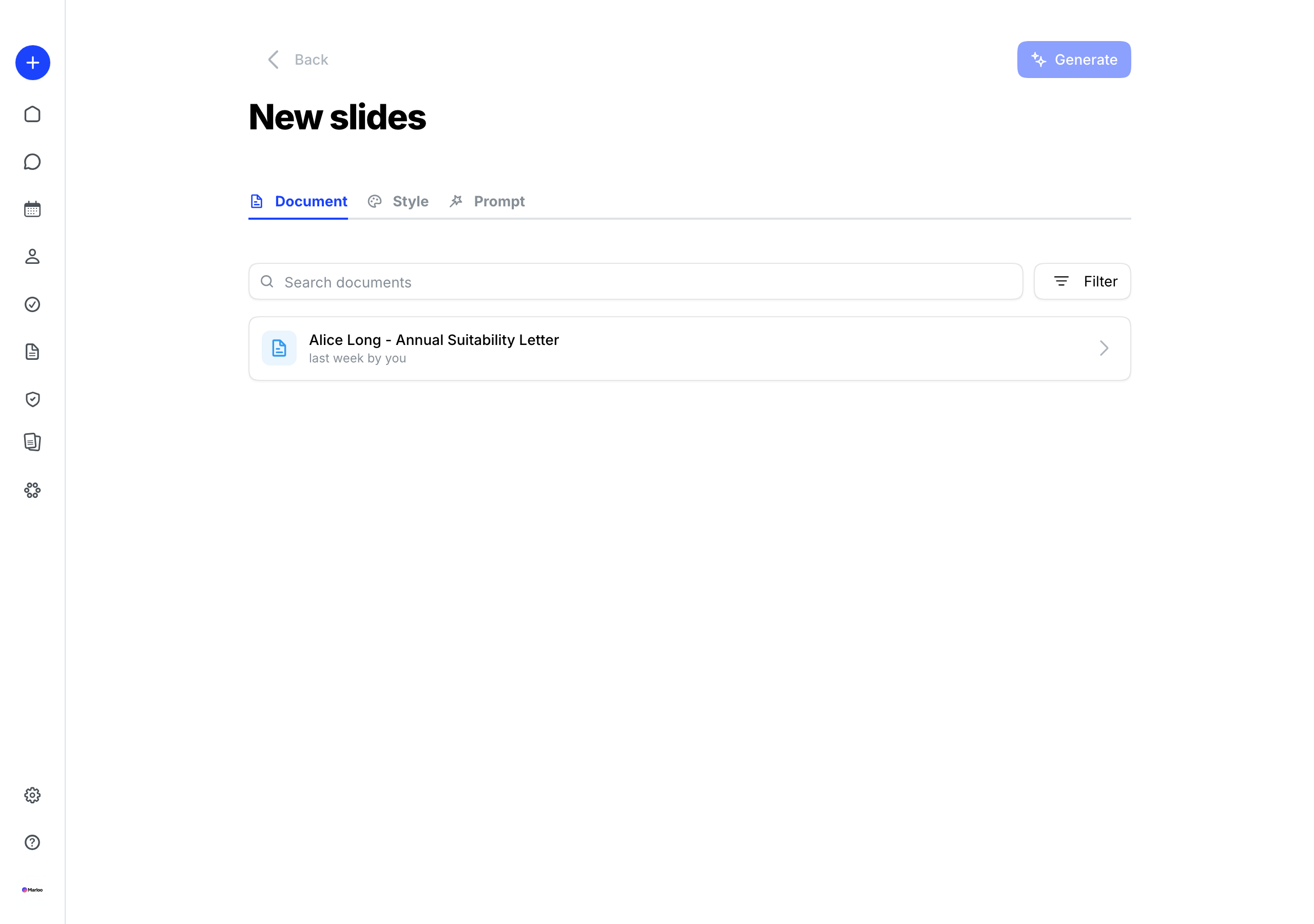
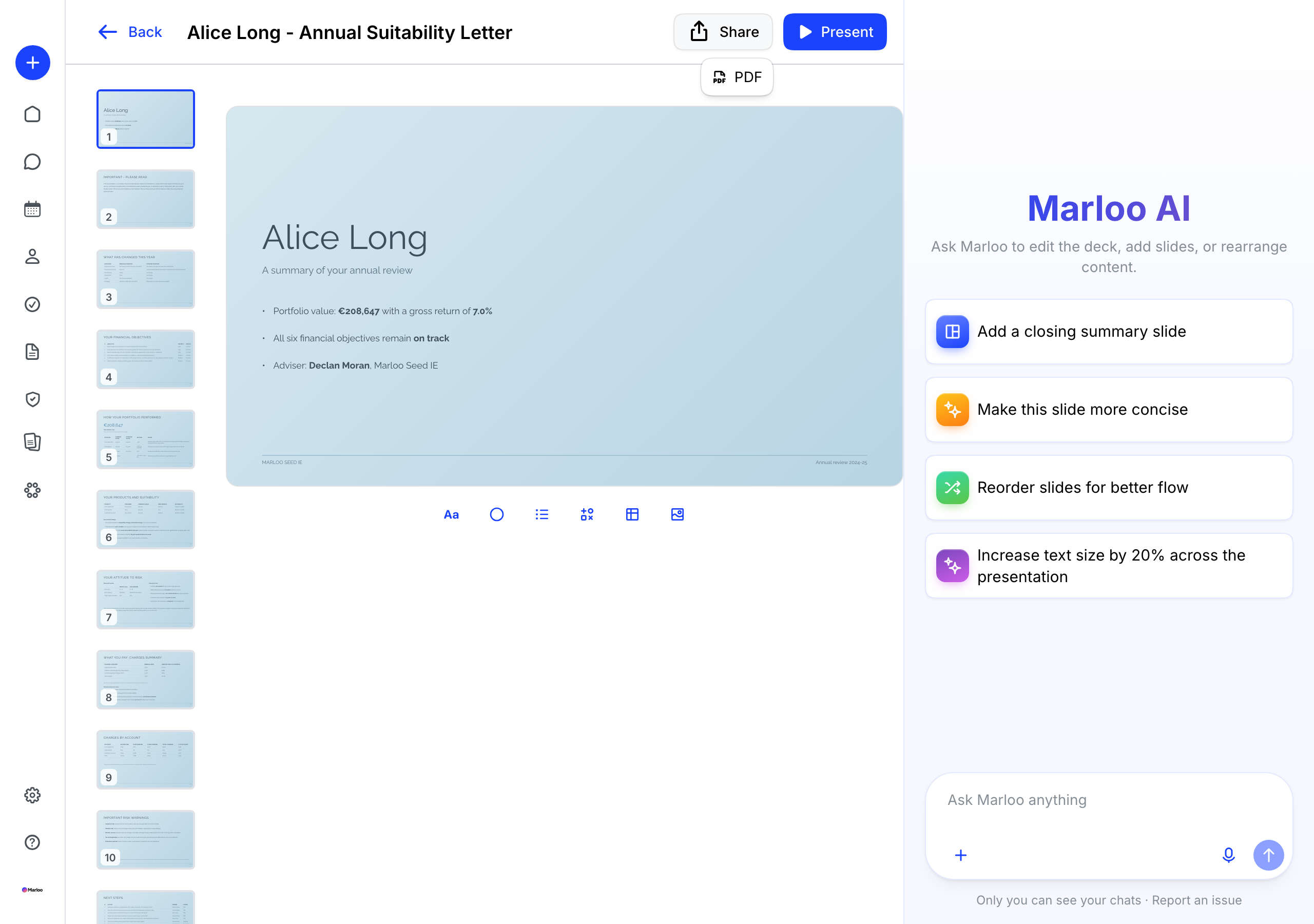
You can also start from the Slides tab on a client. Export is PDF only; PowerPoint (PPTX) export isn't available.
Edit the deck
Open the deck to refine it two ways:
- In the editor - click into any slide to change text, move elements, add slides or insert images, tables and shapes, as you would in other presentation tools.
- With Ask Marloo - use the chat on the right to edit one slide or the whole deck: "Make this slide more concise", "Add a closing summary slide", "Reorder slides for better flow", "Increase text size by 20% across the presentation".
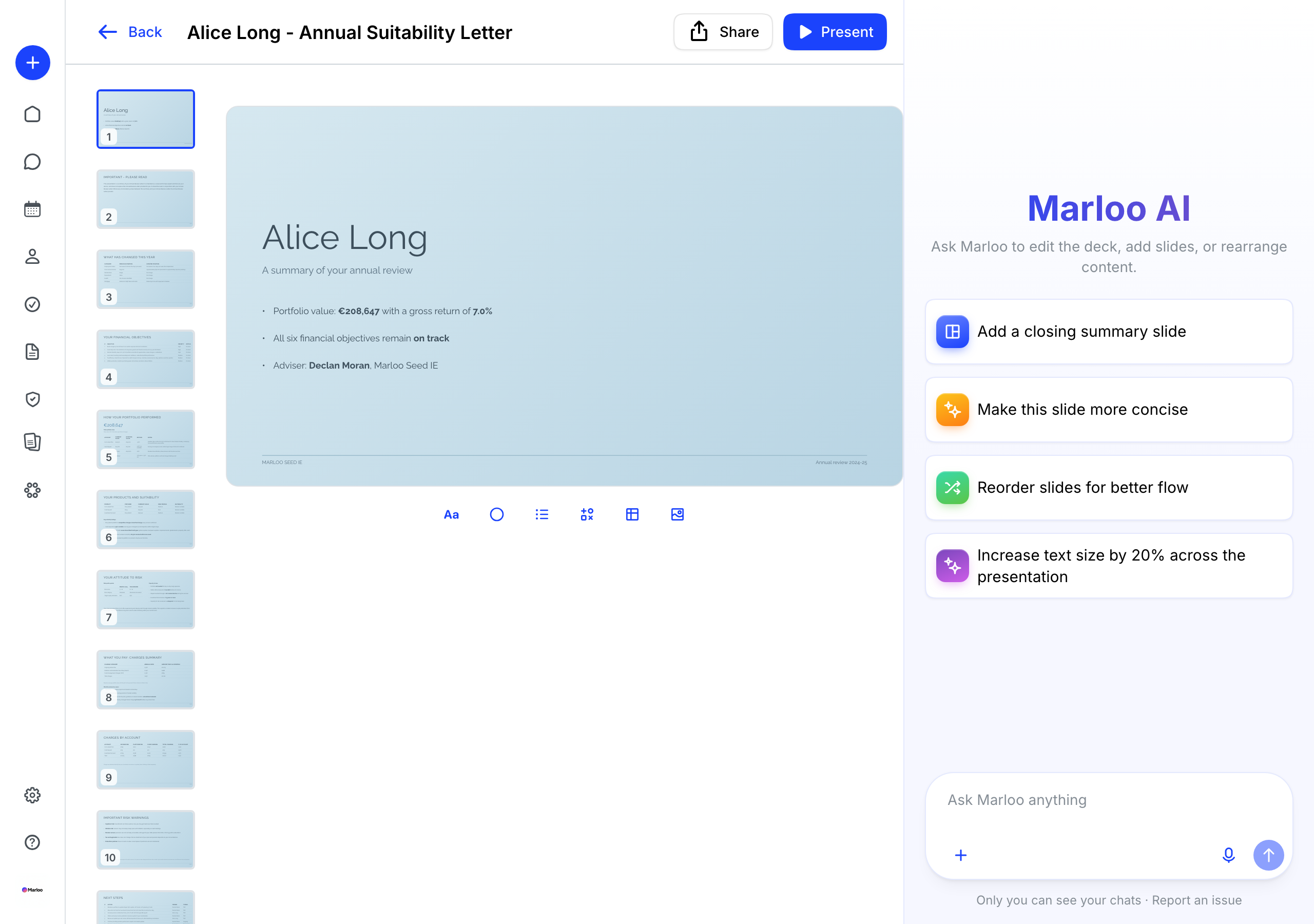
Present or share
- Click Present to show the deck to the client full-screen in Marloo.
- Click Share and choose PDF to download it. PDF is the only export; PowerPoint (.pptx) isn't available.
Manage your decks
From the three dots on a deck in the Slides tab you can Open, Regenerate, Duplicate, Rename, View prompt or Delete. Regenerating replaces the existing slides, so duplicate first if you want to keep a version.
Good to know
- A deck is always built from a finished Marloo document. Generate or finalize the document first.
- Your firm can add its own slide styles from a PDF, with New style on the Styles tab of the Slides page in the left navigation. If you don't see the Slides page, contact us through the help chat.
- PDF export can take a little longer than a Word export.
Related articles
Still stuck? Talk to a human.
Email the Marloo team with what you are seeing. If you are in the app, the blue chat button in the bottom-right corner is the fastest way to reach us.


