
Get better first drafts from document generation
Habits that improve every generated document, starting with what to put in the template and what to put in the generation prompt.
Once your first document has come through, these habits lift every draft after it. The one with the biggest payoff is not a cleverer prompt: it is putting each rule where it belongs, in the template when it applies to every client and in the generation prompt when it applies to this one.
Template vs generation prompt: what goes where
Getting this balance right does more for output quality than anything else in this article. The template is macro control, applied to every client; the generation prompt is micro control, for one client and one run.
| Put it in the template when it is... | Put it in the generation prompt when it is... |
|---|---|
| How sections should be structured | What you are recommending for this client |
| Which sections are mandatory and which are conditional | Where to find the key information in the context |
| Formatting rules (bullet points, tables, decimal places) | Who the advice is for (individual, couple, entity) |
| Standard wordings and compliance disclaimers | What is in scope and out of scope for this document |
| Behavioral rules ("omit empty sections") | Anything specific to this one client |
Rule of thumb: if it applies to every client, put it in the template. If it applies to this client only, put it in the generation prompt. How to change the template is in Refine your document template.
Dictate your instructions
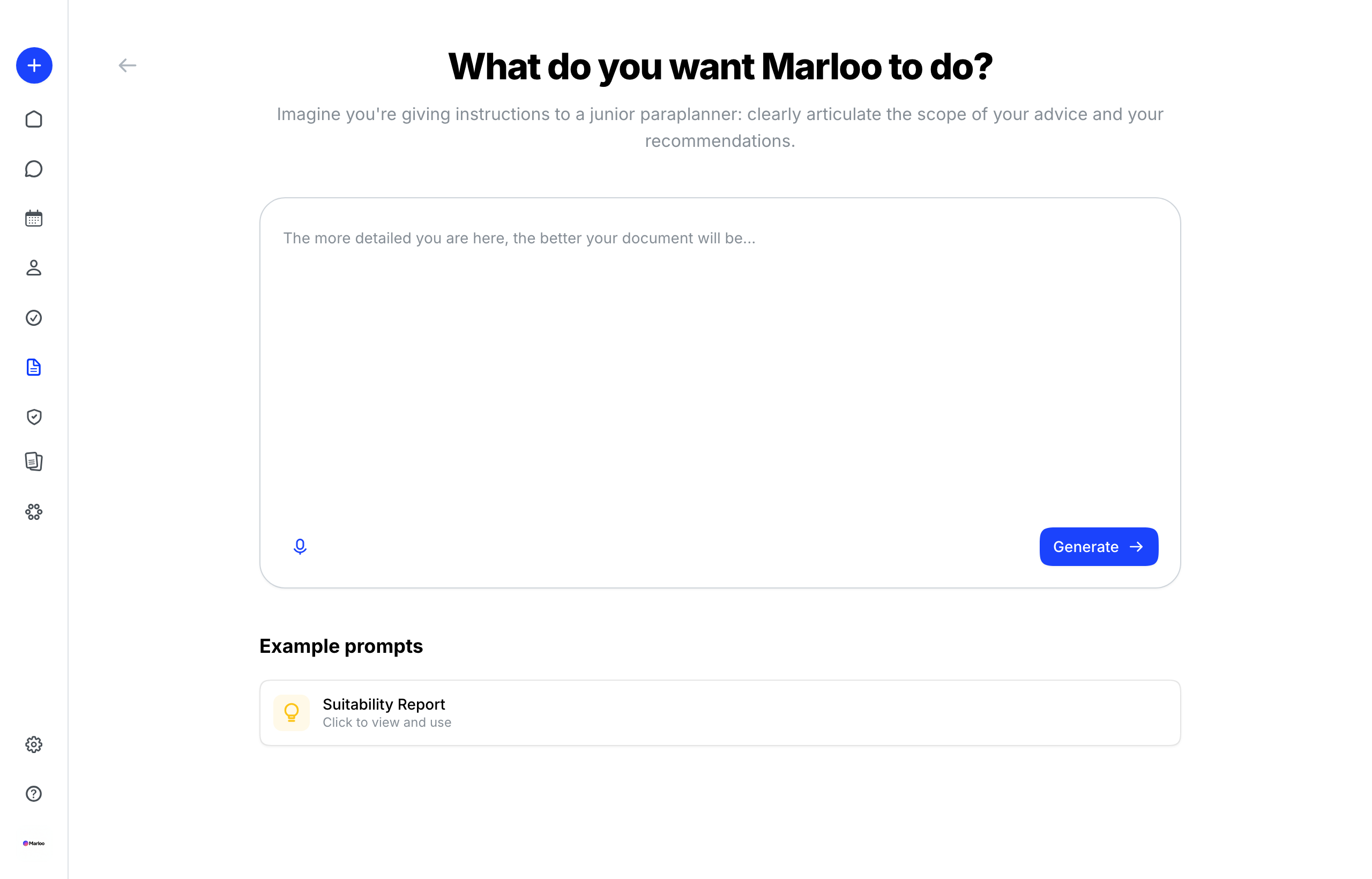
Click the microphone next to the instruction box to dictate instead of typing. Many advisors find it the fastest way to brief Marloo, especially for detailed prompts with several recommendations. Speak naturally, as if you were briefing an associate advisor on the phone: Marloo transcribes it and uses the full dictation as your instruction.
Favorite and reuse prompts
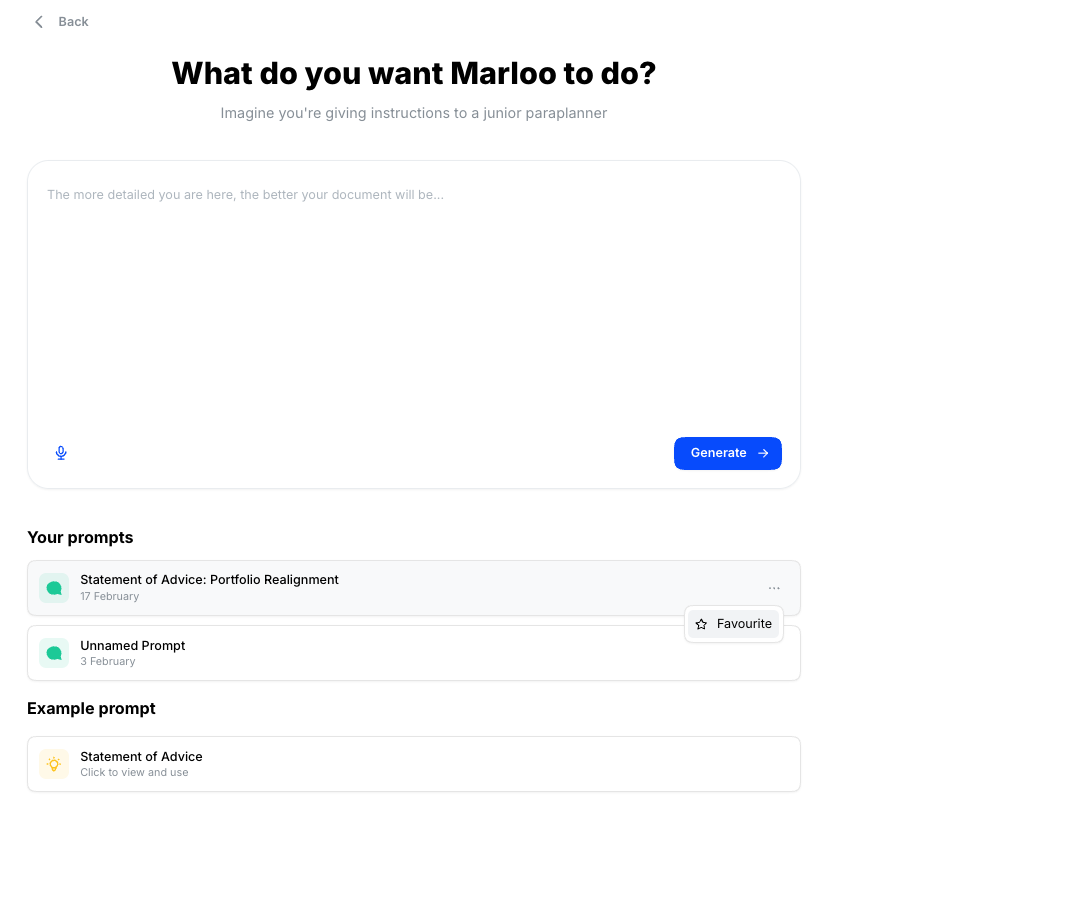
After a run, your instruction appears under Your prompts below the prompt box. Click the three dots on a prompt to Favorite, Rename or Delete it. Favorites sort to the top of the list, so you can select one with a single click for a similar client.
This pays off when you have standard recommendation patterns, such as a 401(k) rollover, an insurance review or retirement planning: write a great prompt once, then reuse and tweak it. Prompts are kept independently of the documents they produced, so deleting a document leaves its prompt in the list.
Fill gaps and [TBC] placeholders
When the template asks for information that isn't in any source you selected, Marloo writes a placeholder in the form [TBC - what's missing] rather than guessing. When highlights are on, the placeholder is also marked as an amber Gap highlight, so they stand out as you review. A few in your first run is normal: each one tells you where to tighten either the context or the template.
There are two usual causes, with a fix for each.
- The information isn't in the context you selected. Check whether the relevant meeting, file, note or email was selected at generation. If you missed something, choose Regenerate from the document menu and select it. If the document is already generated, you can add context without regenerating: in the editor chat, click + (Add to message), choose Attach file, then ask Marloo to fill the section from it.
- The template instruction doesn't say where to look. "Document the client's insurance details" leaves Marloo unsure which source holds them. Make it specific: "Pull the client's current insurance details from the client questionnaire in Files." Template changes are covered in Refine your document template.
To clear any placeholders you'd rather handle by hand, either type over them in the editor or ask the chat to "Remove all TBC tags".
Get the best from Ask Marloo
The Ask Marloo panel sits on the right of both the document editor and the template editor, with the prompt Ask Marloo anything. It works one section at a time, so how you phrase a request matters more than how much you write. The habits below apply in both; what the chat can change in a template is in Template editor.
Name the exact section
"Make it more detailed" is vague. "Make the Reasons for Seeking Advice section more detailed, including specific financial goals and life events" tells Marloo where to work and what good looks like.
One change per message
Ask for one thing at a time. Several requests in one message often end with some of them missed.
What you can ask for
- Rewrite a section: "Make the Reasons for Seeking Advice section more detailed."
- Change formatting: "Turn the Current Insurance section into a table."
- Add or remove content: "Add a paragraph about the tax implications in the Basis of Advice section."
- Change tone or length: "Make the Executive Summary shorter and more direct."
- Reference context: "In the Client Needs section, include the specific goals discussed in the meeting on 5 March." Marloo can draw on any context you selected during generation.
- Find and replace: tell the chat what to find and what to replace it with, and Marloo changes it across the whole document in one step.
Start a fresh chat when it stalls
If responses get worse after several back-and-forth messages, click Chat history at the top of the chat panel and start a fresh chat. Your earlier chats stay listed there. Marloo reads the full conversation with every message, so a long, messy history drags quality down; a clean chat with one clear instruction usually does better than more troubleshooting in the old one.
Attach files instead of pasting
For detailed review notes or reference material, click + then Attach file in the chat panel and attach the document, rather than pasting large blocks of text into the message.
One template, many clients
A well-refined template works across all your clients. You shouldn't need a different template for each one: the generation prompt is where client-specific differences belong. If you find yourself wanting a separate template for different advice scenarios, use conditional rules in the one template instead, for example "Only include this section if the client has existing insurance."
Only one template can be selected per generation. To draw on content from several templates, combine the extra sections into one master template and control what appears with conditional instructions, for example "Only include the insurance review section if the client has insurance cover in scope." How to write those rules: Refine your document template.
Build on previous documents
When a client already has Marloo-generated documents, select them in the Documents tab of the context step. Marloo then references what was recommended before, which suits follow-up advice and annual reviews.
Test with your best-documented client
When you are judging a template, generate for the client with the most complete context: plenty of tagged meetings, a current client questionnaire and uploaded files. That gives Marloo the best raw material and lets you tell template problems from missing-context problems. A template can only be judged fairly against a client like this, so if strategy detail looks thin or sections come back as gaps, check the test client before changing the template.
Roll out document generation to your team
Document generation often lands with a planning team rather than a single advisor, and the rollouts that go well share a pattern.
- Nominate one person to learn it properly first. Have them build and refine the first template end to end, then teach the rest of the team from a working example.
- Refine one template to a standard you'd send. One template that produces a draft your reviewer is happy with is worth more than six that are each nearly right. Once one works, the pattern transfers quickly to the rest.
- Expect the first pass to be a first draft. A generated document is a starting point for review, not a finished file. Budget review time for the first few documents while the template settles; that time drops sharply as the template improves.
- Decide who owns templates. Templates are shared, so agree early who can edit them and who keeps compliance wording current. If your firm operates under an organization, the templates it shares may be maintained centrally and pushed to your account, so check before building your own. A locked template can only be edited by its author and account owners; anyone else can click Save a copy to test their own version, as described in Template troubleshooting.
Troubleshooting: output and export problems
These are problems in the generated document or its export. Problems starting a run (trial, template not offered, error messages, stuck generating) are in Generate your first advice document; problems caused by the template's instructions are in Refine your document template.
Too many context files
Keep to the files that matter for this case. Selecting everything lowers quality and can push a run over the limit, where Marloo stops with "There was too much context to process". Untick what isn't relevant and regenerate.
Standard wordings or fee schedules weren't used
Uploading company context isn't enough on its own: the files must be selected in the Company context tab at every generation, and the template section should name the file it is meant to use. Regenerate with the files selected. Naming files in the template is covered in Refine your document template.
The document has inaccuracies
Two places to check. First, the inputs: was the right client questionnaire, meeting or note selected, and is it current? Second, the template: read the instruction for the affected section to see which source it tells Marloo to pull from, and make it explicit if it doesn't.
Figures or assumptions are out of date
If a document or slide deck uses an out-of-date figure (a tax or contribution rate, a threshold, a fee or any other standing assumption), record the current value at firm level so every advisor's documents use it. Either add a short rule to Company instructions under Knowledge > Company, such as "The 401(k) employee contribution limit is $23,500 for 2025", or upload a company context file with your current figures and select it in the Company context tab when generating. See Understanding the Knowledge tab in Marloo.
Excel figures are wrong or missing
Marloo reads the values on every sheet of a workbook but does not recalculate formulas, so cells that depend on formulas or on other sheets can come through incomplete. For complex spreadsheets, export the key figures to a simpler file and upload that.
Tables render wrong
Simplify the table in the template and tell Marloo where each value comes from: see the tables pattern in Refine your document template.
The document is too long or has too many page breaks
Page breaks on export come from one switch and one habit. The switch is Page breaks under Export options in your style (Documents > Styles). When it is on, every horizontal line in the template becomes a page break in the export, so remove horizontal lines you don't need from the template. In the editor, Insert offers Page break while the switch is on and Divider while it is off.
The cover page is missing
Open your style under Documents > Styles, expand Cover page and set it up, then make sure that style is the one selected in the Styles menu of the document before you export. See How to add cover pages to Marloo exports.
"Your logo placeholder" appears in the export
That text sits in the cover page or header file attached to your style. Replace it with your logo in that file and upload the file again under Documents > Styles. The style editor has no separate logo control, and the logo under Settings > Company is used by your notetaker, not by documents. See Customize your document styling.
The export looks different from the editor
The editor shows the style linked to the document, including its cover page, header and footer, so a mismatch usually means a different style is selected. Check the Styles menu in the editor toolbar; the style you choose there is remembered for that document. Fonts, colors and spacing for exports are set under Documents > Styles.
A colleague's name is on every output
This is almost never the template. Open the style under Documents > Styles and check Header & footer, which is where a name set once appears on every export.
Quick reference: controls and where to find them
- Microphone (next to the instruction box, and in notes) - dictate instead of typing.
- Your prompts > three dots - Favorite, Rename or Delete a saved prompt.
- Insert > Image - add a chart or graph to a document.
- Insert > Page break or Divider - which one appears depends on the style's Page breaks switch.
- Select text in a document - an Ask Marloo anything box opens; type an instruction with a URL to hyperlink the selected words.
- Chat history (top of the chat panel) - start a fresh chat; earlier chats stay listed.
- + > Attach file (in the chat) - attach review notes or extra context.
- Instruct Marloo (template editor) - switch selected text between fixed text (white) and a template instruction (blue). Details in Template editor.
Related articles
- Generate your first advice document - end-to-end guide to your first document
- Refine your document template - the generate, review, update loop
- Understanding the Knowledge tab in Marloo
- Customize your document styling
- How to add cover pages to Marloo exports
- Using the ProductRex integration in Marloo - bring product comparisons into your advice documents
Still stuck? Talk to a human.
Email the Marloo team with what you are seeing. If you are in the app, the blue chat button in the bottom-right corner is the fastest way to reach us.


