
Get started with the mobile app and record in-person meetings on your iPhone
Install the Marloo mobile app, record in-person meetings on your phone, attach clients, and understand how uploads, phone calls and app lock work.
This article shows you how to record in-person meetings on your phone or tablet and review them later. The app runs on iPhone and iPad, and on Android phones, tablets and foldables. Recordings upload to Marloo while you record, in one-minute pieces, so there is little left to send when you tap Stop. If you have no connection, recordings are kept on your phone and upload automatically once you are connected; a meeting still waiting shows a pill in your meetings list.
Install and sign in
Search for Marloo in the App Store (iPhone) or Google Play (Android) and install it. Sign in with the same email and password you use on the web.
- Tap Log in.
- Enter your email and password, then tap Continue. If your firm uses single sign-on, tap Continue with SSO instead.
- If you have multi-factor authentication turned on, enter the code from your authenticator app when asked to verify it's you. If your firm requires MFA and you have not set it up yet, the app walks you through it before you can continue.
- Choose an App lock option (see below).
If you belong to more than one Marloo firm, pick the one you want when prompted. You can change it later under Settings > Switch company.
Record an in-person meeting
The app records through your phone's built-in microphone. Place the phone on the table between the people speaking, screen up, and keep it clear of bags and papers. You're responsible for telling everyone that the meeting is being recorded and for getting any consent your local rules require.
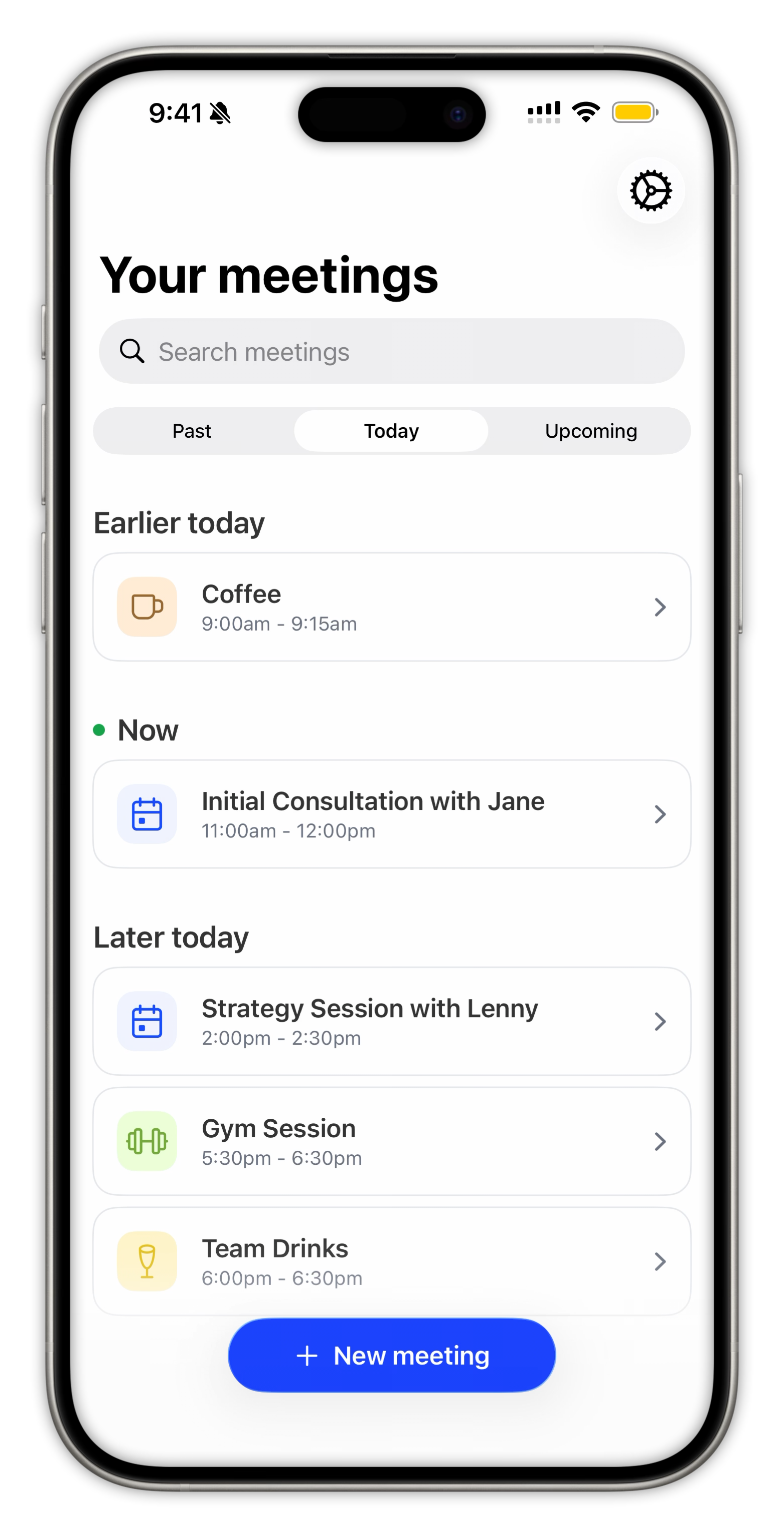
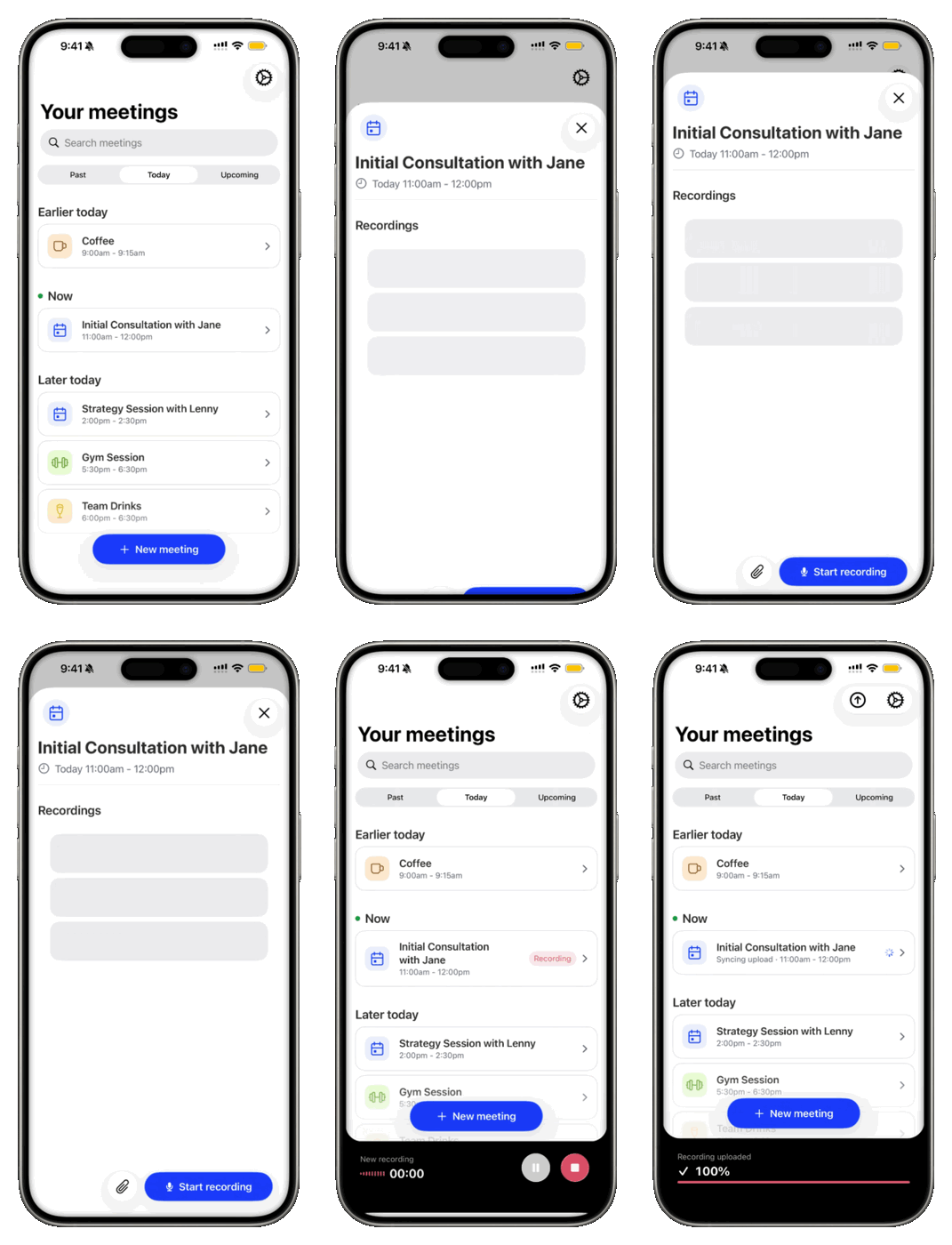
- Tap New meeting, or open an upcoming meeting from your list.
- Tap Start recording. The recording bar shows the running time.
- Use Pause and Resume if you need a break in the conversation.
- Tap Stop when you finish. The last part of the recording uploads straight away.
You can lock your phone or switch to another app while recording. Recording continues in the background, and a notification tells you if it stops for any reason.
Microphones: the app always uses the phone's own microphone. Bluetooth headsets, wired headsets and USB microphones are not used for recording, so you do not need to disconnect them. If the app cannot keep using the built-in microphone during a meeting, it pauses the recording and alerts you.
Phone calls: the app cannot record a phone call made on the same phone. If a call comes in or you make one while recording, the recording so far is saved and queued for upload, and the app starts a second recording as soon as the call ends. You will see two recordings on the meeting; the summary uses both. To capture a phone call, record it with your phone's own call recorder and upload the file afterwards. See Record phone calls on iPhone or on Android.
Storage: if your phone runs very low on space (around 20 MB left), the app stops and saves the recording rather than losing it. The recording bar warns you how many minutes of space remain.
Attach a client
Open the meeting on your phone and use the Clients section to select the client or clients the meeting is about. This works offline too; the change is sent when you are next connected. You can also do this later on the web.
Uploads
Recordings upload while you record. If anything is still being sent or processed, the meeting shows a pill in your meetings list: Waiting while a recording waits for a connection, Transcribing while Marloo works on an uploaded recording, or Failed if the upload did not finish.
- If you are offline, recordings wait on your phone and upload when you reconnect. Any connection works; Wi-Fi is not required.
- If a meeting shows Failed, open it and tap Try again.
- To see every recording still on your phone, with the total count and size, open Settings > Recordings on this device. Choosing Discard on a recording there removes it from your phone permanently; use Export audio first if you might need it.
Once uploaded, the meeting appears on the web under Past meetings. A recording made without a meeting name shows as Untitled meeting; rename it and attach the client there if you have not already.
Upload a recording you already have
Open a meeting on your phone and tap the paperclip button beside Start recording to pick an audio file from your phone. This is how you bring in a phone-call recording or a file from another app.
Review meetings on the go
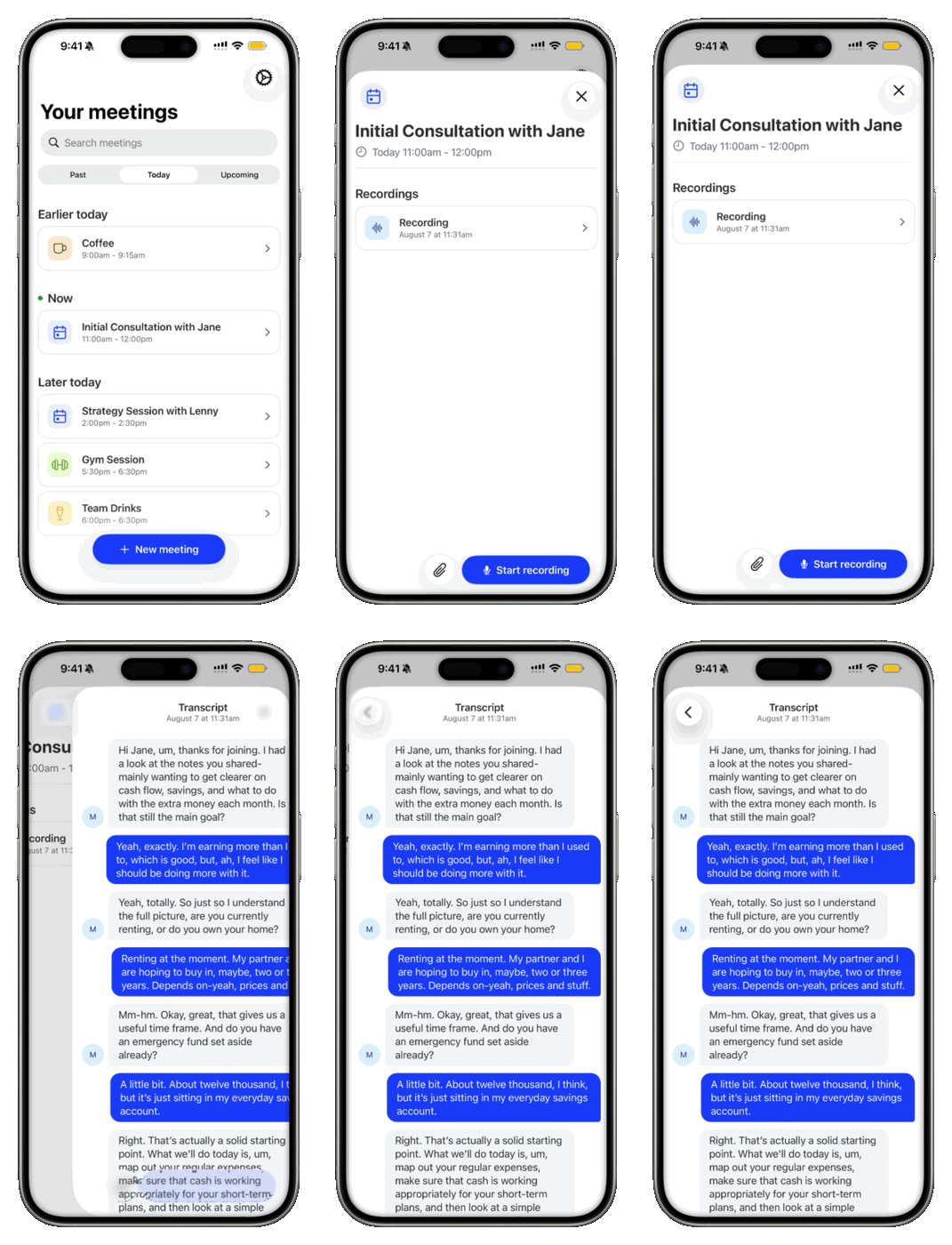
Open any meeting to read its transcript and summary, or search previous conversations. Meetings you have already opened stay readable offline.
Notifications and app lock
Notifications tell you when a recording stops, resumes, stalls or fails to upload. Open Settings > Notifications; if it shows Off, tap it to allow notifications in your phone's settings.
App lock protects the app when you reopen it. Choose Device unlock (Face ID, Touch ID or your phone's own lock), a 4-digit Marloo PIN, or Don't lock. To change it, open Settings > App lock and confirm your current method first. If you forget your PIN, tap Log out on the lock screen; signing back in clears the lock so you can set a new one.
Something not working?
See Troubleshoot the mobile app. You can also message us from Settings > Message support.
Still stuck? Talk to a human.
Email the Marloo team with what you are seeing. If you are in the app, the blue chat button in the bottom-right corner is the fastest way to reach us.


