
Record phone calls on iPhone
A guide to using your iPhone's new built-in call recording feature and uploading the audio to your Marloo account.
Marloo can't record a call made with your iPhone's Phone app directly. Instead, record it with your iPhone's built-in call recording (iOS 18.1 or later), then upload the audio file to Marloo, where you can generate a summary and tag it to a client.
Before you start
Call recording requires iOS 18.1 or later and is not available in every country or language. Check Apple's iOS Feature Availability page to confirm call recording is available in your region before you begin.
To check your iOS version, go to Settings > General > About and look for the Software Version field. To update, go to Settings > General > Software Update.
Record a phone call
-
Dial the number or answer an incoming call as you normally would.
-
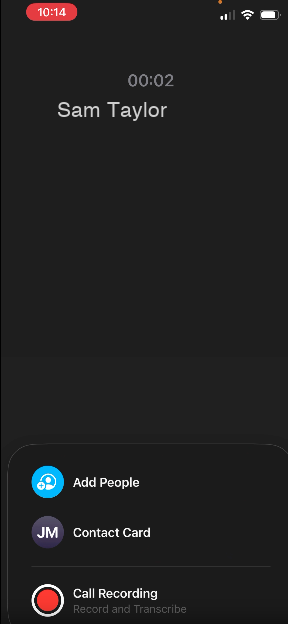
During the call, tap the More button (...), then tap Call Recording. Both participants hear an audio notice that the call is being recorded. You're responsible for telling everyone that the call is being recorded and for getting any consent your local rules require.
-
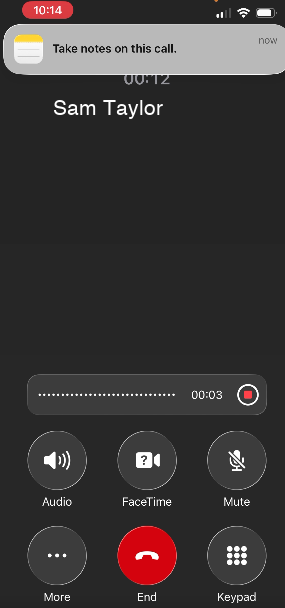
The recording continues for the duration of the call. You'll see a recording indicator on screen.
-
Tap Stop to end the recording before the call finishes, or just hang up. The recording saves automatically either way.
Find the recording in the Notes app
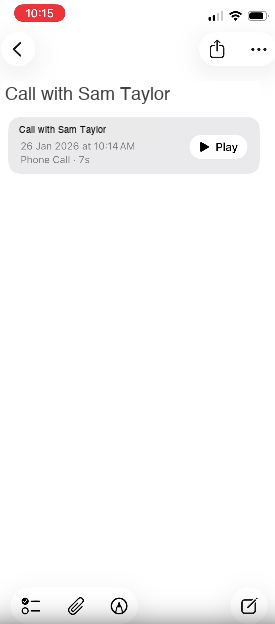
iPhone saves the recording automatically to a Call Recordings folder in the Notes app. Open Notes, tap the Call Recordings folder, then tap the recording.
To save it as a file you can upload to Marloo, tap the recording and select Save Audio to Files. This saves an M4A file to the Files app.
Upload to Marloo
Open the Marloo app, or sign in to the Marloo web app in your phone's browser.
- Tap New meeting (or open an existing meeting).
- In the app, tap the paperclip button beside Start recording (its label is Upload a recording). On the web, click Upload on the meeting's Transcript tab.
- Select the M4A file from your Files app.
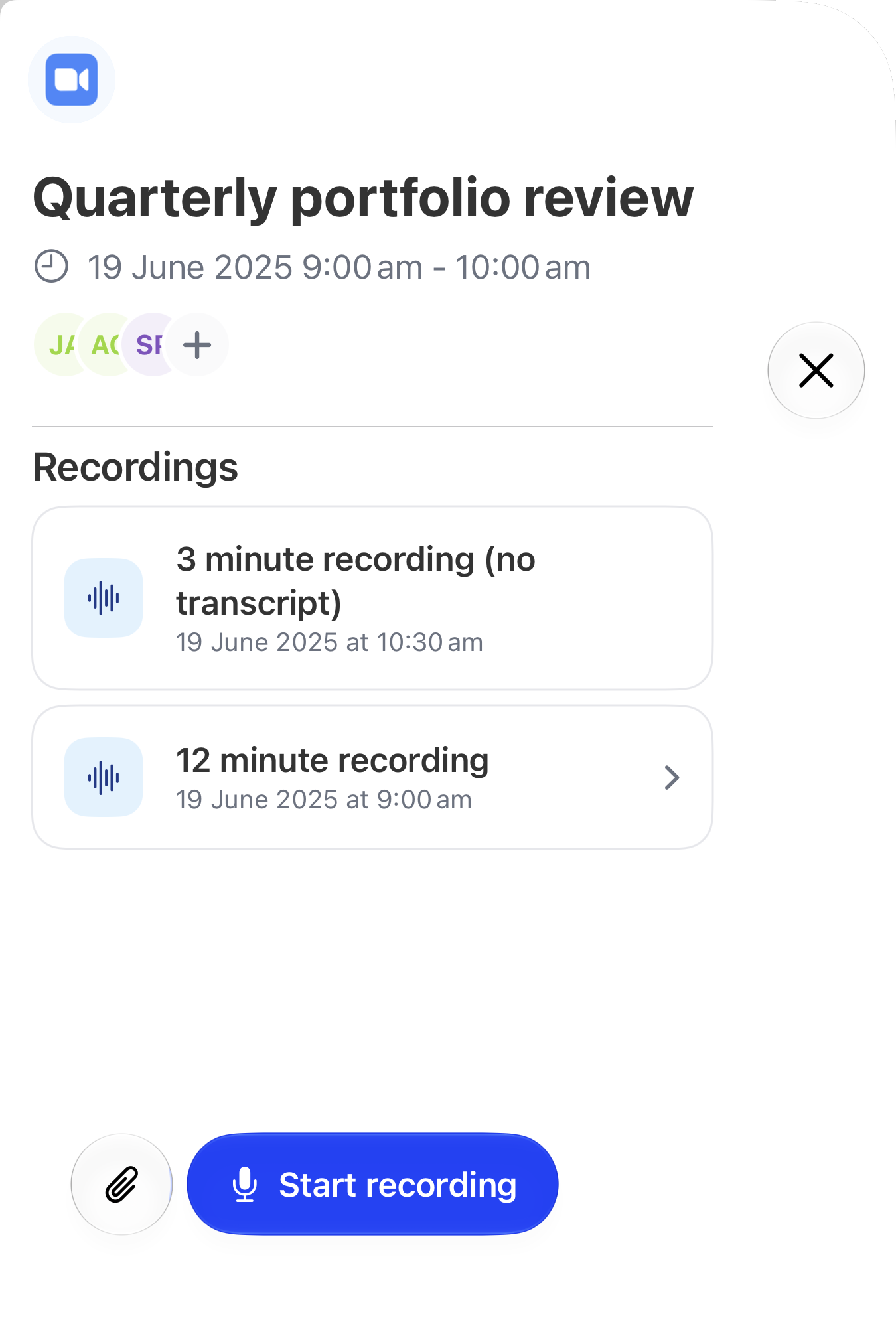
Processing takes a few minutes depending on the call length. Once it's done, generate a summary in the Marloo web app. You can attach the client to the meeting from the Clients section of the meeting in the mobile app, or on the web.
Another way: speaker and laptop
- Put your phone on speaker next to your laptop.
- Open Marloo on your laptop.
- If the meeting is in your Marloo calendar, open it and record from there. If not, click + New > Meeting and start recording.
For the best audio, use a quiet room, keep the phone close to the laptop's microphone, and don't use earphones.
This method doesn't play a recording notice, so tell the other person yourself. You're responsible for telling everyone that the call is being recorded and for getting any consent your local rules require.
The Marloo mobile app can't record a call you make with your phone's own dialer, but you can record it on the Marloo website as explained above. If your firm is on the Firm plan, you can also place calls from inside the Marloo mobile app, and those are recorded automatically: see Call clients from the Marloo mobile app (VoIP).
Frequently asked questions
Why can't I find Call Recording in the More menu during a call?
First, check your iOS version at Settings > General > About. Call recording requires iOS 18.1 or later. If you need to update, go to Settings > General > Software Update. If you are already on iOS 18.1 or later and Call Recording is still not in the More menu, the feature may not be available in your country or language. Check Apple's iOS Feature Availability page to confirm.
What format does the recording save in?
M4A, which Marloo accepts directly. No conversion is needed.
Where exactly is the recording saved?
iPhone saves call recordings automatically to a Call Recordings folder in the Notes app. To get a file you can upload to Marloo, open that note, tap the recording, and select Save Audio to Files. The M4A file then appears in the Files app.
Can Marloo record the call directly?
Not a call made with your iPhone's own Phone app. Use your iPhone's built-in call recording and then upload the audio file to Marloo. If your firm is on the Firm plan, calls you place from inside the Marloo mobile app are recorded automatically: see Call clients from the Marloo mobile app (VoIP).
What if I'm on Android, not iPhone?
Android handles call recording differently. See Record phone calls on Android.
Still stuck? Talk to a human.
Email the Marloo team with what you are seeing. If you are in the app, the blue chat button in the bottom-right corner is the fastest way to reach us.


