
Manage, share, and organize your templates
Find, sort, favourite, duplicate, share, hide and delete templates, set defaults, and keep personal templates.
Find, share, copy, hide and delete your meeting, document and task templates under Templates. Use Save a copy before editing a shared template, because changes to a shared template affect everyone using it.
Navigating the templates interface
The templates section gives you a unified view of everything available to you, organized into clear tabs.
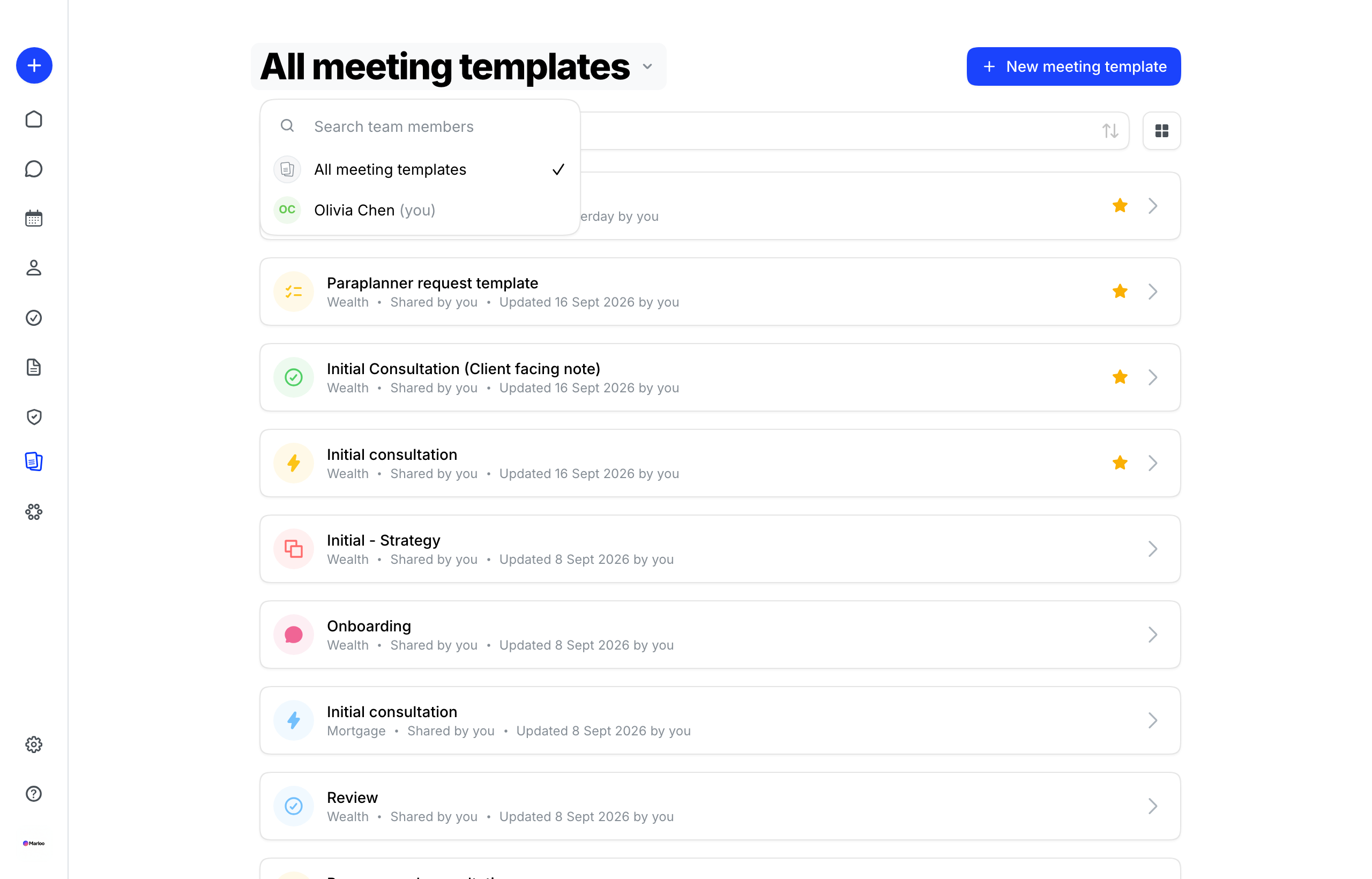
Choosing whose templates you see
Click the page title (for example All meeting templates) to choose which templates the list shows:
- All - every template you can see: your own and those shared with you
- Your templates - only the templates you own
- A teammate: the templates one or more team members have shared with you
- Organization templates - read-only templates inherited from your parent organization; only shown for firms that are linked to one
Marloo's pre-built templates aren't in this list. You add them with Use Marloo template when creating a new template (see Default templates).
Template types
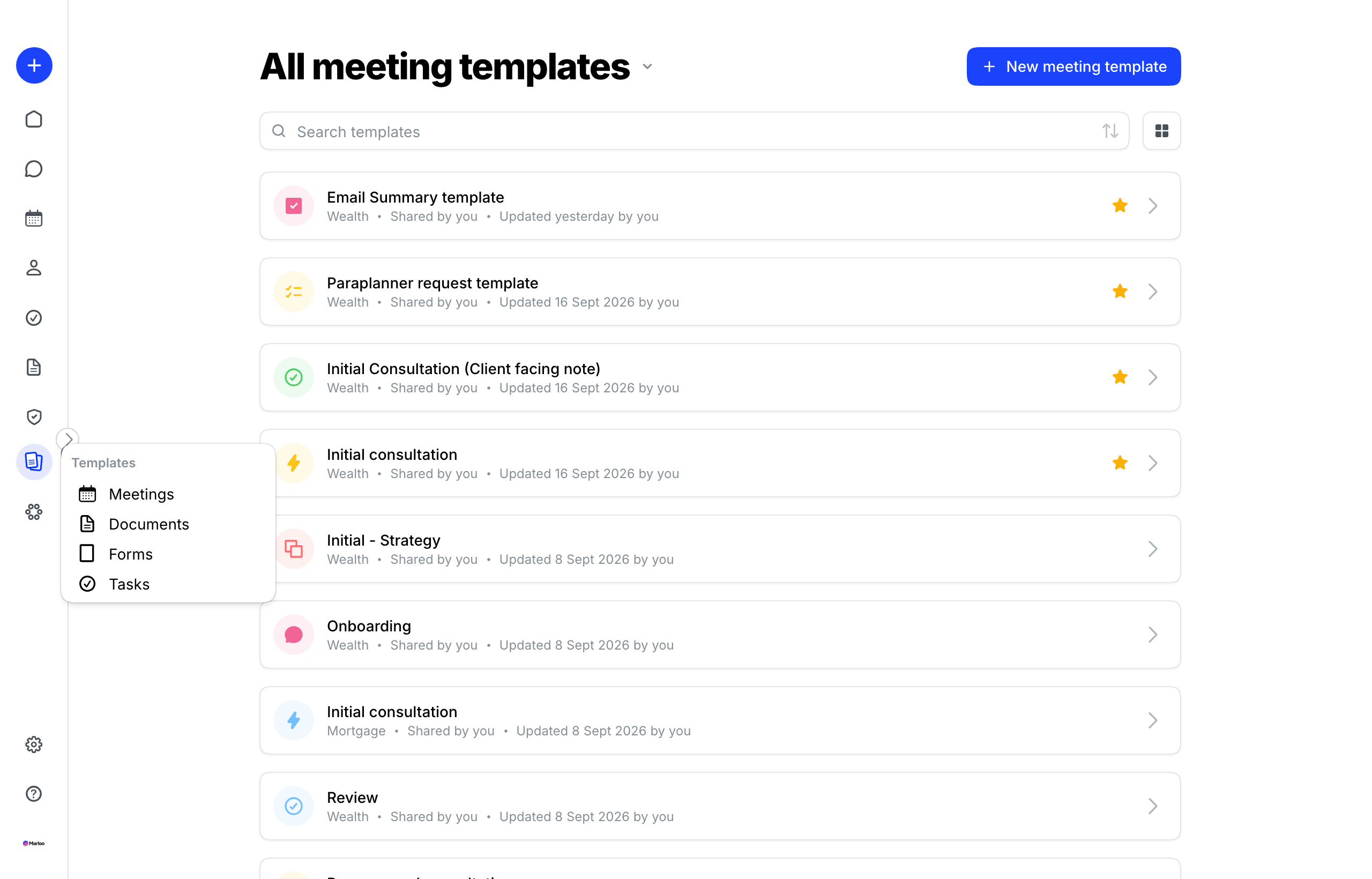
Under Templates in the left sidebar, templates are split by type:
- Meetings - Templates that control the structure of meeting summaries.
- Documents - Templates that control how Marloo generates advice documents.
- Tasks - Templates that define pre-built task structures.
Each tab shows only templates of that type, so you can quickly find what you need.
Template metadata
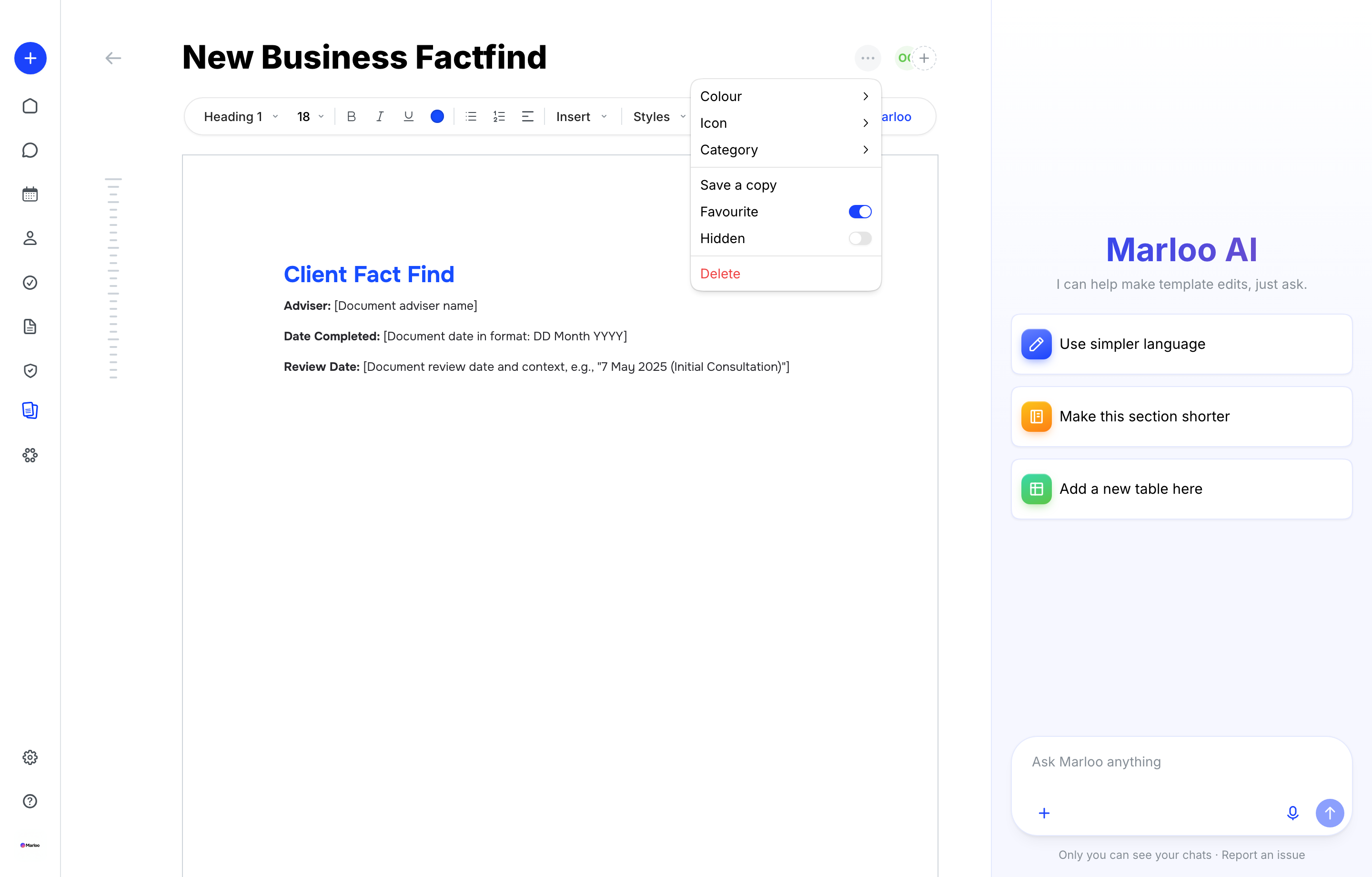
Each template has metadata fields (color, icon, category (advice type) and name) that appear on the template card and help you quickly identify the right template.
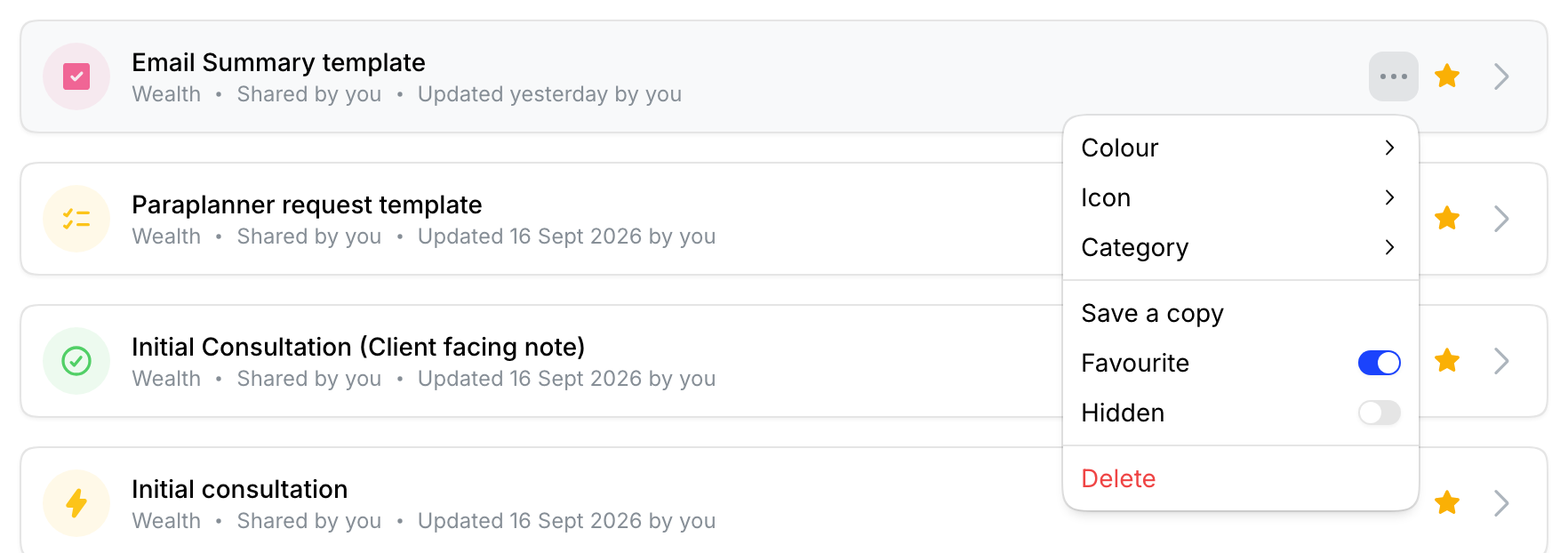
To rename a template, open it and edit the title at the top of the editor. To change its color, icon or category, open the template's three-dot menu ( ⋯ ) and choose Color, Icon or Category. Changes save automatically.
Category (advice type)
The category field maps your template to an advice type: Insurance, Mortgage, Wealth or Other. The category shows on the template in the list, so you can tell at a glance which advice type it's for.
Note: Color, icon and category can be changed by the template's owner, by anyone with Editor access to it, or by an Account owner.
Searching and organizing templates
Searching by name
Use the search bar at the top of the templates list to find a template by name. The search filters in real time as you type. If you have a large number of templates, clear naming conventions (e.g., "Annual Review - Insurance Focus") make search significantly faster.
Sorting and layout
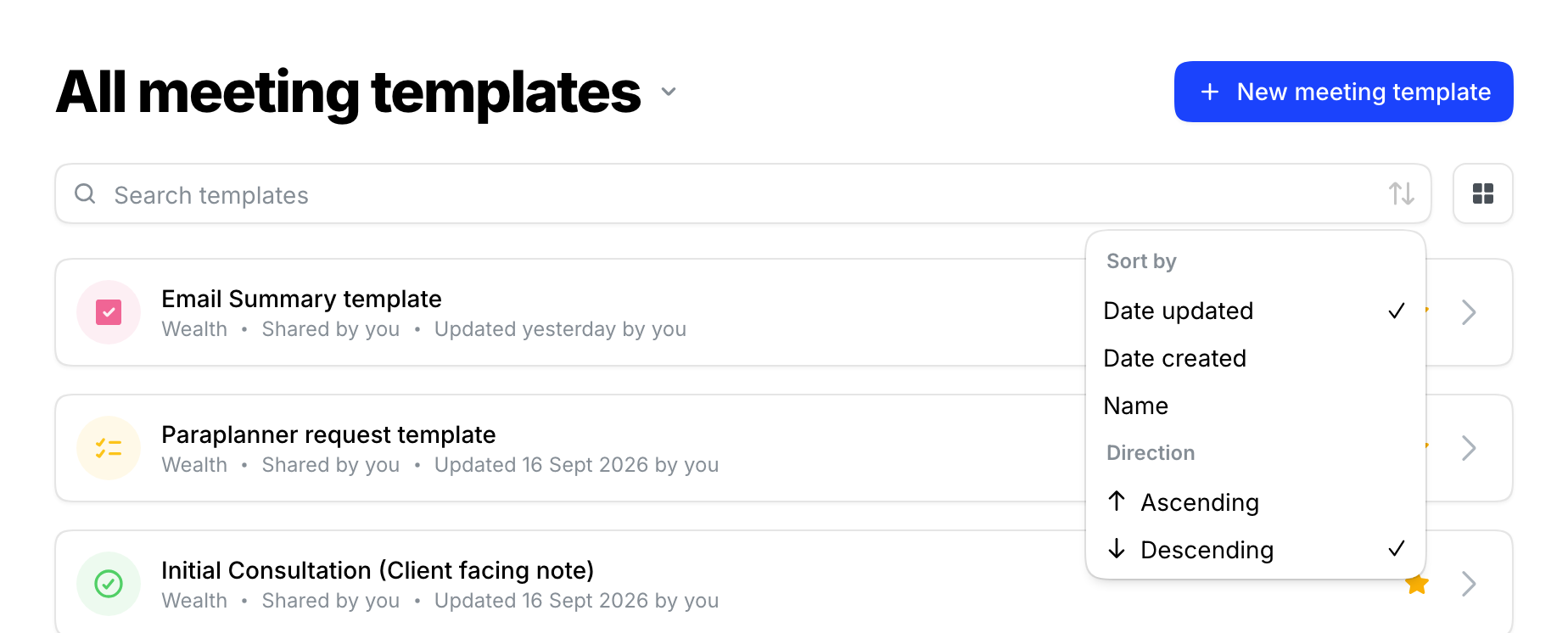
Use the sort menu in the search bar to order templates by Date updated, Date created or Name. For meeting and document templates, you can also switch between a list and a grid view.
Favoriting a template
To pin a template you use often to the top of your list, hover over it, click the three-dot menu ( ⋯ ) and switch on Favorite. Favorites are personal: pinning a template only changes the order for you, not for your team. Switch Favorite off in the same menu to remove it.
Who updated what
Every template shows clear attribution so you always know who is maintaining your templates:
- Shared by - The person who originally shared the template with the team.
- Updated by - The person who most recently made changes.
- Last updated - When the most recent change was made.
This visibility helps teams track who is maintaining templates, identify recently updated templates, and maintain accountability for template changes.
Default templates
Marloo's pre-built templates don't have their own list. For Meetings and Documents, choose Use Marloo template when creating a new template (Use Marloo framework for compliance), pick one, and Marloo makes you an editable copy to customize. New firms start without pre-built document templates, so add the ones you want this way. Meeting templates are still set up automatically.
Duplicating a template (Save a copy)
Use Save a copy to create a duplicate of an existing template. This is the safe way to experiment or personalize a shared template without affecting the version your team is using.
- Open the template you want to duplicate.
- Click the three-dot menu ( ⋯ ) in the top right of the template editor.
- Select Save a copy.
- The copy is saved as a personal template that only you can see, and opens in the editor. Rename it to distinguish it from the original.
Never edit a shared team template directly unless you intend the change to affect all advisors using it. Use Save a copy first if you are testing or personalizing.
Note: if your Account owner has turned off personal template creation for your firm, Save a copy is not available.
Sharing a template with your team
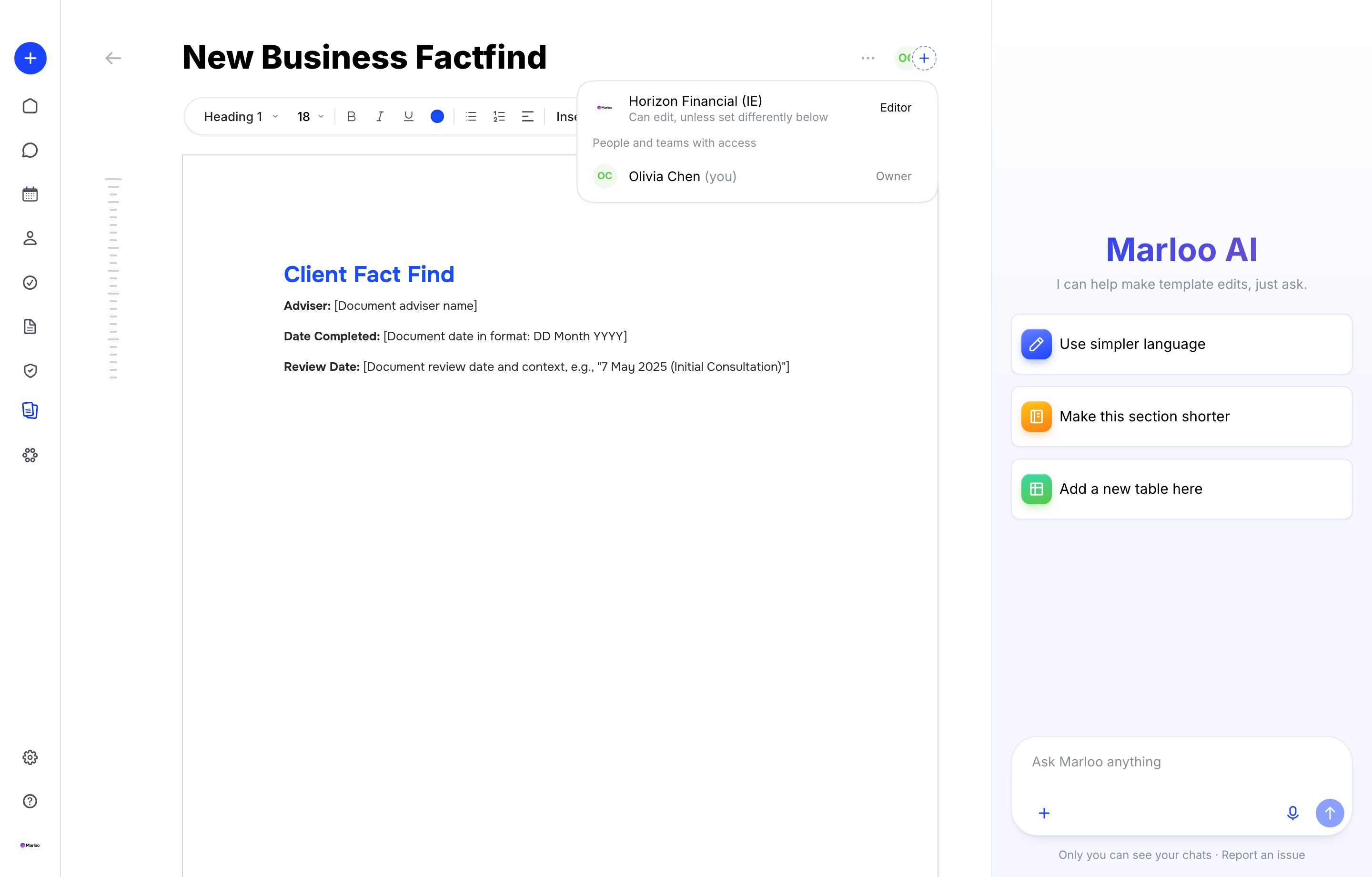
A template you create from Your templates view starts private; one you create from the All view is shared with your team once you create it. To change who can see or edit a template:
- Open the template.
- Click the avatars (or +) at the top right, beside the three-dot menu.
- In the first row, choose what everyone at your firm gets: No access, Viewer or Editor.
- To give particular people (or teams, where your firm uses them) different access, click + to add them to the list below and set each to Viewer or Editor.
Viewers can use the template but not change it; Editors can also edit it and share it. See Template permissions by role for the details.
Stopping team edits
To protect a shared template from changes, set everyone's access to Viewer. The template's owner and Account owners can still edit it, and you can give Editor access to particular people.
Making a template private
To stop sharing a template, set everyone's access to No access and remove anyone listed under People with access. Only the template's owner or an Account owner can take access away from everyone.
Making a template private does not delete it. Any summaries or documents already generated using that template are not affected.
Hiding templates
Hiding a template removes it from your active template list without deleting it. Hidden templates drop to the bottom of your templates list. Hiding is personal: it only changes what you see, not what your team sees.
- In the templates list, locate the template you want to hide.
- Click the three-dot menu ( ⋯ ) on the template card.
- Switch on Hidden.
To unhide a template, scroll to the bottom of the templates list, find it, click the three-dot menu, and switch Hidden off.
Deleting a template
You can delete a template you own, and Account owners can delete any template in your firm.
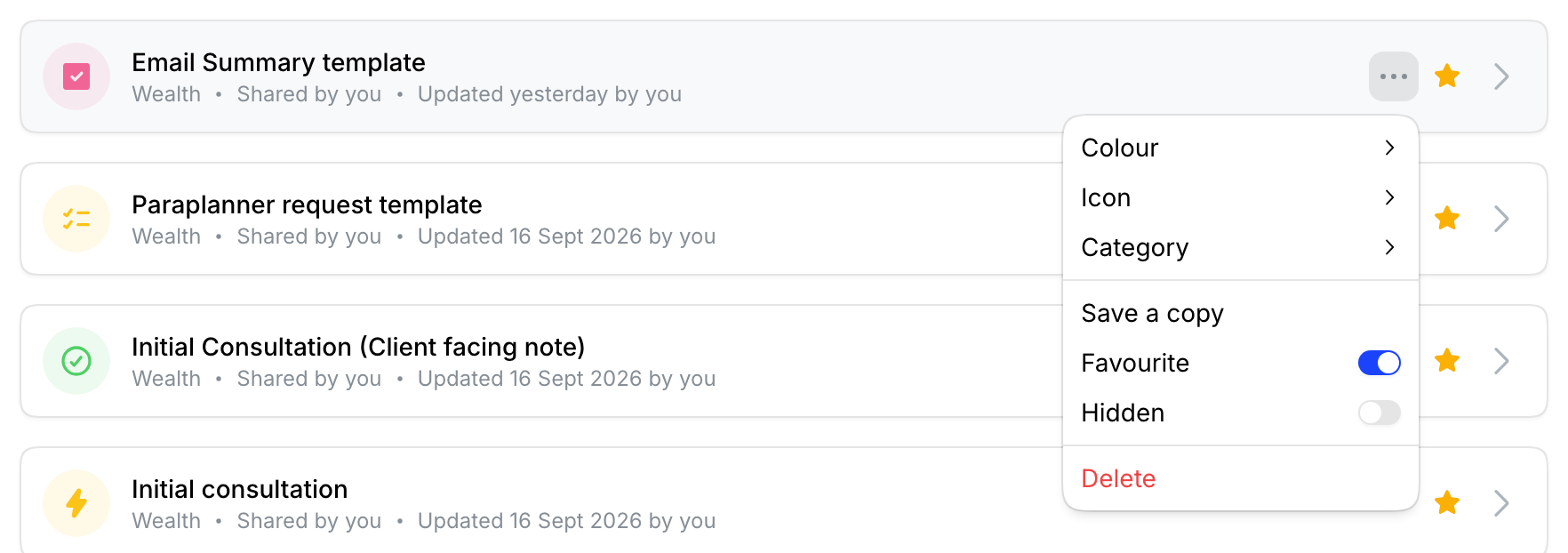
- In the templates list, click the three-dot menu ( ⋯ ) on the template card.
- Select Delete.
- Confirm when prompted.
Deleting removes the template for everyone who could see it. If you are unsure, hide the template instead; hidden templates do not clutter your active list but can be restored at any time. If a template was deleted by mistake, recovering it can be done by Marloo on request.
Accessing the source file
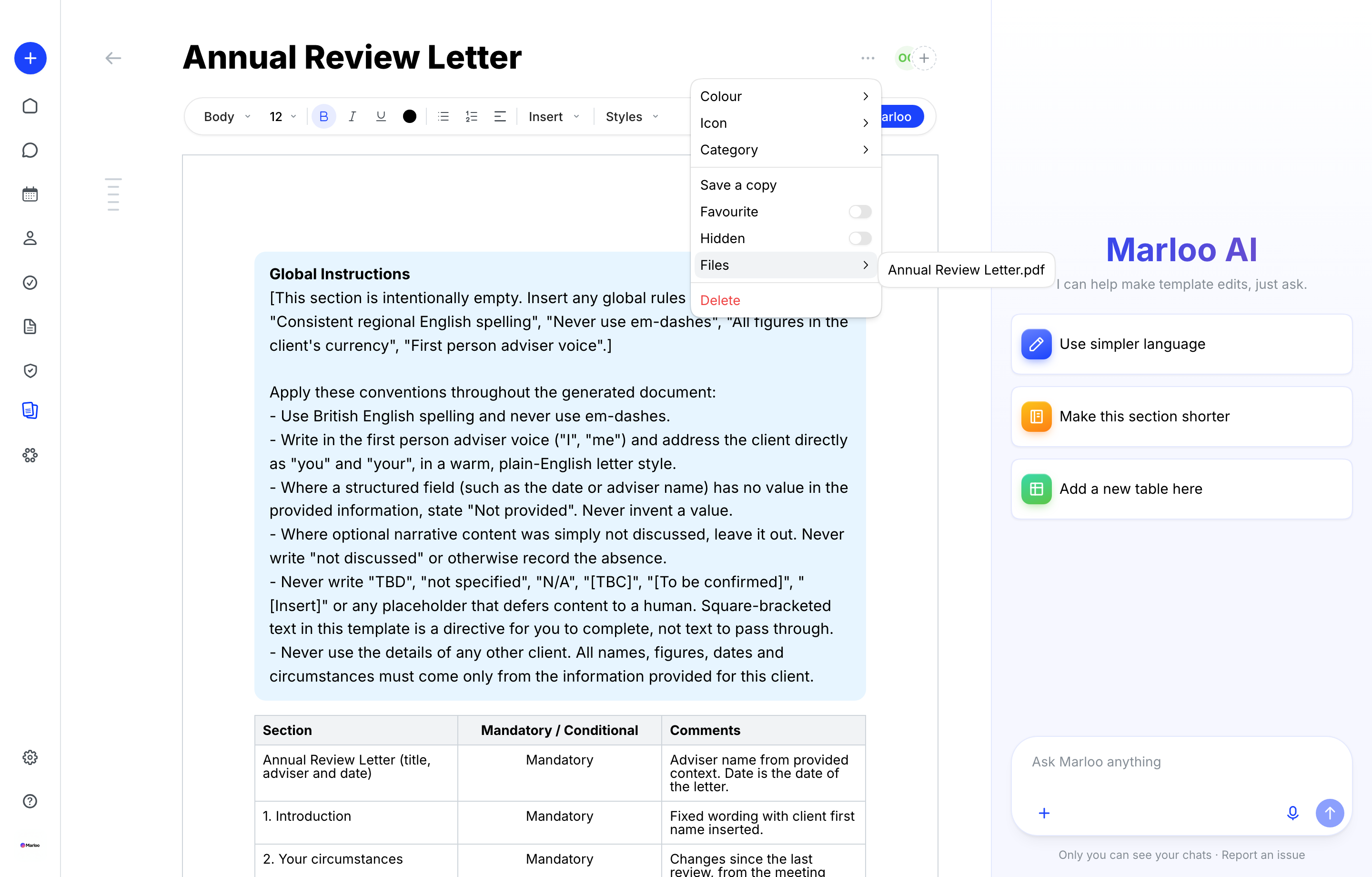
If a template was built from an uploaded file (such as a Word document or PDF), you can download the original source file.
- Hover over the template, or open it.
- Click the three-dot menu ( ⋯ ) and open Files.
- Click a file to download the original source document.
This is useful when you need to share the source document with a team member or make bulk edits outside of Marloo before re-uploading.
Personal templates
Every advisor can create and maintain their own personal templates independently of the team. Personal templates are only visible to you until you share them.
Personal templates are useful for:
- Testing: Try out structural changes or new template instructions without risking the team's version.
- Personalized style: Build a template that matches your individual documentation preferences.
- Niche meeting types: Cover meeting types that are specific to your client base and not relevant to the broader team.
Your Account owner can turn off personal template creation for the firm in Company settings (Let team members create personal templates). When it is off, the New template button is disabled for everyone except Account owners, and Save a copy is hidden.
Best practices
For Account owners
1. Set up default templates first. Review the meeting templates Marloo creates automatically, add the document templates you need from Use Marloo template, and customize them for your firm before your team starts using them.
2. Protect critical templates. Set everyone's access to Viewer for templates that should remain consistent, like compliance-focused templates or firm-standard formats.
3. Consider disabling personal template creation. For larger teams, this prevents template sprawl and ensures everyone uses approved templates.
4. Regularly review the templates list. Check who's updating templates and ensure changes align with your firm's standards.
For advisors
1. Check company templates first. Before creating a new template, check if one already exists that meets your needs.
2. Use the right template for each meeting type. Different meeting types may have specific templates designed for them.
3. If you need changes to a template you can only view, contact the template's owner or your Account owner to request modifications.
4. Share useful templates. If you create a personal template that works well, consider sharing it with your team.
Still need help?
See Template troubleshooting for delete, hidden-template, sharing, and metadata issues.
Related articles
- How templates work in Marloo - Overview of all template types available in Marloo
- Template permissions by role - Who can create, edit, and govern templates
- Template troubleshooting - Common template issues and how to fix them
Still stuck? Talk to a human.
Email the Marloo team with what you are seeing. If you are in the app, the blue chat button in the bottom-right corner is the fastest way to reach us.


