
Understanding the Knowledge tab in Marloo
How Marloo's three-tier Knowledge Base (regional, company and user) keeps meeting notes, documents, client records and Ask Marloo accurate and shaped around how your firm works.
Quick flowchart: teach Marloo your firm's way in 5 steps
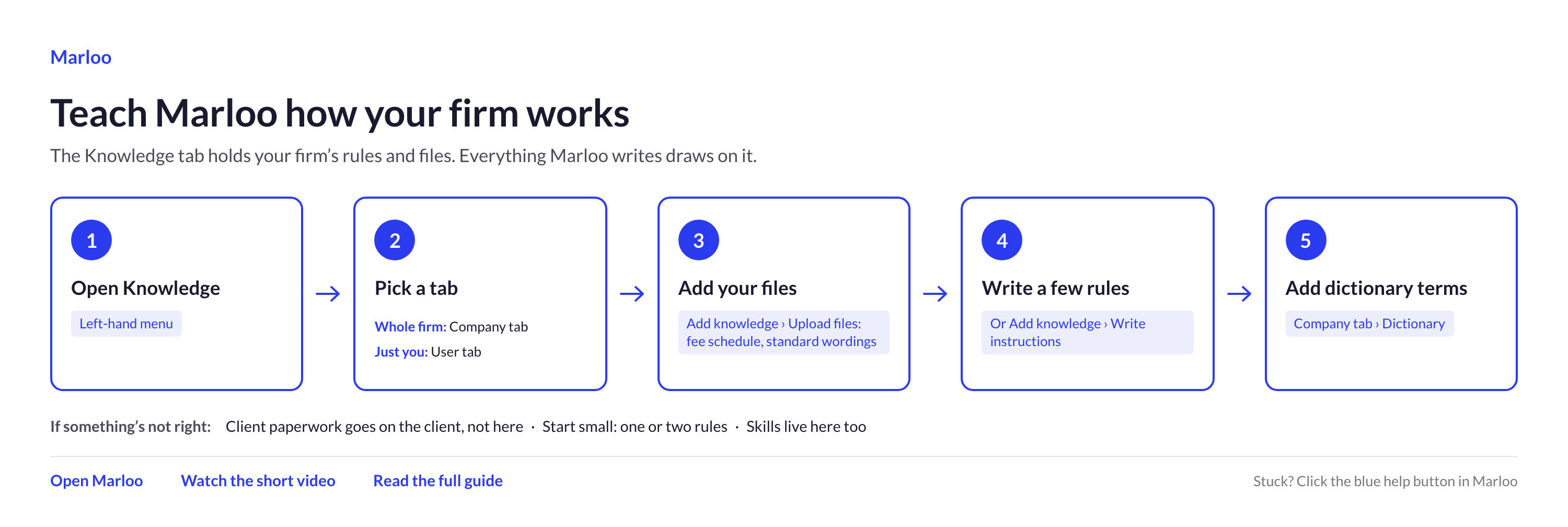
Marloo follows the instructions and files you give it. The Knowledge Base holds the context Marloo draws on: the official sources for your country, your firm's files and instructions, and your own.
You can find it in the Knowledge tab in the main navigation. Every plan includes it, with unlimited company knowledge documents.
Watch a walkthrough
The Knowledge tab works the same way everywhere; the regional sources you see are the ones for your country.
Why it matters
Every output in Marloo is only as good as the context behind it. The Knowledge Base fixes this at the source. Rather than relying on a single prompt or template, Marloo draws on a structured, layered body of knowledge so that meeting notes, documents and Ask Marloo answers start from your firm's standards and your own way of working.
Because the Knowledge Base sits underneath the whole product, improvements you make to it lift the quality of outputs across every feature at once. Upload your Form ADV brochure once and every advisor's documents draw on the same version.
The three tiers of knowledge
The Knowledge Base is organized into three layers. Each one builds on the layer below it, and each is a separate tab within Knowledge.
1. Regional knowledge
Set and maintained by Marloo. This is the base layer that applies to every firm in your region: the regulatory, tax and market references that all advisors in that region rely on. In the United States, these are the regulatory, tax and market references US advisors work from.
Regional knowledge is the list of official sources (regulators, tax authority, central bank) that Ask Marloo searches first when a question depends on your country's rules. Marloo maintains the list; it is read-only for firms. Check rates, thresholds and rules against the source before you rely on them in advice.
2. Company knowledge
Shared across your firm. This is the material that applies across your whole practice rather than to one client: a consistent, firm-defined foundation that every user in the business builds on. An advisor who joined last week produces documents grounded in the same standards as a director who has been there for twenty years.
Open Knowledge and click the Company tab. It contains:
- Company instructions - short, firm-wide rules Marloo applies to everything it generates for any user: your firm's legal name and license number, formatting conventions ("always express fees as percentages"), compliance reminders ("Always include our standard disclosures") and tone of voice ("Always use American English"). Keep these concise; detailed wordings belong in files.
- Files - your advice framework, compliance documentation, Form ADV brochure, standard recommendation wordings, fee schedules, disclaimers, risk profile descriptions and any other company-wide context you want Marloo to draw on.
- Dictionary - firm-specific terms, product names and preferred spellings so they are recognized and written correctly across meetings and documents.
Click Add knowledge, then Upload files to add a file, or Write instructions to have Ask Marloo interview you and draft your company instructions for you.
3. User knowledge
Individual to you. Where company knowledge sets the standards, user knowledge shapes the style. Set your own User instructions - how you like summaries structured, the level of detail you want, phrases you always or never use, your sign-off. They are private to you, apply only to your own outputs and sit within the standards your firm has set in company knowledge.
The User tab also shows Memory: writing preferences Marloo has learned from your edits, which you can review, edit or remove.
As with the Company tab, click Add knowledge and choose Write instructions to have Ask Marloo draft your instructions from a short conversation.
What to put in company files
Start with pre-drafted standard wordings for each advice strategy: investment recommendations, insurance advice, fee disclosure paragraphs, risk profile descriptions, product comparisons and compliance disclaimers. For most firms this is the biggest win, because Marloo then draws on your approved language instead of writing its own. Then add fee schedules and product fee tables, fund flyers, standard investment documents and any template you reuse across clients.
Word, Excel, PDF, CSV and most common document types are accepted, up to 50 MB each. For anything built around tables or figures, such as a fee schedule, upload the Excel, CSV or Word original rather than a PDF of it: Marloo reads the rows and columns in those files directly, whereas a PDF's table layout has to be worked out from how it looks on the page. For prose, PDF is fine.
Name files for what they are. "Standard Insurance Advice Wordings.docx" works for you and for Marloo; "wordings v3 final.docx" does not. Keep one file per topic so it is easy to point at.
Use company files in a document
Uploading a file is not enough on its own. Two more steps make the difference:
- Reference the file by name in your template. In the relevant section of your document template, add an instruction such as: Reference the standardized insurance wordings in "Standard Insurance Advice Wordings.docx" when writing this section. Use the approved wording that matches the client's situation.
- Select the file when you generate. On the context step of a new document, open the Company context tab and select the files you want used. Files you don't select are not read, even though they are uploaded.
How the Knowledge Base is used across Marloo
- Meeting notes and summaries - regional references, company instructions and your personal preferences all shape how a meeting is summarized and what is emphasized.
- Document generation - company files are used when you select them on the Company context tab at generation time, alongside the client's data and your template. Template instructions can also reference a company file by name.
- Client records - the knowledge that informs how client information is structured and interpreted.
- Ask Marloo - Ask Marloo on the Chat page can search your company knowledge. Ask Marloo opened from a client record searches that client and their group, together with your company context files. See Ask Marloo FAQ.
- Skills - reusable Ask Marloo workflows are created and managed from Knowledge > Skills. See Create and use skills in Marloo.
Getting started
If you set up Marloo for your firm
- Start with the documents every advisor relies on: Form ADV brochure, advice framework, standard wordings and compliance disclaimers.
- Name each file clearly and keep each one focused on a single topic.
- Write company instructions for the rules that apply everywhere, and let the files carry the detail.
If you are an advisor
- Set your user instructions, or use Add knowledge > Write instructions on the User tab to have Ask Marloo draft them for you.
- When generating documents, check the relevant company files are selected on the Company context tab.
Frequently asked questions
What is company context and how do I set it up?
Company context is firm-wide knowledge that Marloo references when generating a document: standard wordings, fee schedules, disclaimers and compliance language. Upload files in Knowledge > Company, name each file clearly and keep each one to one topic. Select the relevant files on the Company context tab when you generate a document. See Use company files in a document.
What are company instructions?
Short, firm-wide rules that apply to every document and summary anyone at your firm generates. Add them under Company instructions in Knowledge > Company. Use them for things like your firm's legal name, formatting rules (for example "Always use percentage format for fees") and compliance reminders. Keep them short: detailed wordings belong in uploaded files.
Can I edit or add to regional knowledge?
No. Regional knowledge is curated and maintained by Marloo and is read-only for firms. If you want Marloo to reference a specific source (a provider's prospectus, a custodian's fee schedule, your own regulatory summaries), add it to Company knowledge as a file, then select it on the Company context tab when you generate a document. If you think a regional source is incorrect or out of date, let us know through the support chat.
Who can manage company knowledge?
Everyone in the firm. Any user can see company knowledge and add, update or remove company instructions and files, so agree as a firm who looks after it to keep the firm-wide foundation consistent.
What is the difference between company instructions and user instructions?
Company instructions set the standards for everyone: legal names, compliance rules, formatting conventions. User instructions shape your personal style within those standards: how you like things structured, the level of detail, phrases you prefer. Both apply at the same time, with company instructions taking precedence where they overlap.
Should client documents go in company knowledge?
No. Company knowledge is for firm-level material that applies across all clients. Client-specific documents (client questionnaires, valuations, existing policy documents) belong on the client's record, where Marloo will use them for that client only. See Connect SharePoint or OneDrive for syncing client files automatically.
I added instructions and my outputs changed in ways I did not want. What should I do?
Instructions change a lot, so start small. Add one or two specific rules, run a real meeting or document through, and refine from there. If an instruction is making things worse, edit or delete it and Marloo will return to its previous behavior. Avoid restating things that are already in your templates, as the two can pull against each other.
My company instructions aren't being followed. What should I change?
Make the rule explicit. "Do not use em dashes" works; "write nicely" does not. For guidance that only applies to one document type, put it in that template instead.
I am a paraplanner working for several advisors. Whose style does Marloo use?
User instructions reflect you, the person logged in. Where you draft on behalf of advisors with different styles, keep advisor-specific preferences in the relevant document templates rather than your user instructions, and keep firm-wide standards in company knowledge. That way your own preferences do not override the advisor's voice.
My company knowledge isn't appearing in generated documents. What should I check?
First, confirm the relevant file is selected on the Company context tab when generating. Second, check that your template instructions reference the file by name, for example "Use the wordings from 'Standard Insurance Advice Wordings.docx' for the insurance section." Third, if the file was uploaded moments ago, give it a minute to finish processing and try again.
Marloo isn't using my approved wording. What should I do?
Add a specific instruction in that template section: "Reference the standardized wordings in [exact file name] for this section."
The Company context tab is cluttered. How do I tidy it?
Keep files to one topic each and remove outdated ones from Knowledge > Company > Files.
Which plan includes the Knowledge Base?
Every plan includes the Knowledge Base, with unlimited company knowledge documents. Because it improves output quality across the whole product, every user has access to it.
Related articles
- Ask Marloo FAQ - What Ask Marloo can access and how to get the best results.
- Branding and styling FAQ - Document styling, notetaker branding and firm-wide settings.
- What is Ask Marloo? - How Ask Marloo uses the context available in each chat.
- Connect SharePoint or OneDrive - Sync client files into their records automatically.
- Generate your first advice document - Set up company knowledge before your first generation.
- Refine your document template - Reference company files by name in template instructions.
Still stuck? Talk to a human.
Email the Marloo team with what you are seeing. If you are in the app, the blue chat button in the bottom-right corner is the fastest way to reach us.


