
What is Ask Marloo?
What Ask Marloo can read in Chat, a meeting, a client, a document and a summary, plus voice input, web search, citations and its limits.
Ask Marloo answers questions about your clients, meetings and documents, using the data in your Marloo account. What it searches depends on where you open it.
What is Ask Marloo?
Ask Marloo is an AI assistant built into every part of Marloo. It is not a general chatbot. It understands the meeting, client or document you are working with and answers from that context. Ask Marloo is included on every plan, including Free, with no limit.
You can open Ask Marloo from the Chat page, from the Home tab if it's in your menu, or from inside a meeting, client profile, document, summary or template. Wherever you open it, every response is grounded in real data from your account. For the Chat page, see Ask Marloo anything in Chat.
What Ask Marloo can access
What Ask Marloo searches automatically depends on where you open it. Each place can also look up related records in your account when you ask.
On the Chat page
On the Chat page, Ask Marloo searches across all the clients you have access to, not just one. It can find and summarize clients, meetings and transcripts, tasks, documents, files and notes, connected emails and templates, and compare or roll them up across clients. Opening Ask Marloo from a client profile limits it to that client instead. See Ask Marloo anything in Chat.
In a meeting
Ask Marloo searches:
- The meeting transcript
- The meeting summary
- Text and voice notes added to the meeting
- Documents uploaded to the meeting
Its search is limited to that meeting, but when you ask it can also look up the linked client, other meetings, synced emails and tasks, add or update meeting notes, and update client details.
On a client
On a client, Ask Marloo searches everything tagged to that client:
- All meeting transcripts and summaries tagged to that client
- All documents uploaded to the client profile
- All synced emails for that client
- Notes from any meeting tagged to the client
- The client overview
- Records of other members of the client's group
- Your firm's company context files in Knowledge > Company
It can also create and update meetings, notes, tasks, tags and client details for that client when you ask.
In a document
Ask Marloo can access:
- All context files passed through for that document generation
- The document template
- The generated content itself
- The client's meetings, files, notes and other documents
In a summary
Ask Marloo can access:
- The meeting transcript
- Notes and context added to that meeting
- The current summary content
How to use Ask Marloo
- Open Ask Marloo from the Chat page, or within a meeting, client, document, summary, task, slide or template.
- Type your question in the chat field, or dictate with the microphone button or Option + Space on Mac (Ctrl + Space on Windows).
- Review the response. Ask follow-up questions to refine the answer. Expand the chat window for longer work, and reopen previous chats from your history in the same place (chats are private to you).
- Optionally save the answer as a file note on the client's profile for later use in advice documents.
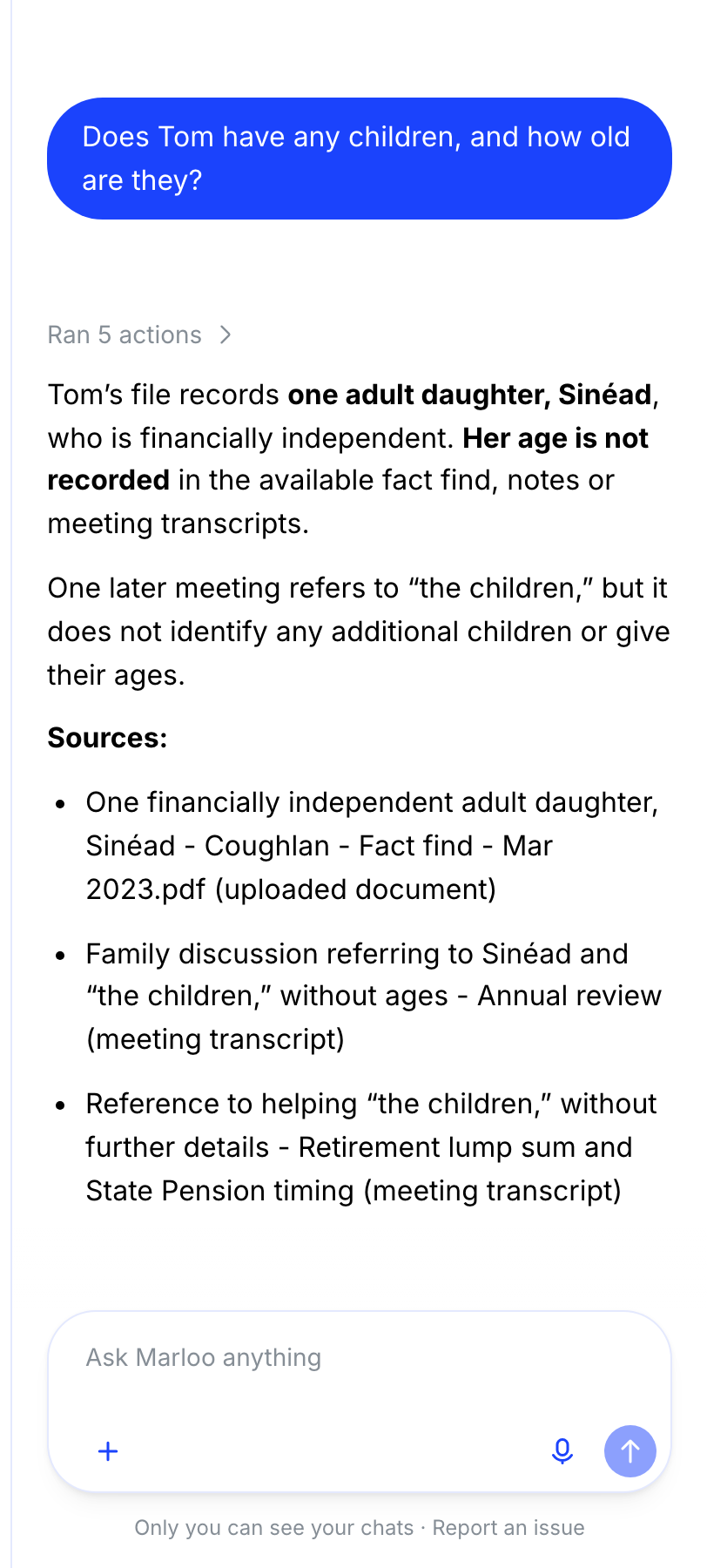
Voice input
Click the microphone icon in the input field, or hold Option + Space on Mac (Ctrl + Space on Windows) to dictate anywhere in Marloo (including search and document editing). Speak naturally and your words are transcribed automatically.
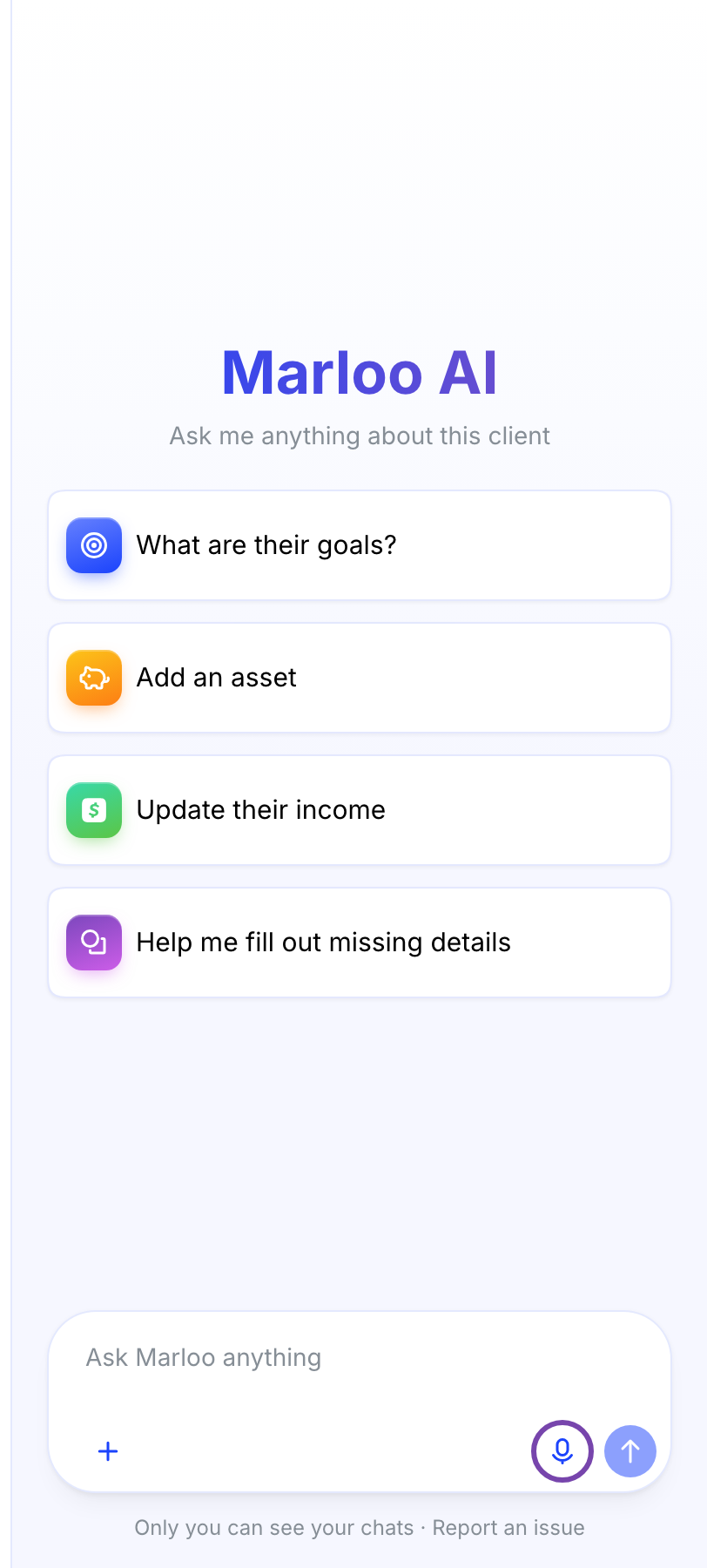
Web search
Ask Marloo can also search the web to supplement its answers with external information. This is useful when you need general market data or regulatory references alongside your client-specific information. Marloo sends only the search terms to its web search provider, not your files or records, but search terms can include details from your question.
Source citations
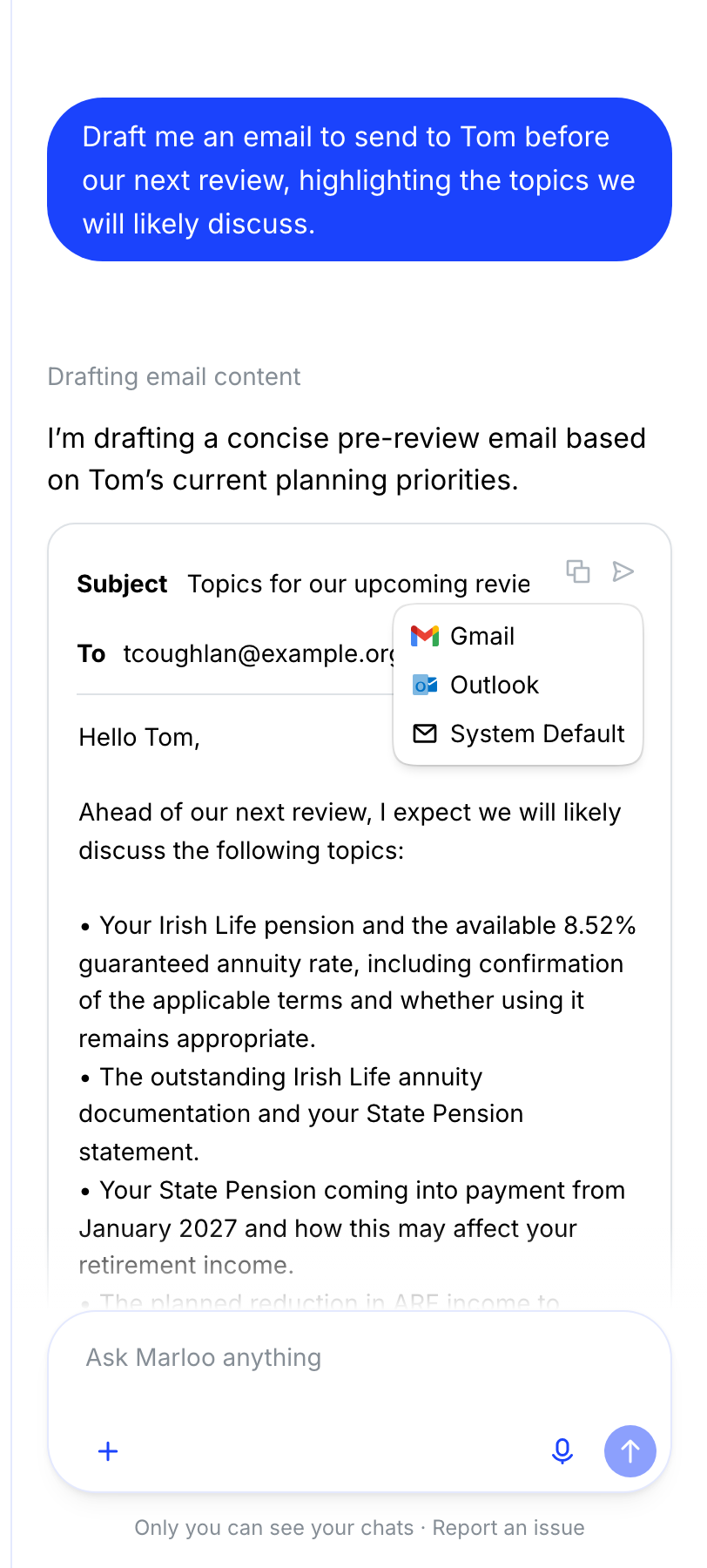
On a client, responses include visible citations showing the source document and text excerpt. In meetings and documents, ask Marloo "where did you get that information?" and it will reference the source in the chat.
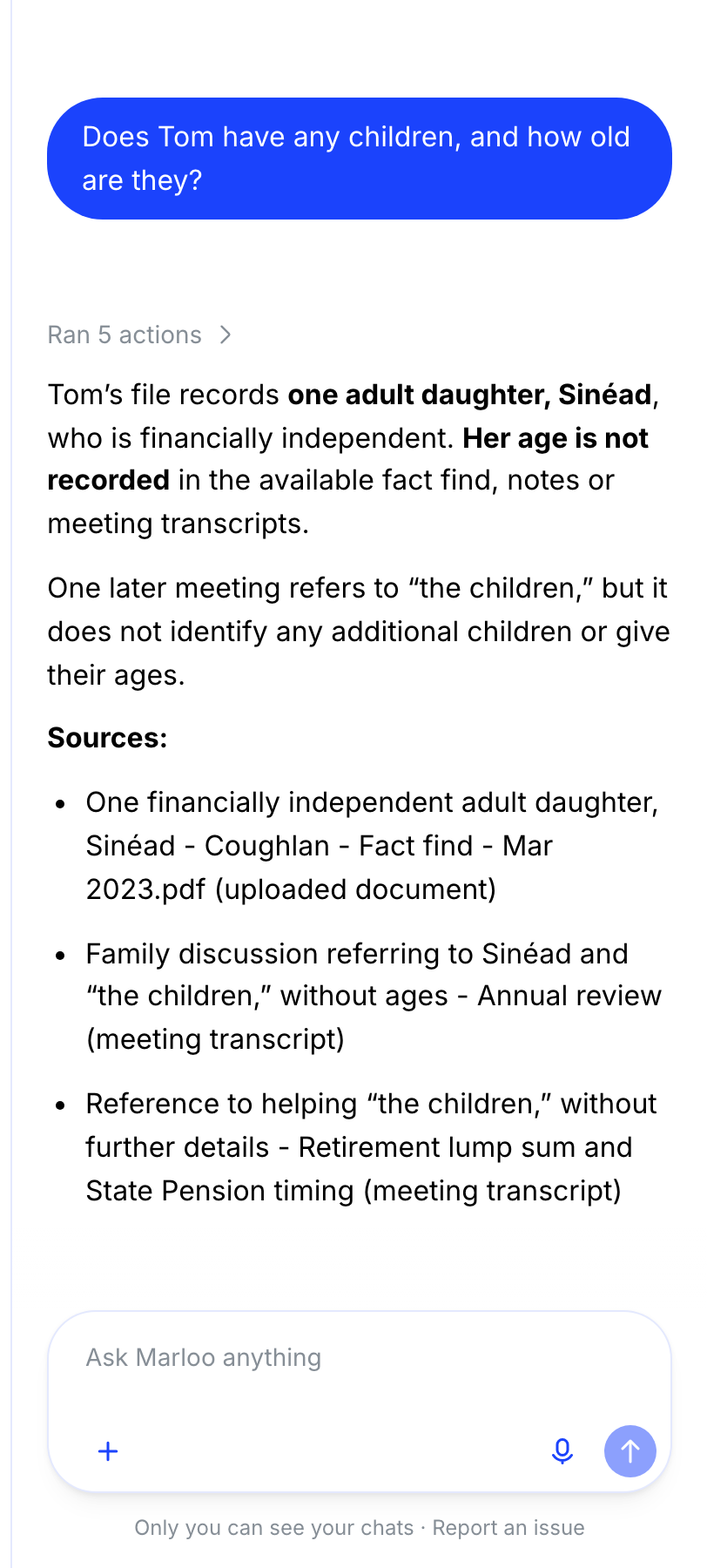
Drafting emails
Click the compose button, then choose Gmail, Outlook or System Default to open the draft in your email client for review and sending. If your Gmail or Outlook account is connected to Marloo with permission to send, you can also ask Marloo to send the email or save it as a draft in that account for you.
Tips for better results
- Be specific with your questions. "What risk profile did [Client Name] indicate in the March meeting?" works better than "Tell me about the client."
- Open Ask Marloo from the right place. For questions about a single meeting, open it from that meeting. For questions spanning multiple meetings, open it from the client profile.
- Ask follow-up questions to refine answers or dig deeper.
- Support team members can ask role-specific questions like "What are my action items from this meeting?"
For Support team members
Support team members can use Ask Marloo to get instant context on any meeting they have access to. Open the meeting and ask questions like "What are my action items?" or "Summarize what was discussed" without needing to read the full transcript.
This is particularly useful when stepping into a meeting you did not attend. Ask Marloo can brief you on what was discussed, what documents need to be prepared, and what follow-up actions are required.
Limitations
- Ask Marloo only works with the information available in its context. If a document has not been uploaded or a meeting has not been transcribed, Ask Marloo cannot reference it.
- Voice input may occasionally require a page refresh to activate. If it stops working, refresh the page.
- In rare cases, Ask Marloo may generate details that are not in your files. Always verify critical details against source documents. If this occurs, regenerate the response and report the issue to support.
- Ask Marloo results can occasionally disappear when switching tabs. Refresh the page to restore them.
Frequently asked questions
Why did Ask Marloo give me a generic response?
Make sure you opened Ask Marloo from within the relevant meeting or client profile, or name the client or meeting in your question if you are on the Chat page. Ask Marloo uses the context of where you open it. If the context is thin, the response will be generic.
Can I use Ask Marloo without being in a specific meeting or client?
Yes. Select Chat in the main menu, or use the box at the top of Home if it's in your menu. See Ask Marloo anything in Chat.
Can I send an email directly from Marloo?
Yes, if your Gmail or Outlook account is connected to Marloo with permission to send: ask Marloo to send it or save it as a draft. Otherwise click the compose button, choose Gmail, Outlook or System Default, then review and send from there.
Why isn't voice input working?
Refresh the page. If the issue persists, contact support.
What if Ask Marloo makes up details that are not in my files?
Regenerate the response and report the issue to support. Always verify critical details against source documents.
Related articles
- Ask Marloo anything in Chat - Search across all your clients, meetings, tasks and emails from one place
- Use Ask Marloo in a meeting - Add notes, voice notes and documents to get better meeting-level answers
- Use Ask Marloo on a client - Query across all meetings, uploads and emails for a client
- Use Ask Marloo in documents and summaries - Edit and refine generated content with Ask Marloo
- How meetings work in Marloo - How to capture meetings for Ask Marloo to reference
- Manage your client list - Tag clients to meetings and upload documents to client profiles
Still stuck? Talk to a human.
Email the Marloo team with what you are seeing. If you are in the app, the blue chat button in the bottom-right corner is the fastest way to reach us.


