
Generate, edit and export a meeting summary
How to generate a meeting summary from a transcript, run more than one template on the same meeting, edit the summary, and export it as Word or PDF, email it or copy it, plus what to do when a summary doesn't generate.
This article shows you how to generate and edit a meeting summary from a transcript, then export, email or copy it. Summaries are never automatic: after the transcript is ready, open the Summary tab and pick a template.
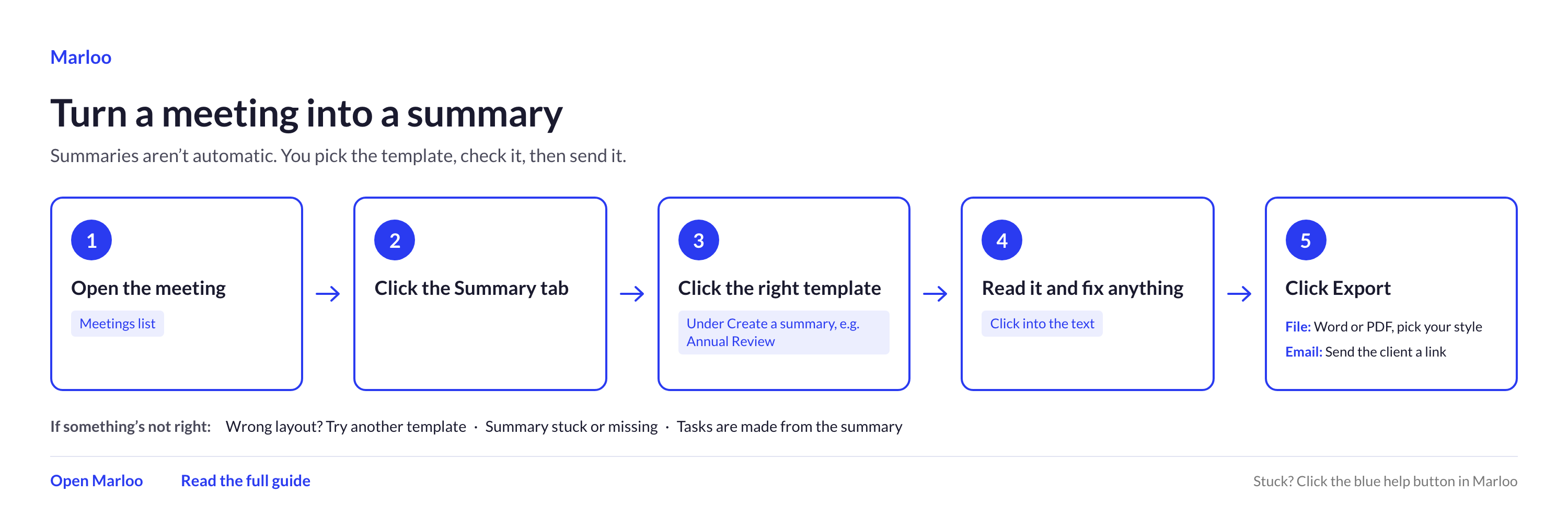
Quick flowchart: meeting to summary in 5 steps
How to generate a summary
After a meeting is transcribed, you need to go to the meeting and select a template to generate a summary. Marloo does not auto-generate summaries after a meeting ends.
- Open the meeting from your meetings list.
- Click the Summary tab.
- Click the template you want to use. Marloo will generate a summary using that template against your transcript and any added notes.
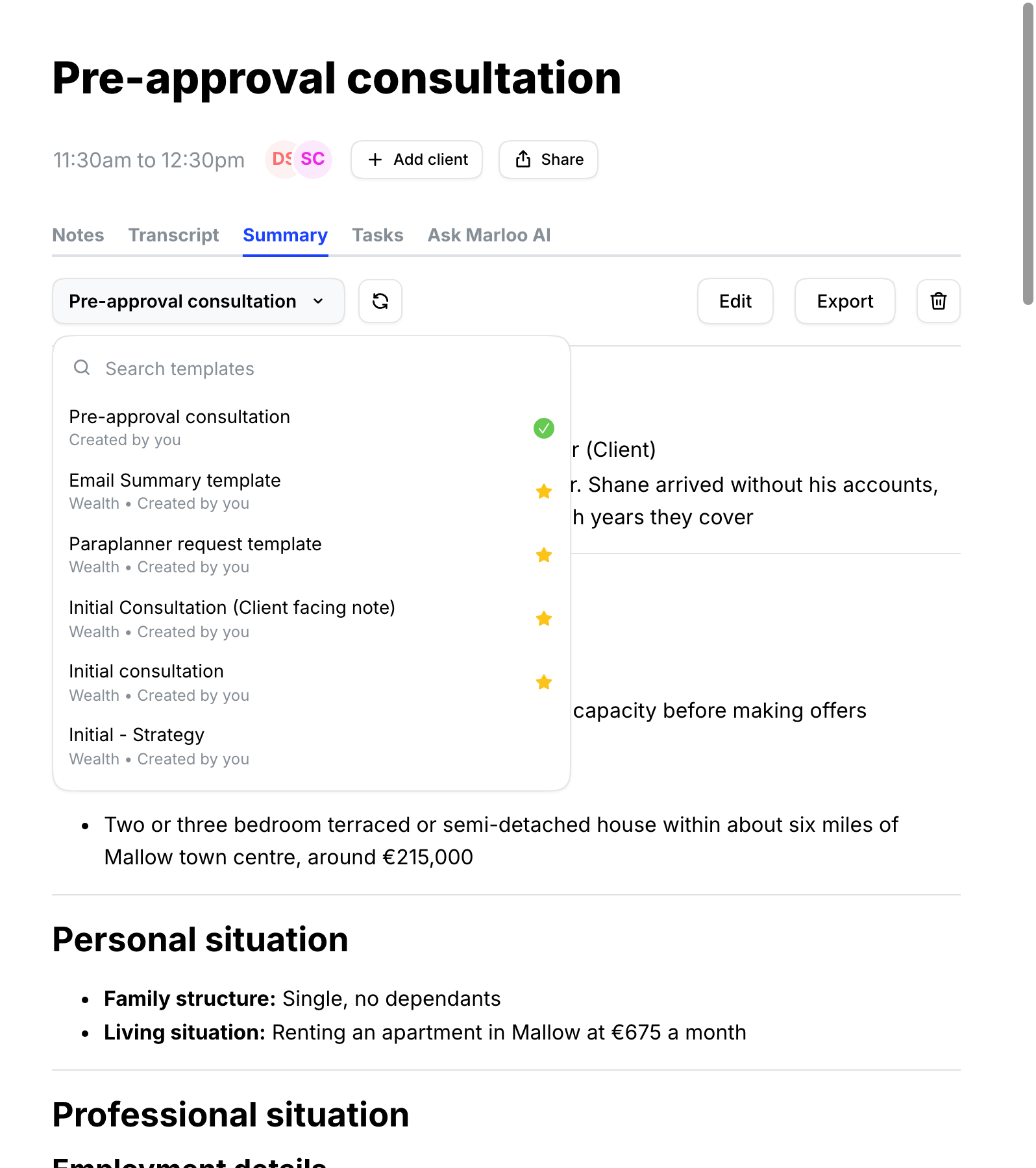
Note: Marloo does not auto-generate summaries after a meeting ends. You always trigger summary generation manually from the Summary tab.
Running multiple templates against the same transcript
You can generate summaries using more than one template for the same meeting. This is useful when you want to compare outputs, or when a meeting covered multiple topics that need separate note structures.
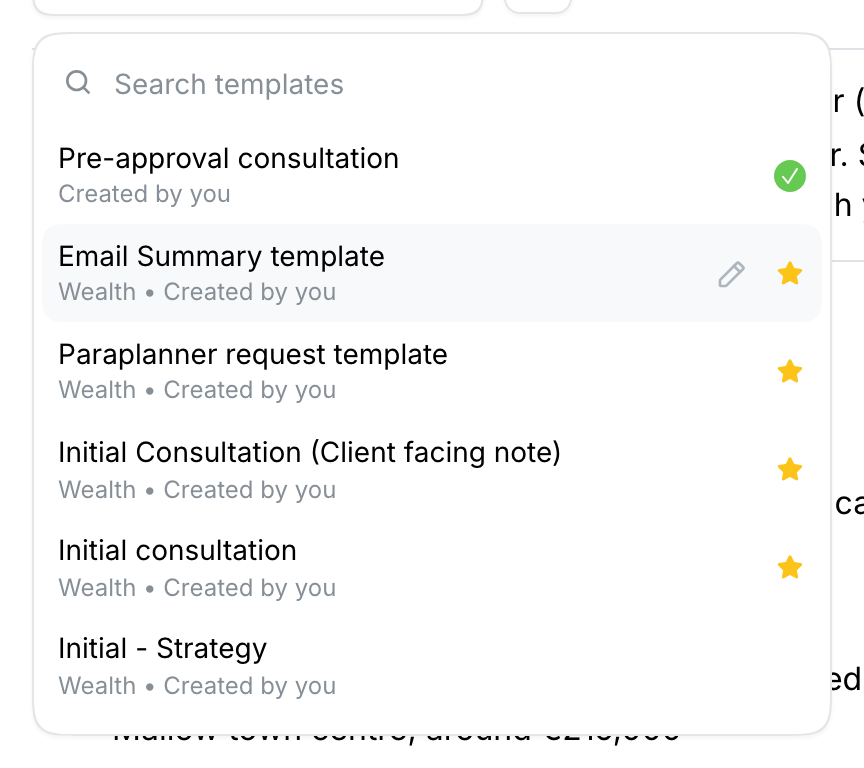
After an initial summary is generated, use the template dropdown in the summary view to select a different template and generate a new version. Each template produces a separate summary. They are stored alongside each other and you can switch between them using the dropdown.
Editing a generated summary
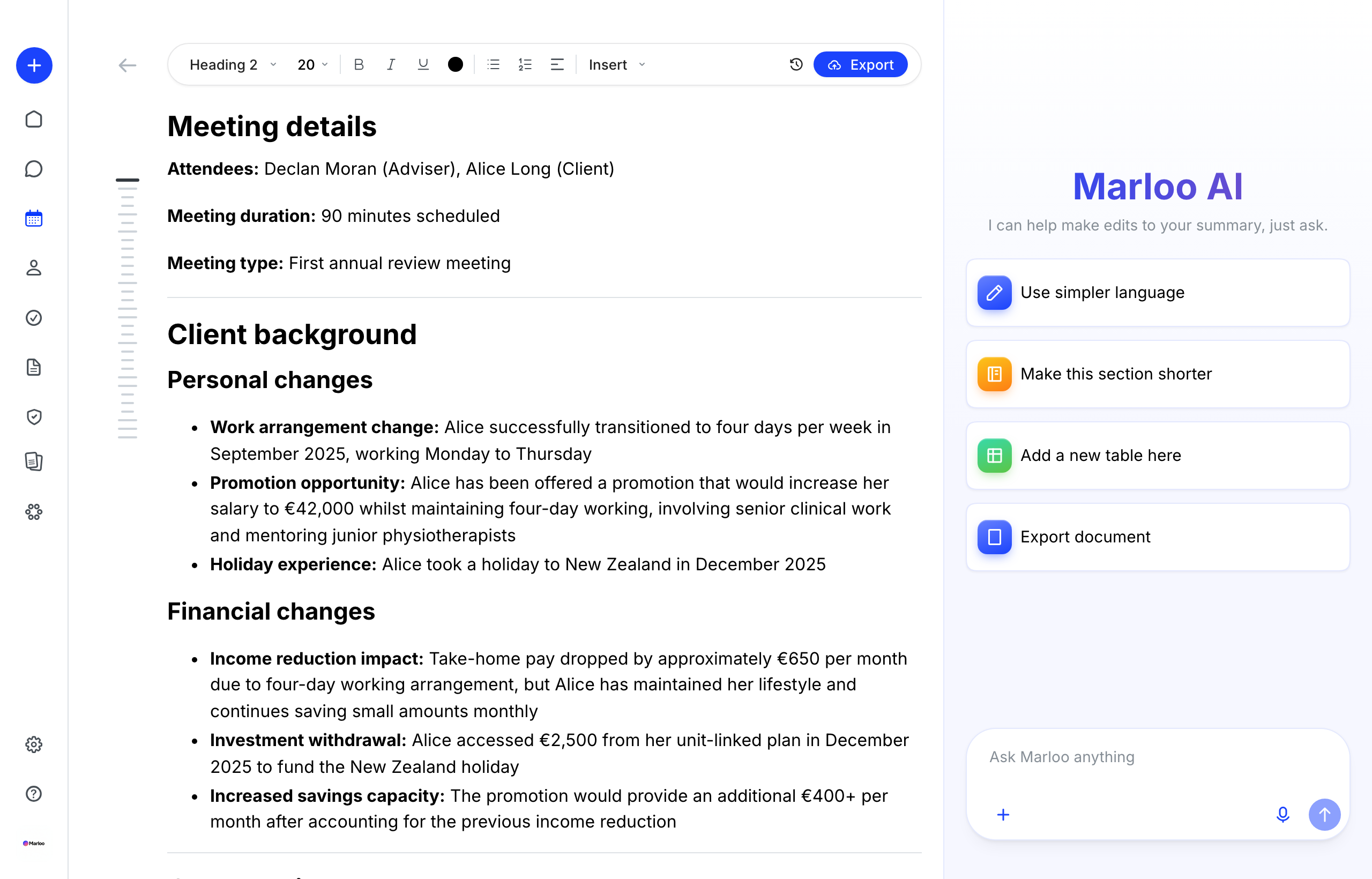
You can edit a generated summary directly in the Summary tab. Click into the summary text and make changes as you would in a document editor. Edits are saved automatically.
Editing the summary does not affect the underlying template or the transcript. If you regenerate the summary using the same template, your manual edits will be overwritten, so regenerate only when you want a fresh output.
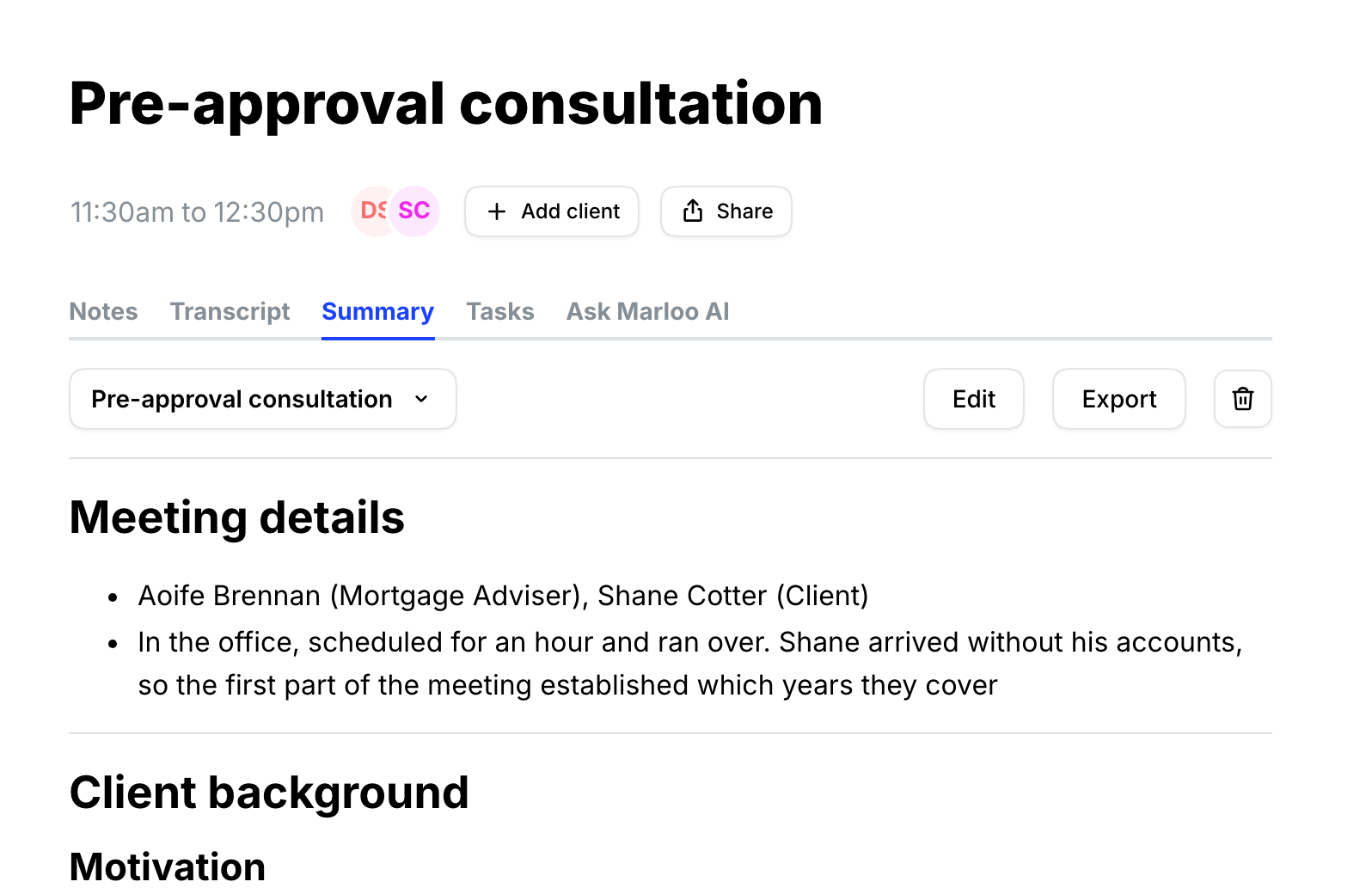
Meeting > Summary > Edit
Exporting, emailing or copying a summary
The export flow is the same for meeting summaries and for generated documents (file notes, financial plans, advice documents).
Export a summary as Word or PDF
- Open the meeting and open the summary in the editor. If a summary hasn't been created for the meeting yet, create it first.
- Find the Export button in the top right corner of the editor.
- Click Export, then choose Export from the menu. The menu also offers Copy and Email.
- Choose your format: Word or PDF.
- Select a style.
Export a generated document (file note, financial plan, etc.)
- Open Documents, or the client's Documents tab, and click into the document you want to export.
- Find the Export button in the top right corner of the document editor.
- Click Export, then click Export again on the confirmation step.
- Choose your format: Word or PDF.
- Select a style.
Where the styling comes from
Your firm's branding (fonts, colors, logo, cover page, headers and footers) is applied automatically at export time. To configure it, go to Documents > Styles.
Uploading a logo directly in Company settings (without going through Documents > Styles) will not apply it to exported documents. Always configure under Documents > Styles.
Can I email a summary or document straight from Marloo?
For a meeting summary, yes. Click Export in the summary editor and choose Email. Enter the Recipient email and click Send email. Marloo emails the recipient a link to view the summary; it does not attach a file. Generated documents have no email option.
To send a summary or document as a file to a client or a colleague:
- Export it as Word or PDF using the steps above.
- Open your own email client.
- Attach the exported file and send it as you normally would.
Send a summary to another system
- Connect Plannr and send documents and meetings: send the summary and transcript to the client's Plannr record.
- Setting up webhooks: send each new summary, transcript or document to another system, such as Zapier.
Ask Marloo can draft the covering email for you: click Compose and the draft opens pre-populated in Gmail or Outlook, where you attach the exported file and send it. See Ask Marloo FAQ.
Delete a summary
- Open the meeting and go to the Summary tab.
- Choose the summary you want to remove.
- Click the trash button (Delete summary) next to Export, then click Delete to confirm.
You can't delete a summary while it's still generating: the button appears once it has finished. If you delete the summary the meeting is showing, Marloo shows the newest remaining summary instead. Deleting a summary doesn't change the transcript or your other summaries.
Tips
- Choose the right template before generating. Check the template name carefully: using the wrong template means you'll get a summary structured for a different meeting type.
- Add notes before generating. If you have additional context that wasn't captured in the transcript (e.g., pre-meeting prep notes or action items discussed offline), add them to the meeting before generating a summary. Marloo uses both the transcript and your notes. See Add notes, voice notes and files to a meeting.
- Try multiple templates if unsure. You can generate summaries with different templates and compare the results to find the best fit for your meeting.
- Edit after generating. Treat the generated summary as a strong first draft. Review it, make any adjustments, and finalize before sharing or filing.
If your summary didn't generate
| Problem | Solution |
|---|---|
| Summary didn't generate automatically after my meeting | This is expected behavior. Marloo does not auto-generate summaries. Go to the meeting, click the Summary tab, and click a template to generate one manually. |
| The generated summary used the wrong structure for my meeting type | You likely selected the wrong template when generating. Use the template dropdown in the Summary tab to select the correct template and regenerate. Check your template names to make sure they clearly identify the meeting type. |
| I regenerated the summary but it still shows the old content | Click Regenerate summary again. |
| The summary has been generating for a long time and never finishes | Summaries generate in the background, so leaving the page doesn't stop them. If it still hasn't finished after a few minutes, click Regenerate summary (the circular-arrows button next to the template name). |
Related articles
- Create and use meeting templates - Creating and customizing meeting templates
- Customize your document styling - fonts, colors, cover pages and headers
- Edit a transcript - the transcript your summary is generated from
Still stuck? Talk to a human.
Email the Marloo team with what you are seeing. If you are in the app, the blue chat button in the bottom-right corner is the fastest way to reach us.


