
Sign up and set up your account
The sign-up steps: create your account, tell us about you and your firm, connect your calendar and book an onboarding webinar.
Set up your Marloo account in under five minutes. You'll create your login, tell Marloo about yourself and your firm, connect your calendar, and choose how you want to get started.
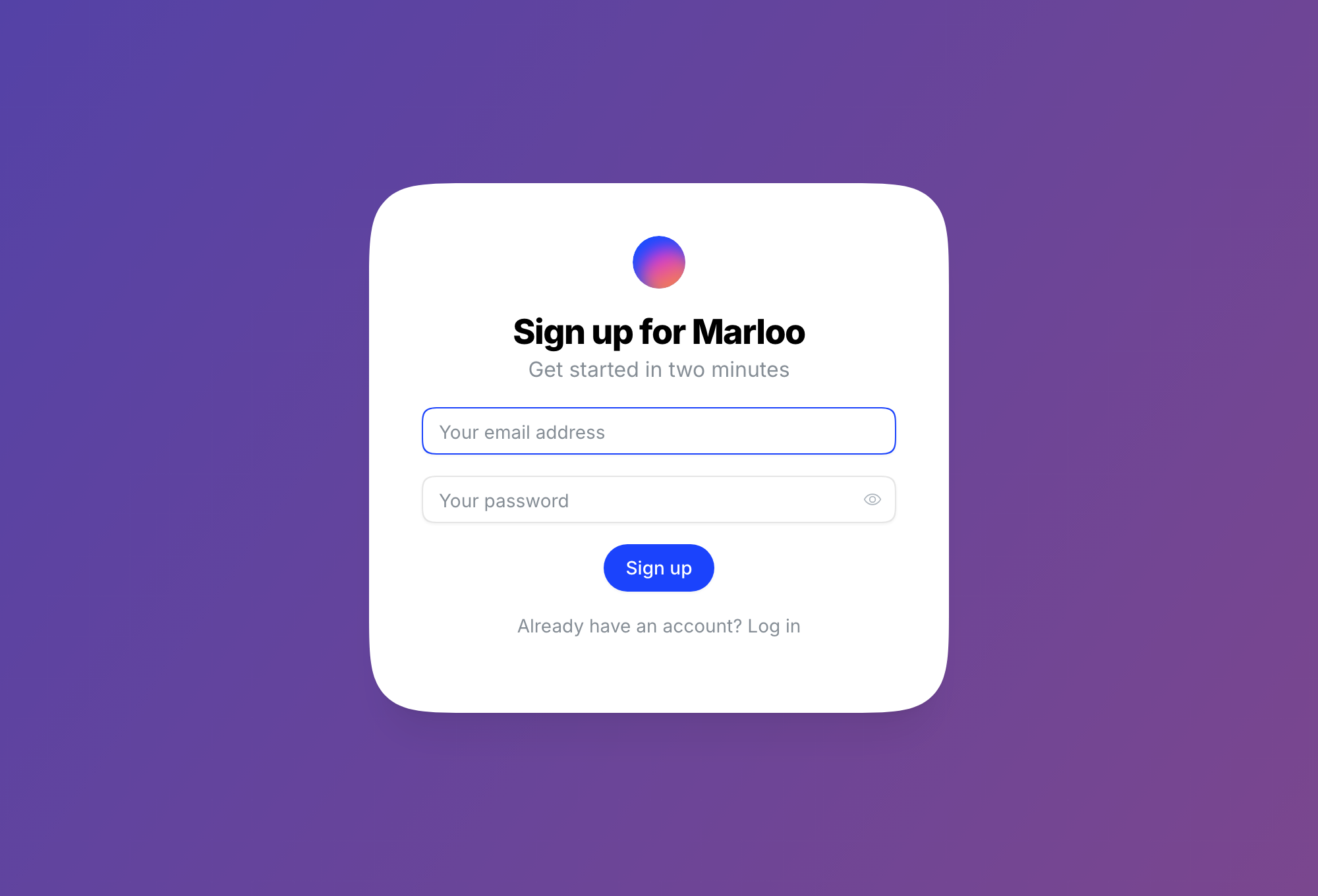
Step 1: Create your account
- Go to app.marloo.com to begin.
- Enter your email address and create a password.
- Click Sign up, then open the verification link Marloo emails you.
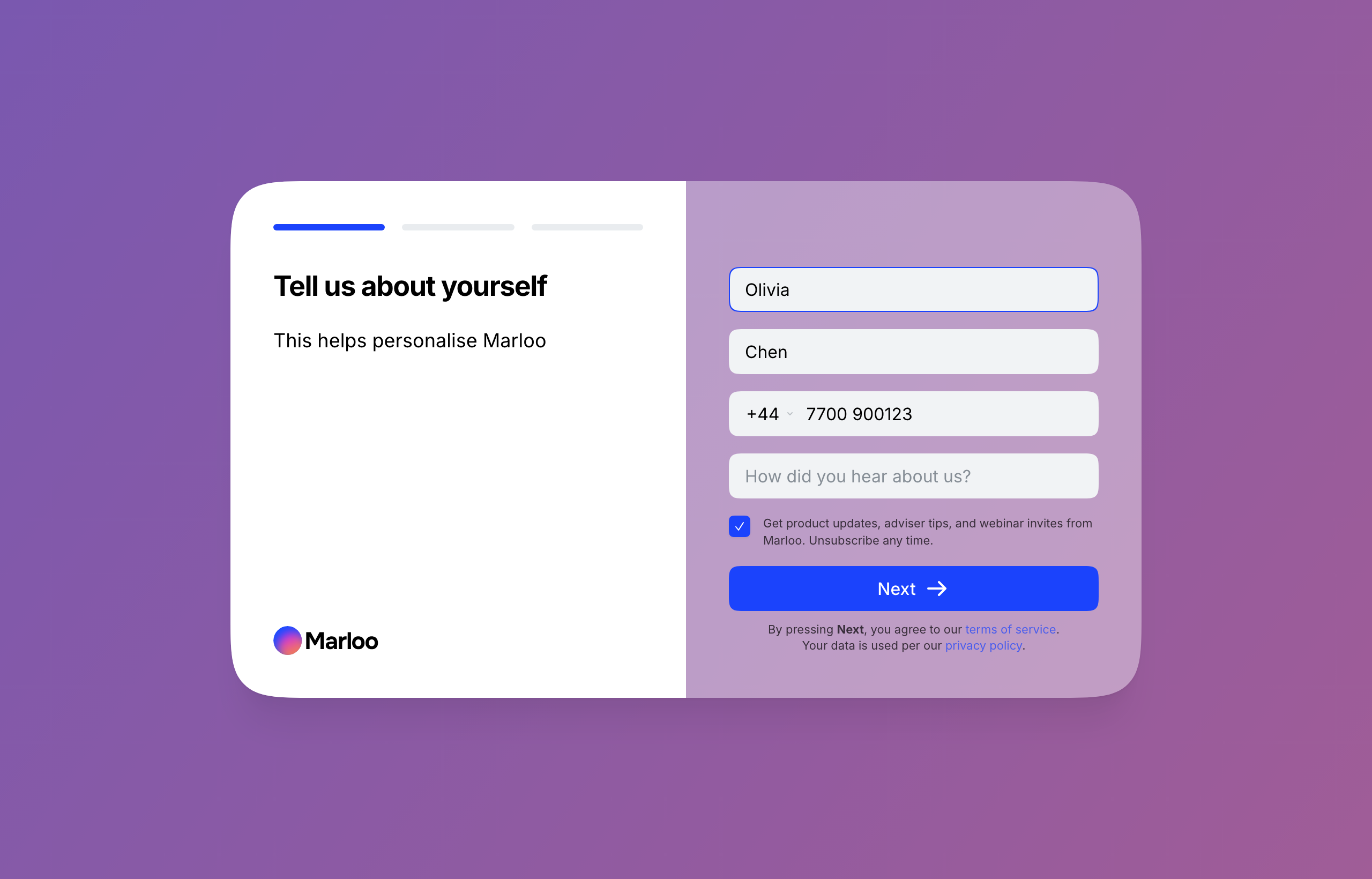
Step 2: Tell us about yourself
- Enter your first name and last name, and optionally your phone number.
- Tell us how you heard about Marloo.
- Click Next.
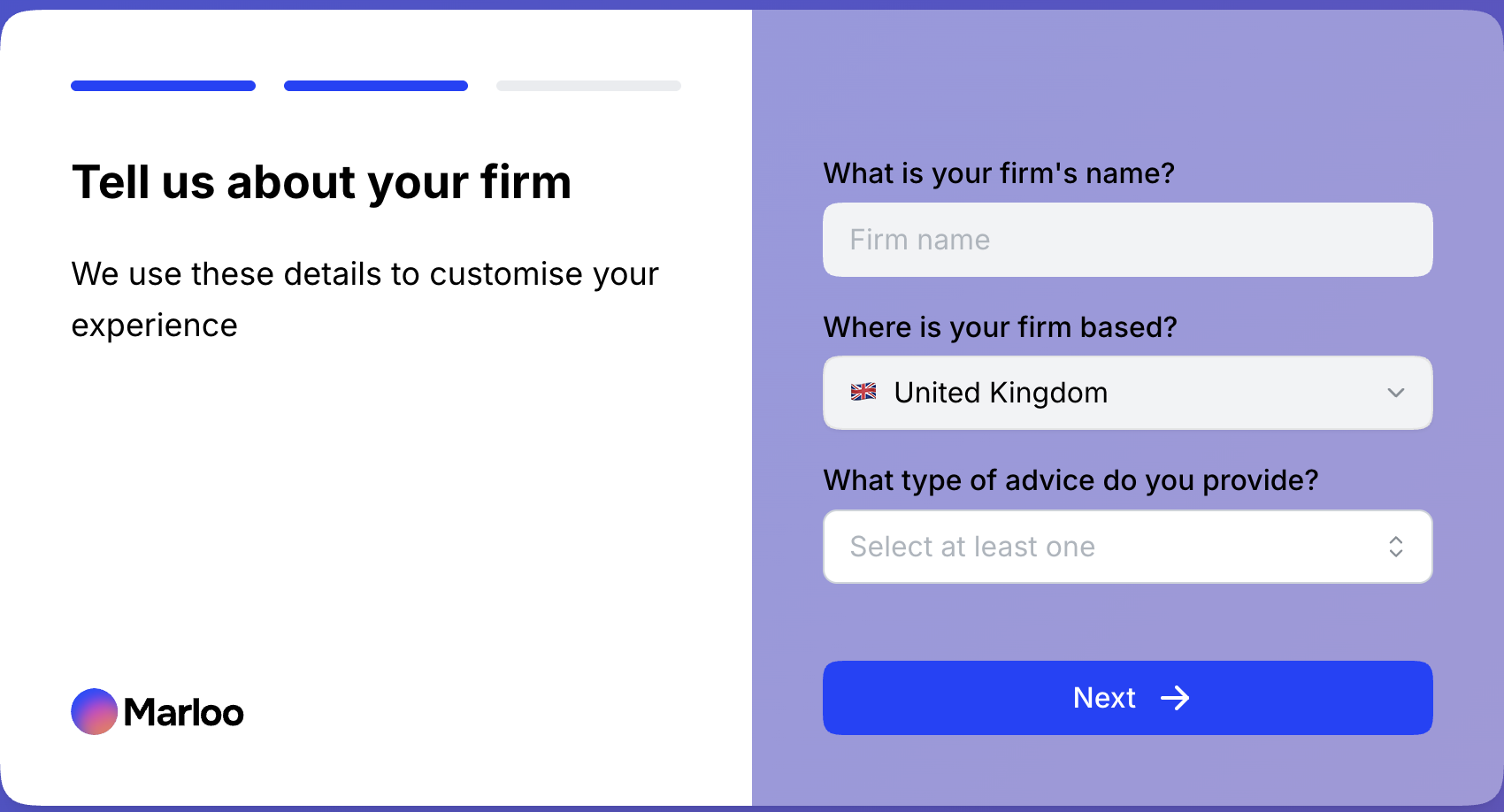
Step 3: Tell us about your firm
This step helps Marloo load the right meeting and document templates for your practice.
- Enter your firm name.
- Select your firm's location.
- Choose your advice types. You can select more than one:
- Wealth - Investment and wealth management
- Mortgage - Home loans and mortgages
- Insurance - Life, income, and general insurance
- Other - Other types of financial advice
Your advice type selection determines which default templates Marloo creates for you. You can always change or add templates later.
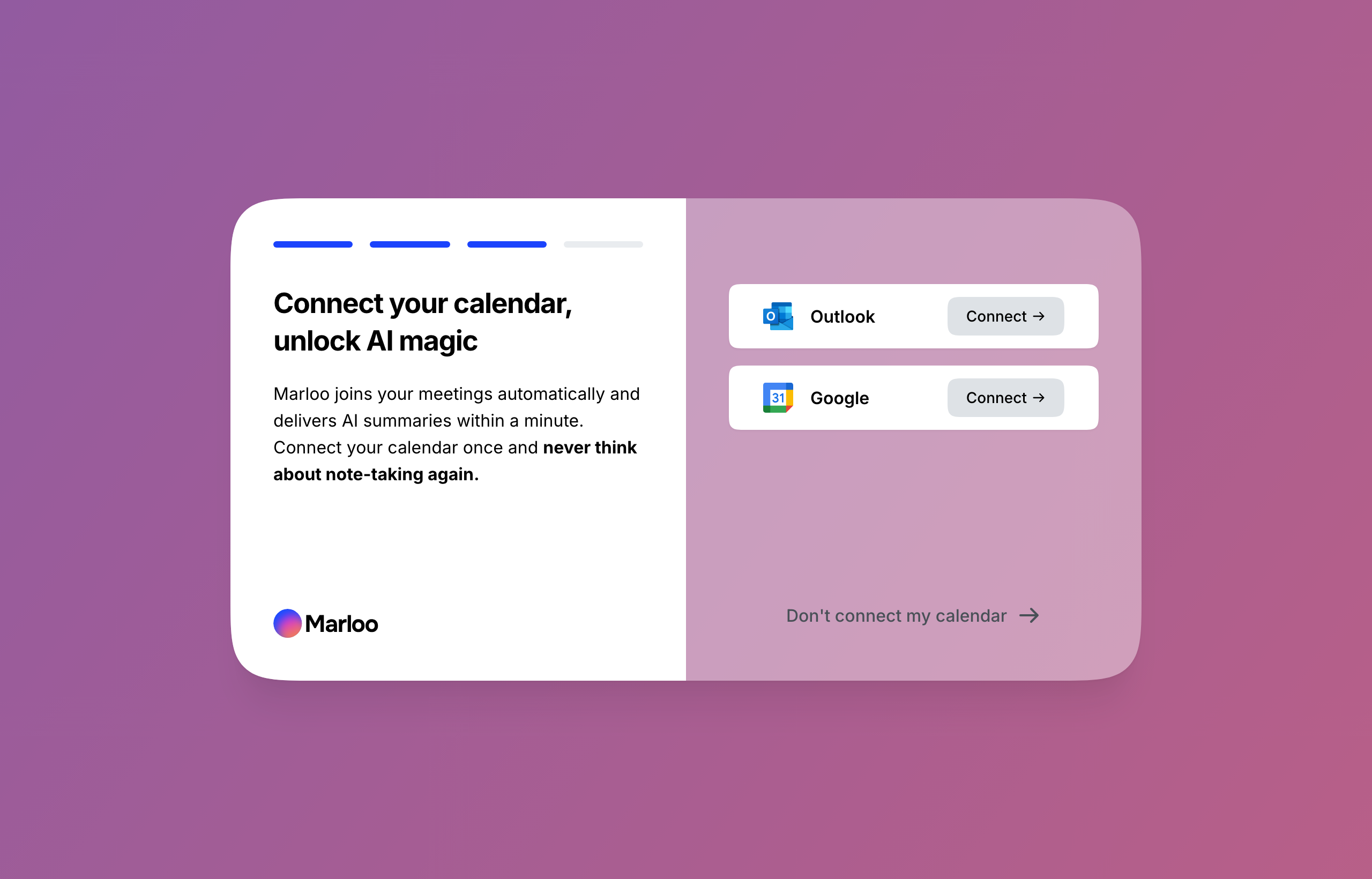
Step 4: Connect your calendar
Connecting your calendar is the fastest way to get started. It lets Marloo:
- Show your upcoming meetings in Marloo
- Automatically join your virtual meetings for recording and transcription
How to connect
- Choose your calendar provider, Outlook (Microsoft 365) or Google, and click Connect.
- Sign in to your calendar account when prompted.
- Approve the permissions so Marloo can read your meeting schedule.
Once connected, your meetings appear in Marloo. Marloo is set to auto-join your virtual meetings by default: when a meeting starts, Marloo joins the waiting room and waits for you to admit it.
Don't want to connect your calendar? You can still use Marloo by pasting meeting links manually or recording meetings through the web or mobile app. See Get Marloo into your meeting.
Step 5: Join our onboarding webinar
Register for a free live onboarding webinar to get up to speed with Marloo, or skip this step and continue.
- Choose a session that suits you, or click Not now, take me to Marloo to skip.
- You can also register at marloo.com/webinar.
You can skip registration and join a webinar any time after setup.
- Joining a Marloo webinar - session times for the UK
Step 6: Get started
After setup, Marloo asks How would you like to try Marloo? and offers three options:
- Jump right in - Skip the demo and start recording straight away. Best if you prefer learning by doing.
- Get a tour in 2 mins - Quick overview of how Marloo works. Available any time in the app.
- Book a guided demo - 30-minute personalized session with our team for a hands-on walkthrough.
You can access the tour or book a demo later if you skip them now.
Troubleshooting
| Problem | Solution |
|---|---|
| Sign-up page not loading | Try a different browser or clear your cache. Marloo works best on Chrome, Edge, or Safari. |
| "Failed to fetch" when you sign up or log in at work | Your office network is blocking Marloo. See Can't sign up or log in on a corporate network?. |
| Didn't receive the verification email | Check your spam folder. If it's not there, try signing up again or contact support. |
| Calendar isn't connecting | Make sure you're signing in to the correct account. Try disconnecting and reconnecting in Settings > Integrations, under Outlook Email and Calendar or Gmail and Calendar. |
| Meetings not appearing after connecting calendar | Allow a few minutes for the initial sync. If meetings still don't appear, disconnect and reconnect your calendar. |
| I can't see my team in Marloo, or can't accept an invite | You must join through the invitation link in the email. Don't create an account directly at app.marloo.com. If you already signed up without the invite, open the original invitation email and accept from that link. If the email is gone, ask a teammate to resend the invite from the Invites tab in Settings > Team. See Invite and manage team members. |
Related articles
- What is Marloo? Start here - Overview of what Marloo can do
- Joining a Marloo webinar - Upcoming sessions and on-demand recordings
- Your first meeting and summary - Record a meeting and generate your first summary
- Invite and manage team members - Add colleagues and fix invite issues
- Connect your calendar - Detailed calendar setup and troubleshooting
- Account settings: your name, password and sign-in - Update your profile, password, and MFA settings
Still stuck? Talk to a human.
Email the Marloo team with what you are seeing. If you are in the app, the blue chat button in the bottom-right corner is the fastest way to reach us.


