
Connect Google Drive
How to connect Google Drive to Marloo and link a client's Drive folder so their documents are available in Marloo.
Let Marloo set this up for you
The quickest way. Marloo opens with this request ready in chat. Send it, and Marloo guides you through the rest.
“Help me connect Google Drive”
Marloo syncs files from Google Drive into a client's knowledge base, so their documents are searchable and available to Ask Marloo without leaving Marloo. Google Drive is available on every Marloo account. Marloo only reads your Drive: it cannot create, edit, move or delete anything in it.
Connect Google Drive
- Log in to your Marloo account at app.marloo.com.
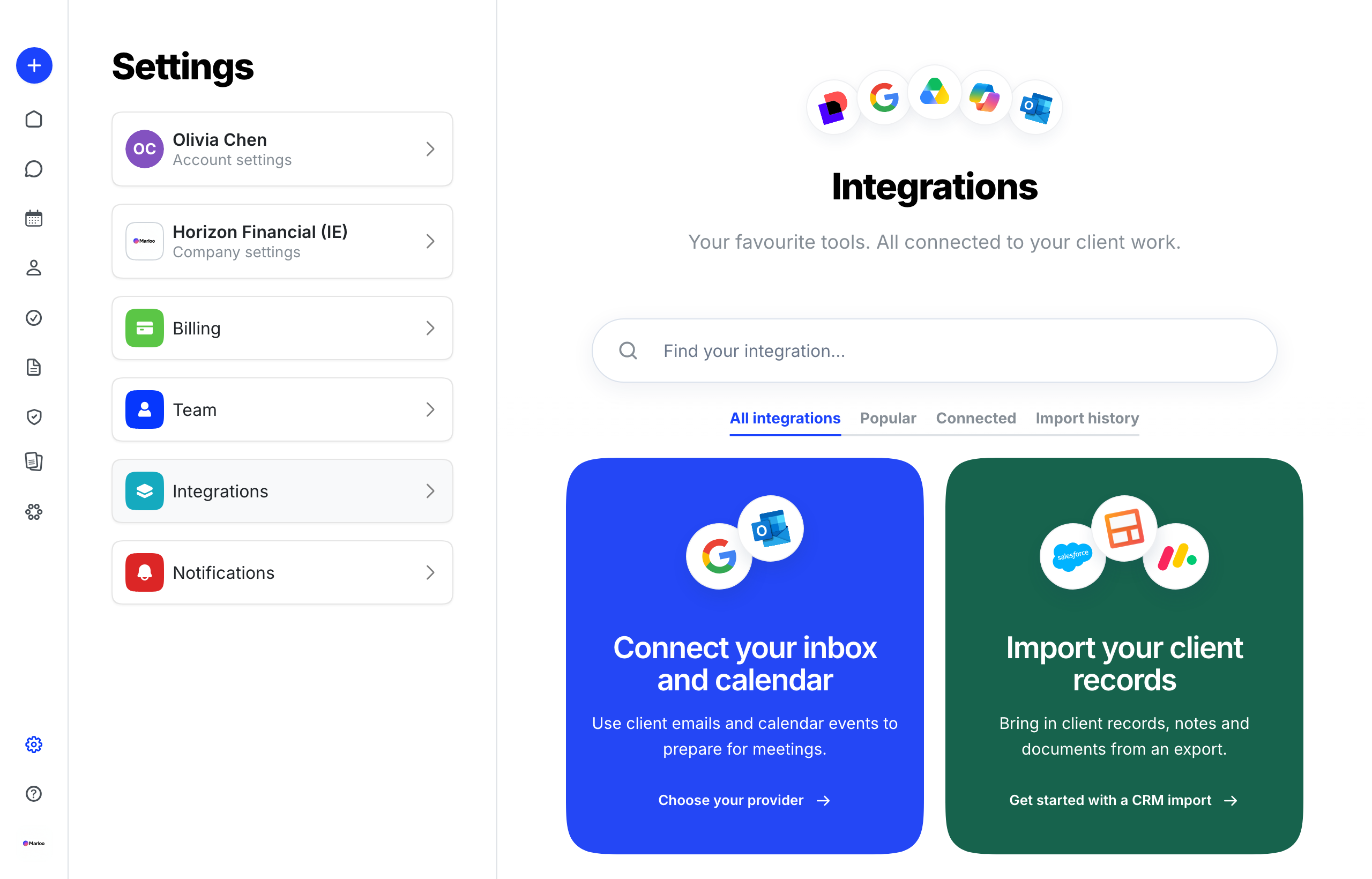
- Go to Settings > Integrations.
- Under Files & documents, open Google Drive, then click Connect on its card.
- Sign in with your work Google account.
- Review the permissions on the consent screen and click Allow.
- You return to Marloo and Google Drive shows as connected.
Link a client's folder
There are two ways to link a client's Google Drive folder: let Marloo suggest matches across your whole client list, or link folders yourself one client at a time.
Let Marloo find your client folders
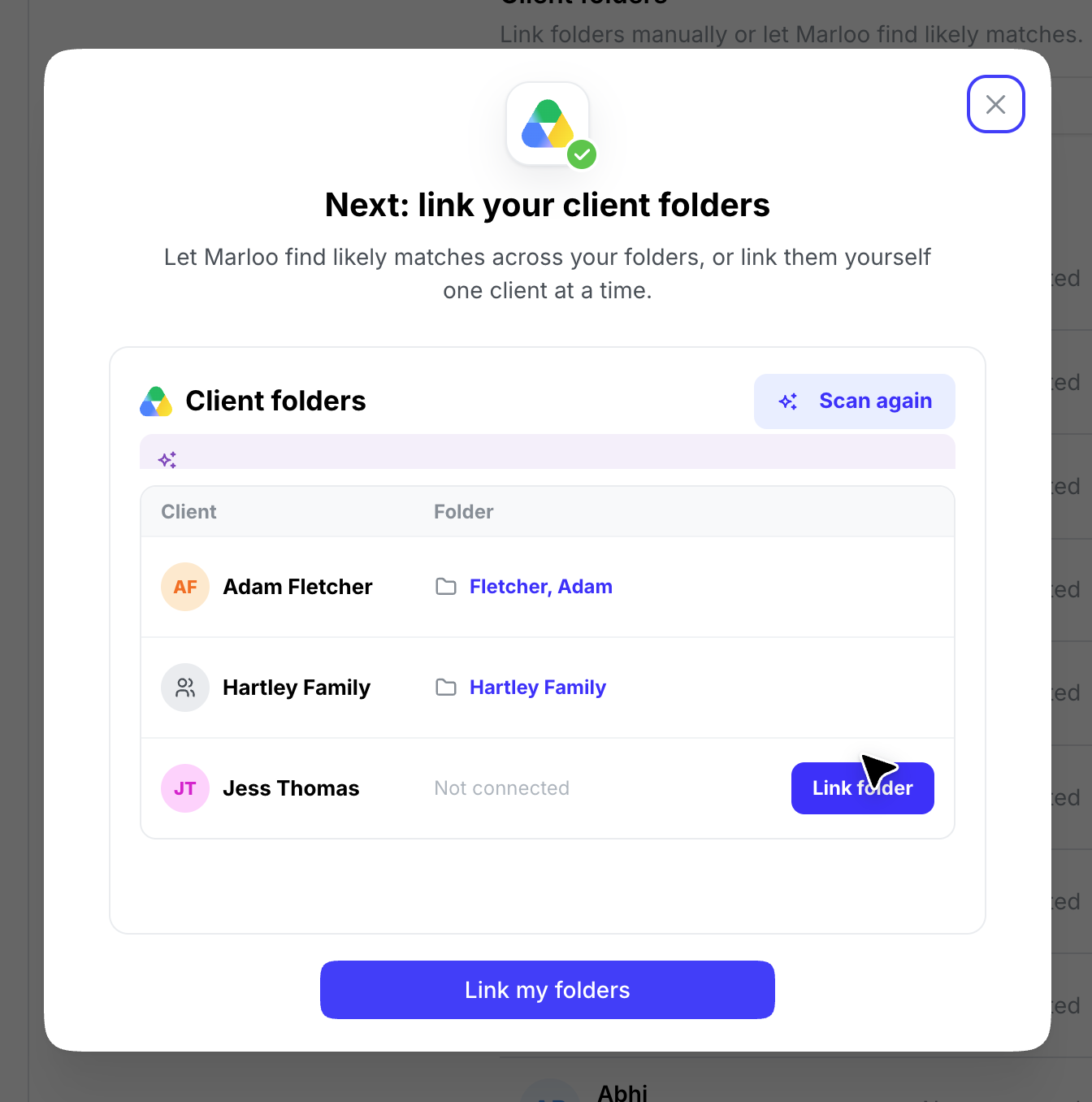
Straight after you connect Google Drive and allow access, Marloo opens the Google Drive integration page with a pop-up, Next: link your client folders. Click Link my folders to close it and see your Client folders list. You can come back to this page any time through Settings > Integrations > Google Drive.
- Click Discover folders above the Client folders list. Marloo searches the Drive folders you already have access to and suggests matches by comparing folder names with your client names.
- Accept or reject each suggestion with the check mark or X. Suggestions appear as they are found, and once the scan finishes the button reads Scan again.
Discovery runs in the background and can take a few minutes. You can leave the page and come back. To see how it works again, click the ? icon (How linking folders works) next to Discover folders.
Link a folder yourself
Link one client at a time from either place:
- On the client, open the Files tab, click Add, then Link folder (with the Google Drive icon), and paste the Google Drive folder link. Once a folder is linked, the option reads Update folder.
- In Settings > Integrations > Google Drive, click Link folder next to an unlinked client and paste the folder link.
The link must be an https://drive.google.com/drive/folders/... link to a folder, not a file. Otherwise you will see Must be a https:// link to a Google Drive folder.
Whichever way you link it, the client's Files tab fills with the synced files.
Link shared files on the group and personal files on the person. If you link the same folder to both, duplicates will appear.
What comes across
- The 250 most recently modified files come across when you first link the folder. New and changed files sync from then on.
- Google Docs arrive as Word (.docx) files, Sheets as Excel (.xlsx), and Slides as PowerPoint (.pptx). Other Google-native items, such as Forms and Drawings, are skipped.
- Files in sub-folders are included, but they appear as one flat list on the Files tab rather than as nested folders.
- A folder holding more than 3,000 files cannot be linked at all. You will see This folder contains too many files to import. Link a sub-folder instead, or split the folder in Drive.
To sync sooner, open the client's Files tab, find the linked folder and click the sync button next to it.
Unlink a folder
Unlinking removes the files Marloo imported from that folder. It does not disconnect Google Drive for your other clients.
- Open the client and go to the Files tab.
- Click Add, then Update folder (with the Google Drive icon).
- Click Unlink folder.
If the connection expires
If you see Your Google Drive connection has expired or is no longer valid, go to Settings > Integrations, open Google Drive under Files & documents and click Disconnect on its card. Then connect again with your work Google account.
What permissions Marloo asks for
| Permission | Description |
|---|---|
drive.readonly | Read-only access to the Drive files you can already see |
openid, userinfo.email, userinfo.profile | Standard Google sign-in, and your name and email |
Marloo does not request write access to Google Drive. We can read the files in a linked folder; we cannot create, edit, move or delete anything in your Drive.
For IT administrators
Marloo connects using OAuth 2.0, the same "Sign in with Google" flow used by applications like Zoom and Slack. If your Google Workspace administrator restricts third-party applications, you will see Access blocked or an admin approval prompt.
You will need to ask your Workspace administrator to allow Marloo. You can forward them the following details:
- Client ID:
1073084651658-ks2iqt73odhasqdch3fo8cnrc4fc8hn1.apps.googleusercontent.com - Permission requested:
drive.readonly - Redirect URI:
https://app.marloo.com/company/integrations/connect
Your admin can allow the app via Admin Console > Security > API Controls > App Access Control, either by marking Marloo as a Trusted app or adding it to an allowed OAuth apps list.
Related articles
Still stuck? Talk to a human.
Email the Marloo team with what you are seeing. If you are in the app, the blue chat button in the bottom-right corner is the fastest way to reach us.


