
Move your clients to Marloo from another CRM
Move your client records into Marloo from your CRM: how to export, upload, which CRMs are supported, what comes across, and how your import is handled.
Importing is how you move your client records into Marloo, which then becomes the place you keep them. You ask your current CRM for an export, then upload that file into Marloo. If you only have a simple client list, you can upload a spreadsheet instead.
Move your clients from a CRM
-
Get a data export from your current CRM. Some CRMs let you export it yourself. For others, you request it from the provider's support team. See Request your export from your CRM provider below.
-
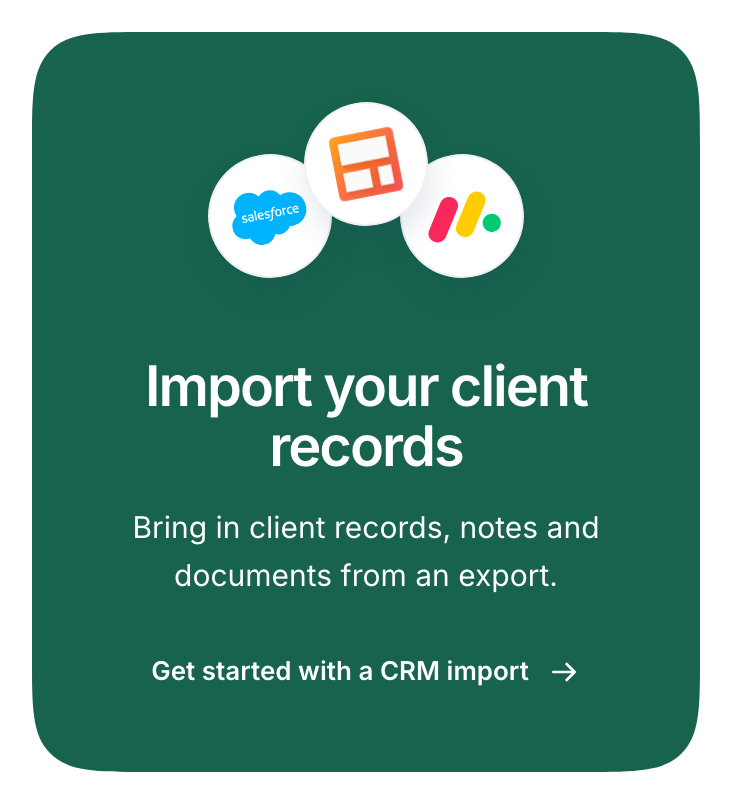
In Marloo, go to Settings > Integrations. In the Import your client records banner, click Get started with a CRM import.

-
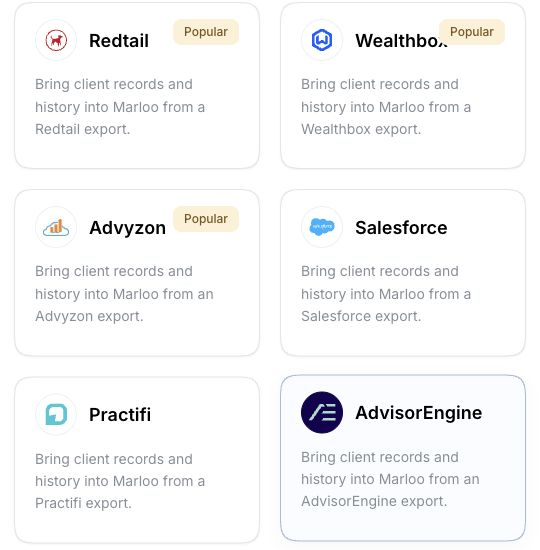
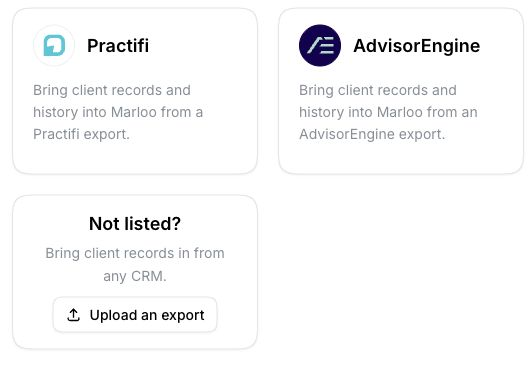
Open your CRM's card under Client records & CRM, then click Upload your export. If your CRM isn't listed, click Upload an export below the CRM cards.
-
Upload the export into the upload area. Marloo accepts CSV, XLSX, JSON and SQL files, SQL Server backups (.bak), and ZIP files that contain any of those formats. If your ZIP export is password protected, Marloo tells you. Enter the Export password when prompted, or add it later from the import page, and your upload carries on without starting again.

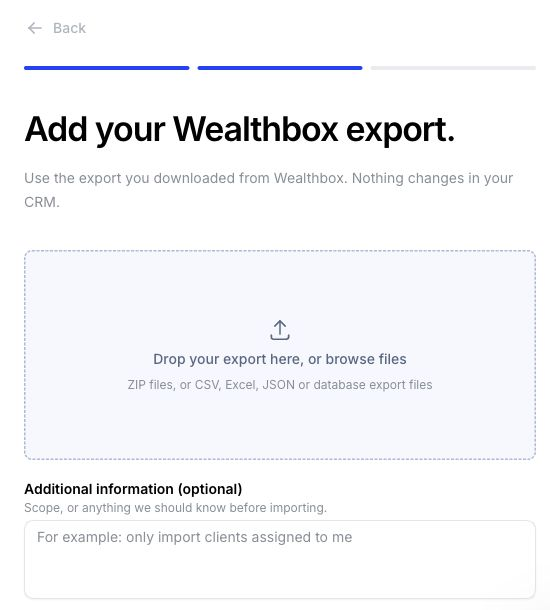
After you upload, what happens next depends on your CRM. See How your import is handled below.
Move your clients from a spreadsheet
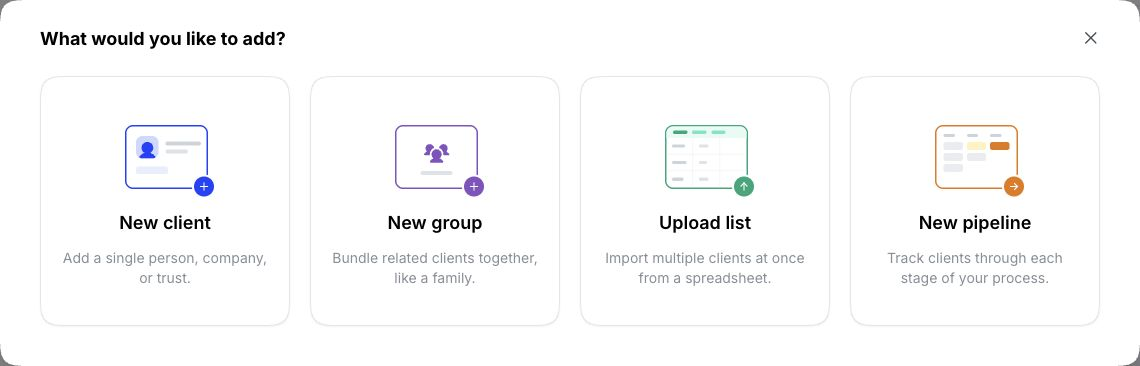
If you don't have a CRM export, go to Clients, click + (top right), then choose Upload list. For the full steps, see Bulk upload your client list.
Request your export from your CRM provider
The export comes from the provider, not from inside Marloo. Email their support team and ask for a full export of your client data. If you have trouble downloading the file, contact Marloo support and we'll help you get it across.
Ask them to include:
- Clients, including individuals and the households or groups they belong to, with the links between them
- Contact details (addresses, phone numbers and emails) and dates of birth
- Notes and file notes, with dates and authors
- Documents and attachments stored against each client
- Tasks and any other client records they hold
Ask for CSV files if you can. A ZIP of CSV files is fine too.
Here is an email you can copy and send. Replace the bracketed parts.
Subject: Request for full client data export
Hi [CRM provider] team,
I'm moving our client records to another platform and would like a full export of our client data, including all client and household or group records, contact details, notes and file notes, documents and attachments, and tasks. Please provide the data as CSV files (a ZIP of those is fine).
Could you please confirm receipt, let me know the expected timeframe, and tell me anything you need from me to authorize the request?
Thanks, [Your name] [Your practice name]
When the file arrives, follow steps 2 to 4 above. We'll email you when your import is complete.
Which CRMs you can import from
The CRM cards show the CRMs available in your firm's region. In the United States, they are Redtail, Wealthbox, Advyzon, AdvisorEngine, Practifi and Salesforce.
Redtail, Wealthbox, Advyzon, AdvisorEngine and Salesforce have their own short guides. Tamarac, Follow Up Boss and GoHighLevel aren't named cards, but you can import from them with Upload an export, and they have guides too. See Related articles below.
If your CRM isn't listed, click Upload an export below the CRM cards and the team will map it for you.
What comes across
Depending on your CRM, Marloo imports:
- Individual clients with their details (email, phone, address, date of birth and more)
- Companies and trusts
- Groups (households and family or business links) along with their members
- Notes, tasks and past meetings logged against a client or group
Your CRM's lifecycle status comes across as a Marloo tag. For example, a contact marked "Active" in your CRM arrives with an Active tag, so you can filter your book by status straight away.
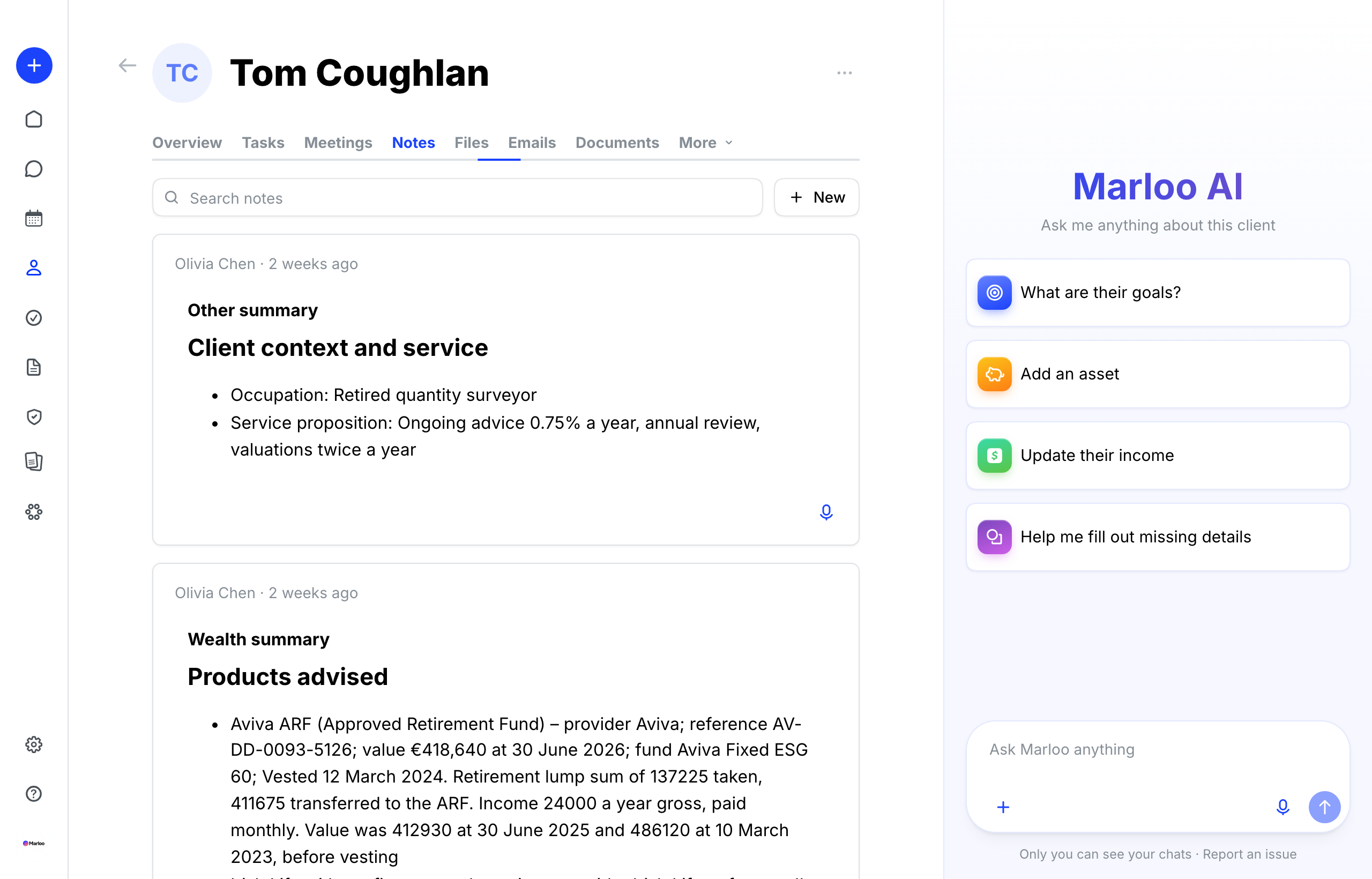
Once your import is processed, your records appear in Clients, where you can sort, tag, filter and merge them.
An import is a one-time move. Marloo is now where you keep your client records, so changes you make later in your old CRM don't carry over. Make sure your export is current before you upload it.
Large exports
Files up to 100 GB are supported. Large files upload in the background, so you can keep working in Marloo while a progress indicator runs in the corner of your screen. You can pause and resume an upload, and you are warned before closing the tab while one is in progress. You can have one export uploading at a time.
How your import is handled
After you upload, Marloo reviews the export and processes it into your account.
- Supported CRMs. Most uploads process automatically. When the upload finishes, a green confirmation appears in the bottom-right corner of your screen. Your information appears in Clients once processing is complete.
- Other CRMs, or an export that needs a closer look. Your file is sent securely to the Marloo team, who confirm what we can bring across.
We'll email you when your import is complete and ready in your account.
Free, same-day CRM migration
CRM migration is free, and Marloo's team can move your data the same day.
Related articles
Still stuck? Talk to a human.
Email the Marloo team with what you are seeing. If you are in the app, the blue chat button in the bottom-right corner is the fastest way to reach us.


