
Connect your calendar
How to connect your calendar to Marloo to automatically record meetings
Let Marloo set this up for you
The quickest way. Marloo opens with this request ready in chat. Send it, and Marloo guides you through the rest.
“Help me connect my calendar”
Connect Outlook or Google Calendar so Marloo can detect your meetings and join them. Auto-join is on by default: Marloo's notetaker joins every Zoom, Google Meet and Microsoft Teams meeting in that calendar with six or fewer attendees, until you turn auto-join off or switch it off for specific meetings.
Quick flowchart: connect your calendar in 5 steps
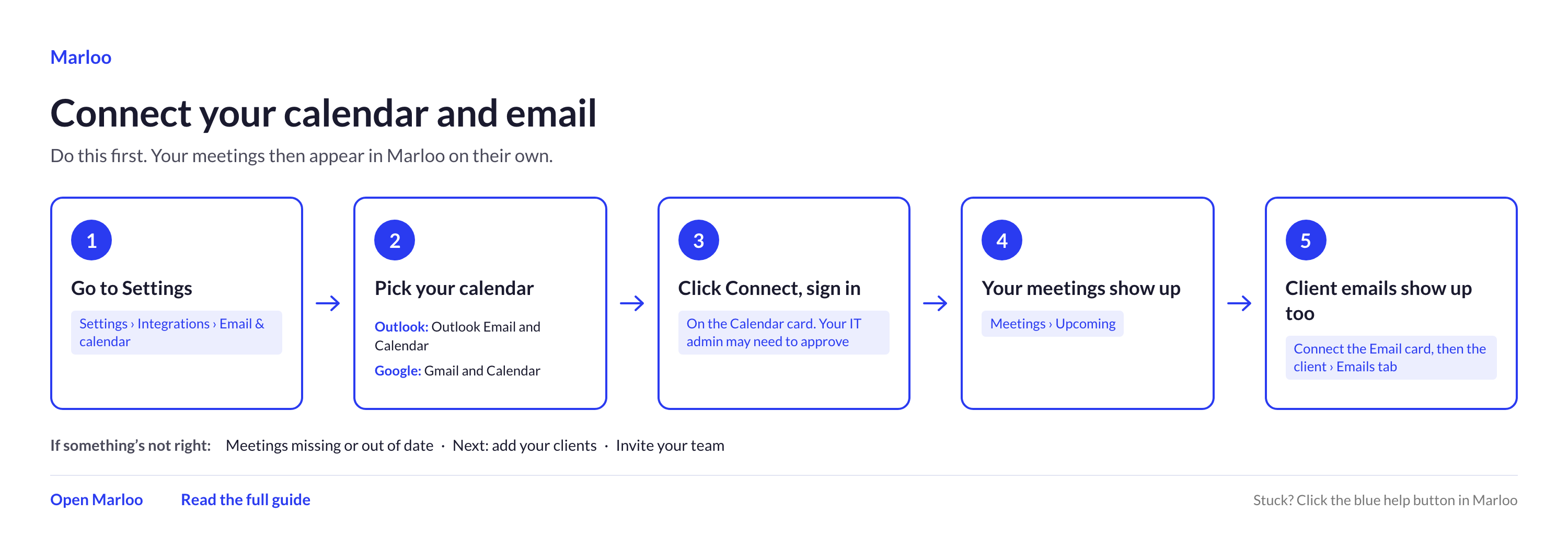
Only Outlook (Microsoft 365) and Google Calendar are directly supported. If you use a different calendar provider, sync it to one of those two.
Connect your calendar
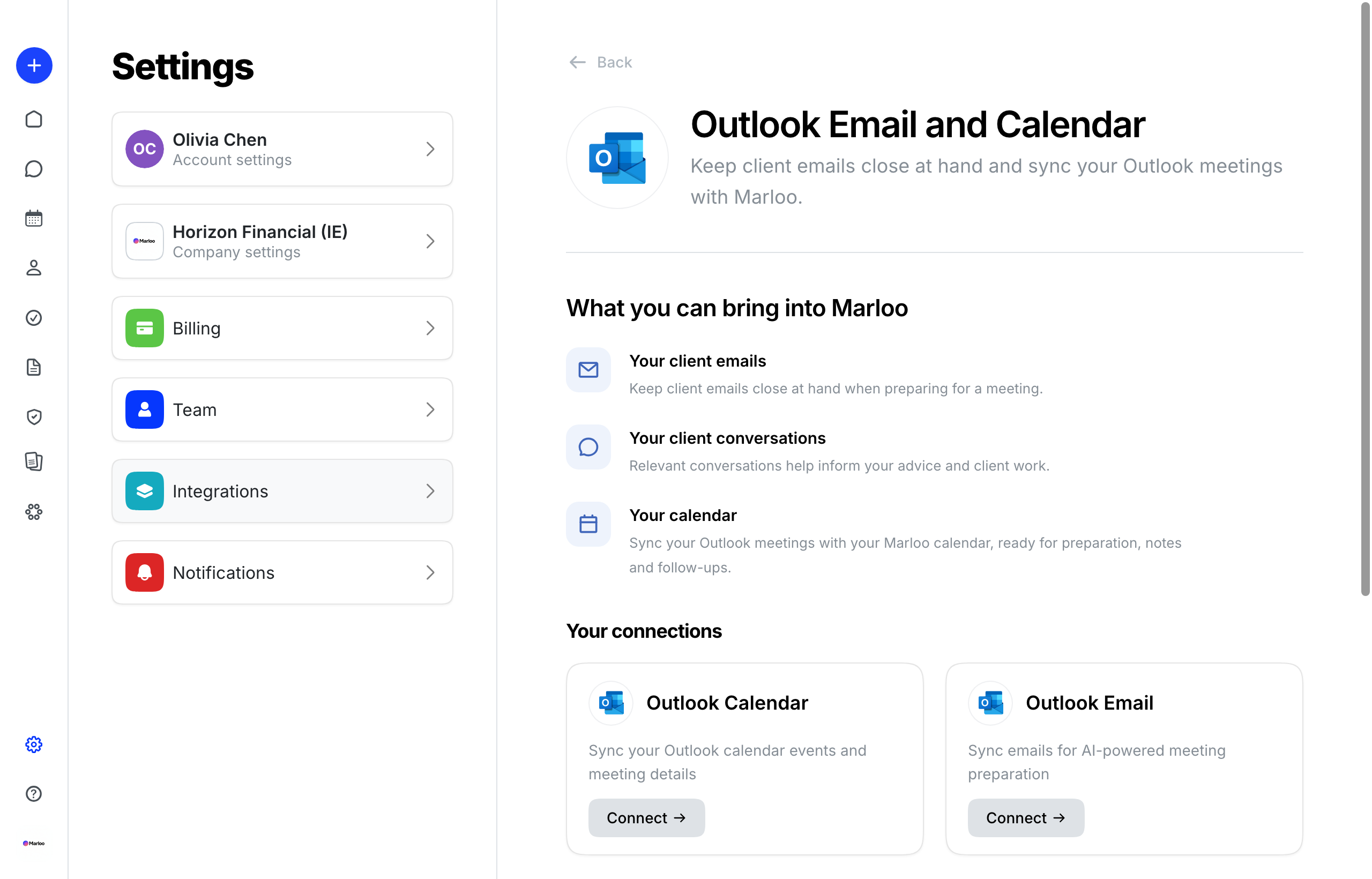
Outlook / Microsoft 365
- Go to Settings > Integrations.
- Under Email & calendar, open Outlook Email and Calendar.
- Under Your connections, click Connect on the Outlook Calendar card.
- Sign in with your own Microsoft account. Do not use an IT admin's account to authenticate your calendar. Each advisor must connect using their own credentials. When it's done, the card shows Connected.
- For Microsoft 365 organizations, your IT admin may need to approve Marloo first. Once they grant consent for the organization, everyone at the firm can connect without asking again. They'll be asked again only if Marloo needs new permissions, for example when your firm turns on writing emails from Marloo. See "Need admin approval" prompt.
- If your firm uses SSO (single sign-on) or a non-password authentication method, use the Sign-in options link at the bottom of the Microsoft login page rather than entering a password directly.
Google Calendar
- Go to Settings > Integrations.
- Under Email & calendar, open Gmail and Calendar.
- Under Your connections, click Connect on the Google Calendar card.
- Sign in with your Google account and grant the requested permissions. When it's done, the card shows Connected.
Adding another calendar or email address
Marloo monitors your primary calendar by default. You can add more: a team calendar, a delegated calendar, or the calendar behind a second email address you use.
Add these through the account you've already connected, not by connecting a second one. Each Marloo login holds one Outlook connection and one Google connection, so connecting a second Outlook account replaces the first rather than adding to it. You can have one Outlook and one Google connected at the same time.
- Go to Settings > Integrations and open Outlook Email and Calendar or Gmail and Calendar.
- On the Outlook Calendar or Google Calendar card, click the ⋯ menu and choose Settings.
- Find the calendar in the list and switch it on.
You'll see meetings from that calendar on your Meetings page. They behave the same as primary-calendar meetings, including auto-join if it's on.
Good to know
- Marloo only lists calendars that are already in your connected account. If the one you want isn't there, add it in Outlook first (see Microsoft's Add another person's calendar to your calendar), then come back and switch it on. The owner has to share it with you before it will appear.
- If a calendar you had before has disappeared from the list, switch on Show hidden calendars. That reveals calendars you've previously hidden, and calendars shared with you as view-only, which start hidden.
- A view-only (read-only) calendar can't be switched on unless Marloo support changes a setting for your firm, and a calendar that is already another Marloo user's primary calendar can't be switched on from your login. Hover over the switch to see why it's unavailable.
Other calendars
Only Outlook and Google Calendar are directly supported. To use another calendar with Marloo (Zoho, iCloud, Acuity and so on), set up a sync between your calendar and either Outlook or Google Calendar so that events automatically appear in one of the supported calendars.
- Look for "sync with Outlook" or "sync with Google Calendar" in your calendar provider's settings or integrations page.
- Alternatively, set up an auto-forward rule so that new calendar events are copied to your Outlook or Google Calendar.
- Check your calendar provider's help documentation for specific instructions.
Auto-join settings
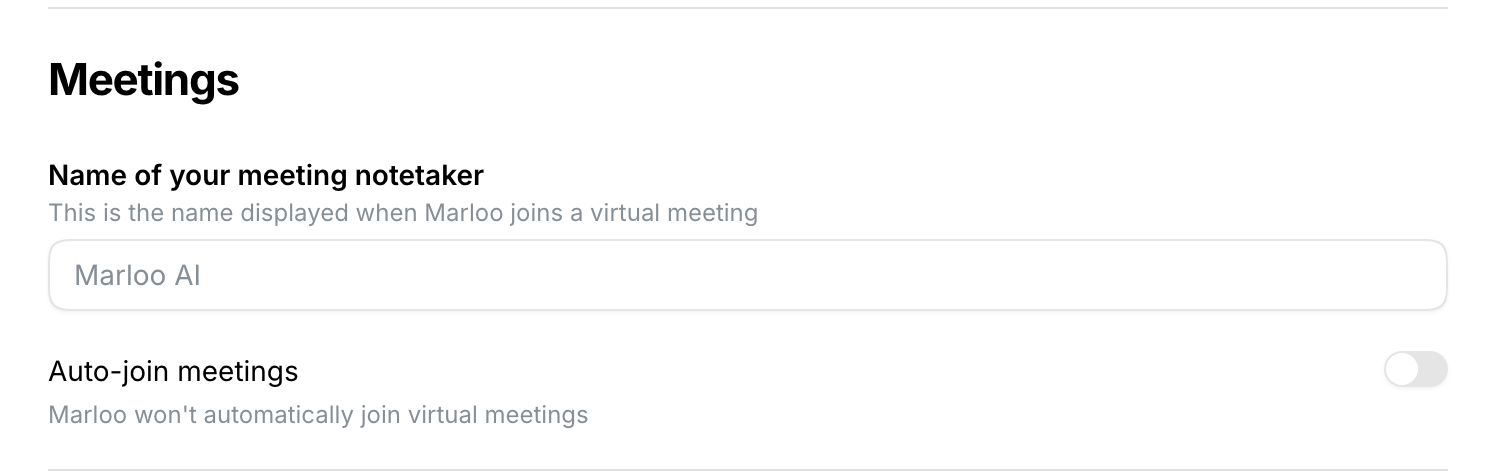
Auto-join controls whether Marloo's notetaker joins your meetings automatically or only when you send it manually. You can turn it on or off at any time in Settings > Account settings > Meetings, not on the Integrations page.
- Auto-join on (default): Marloo's notetaker joins your Zoom, Google Meet and Microsoft Teams meetings with six or fewer attendees automatically.
- Auto-join off: The notetaker never joins unless you click Send Marloo now for a specific meeting.
Which meetings get auto-joined
Marloo auto-joins meetings on the calendars you have connected and turned on in Settings > Integrations. If a meeting doesn't appear in Marloo:
- It may be on a calendar that isn't connected or isn't switched on, for example a personal calendar, or a secondary calendar you haven't turned on. See Adding another calendar or email address.
- If you have multiple Microsoft or Google accounts, you may have connected the wrong one. Disconnect and reconnect using the correct account.
- Auto-join skips meetings with more than six attendees and meetings without a Zoom, Google Meet or Microsoft Teams link.
- Meetings added very close to start time may not be picked up. Give the calendar a few minutes to sync after adding a new event.
Frequently asked questions
My IT admin hasn't approved the app. How do I connect my calendar?
Marloo can't resolve this on your behalf. Your IT admin must approve the Marloo OAuth app in Microsoft Entra ID. Give them the approval link shown on the connection page.
Can I stop the notetaker joining specific meetings?
Yes. Open the upcoming meeting in Marloo and turn off the Marloo will join this meeting switch, or deny the notetaker from the meeting waiting room. With auto-join off, only use Send Marloo now for meetings you want recorded.
How do I stop the notetaker joining internal meetings?
Turn off the Marloo will join this meeting switch on those meetings, or turn off auto-join and use Send Marloo now for client meetings only. Alternatively, deny the notetaker from the waiting room for any meeting you do not want recorded.
Troubleshooting
| Problem | Solution |
|---|---|
| Nothing happens when I click Connect | Your browser is probably blocking the sign-in pop-up. Allow pop-ups for the Marloo app and click Connect again. If it still does nothing, try an incognito or private window so another signed-in Microsoft or Google account isn't picked automatically. |
| Meetings not appearing in Marloo | Trigger a manual sync: see How to re-sync your calendar integration. If meetings still do not show, disconnect and reconnect your calendar in Settings > Integrations and check you signed in with the correct account. |
| A calendar I want isn't in the list | Switch on Show hidden calendars in case it was hidden. If it's still not there, it isn't in your connected account yet. See Adding another calendar or email address. |
| Calendar keeps disconnecting | This may follow IT security changes at your organization. Check with your IT team. |
| Multiple Marloos in a meeting | Marloo sends one notetaker per meeting for your firm, however many of you are invited. Two notetakers usually means two firms that both use Marloo are on the call, or the meeting reached Marloo as two separate calendar events (for example one colleague on Outlook and another on Google). See Why did two Marloo bots join my meeting?. |
| Bot left during a break | The notetaker leaves after 15 minutes of silence. Use Send Marloo now to re-invite it. |
| Unwanted meetings triggering the bot | Open the upcoming meeting in Marloo and turn off the Marloo will join this meeting switch. You can also deny the notetaker from the waiting room. |
Related articles
Still stuck? Talk to a human.
Email the Marloo team with what you are seeing. If you are in the app, the blue chat button in the bottom-right corner is the fastest way to reach us.


