
Control who can see a meeting
The difference between making a meeting private (who in your firm can see it) and hiding it from your **Meetings** page (what you see), plus sharing a private meeting with colleagues, finding hidden meetings, and hiding whole calendar event types.
Marloo gives you two separate controls: privacy, which changes who in your firm can see a meeting, and hiding, which only changes what you see on your own Meetings page. This article covers both, and how to get a hidden meeting back.
Making meetings private
Default visibility by role:
- Advisors can only see meetings on their own calendar by default. They cannot see other advisors' calendars.
- Support team members, Managers and Account owners can view all advisors' calendars by default.
Advisors cannot make their entire calendar private. They can make individual meetings or individual client profiles private using the steps below.
You can mark individual meetings as private for sensitive client discussions. A private meeting is visible only to the people attached to it: the attendees and anyone it has been shared with. This applies to everyone else in your firm, including Support team members and Account owners. Account owners can still export all of the firm's data, including private meetings and their transcripts, from Settings > Company settings > Data export.
- Go to Meetings.
- Find the meeting you want to make private.
- Hover over the meeting entry.
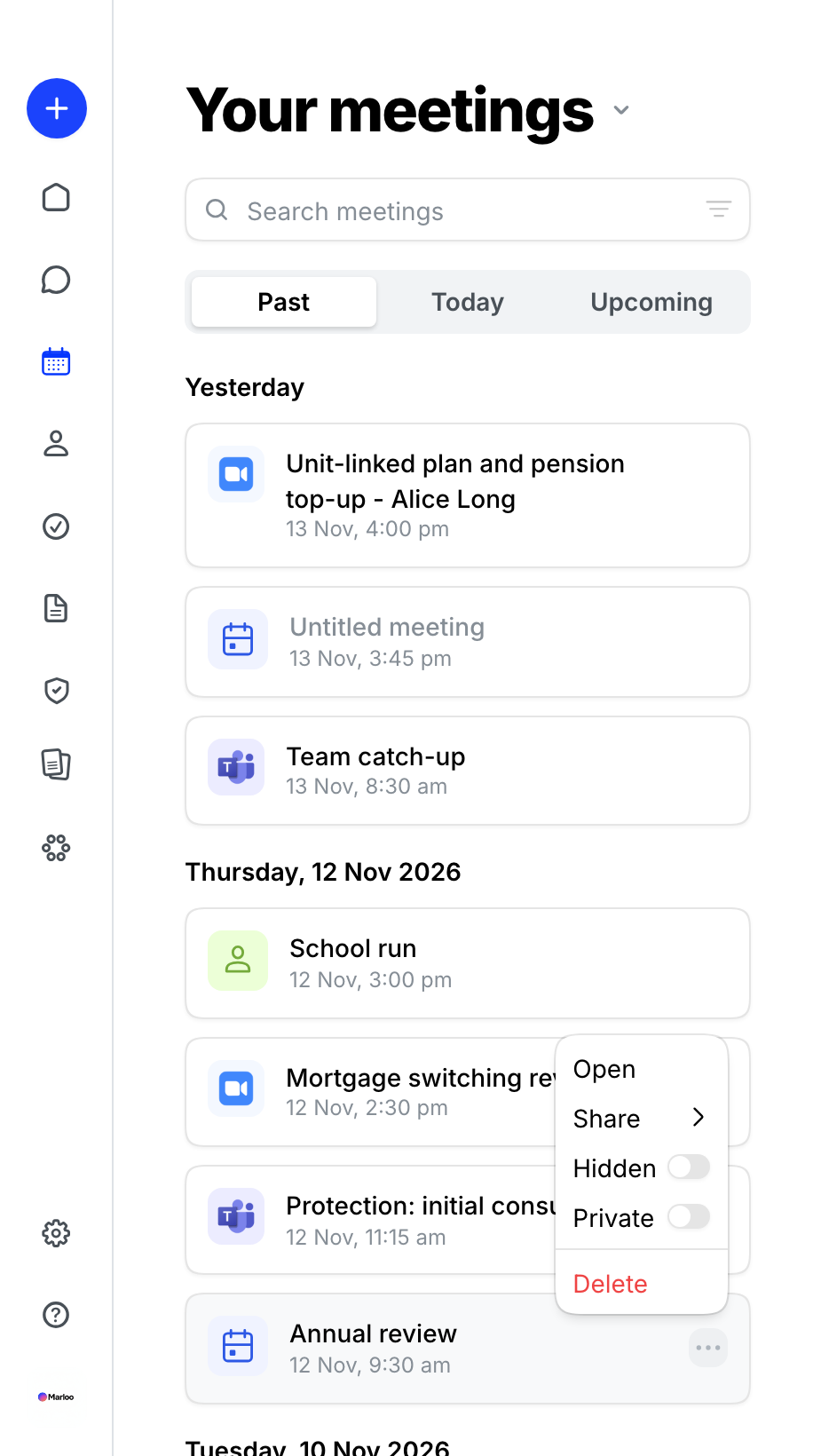
- Click the three-dot menu that appears.
- Turn the Private switch on.
The meeting immediately disappears from other team members' Meetings page. To reverse this, open the same menu and turn the Private switch off.
Sharing a private meeting with specific colleagues
If a meeting is private but a particular colleague needs to see it, open the three-dot menu on the meeting and select Share, then choose the people to share it with. You can also click Share on the meeting page itself. Only those people gain access; the meeting stays hidden from everyone else.
Hiding meetings from your Meetings page
You can hide specific meetings from your own Meetings page. This is useful when sharing your screen with a client and you do not want other meeting titles visible. Hiding only affects your own view; it does not change who else can see the meeting.
- Go to Meetings.
- Find the meeting you want to hide.
- Hover over the meeting entry.
- Click the three-dot menu.
- Turn the Hidden switch on.
The meeting no longer appears on your Meetings page. Turn the switch off to bring it back.
Viewing hidden meetings
To find meetings you have hidden:
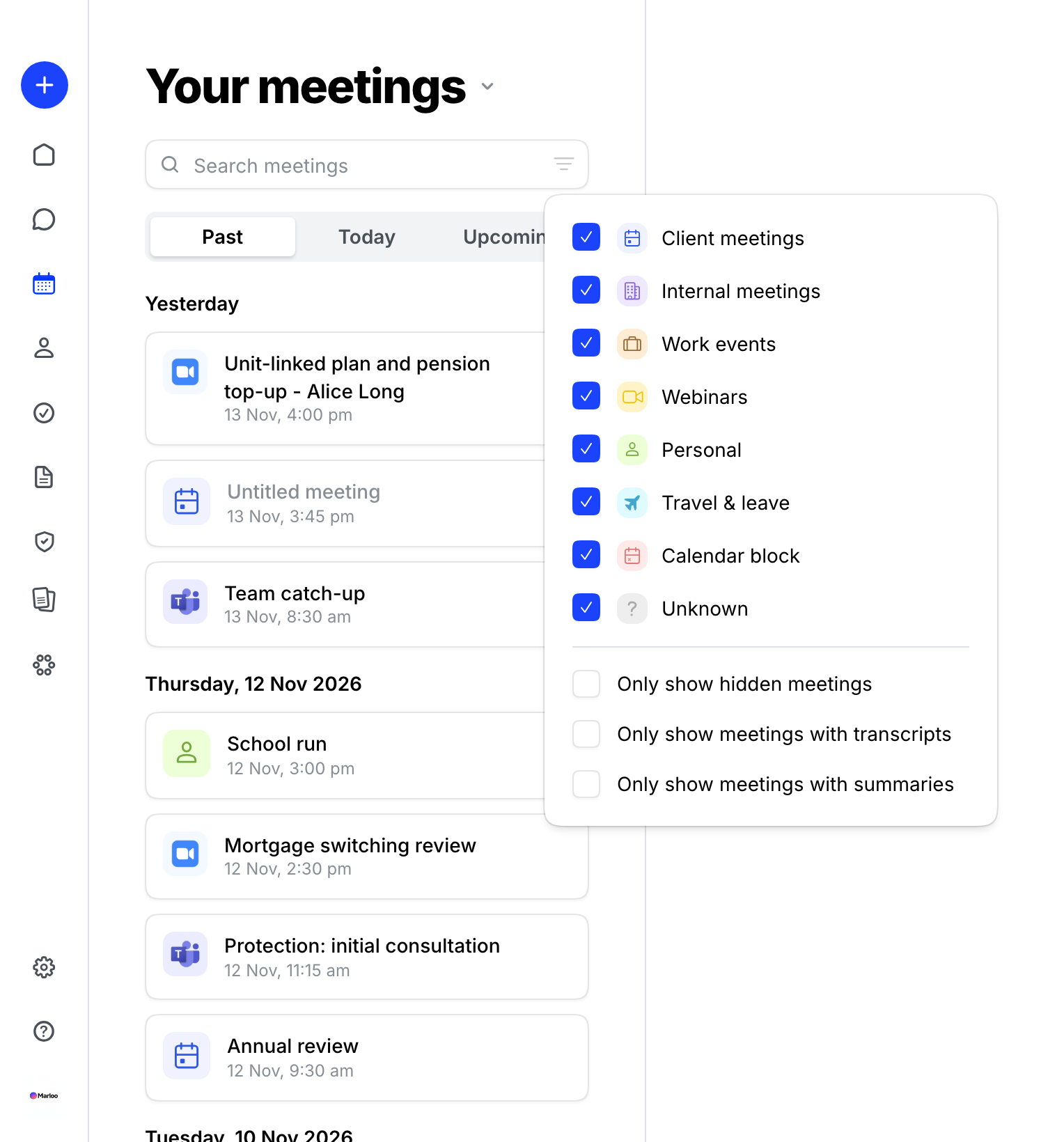
- Click the filter icon (three lines) in the meetings search bar.
- Select Only show hidden meetings.
From here you can view or unhide any previously hidden meetings.
Hiding calendar events
If certain recurring events clutter your Meetings page (e.g. internal meetings, buffer events, or personal appointments), you can control which event types are visible.
- Click the filter icon (three lines) in the meetings search bar.
- Use the event-type checkboxes to select which types of events appear on your Meetings page.
Any event type that is checked shows on your Meetings page. Uncheck event types you want to hide.
Frequently asked questions
Can I hide all meetings of a certain type automatically?
No. You can hide individual meetings using the three-dot menu, or use the event-type filter to control which categories of events appear on your Meetings page.
How do I find a meeting I hid?
Click the filter icon in the meetings search bar and select Only show hidden meetings. Your hidden meetings will appear, and you can unhide them from there.
Does making a recurring meeting private apply to the whole series?
Setting an individual instance of a recurring meeting to private only applies to that specific meeting. These changes do not carry forward to future meetings in the same series; each occurrence must be updated individually.
Related articles
- How meetings work in Marloo - the Meetings page and everything a meeting holds
- How client profiles work in Marloo - everything a client's profile holds
- Invite and manage team members - team management and access controls
Still stuck? Talk to a human.
Email the Marloo team with what you are seeing. If you are in the app, the blue chat button in the bottom-right corner is the fastest way to reach us.


