
How meetings work in Marloo
How the Meetings page works and what each meeting holds: your meetings list, today's and upcoming and past meetings, how a meeting becomes a transcript and then a summary, and where to go for each meeting job.
Marloo keeps every client meeting in one place: the Meetings page shows what is coming up and what has already happened, and each meeting holds its own recording, transcript and summary. This article explains the page, then points you to the article for each job.
The Meetings page
The Meetings page shows all your meetings in one organized view.
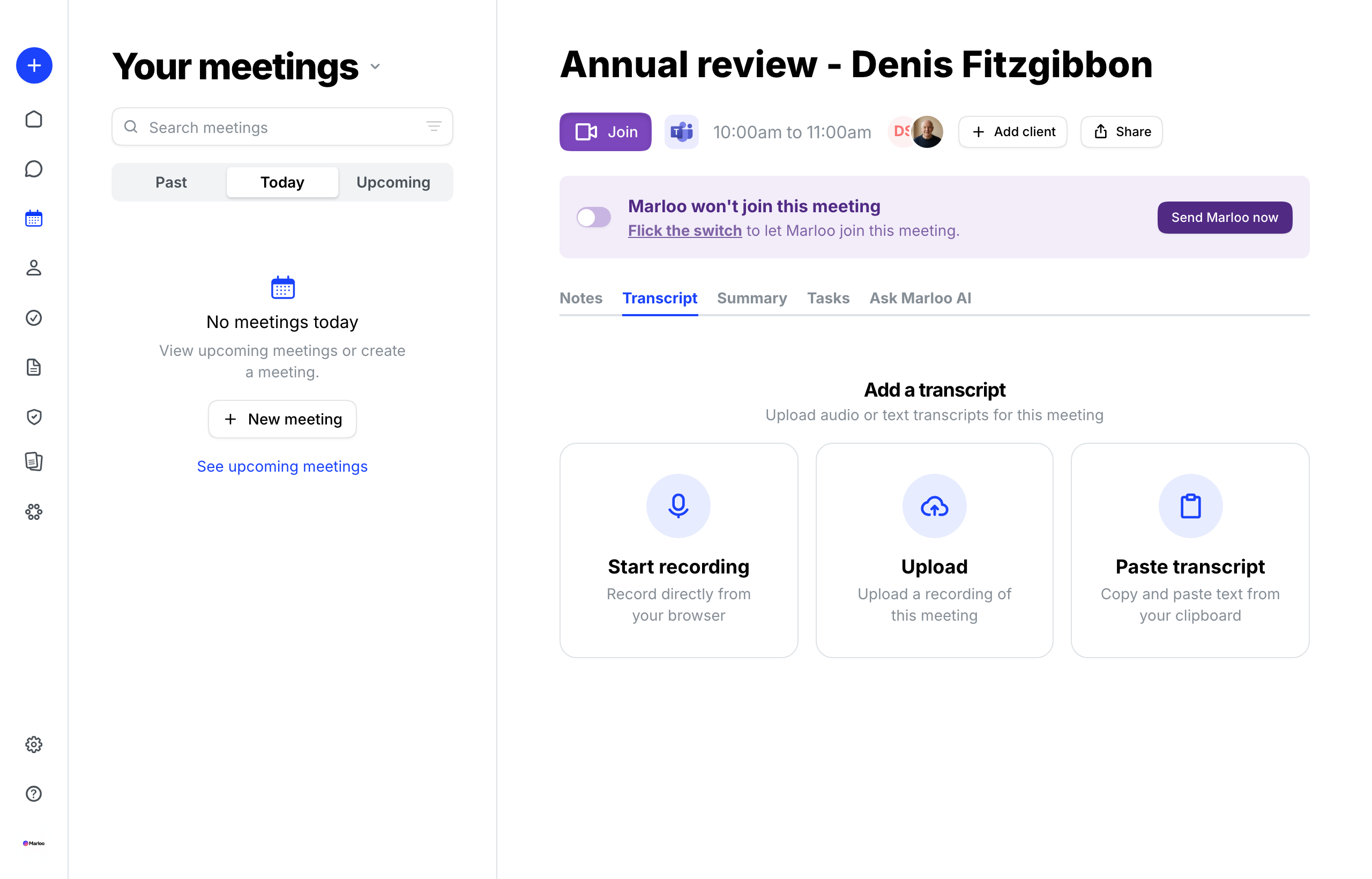
Once you've completed onboarding and integrated your calendar, you'll see all your client meetings on the Meetings page, displayed chronologically.
- Today's meetings: See all meetings scheduled for today
- Upcoming meetings: View future scheduled meetings
- Past meetings: Access previously held meetings
What you can do from the Meetings page
- View meeting details: Click on any meeting to open it
- Filter and search: Use the search bar and its filter icon to find meetings or hide event types
- Manage a meeting: Hover over a meeting and use its three-dot menu to share, hide or make it private, or to delete one created in Marloo
On an upcoming online meeting, open it to find:
- Join button: Takes you directly to the Zoom, Teams or Google Meet call
- Marloo switch: Turn Marloo on or off for that meeting
- Meeting status: See if Marloo is set to join or not, and Send Marloo now to bring it in straight away
How a meeting becomes a summary
Every meeting follows the same three steps in Marloo:
- Marloo captures the meeting. Marloo's notetaker joins your virtual meeting, or you record or upload the audio yourself.
- Marloo transcribes it. A transcript appears on the meeting's Transcript tab.
- You generate a summary. Open the Summary tab and pick a template. Summaries are never automatic.
What you can do with a meeting
- Get Marloo into your meeting - auto-join, admitting the notetaker, Send Marloo now, and meetings that aren't on your calendar.
- Upload a recording or record a meeting yourself - upload an audio file, record in person, or paste a transcript.
- Add or remove clients on a meeting - add or remove a client so the meeting appears in their profile.
- Generate, edit and export a meeting summary - generate, edit, export, email or copy a summary.
- Control who can see a meeting - make a meeting private, share it, or hide it from your Meetings page.
- Set your notetaker name, auto-join and transcription language - auto-join, notetaker name and logo, transcription language, and Dictionary.
- Edit a transcript - speaker labels and text corrections.
- Delete a transcript, recording or meeting - delete a recording, its transcript or the whole meeting.
- Marloo didn't join or record your meeting - what to check when the notetaker can't get in or leaves early.
Related articles
- What is Marloo? Start here - from a new account to your first recorded meeting and summary
- Connect your calendar - connecting the calendar Marloo joins meetings from
- Meetings FAQ - short answers to the questions we get most
Still stuck? Talk to a human.
Email the Marloo team with what you are seeing. If you are in the app, the blue chat button in the bottom-right corner is the fastest way to reach us.


