
Create and upload document templates
Get a document template into Marloo: check the defaults, upload your own, start from a Marloo or licensee template, or build one from scratch.
Quick flowchart: build a document template in 6 steps
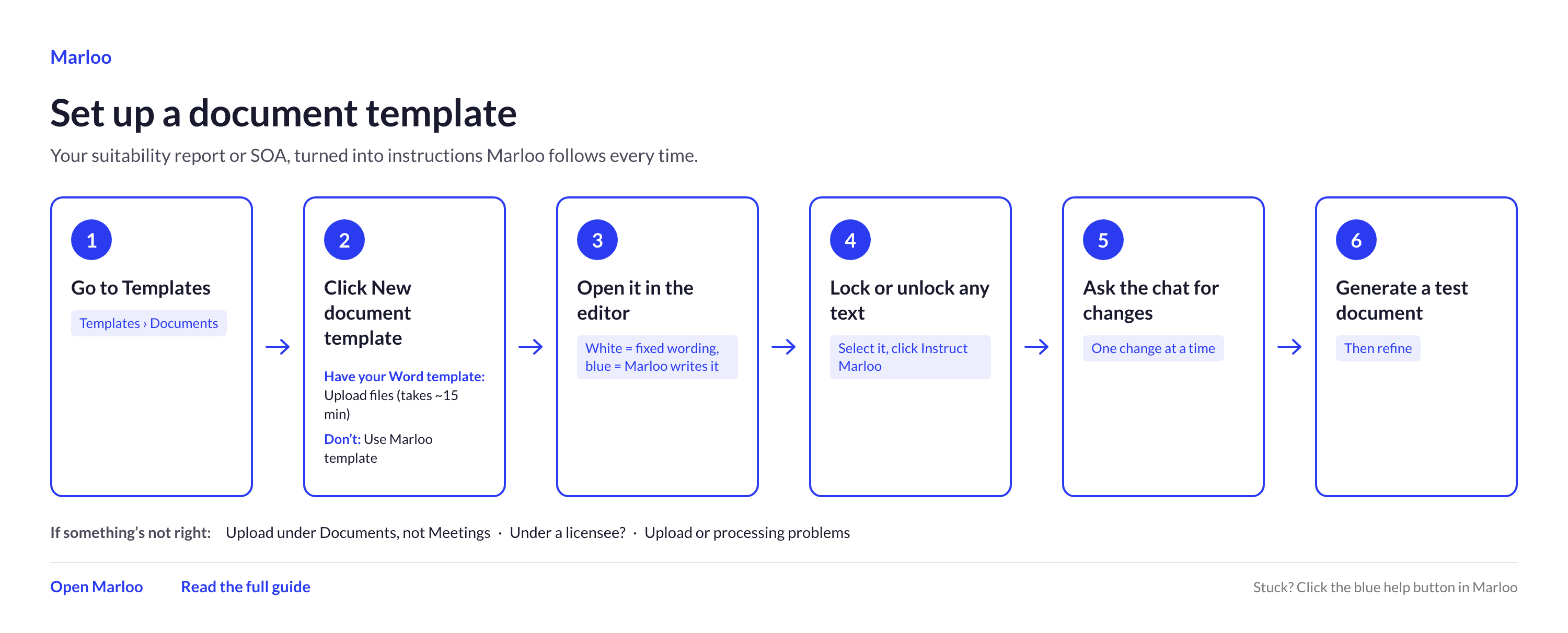
Templates are the structure and rules that control how Marloo generates each section of your document. Upload an existing Word document (recommended) or build one from scratch with Ask Marloo, under Templates > Documents.
What is a document template?
A document template is the set of rules and structure that tells Marloo how to handle each section of your document. It's your "macro" control: it decides how sections work across every client, every time. Your generation prompt is your "micro" control: specific instructions for one particular client.
The more precise your template, the better every document Marloo generates from it.
Before you start: check the default templates
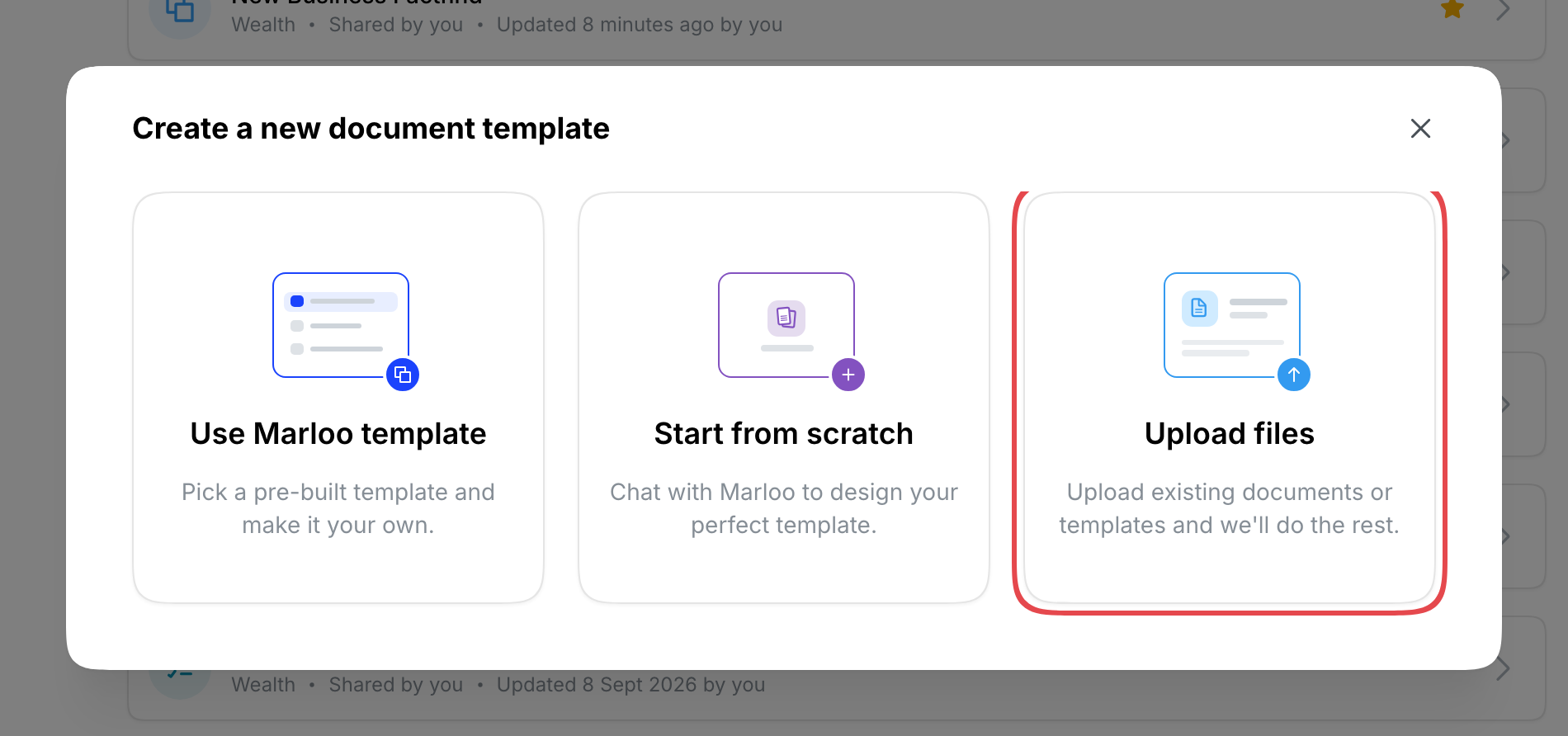
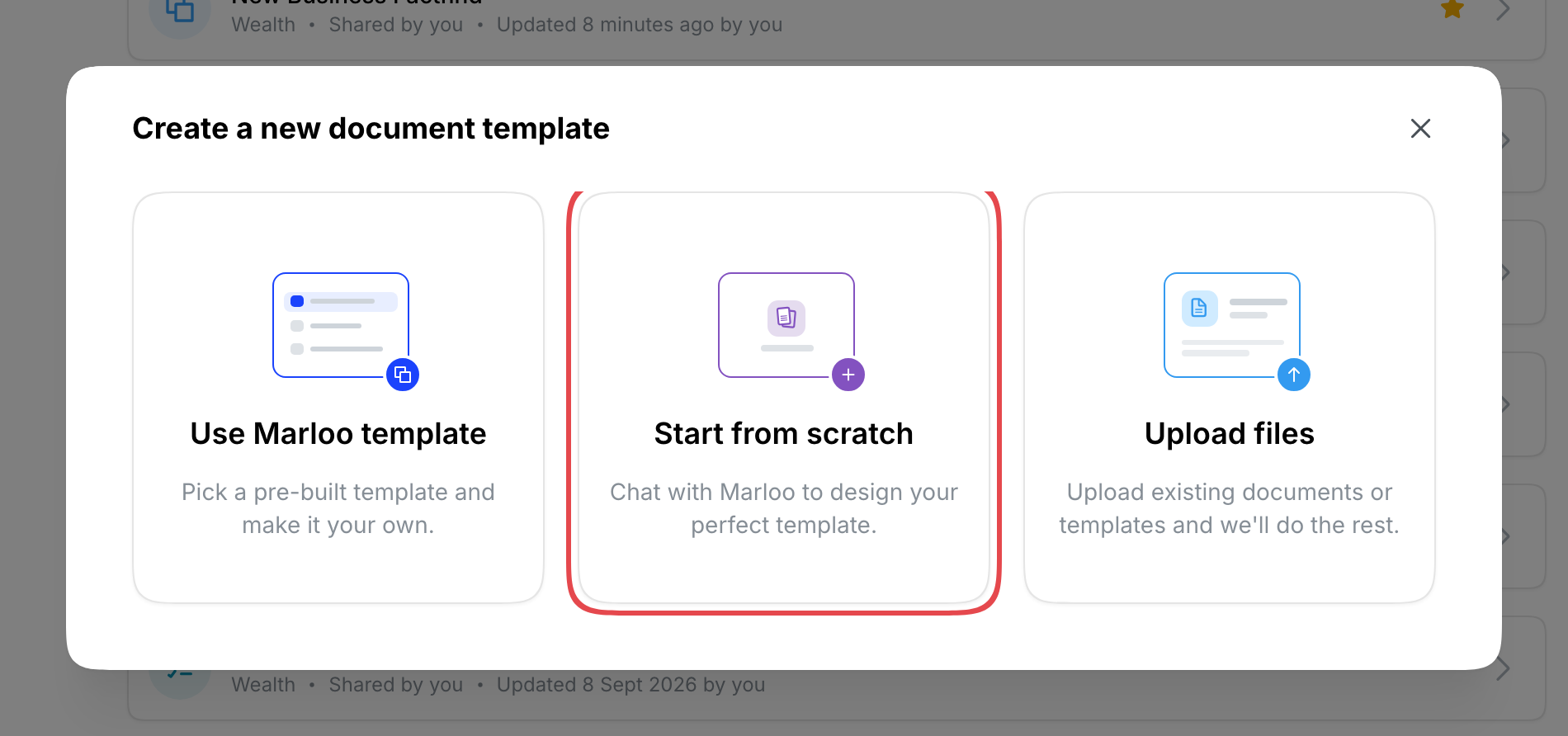
Before creating your own templates, check the default templates. Marloo includes pre-built document templates that are ready to use and fully editable, under New document template > Use Marloo template. These can save you significant setup time and give you a solid starting point to customize: see Start from an existing template.
Uploading a template
This is the recommended approach for client-facing documents like financial plans and annual reviews.
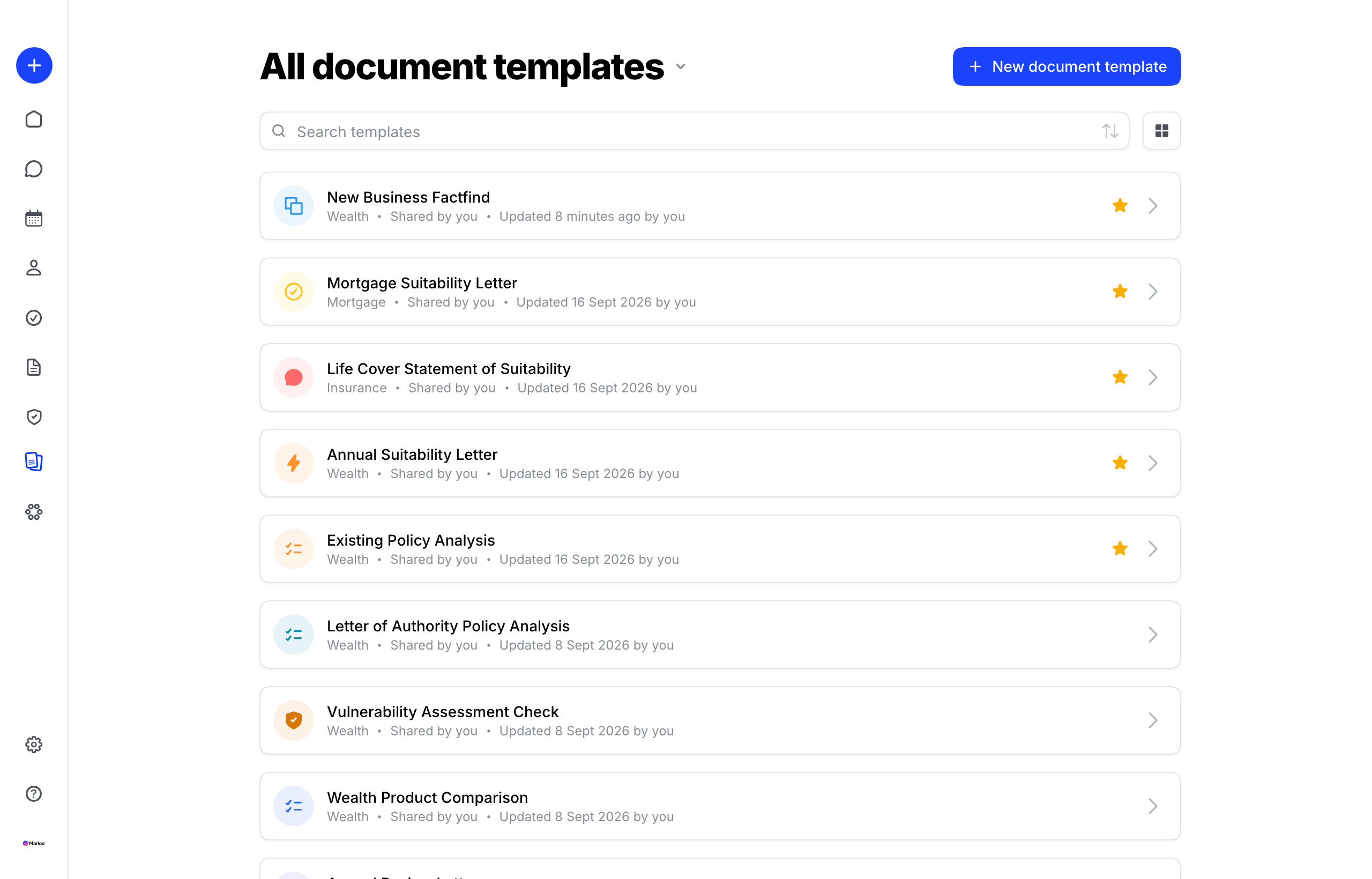
- Go to Templates > Documents in the left sidebar.
- Click New document template.
- Select Upload files.
- Choose your Word document (your firm's financial plan, annual review letter, etc.).
Marloo analyzes your document and converts it into a working template. This takes roughly 15 minutes. Once processing is complete, you'll see your template in the editor.
If you upload a completed client document: Marloo strips the client-specific values out of it to produce a reusable blank template. The template keeps the structure, headings and instructions, not the data.
Marloo also reads the styling of your Word document. If it matches a document style your firm already has, the template uses that style. If not, Marloo creates a new style from your document.
Important: Upload under Templates > Documents, not Templates > Meetings. Meeting templates are for meeting summaries. This is a common mix-up.
Working in the template editor
Once your template is processed, it opens in the template editor. White text is fixed text, which Marloo is told to copy word for word, and blue text is a template instruction, which tells Marloo what to write; select text and click Instruct Marloo to switch between them. Global instructions, section instructions, the Ask Marloo chat, images and page breaks are all covered in Template editor.
Start from an existing template
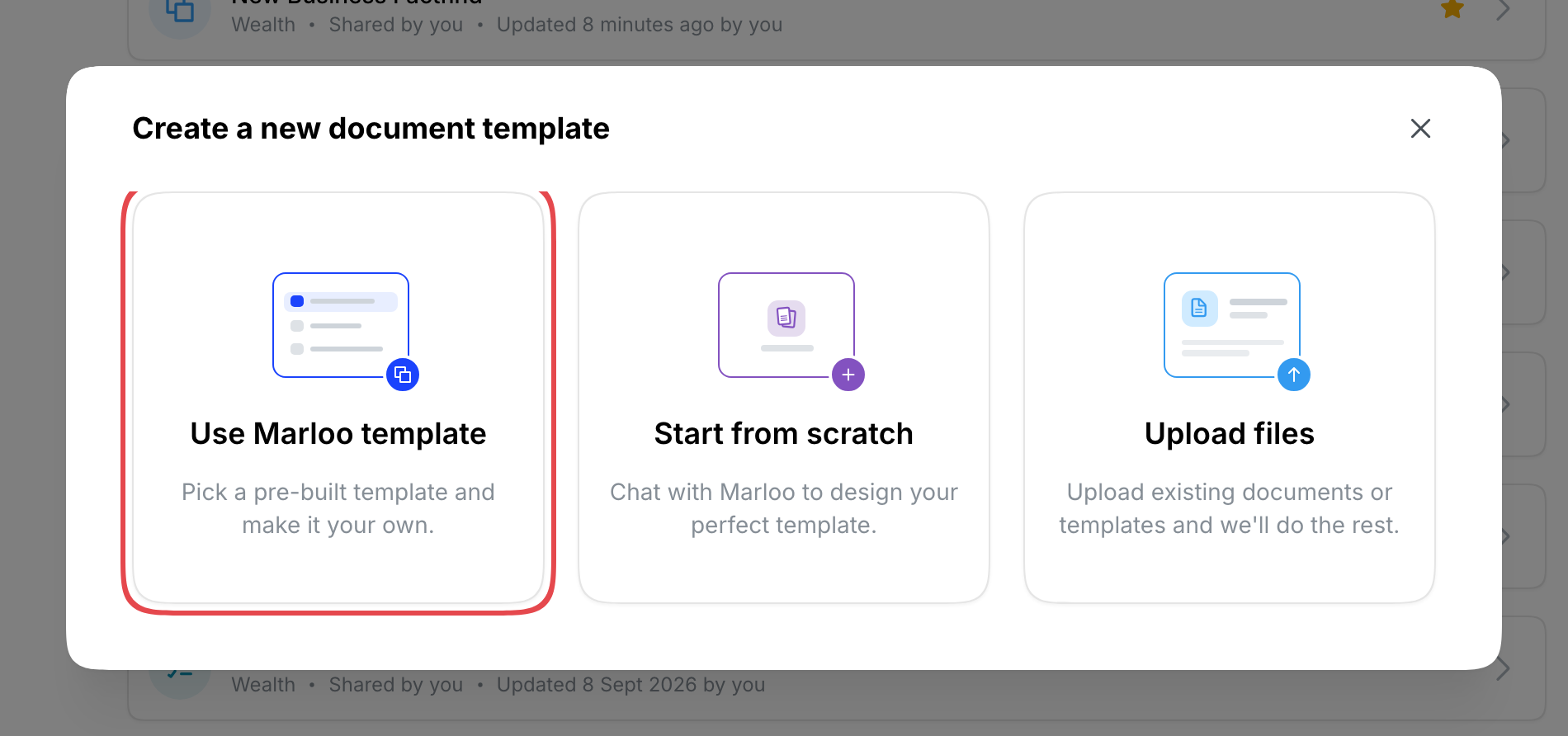
Marloo includes a library of pre-built document templates. To start from one, go to Templates > Documents > New document template, select Use Marloo template, pick a template and make it your own. Marloo gives you an editable copy. New firms don't get pre-built document templates automatically, so add the ones you need this way.
- Go to Templates > Documents > New document template.
- Select Use Marloo template.
- Search or browse the list and click the template you want.
- Marloo creates your own copy and opens it in the editor, ready to customize.
Organization templates
If your firm belongs to an organization, the templates it shares appear in your library once Marloo links your firm to it. You can use them, but only your organization can edit them. Documents generated from them are still drafts for you to review.
Accessing the source file
For templates built from an uploaded file, you can download the original source document. Open the template, click its three-dot menu ( ⋯ ) and open Files. Click the file to download the original Word document.
This is useful when you need to share the source with a team member or make bulk edits outside of Marloo before re-uploading.
Creating a template from scratch
Best for internal workflows, comparison reports, or simpler documents where you don't have an existing Word template.
- Go to Templates > Documents > New document template.
- Select Start from scratch.
- Use the Ask Marloo panel on the right to describe what you need.
Example prompt:
Create a product comparison template that takes two prospectuses from two insurance providers and the transcript of a conversation with the client. It writes up recommendations on which insurance product is most suitable for the client based on their needs articulated in the meeting transcript.
Marloo generates a structured template with headings and template instructions that you can then refine.
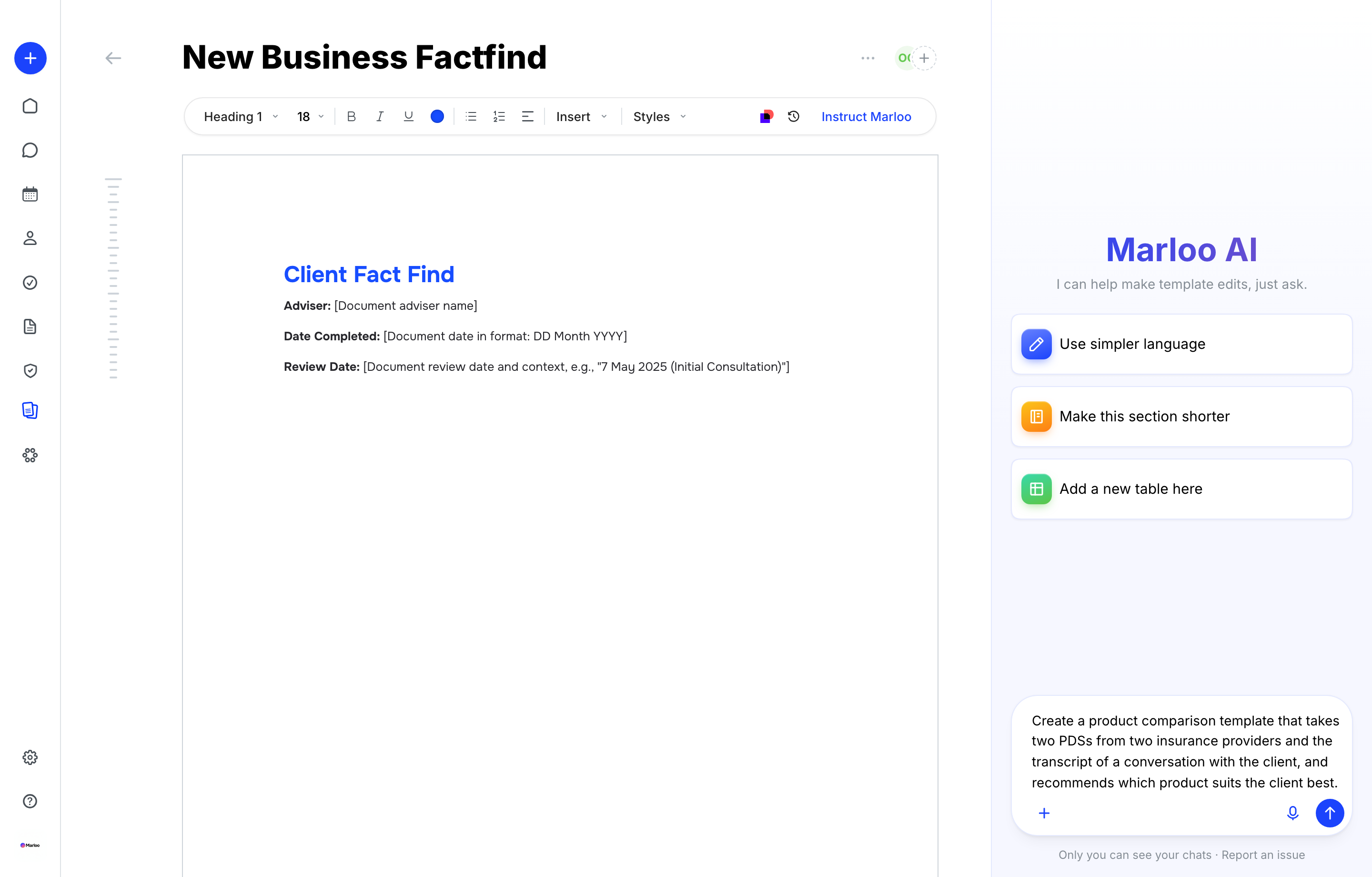
Changing it after that, in the Ask Marloo chat or directly in the editor, is covered in Template editor.
Tips
- Template or generation prompt: Repeatable rules go in the template; one-off client specifics go in the generation prompt. See Get better first drafts from document generation.
- Shared templates affect everyone. Changes to a template shared with your team affect everyone who uses it. Test changes with a personal copy (Save a copy) first if you're unsure.
- Start simple. You can always refine. Upload your template, generate a test document, and iterate from there. See Refine your document template.
Still need help?
See Template troubleshooting for upload and processing issues.
Related articles
- Generate your first advice document - End-to-end guide to generating your first document
- Template editor - Fixed text, template instructions, the toolbar and the Ask Marloo chat
- Add images to your templates - Guidance on image formats and troubleshooting
- Template troubleshooting - Common template issues and fixes
- Style individual tables, rows and cells in a document template - give one table, row or cell its own colors
Still stuck? Talk to a human.
Email the Marloo team with what you are seeing. If you are in the app, the blue chat button in the bottom-right corner is the fastest way to reach us.


