
Generate your first advice document
Generate a first advice document: pick a template, select the client's context, brief Marloo, then review and export.
This article takes you from nothing to a first-draft advice document (financial plan, annual review or similar) built from three things: a template, your client's context and your instructions. It is for advisors and their teams on Marloo Pro or the 14-day free trial. The habit that makes the biggest difference is to brief Marloo the way you would brief an associate financial advisor, then treat the 5-15 minute run as a draft for your review rather than a finished file.
Quick flowchart: generate an advice document in 6 steps
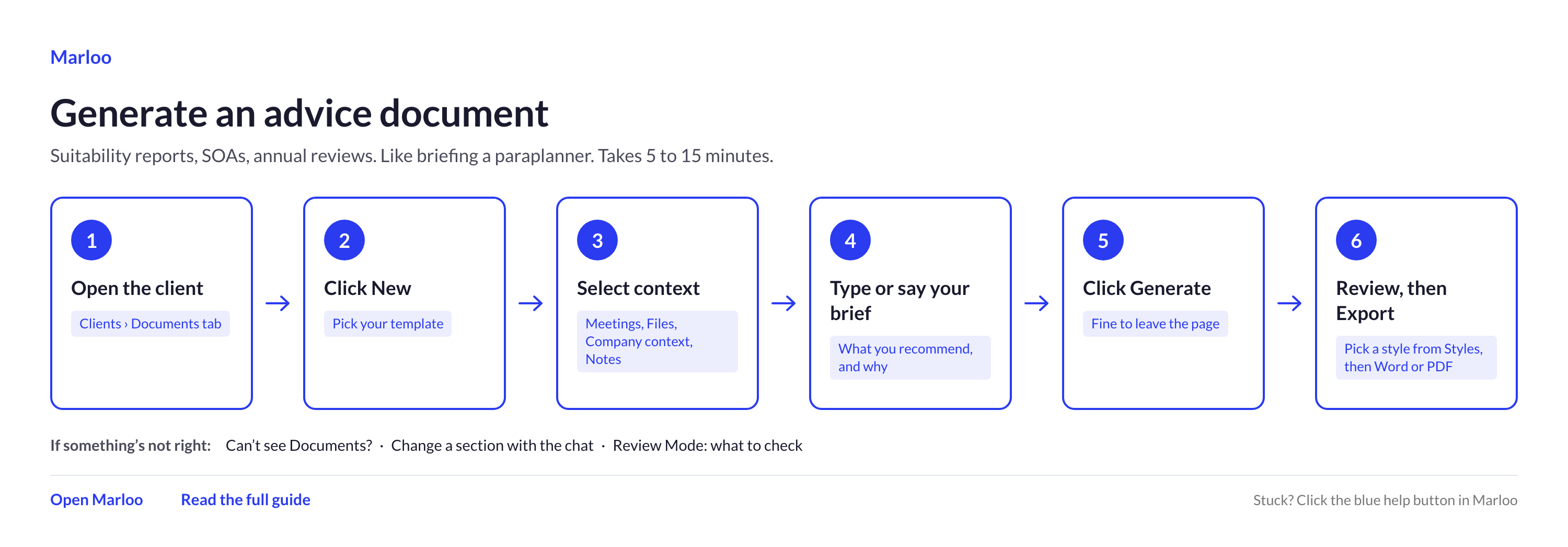
Who can use document generation
Document generation is a Pro feature. If you are not on Pro yet, click New document on the Documents page: Marloo opens "Try Marloo Pro free for 14 days" with a Start free trial button. To move to a paid plan, choose Upgrade to Pro. What the trial includes and what happens when it ends are in How the Marloo Pro trial works.
What you need
- At least one client with some context on their profile: meetings, notes or uploaded files.
- A document template. Either your firm's financial plan or similar template as a Word or PDF file, or one of Marloo's pre-built default templates, which are ready to use when you open the document template view. If your firm operates under an organization, the financial plan templates it shares may be available to you as well. See Create and upload document templates.
The three ingredients
Every document generation combines the same three things. Keep them separate in your head and most problems become easy to place.
| Ingredient | What it is | Example |
|---|---|---|
| Template | The structure and rules for the document. It controls how every section is handled. | Your firm's financial plan template |
| Context | The client information Marloo reads to populate the document. | Meeting transcripts, uploaded client questionnaires, notes, emails, company context |
| Instructions | Your brief for this client: what to recommend and where to find the key information. | "Recommend they roll their old 401(k)s into one IRA. The client questionnaire is in Files." |
Choose or upload a template
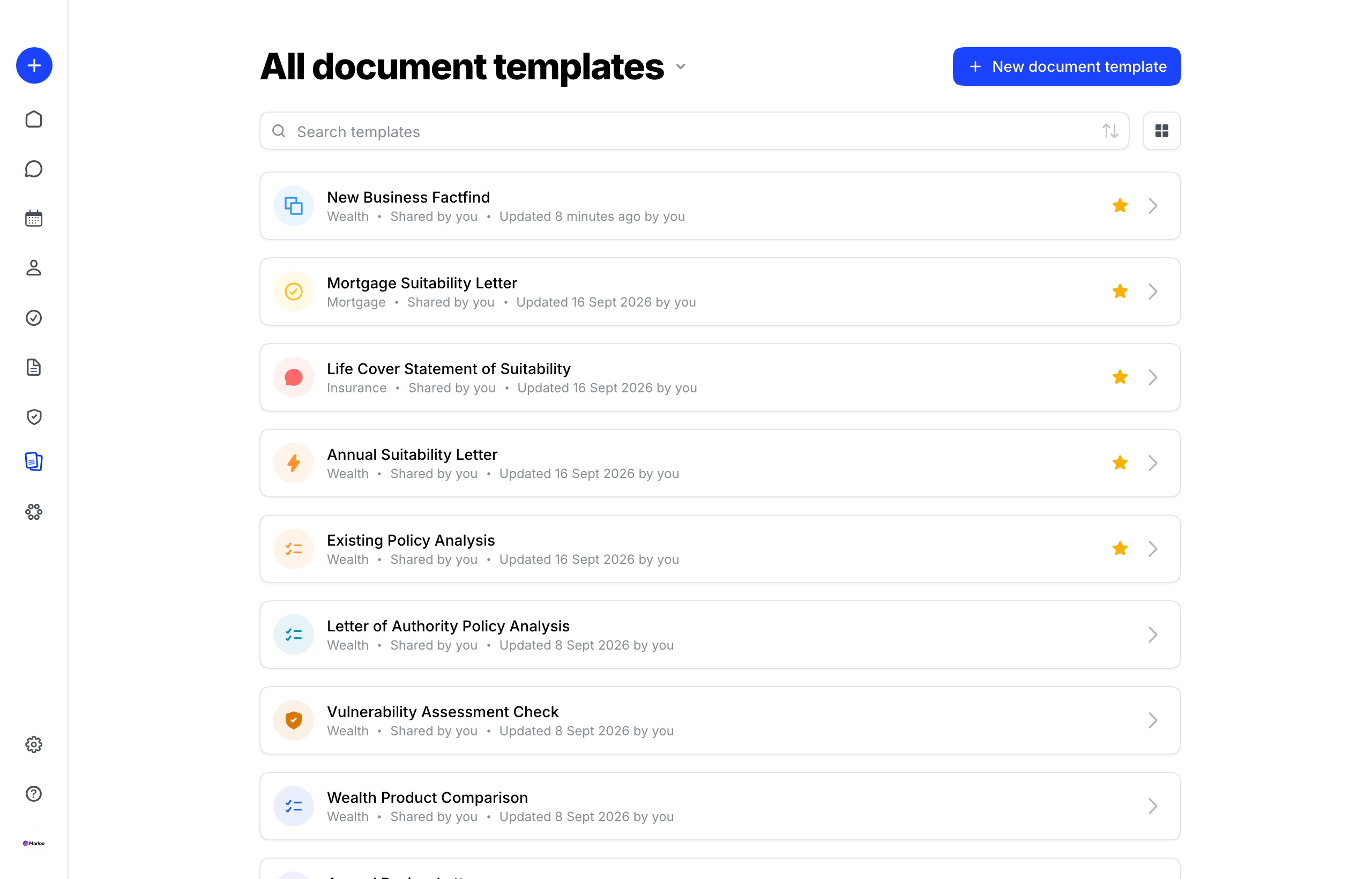
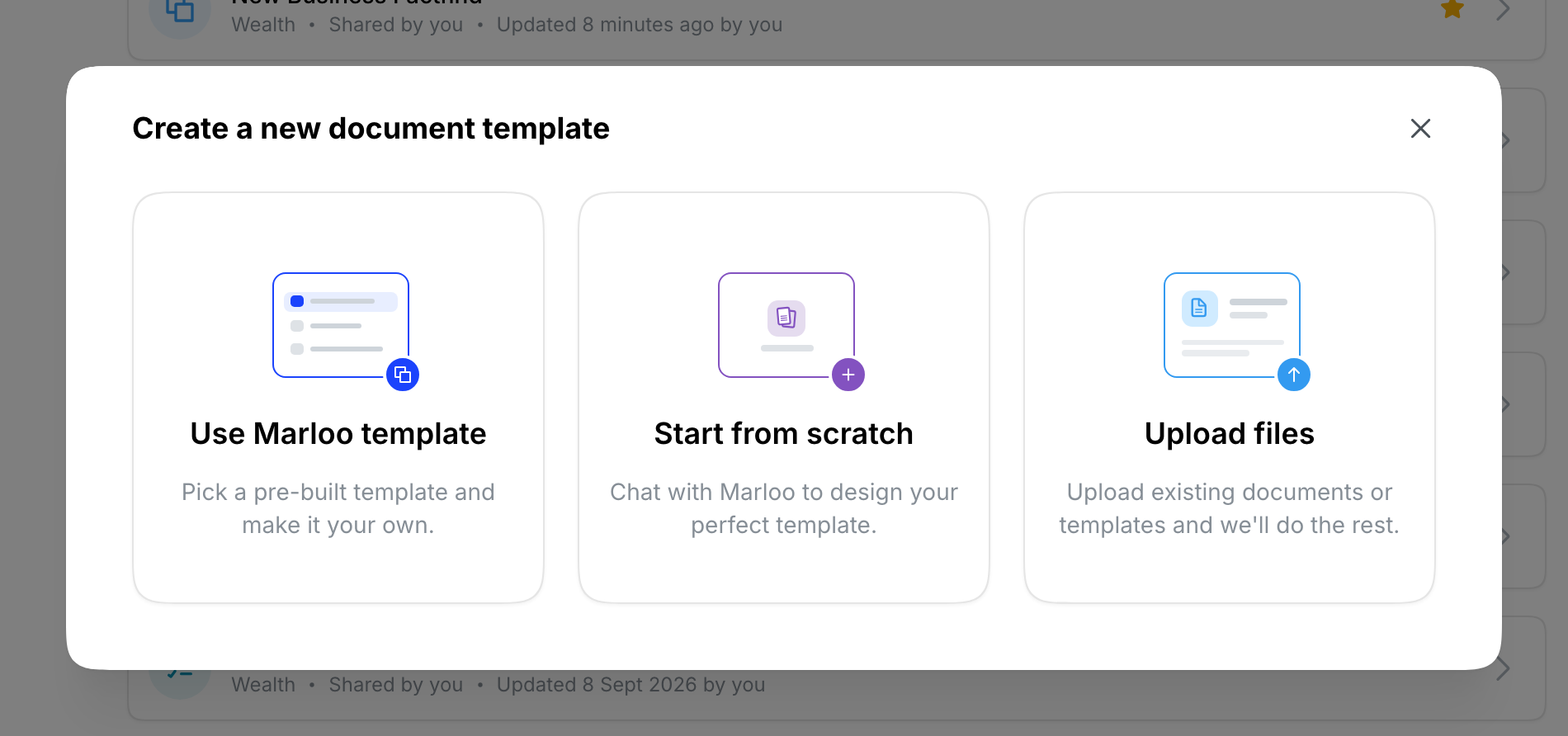
Go to Templates > Documents and click New document template. "Create a new document template" opens with three options.
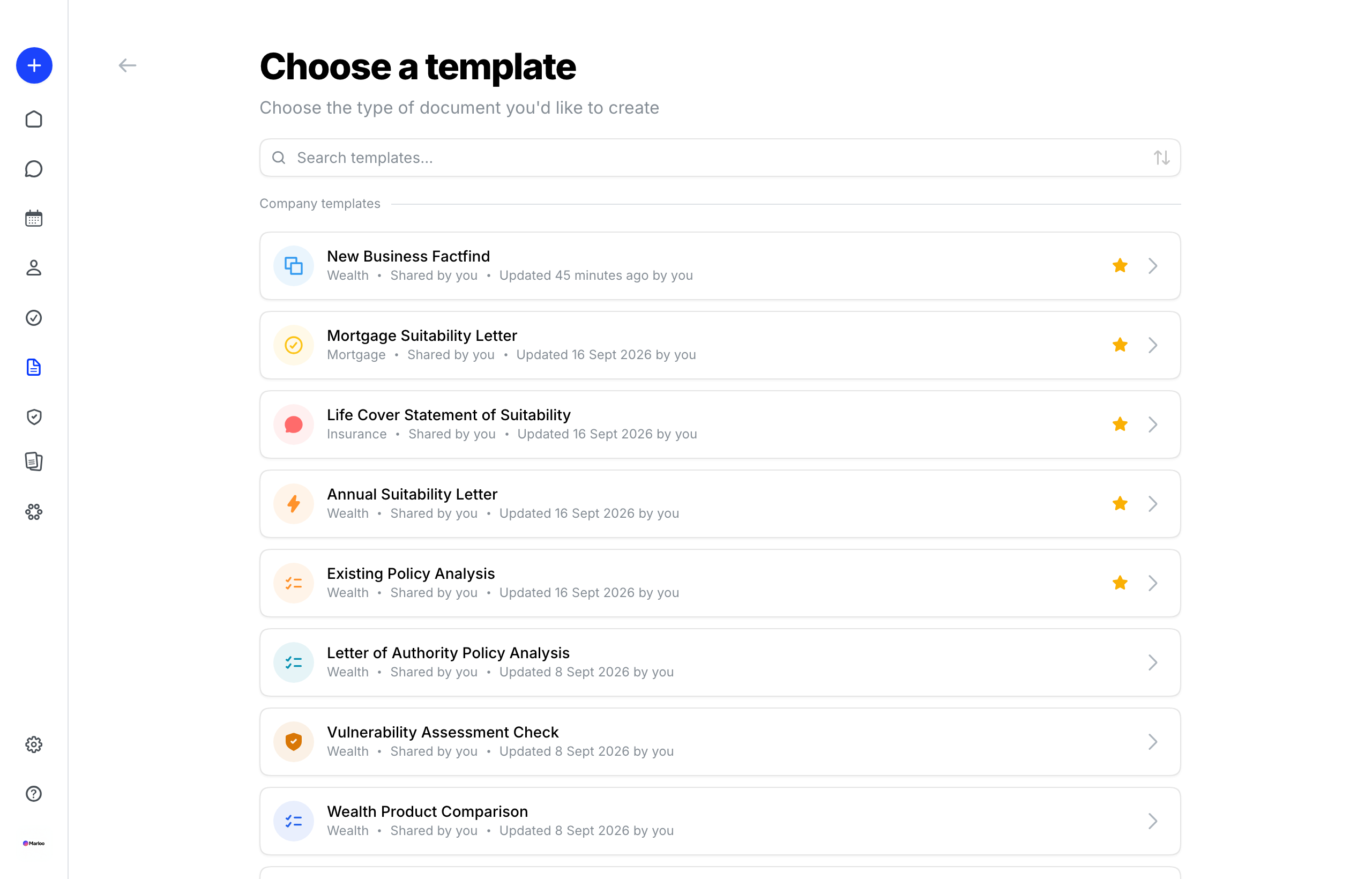
- Use Marloo template - pick one of Marloo's pre-built templates. They are ready to use and fully editable, so you can generate straight away and refine later.
- Upload files - upload your firm's own template as a Word (.doc, .docx) or PDF file. Marloo analyzes and processes it, which takes roughly 15 minutes. When it finishes, the template opens with its fixed text and template instruction sections ready to go; how those work is in Template editor.
- Start from scratch - build your own template in the template editor.
Common mistake: upload under Templates > Documents, not Templates > Meetings. Meeting templates shape meeting summaries, so a document template uploaded there won't be offered when you generate a document. If yours ended up there, upload it again under Templates > Documents.
Add client context
The better the context, the better the document. Go to Clients in the left sidebar, open your client and work through the tabs on their profile: Meetings, Notes, Files, Emails (shown only when your email sync is connected), Documents and Slides.
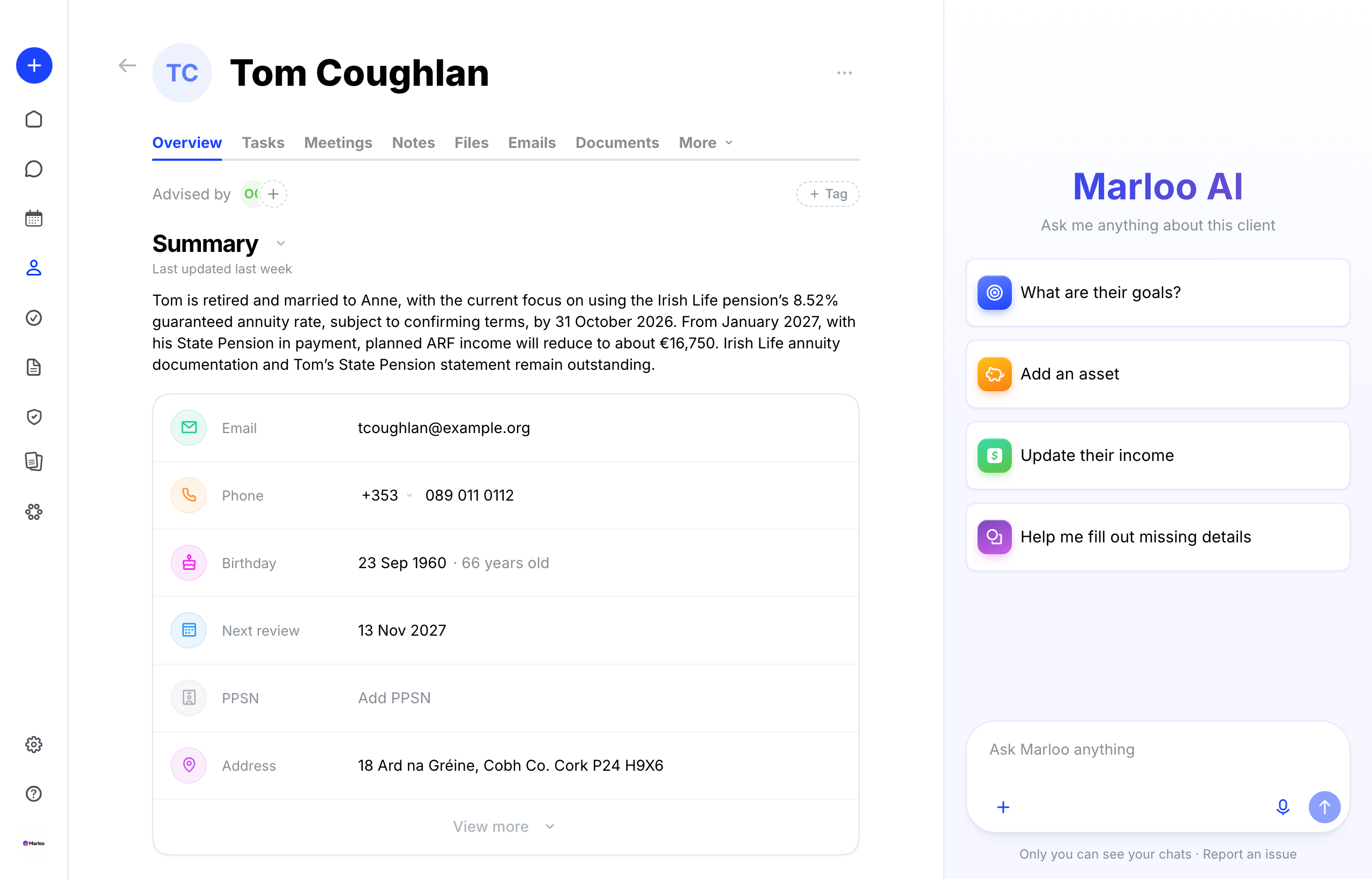
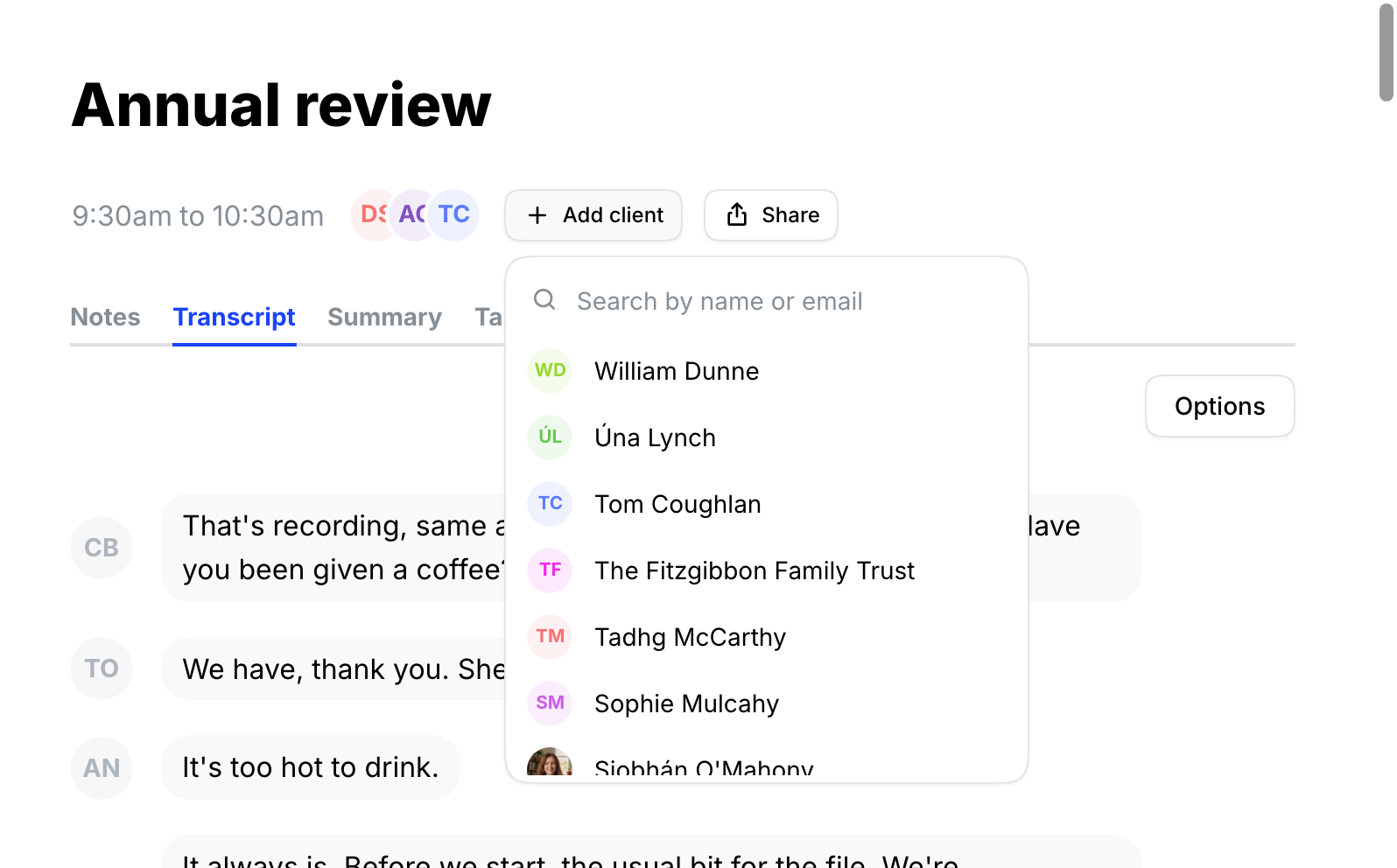
- Meetings - make sure the relevant meetings are tagged to the client. Open a meeting and click Add client. Meetings recorded on the mobile app need the client added this way, or they won't appear on the client's profile.
- Files - upload client questionnaires, Morningstar reports, prospectuses, previous financial plans, budgets and any other reference material. Files accept PDF, Word, Excel, PowerPoint, CSV, images and more. A good rule of thumb: upload anything you would hand an associate advisor. Marloo reads the values in a spreadsheet but not its formulas; see Get better first drafts from document generation for what to do with complex workbooks.
- Notes - add anything that isn't captured elsewhere. Paste tables (the formatting is kept), type free text, or click the microphone to dictate a note.
- Emails - when your email integration is connected, emails with the client sync to their profile with their attachments, so Marloo can read correspondence and attached documents without manual uploads.
You don't need everything perfect before your first run. Start with what you have; you can add context later and run it again with Regenerate (see Troubleshooting below).
Set up company context
If you only do one thing before your first generation, do this. Go to Knowledge > Company and upload your firm's standard wordings, fee schedules, compliance language and any other material that should read the same in every document. Upload them once and they are offered in the Company context tab of every generation; select the ones you want each time, because Marloo only uses the files you select. Rules that apply to every advisor at the firm, such as a current contribution rate, go in Company instructions on the same page. Marloo then uses your approved language and figures instead of generic text. Setup and examples: Understanding the Knowledge tab in Marloo.
Generate the document
Start a new document

- Open the client's profile and click the Documents tab.
- Click New document.
- Choose your template. Only one template can be selected per generation.
Select the context
In Select context, select everything Marloo should read. The tabs, in order, are Meetings, Files, Company context, Notes, Documents and Emails.
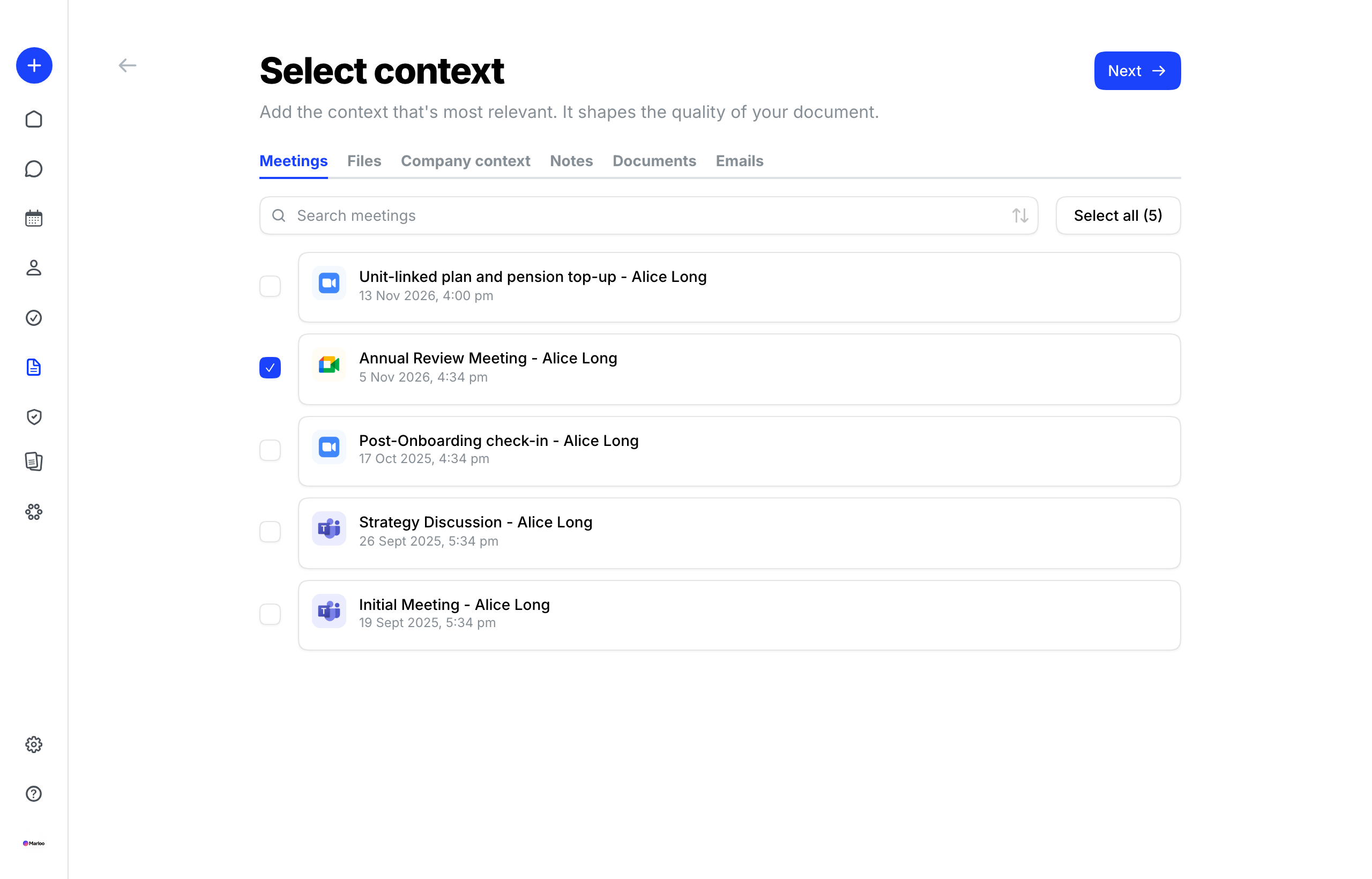
- Meetings - the relevant transcripts.
- Files - client questionnaires, reports, prospectuses. You can upload files directly here and they save to the client.
- Company context - firm-wide files such as fee schedules and standard wordings. You can upload here too, but anything uploaded on this tab saves as company context for the whole firm, not against the client.
- Notes - the relevant client notes.
- Documents - documents Marloo has already generated for this client that you want it to reference.
- Emails - the relevant threads, when your email integration is connected. Attachments come through with the email.
You must select at least one item. If you don't, Marloo shows "Attach at least one file, note, meeting, email, or document before continuing." When you're done, click Next.
Brief Marloo and generate
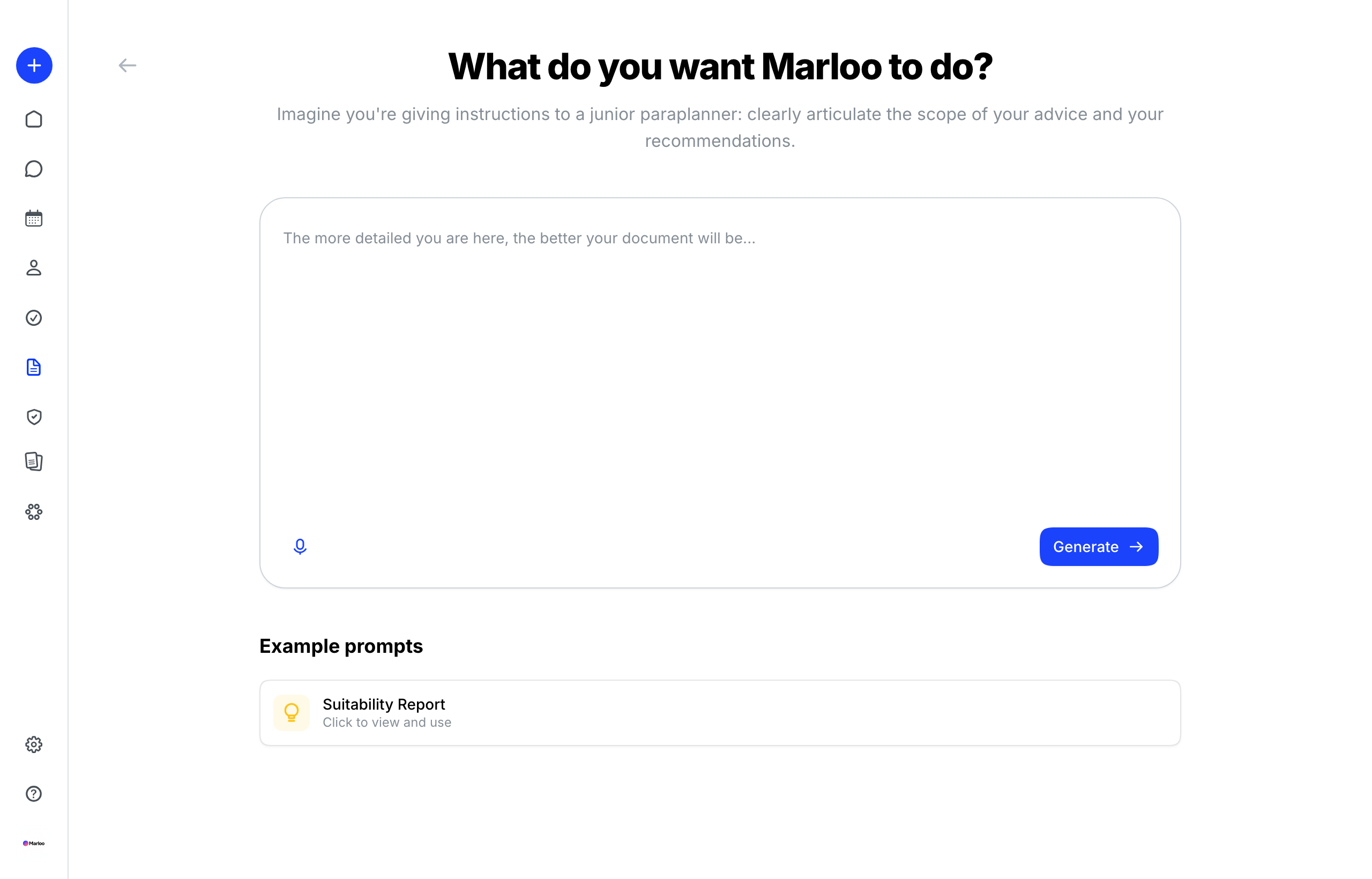
- Type your instructions, or click the microphone to dictate them. The next section covers what to say.
- Click Generate. The document shows Generating… while it runs, which usually takes 5-15 minutes depending on length. When it finishes, click the document to open it.
To change the context or the instructions after a run, use Regenerate from the document menu (see Troubleshooting below).
Write good instructions
Brief Marloo as you would an associate financial advisor: what you are recommending and why, who the advice is for, where the key information sits in the context you selected, and what is in and out of scope. What belongs in this prompt and what belongs in the template is in Get better first drafts from document generation.
Example instruction:
Generate the financial plan for John and Sarah. I am recommending they roll their old 401(k)s into a single IRA, maintain their current investment portfolio, and update their insurance to reflect recent life changes. The client questionnaire is in Files (up to date), you'll find the insurance needs analysis in the Notes section, and the previous financial plan is also in Files for reference.
Two shortcuts: click the microphone to dictate instead of typing, and after a run your prompt is kept under Your prompts below the prompt box, where you can favorite it for one-click reuse. Both are covered in Get better first drafts from document generation.
Review and export
The generated document opens in Marloo's editor.
- Check the highlights first. Highlights are on when the document opens: Citation (green), Reasoning (purple), Inference (blue), Gap (amber) and Clash (red) for clashes between sources. Hover over a highlight to see its label. The Review button in the top toolbar hides or shows them, and only appears when the document has highlights. See Review mode.
- Edit directly. Click into the text and change it with the formatting toolbar.
- Ask Marloo. The Ask Marloo panel on the right reworks one section at a time when you name the section exactly, and can find and replace across the whole document. How to get the best from it: Get better first drafts from document generation.
- Add images. Choose Insert > Image to add charts or graphs from your modeling software.
- Pick a style, then export. Choose your firm's style from the Styles menu in the editor toolbar, then click Export and choose PDF or Word. Styles (fonts, colors, cover page, headers and footers) are set up under Documents > Styles; see Set up your first document style.
- Slides. On the Pro and Firm plans you can generate a slide deck from the document, present it in Marloo or export it as a PDF (there is no PowerPoint export). See Create slide decks from any document in Marloo.
After exporting, read the document line by line and note everything that isn't right. Those notes are the raw material for improving the template: see Refine your document template.
Troubleshooting
| Problem | What to do |
|---|---|
| I can't see the Documents tab or the trial offer | Document generation is a Pro feature. Click New document on the Documents page to start the free trial, or choose Upgrade to Pro. See How the Marloo Pro trial works. |
| My template isn't offered when I generate | It was probably uploaded under Templates > Meetings. Upload it again under Templates > Documents. |
| "There was too much context to process - please reduce the amount of context you provide" | Marloo couldn't fit everything you selected. Remove some files or other context, then regenerate. |
| "This document was too long to generate in full" | Part of the document is missing. Shorten the template or reduce the context, then regenerate. |
| Still showing Generating… after 20 minutes | Contact support. A normal run finishes within 5-15 minutes. |
| I need to change the context or instructions after a run | Choose Regenerate from the document menu. Marloo reopens the context step and then the prompt step with your current selections and your last instructions filled in, so you can adjust them before it runs again. |
| The export has none of my branding | Choose your style from the Styles menu in the editor before exporting. If there is no style yet, set one up under Documents > Styles: Set up your first document style and Customize your document styling. |
| The output has [TBC - ...] placeholders or amber Gap highlights | Marloo couldn't find that information in the context you selected. Causes and fixes: Get better first drafts from document generation. |
| The output isn't what I expected | Most problems trace back to the template's instructions. See Refine your document template. |
Related articles
- Get better first drafts from document generation - day-to-day habits that lift every draft
- Refine your document template - the generate, review, update loop
- Create and upload document templates
- Understanding the Knowledge tab in Marloo
- Review mode
- Set up your first document style
- Customize your document styling
- Create slide decks from any document in Marloo
- How the Marloo Pro trial works
Still stuck? Talk to a human.
Email the Marloo team with what you are seeing. If you are in the app, the blue chat button in the bottom-right corner is the fastest way to reach us.


