
Use Ask Marloo on a client
How Ask Marloo works on a client's profile: what it can read, how source citations work, and how uploads and tagged meetings give it more context.
On a client's profile, Ask Marloo searches every meeting, upload, email and note for that client, and its answers include citations you can click to see the source.
Open Ask Marloo on a client
Go to the client's profile and click the Ask Marloo button in the top right corner. On a client, Marloo can access:
- All meeting transcripts and summaries tagged to this client
- All documents uploaded to the client profile
- All synced emails for this client
- Notes from any meeting tagged to the client
- The client overview
- Records of other members of the client's group
- Your firm's company context files in Knowledge > Company
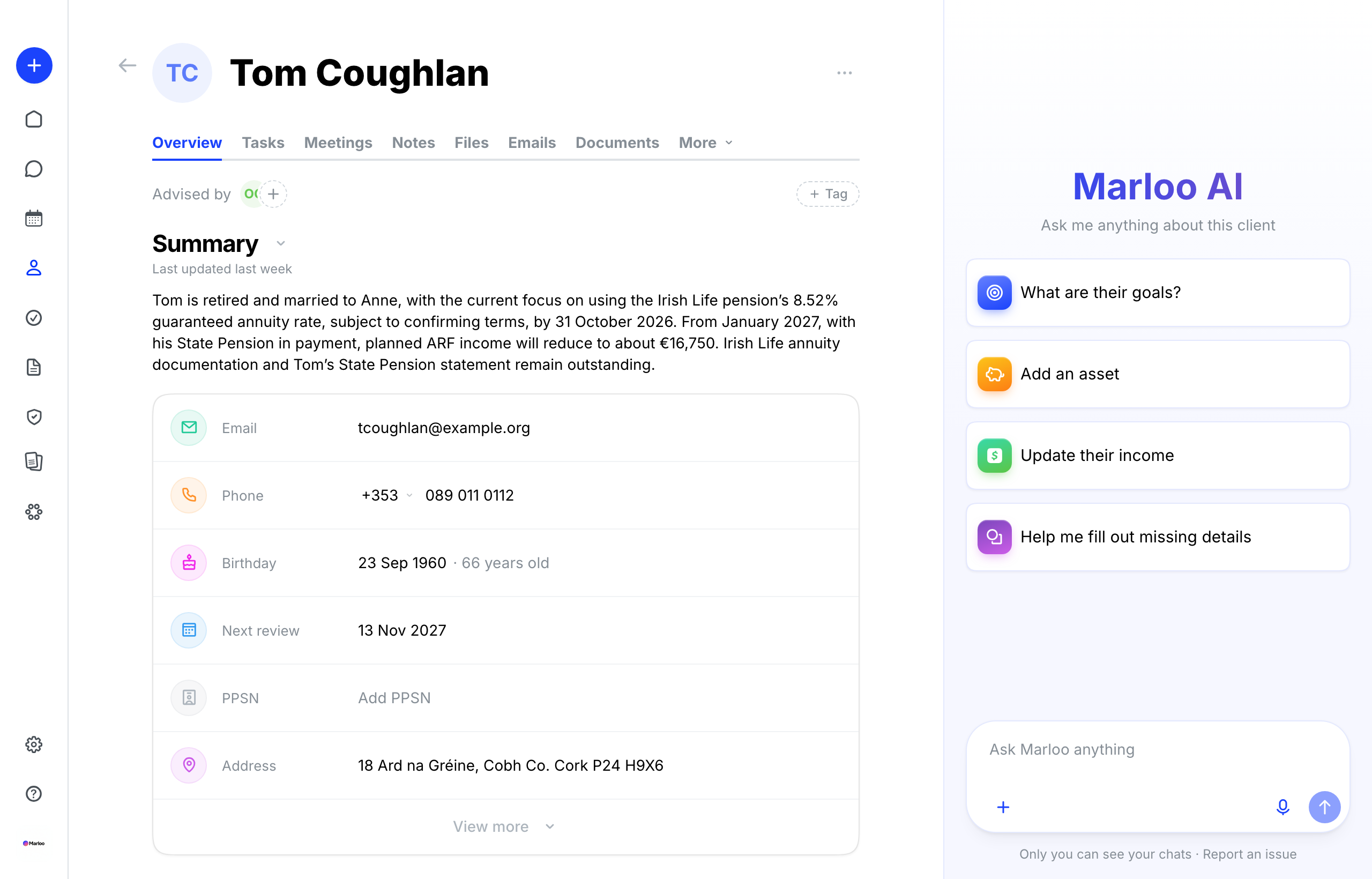
Source citations
On a client, Ask Marloo responses include visible citations, so you can check that an answer comes from the client's own files and meetings.
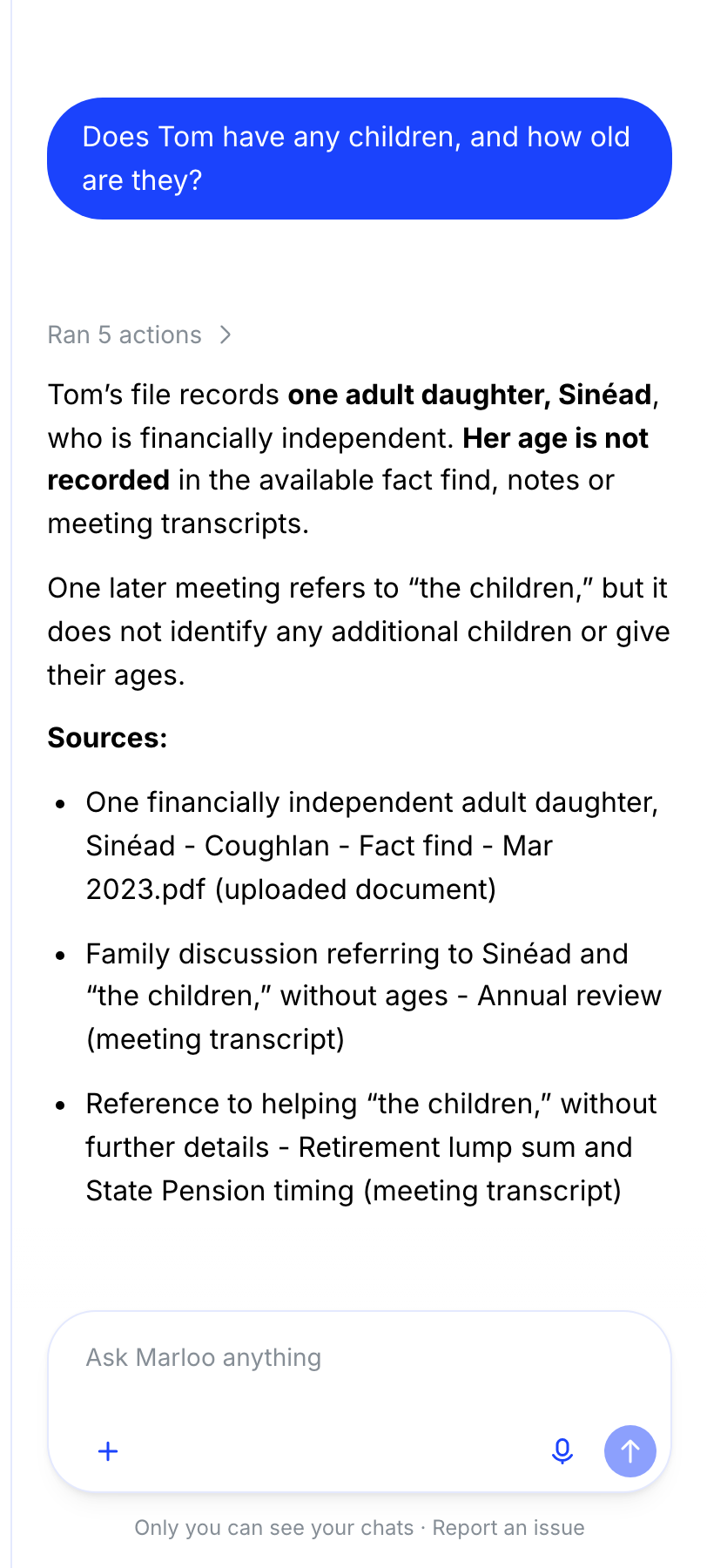
Questions to ask
Preparing for a client review
- "Summarize all meetings with this client in the last 12 months."
- "What action items are still outstanding from previous meetings?"
- "What changes in circumstances has this client reported?"
- "List all insurance coverage currently discussed across meetings."
Researching client history
- "When did we first discuss retirement planning with this client?"
- "What risk profile has this client indicated across all meetings?"
- "What concerns has this client raised over time?"
Drafting client communications
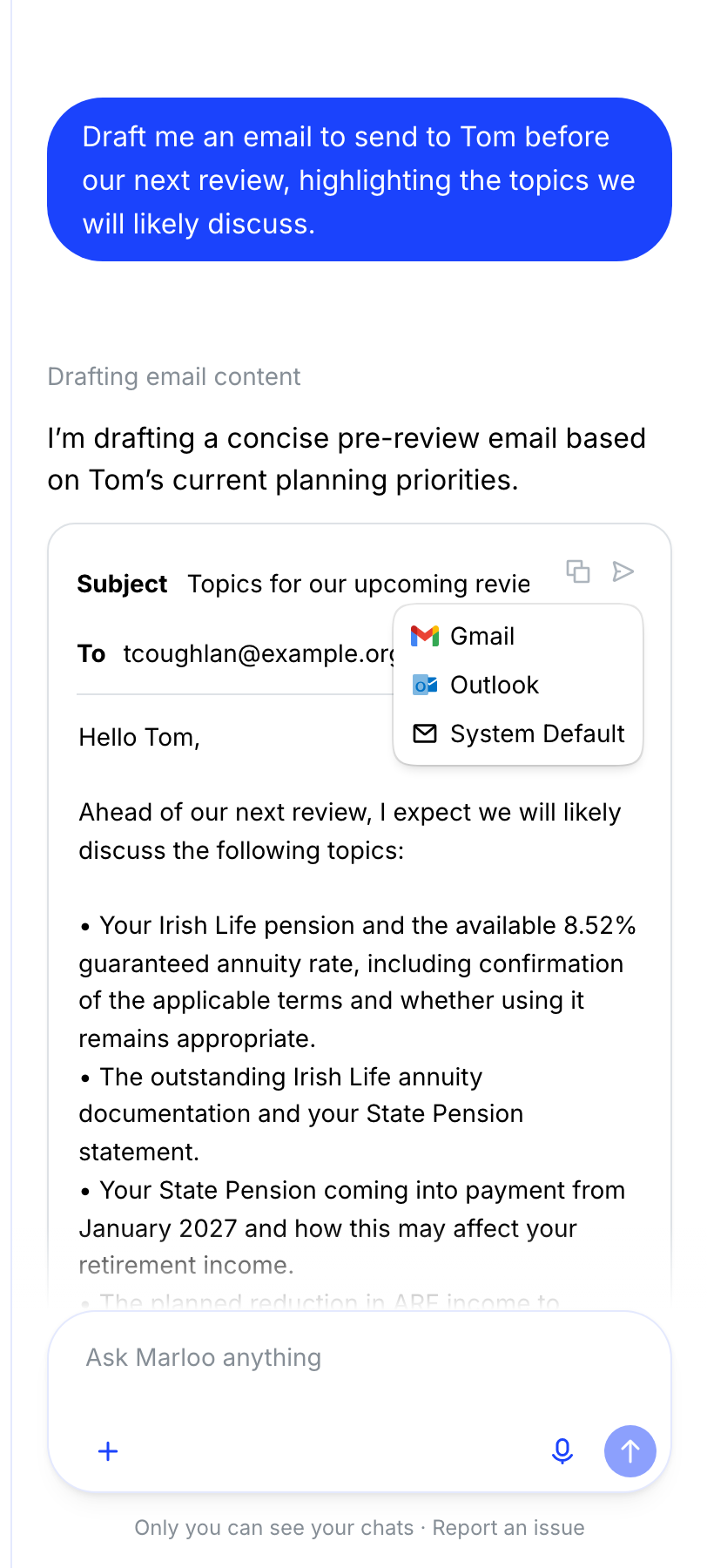
- "Draft an email summarizing our last meeting and the agreed next steps."
- "Draft a meeting agenda for our upcoming annual review."
Click the compose button, then choose Gmail or Outlook to open the draft in your email client for review and sending.
Comparing information across meetings
- "How has this client's financial situation changed between the first and most recent meeting?"
- "Compare the investment goals discussed in the initial meeting with what was discussed in the latest review."
Upload documents for better answers
Go to the Files tab within the client profile and click Add to add files.
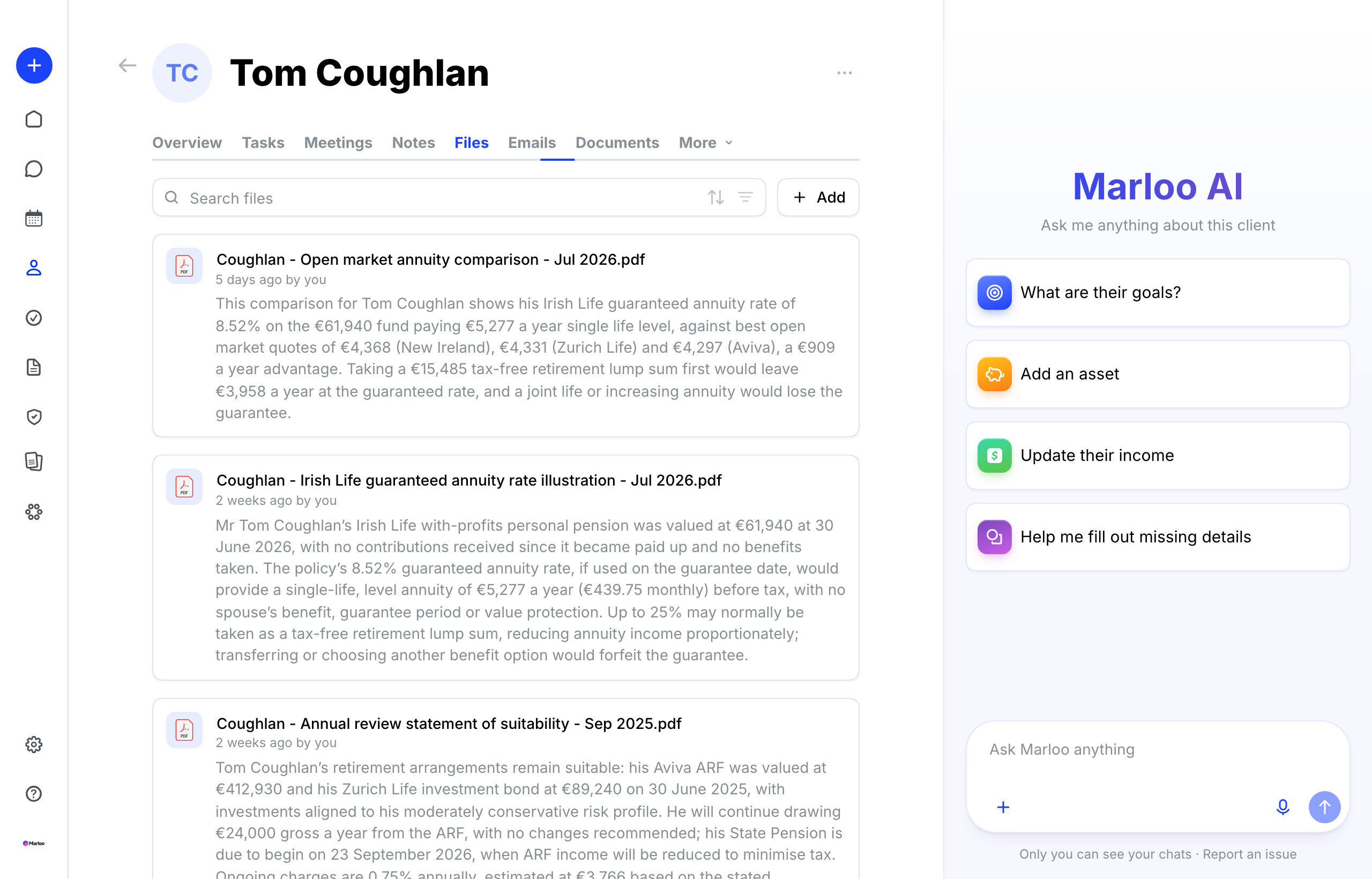
Examples of files you can upload:
- Client questionnaires
- Risk profiles
- Provider reports
- Product comparison reports
- Prospectuses
- Previous financial plans
- Insurance policy documents
- Financial statements
- Retirement projections and modeling
The more documents you upload, the more complete Marloo's answers are. Allow time for documents to process after uploading before asking about them.
Tag clients to meetings
For a meeting to appear in a client's Ask Marloo context, the client must be tagged to that meeting. See Add or remove clients on a meeting for how to tag clients to meetings.
Frequently asked questions
Why doesn't Ask Marloo reference documents I uploaded?
Check that the documents were uploaded to the correct client profile. Documents need processing time after upload. Wait a few moments and try your question again.
Can I export Ask Marloo responses?
You can copy and paste responses directly. For emails, use the compose button to open a draft in your email client.
What if Ask Marloo invents details that are not in my files?
Regenerate the response and report the issue to support. Always verify critical details against your source documents.
What if Ask Marloo is stuck on "updating" or times out on a complex request?
Sometimes Marloo hits the limit of turns it can take in a single response. Message it "Keep going" and it continues from where it left off.
Related articles
- What is Ask Marloo? - Overview of Ask Marloo and what it can access at each context level
- Use Ask Marloo in a meeting - Add notes and documents to get better meeting-level answers
- Use Ask Marloo in documents and summaries - Edit and refine generated content with Ask Marloo
- Add or remove clients on a meeting - Tag clients to meetings
- Upload, find and organize files on a client - Upload documents to a client
- Connect your email and see client emails in Marloo - Sync emails so Ask Marloo can use them on a client
Still stuck? Talk to a human.
Email the Marloo team with what you are seeing. If you are in the app, the blue chat button in the bottom-right corner is the fastest way to reach us.


