
Your first meeting and summary
A step-by-step walkthrough of recording your first client meeting and generating your first AI summary.
Before the meeting
Connect your calendar
If you haven't already, connect your calendar so Marloo can see your meetings and join them automatically:
- Go to Settings > Integrations.
- Under Email & calendar, open Outlook Email and Calendar or Gmail and Calendar, click Connect on the Outlook Calendar or Google Calendar card and sign in to your account.
- Approve the permissions when prompted.
Once connected, your meetings appear on the Meetings page and Marloo is set to auto-join by default. For detailed setup steps, see Connect your calendar.
Check Marloo is set to join
- Your meetings should be visible on the Meetings page.
- Check that the meeting shows "Marloo will join this meeting". This is on by default for all virtual meetings.
Tip: For your very first meeting, consider testing with a short internal call so you're familiar with the flow before a client meeting.
Record a virtual meeting
- Start your meeting as normal. Join your Zoom, Microsoft Teams or Google Meet meeting the way you usually do. Marloo's notetaker joins the waiting room automatically.
- Admit Marloo. When you see Marloo in the waiting room, admit it to the meeting. Marloo starts recording once admitted.
- Run your meeting. Marloo records in the background without interrupting the conversation. You can remove Marloo at any time using the three-dot menu on the notetaker in your meeting's participant list.
- End the meeting. Marloo automatically starts processing the recording. You don't need to do anything: the transcript appears on the meeting in Marloo within a few minutes.
Important: Marloo waits in the waiting room for up to 5 minutes. If you don't admit it before then, it leaves. If this happens, open the meeting in Marloo and click Send Marloo now to send it again.
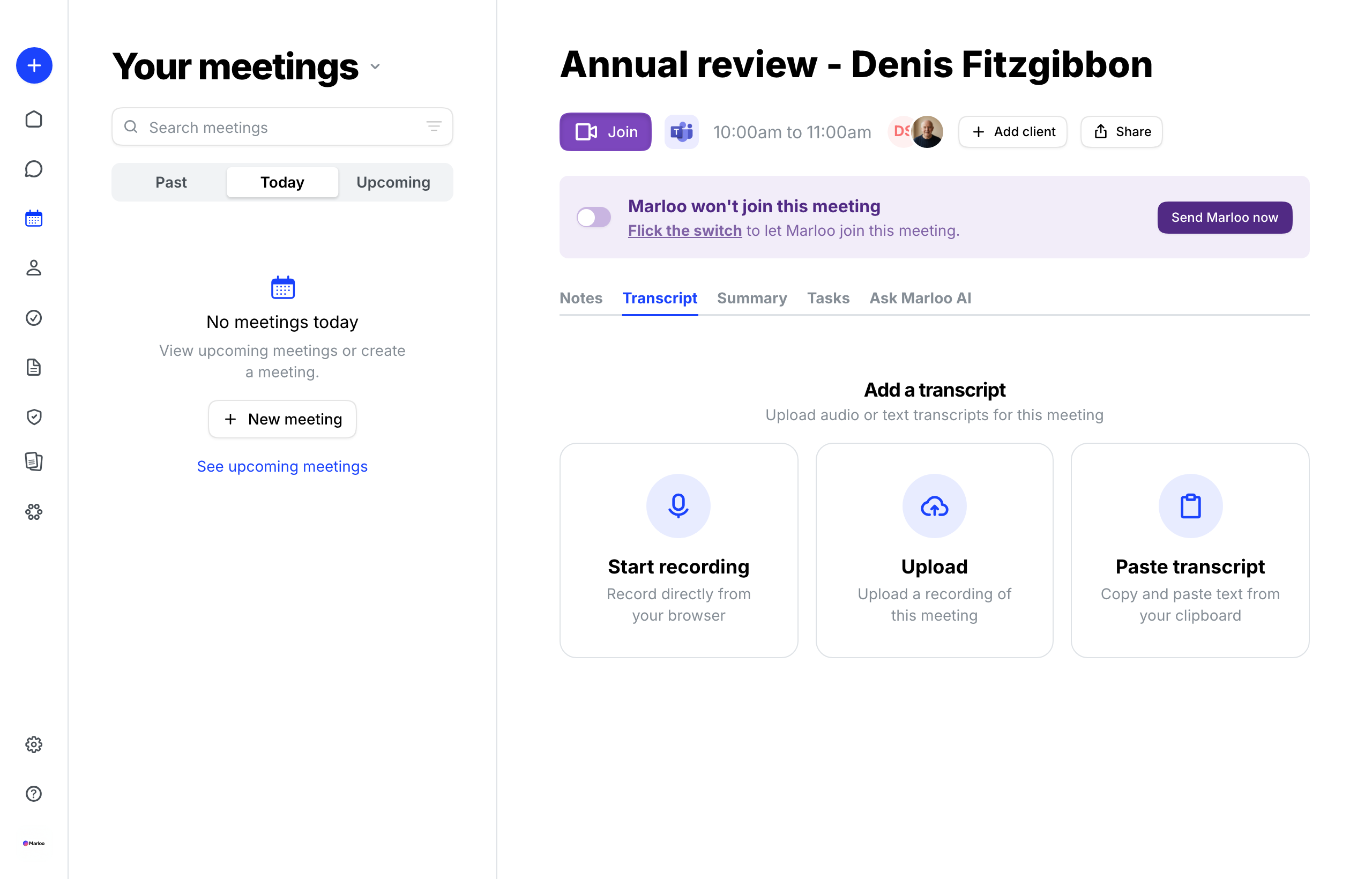
Record an in-person meeting
If your meeting is face-to-face rather than virtual, you can record it two ways.
In the web app
- Go to the Meetings page and click the meeting (or create a new one).
- Click Start recording. Marloo captures audio through your device's microphone.
- Click Stop Recording when finished.
In the mobile app
- Open the Marloo app on your phone.
- Open the meeting from your calendar, or tap New meeting.
- Tap Start Recording, then Stop Recording when finished.
- Wait about a minute for the recording to upload.
After recording on mobile: Open the meeting in the web app, give it a name, and tag the relevant client. This is required for the meeting to appear in the client's profile.
For full details on all recording options, see How meetings work in Marloo.
Review your transcript
Once Marloo finishes processing, you'll find the meeting on the Meetings page with a transcript ready to review.
- Click the meeting on the Meetings page.
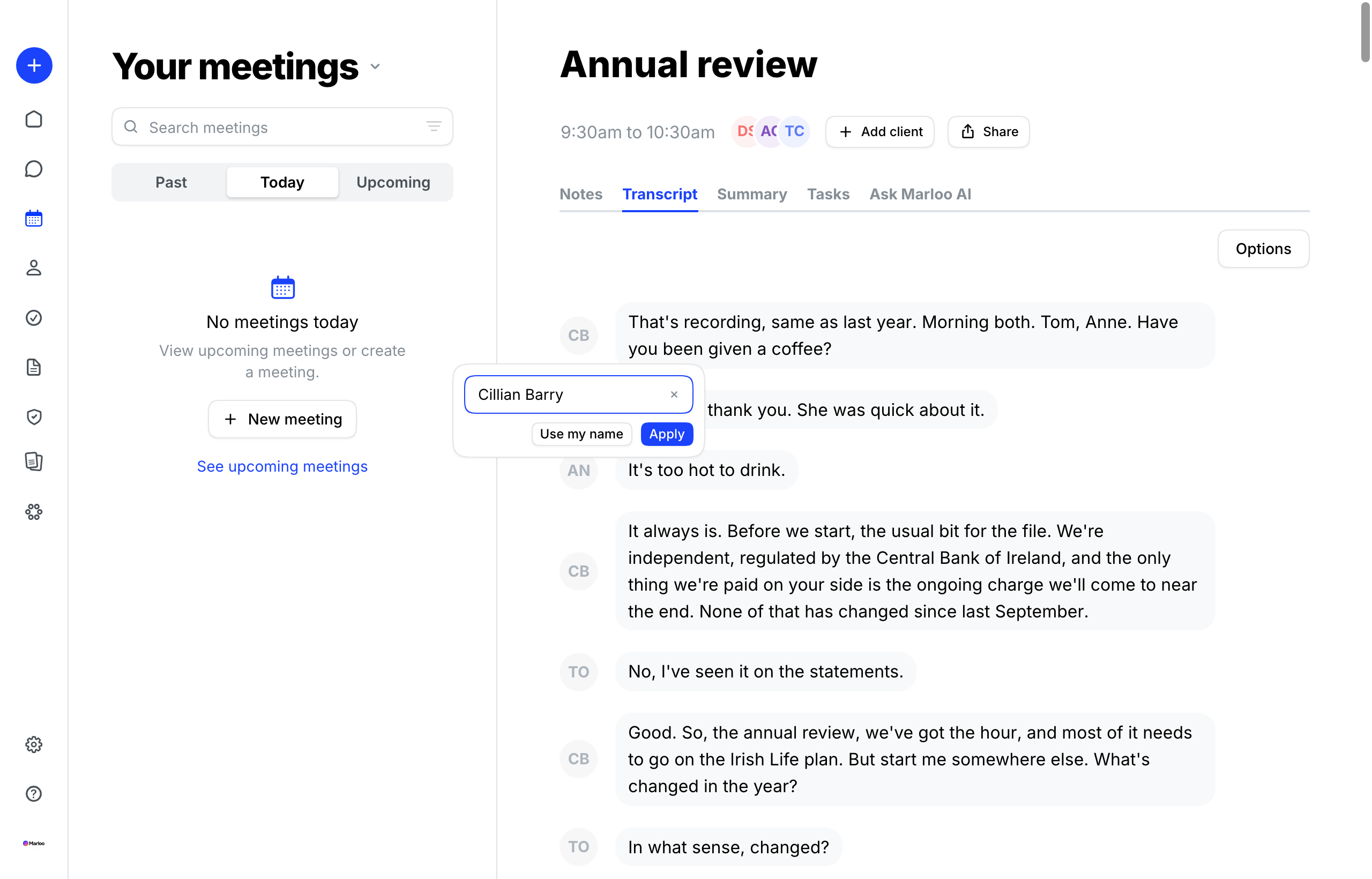
- The transcript appears with speaker labels and timestamps.
- Name your speakers: click a speaker label to assign the correct name. Marloo applies the name throughout the transcript.
- Edit if needed: click directly on the transcript text to correct any errors, or use find and replace for recurring mistakes.
Generate your first summary
Once you have a transcript, you can generate a structured meeting summary.
- Click the meeting on the Meetings page.
- Open the Summary tab. Under Create a summary, select a meeting template. Marloo pre-loads default templates based on the advice type you chose at sign-up, so pick the one that best matches your meeting type.
- Selecting the template starts generating the summary. It takes about a minute.
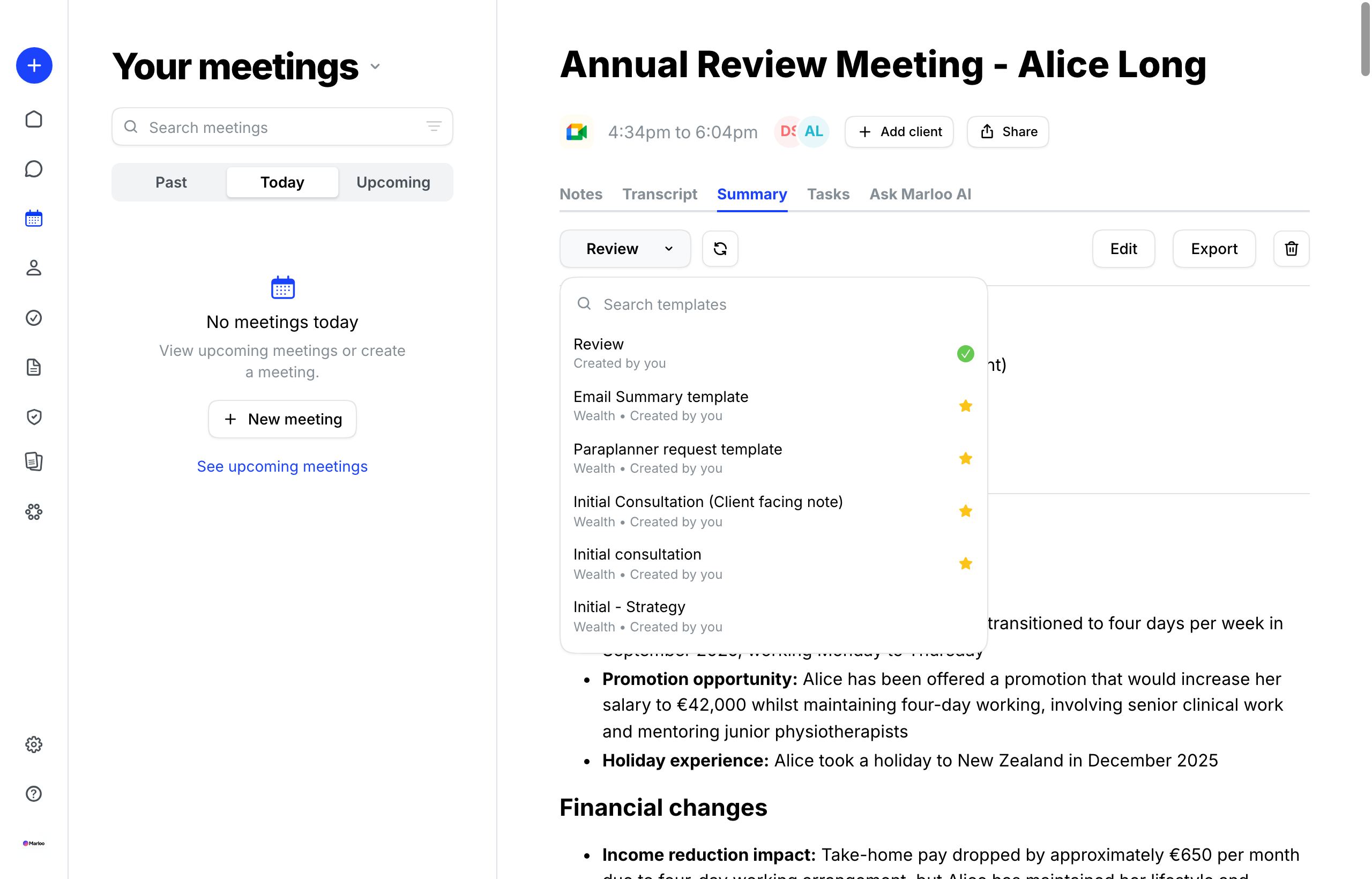
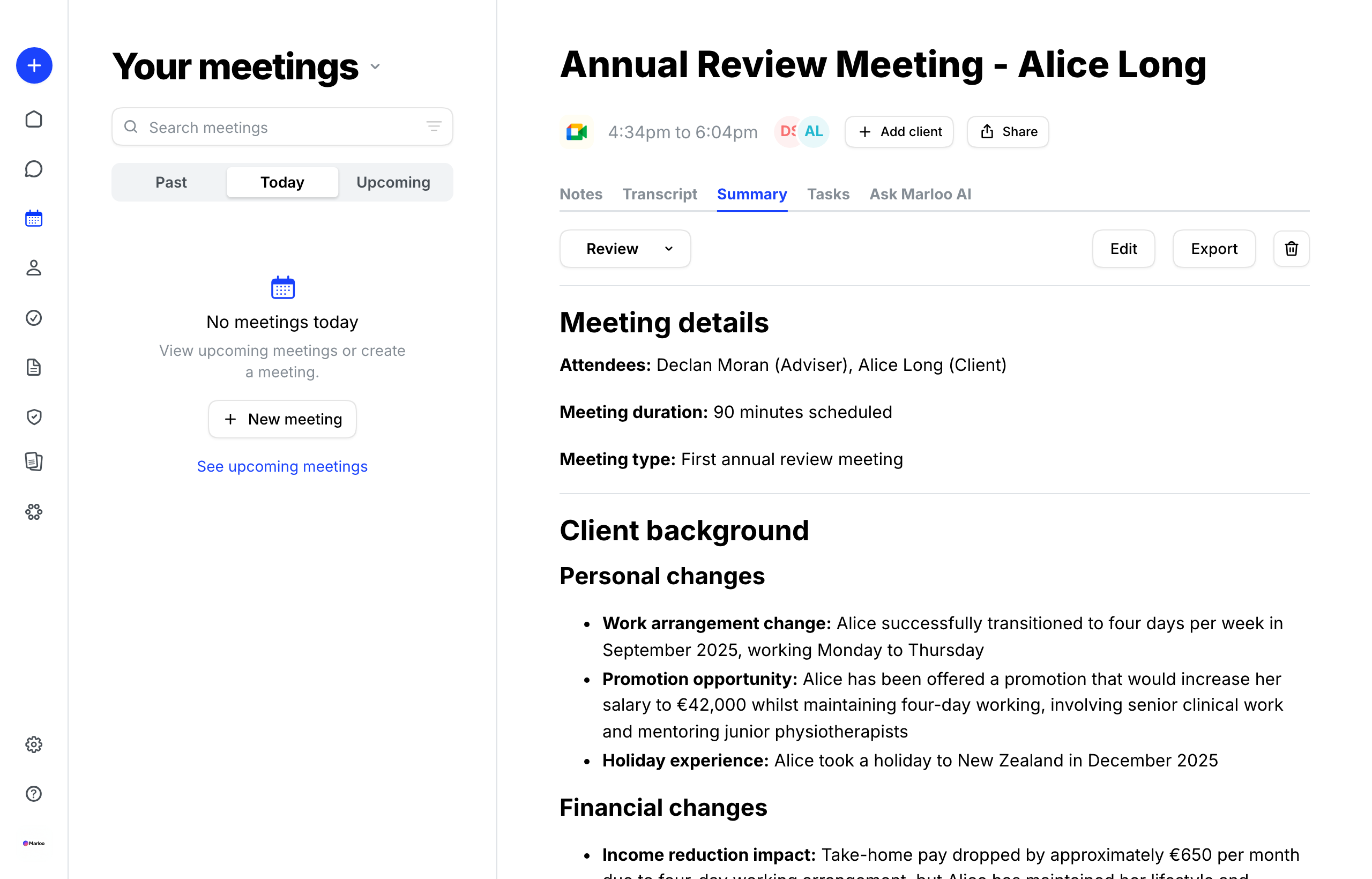
Your summary follows the template, with sections, headings and content pulled from the transcript. You can:
- Edit directly: click into any section to make changes.
- Refine with Marloo: use the Ask Marloo panel to adjust specific sections (for example, "Make the Action Items section more detailed").
- Regenerate: if the output isn't right, try a different template or regenerate with the same one.
Tag your client: If you haven't already, tag the client to this meeting so the summary appears in their client profile. Click Add client on the meeting page.
Tips
- Admit Marloo as soon as the meeting starts. It leaves the waiting room after 5 minutes.
- Name your speakers in the transcript before generating a summary for better results.
- Tag clients to every meeting so their profile builds up over time.
- Test with a short internal meeting first to get comfortable with the flow.
- Use Send Marloo now if Marloo didn't join or if you need to re-add it mid-meeting.
Troubleshooting
| Problem | Solution |
|---|---|
| Marloo didn't join the meeting | Check the toggle on the meeting: it should show "Marloo will join this meeting". Make sure you admitted Marloo from the waiting room within 5 minutes. |
| Transcript is taking a long time to process | Longer meetings take more time. If it's been more than 30 minutes, contact support. |
| Speakers aren't labeled correctly | Click the speaker labels in the transcript to assign the correct names. Marloo applies corrections throughout. |
| Summary doesn't match what was discussed | Check that the right transcript is being used and try a different template. You can also refine specific sections using the Ask Marloo panel. |
| Mobile recording not appearing | Wait about a minute for the upload. If it still doesn't appear, open the meeting in the mobile app and retry the upload. |
Related articles
- How meetings work in Marloo - Full guide to all recording options, including Send Marloo now and pasting meeting links
- Edit a transcript - Detailed transcript editing and speaker identification
- How templates work in Marloo - Overview of meeting, document and task templates
- What to do after your first meeting - Templates, document generation, client profiles and more
Still stuck? Talk to a human.
Email the Marloo team with what you are seeing. If you are in the app, the blue chat button in the bottom-right corner is the fastest way to reach us.


