
Use Ask Marloo in a meeting
Ask questions about a meeting, draft follow-up emails and pull out details from the Ask Marloo tab on a meeting.
Open the Ask Marloo AI tab on a meeting to ask about that meeting. Marloo searches its transcript, notes and uploaded documents, and can also look up the linked client, other meetings, synced emails and tasks when you ask.
What you can do with Ask Marloo in a meeting
Ask about the meeting
- "What risk profile did the client indicate?"
- "What action items were agreed?"
- "Summarize the key decisions from this meeting."
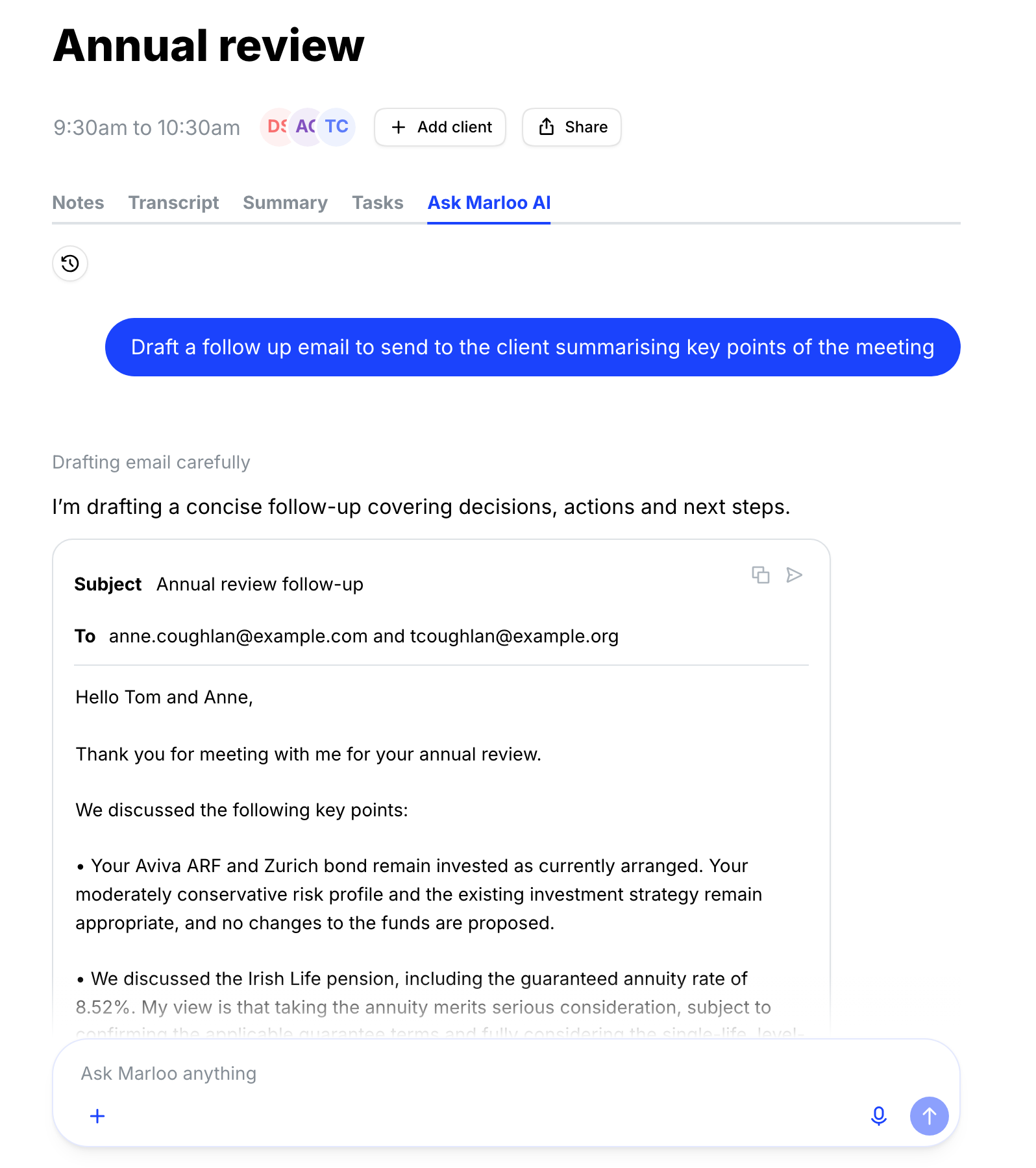
Draft follow-up emails
- "Draft a follow-up email summarizing what we agreed today."
Then click the compose button and choose Gmail, Outlook or System Default to open the draft in your email client. If your Gmail account is connected to Marloo with permission to send, you can also ask Marloo to send it for you.
Pull out specific details
- "What was the employer contribution rate discussed?"
- "List all funds mentioned in this meeting."
- "What insurance coverage did the client say they currently hold?"
Give Marloo more context
The more context a meeting has, the better Marloo's answers and your summaries will be. On the meeting's Notes tab you can add a text note, record a voice note or upload files such as client questionnaires and risk profiles, before, during or after the meeting. Voice notes are transcribed into the meeting's notes. If you add notes after the summary is generated, regenerate it to use them. See Add notes, voice notes and files to a meeting.
For Support team members
Support team members can open any meeting they have access to and ask Marloo for context without reading the full transcript.
Example questions:
- "What are my action items from this meeting?"
- "What documents need to be prepared following this meeting?"
- "Give me a two-paragraph summary of what was discussed."
Tips for financial advisors
- Add context notes before the meeting starts. Pre-meeting notes about the client's situation help Marloo produce more relevant answers and summaries.
- Dictate voice notes immediately after the meeting while details are fresh.
- After generating a summary, ask Marloo to check for completeness: "Is there anything discussed in the transcript that is not covered in the summary?"
Frequently asked questions
Why didn't my notes appear in my summary?
Notes must be added before summary generation. If you added notes after generating the summary, go to the Summary tab and click Regenerate summary (the circular-arrows button next to the template name) to include the new notes.
Do voice notes get pulled into document generation?
Voice notes become meeting notes once transcribed, and Ask Marloo can read them on the meeting and on the client. To be sure the content is used in document generation, upload it as files to the client profile.
Why is the summary missing information I know was discussed?
Check the transcript to confirm the information was captured in the audio. If it was, you can edit the summary directly or ask Marloo to update specific sections. If it was not captured, add it as a text note and regenerate the summary.
Related articles
- What is Ask Marloo? - Overview of Ask Marloo across the product and what it can access in each place
- Use Ask Marloo on a client - Query across all meetings, files and emails for a client
- Use Ask Marloo in documents and summaries - Edit and refine generated content with Ask Marloo
- How meetings work in Marloo - How to capture meetings for Ask Marloo to reference
Still stuck? Talk to a human.
Email the Marloo team with what you are seeing. If you are in the app, the blue chat button in the bottom-right corner is the fastest way to reach us.


