
Setting up webhooks
How to enable Marloo webhooks, point them at a URL (including Zapier), and subscribe to document and meeting events.
Let Marloo set this up for you
The quickest way. Marloo opens with this request ready in chat. Send it, and Marloo guides you through the rest.
“Help me connect webhooks and Zapier”
Webhooks connect Marloo to your other systems: when a document, transcript or meeting summary is created in Marloo, a webhook sends it straight to another system. Webhooks are off by default, and only Account owners can manage them.
How to get set up
1. Turn webhooks on
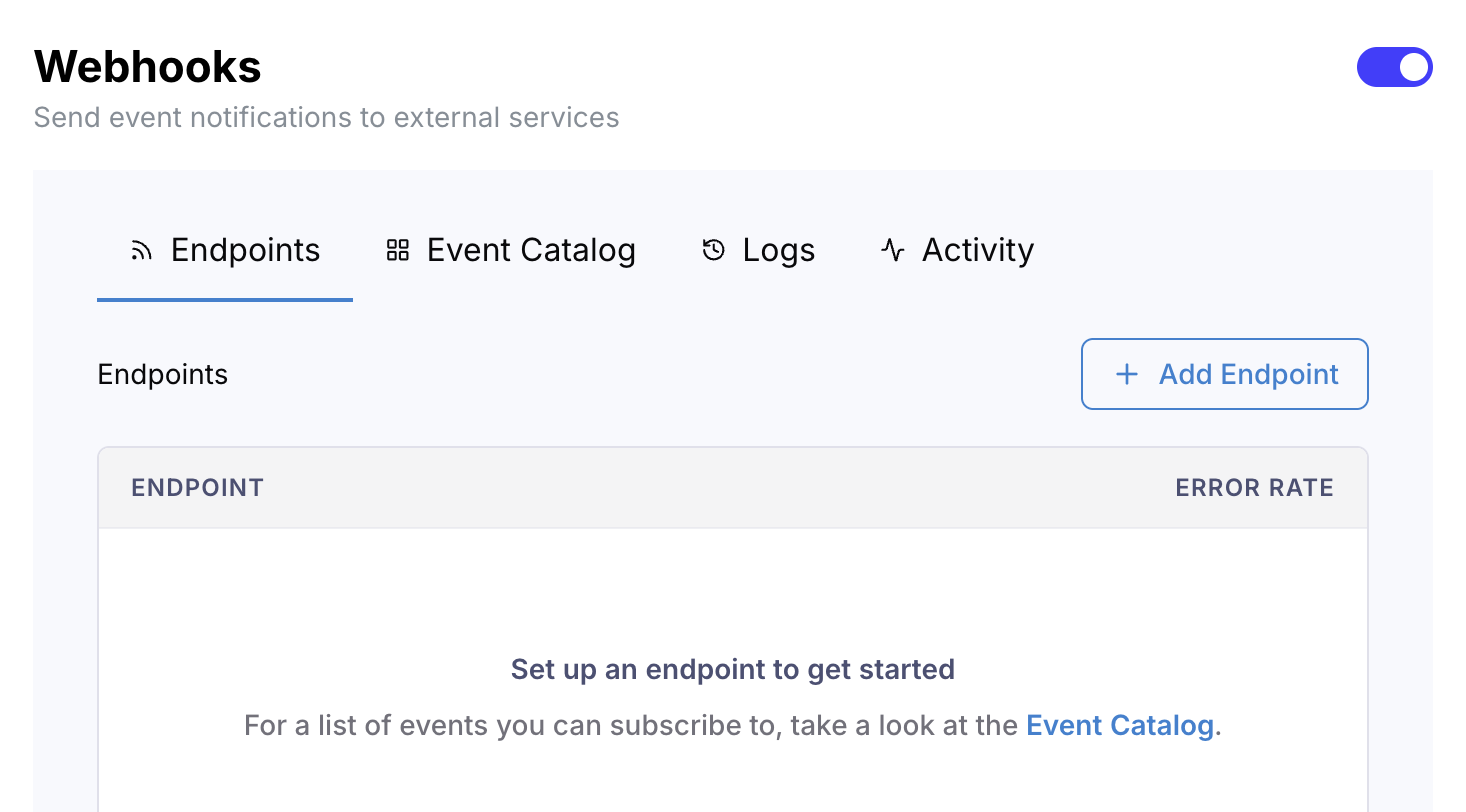
Go to Settings > Integrations and open Webhooks under Workflow automation. Turn on the switch next to Webhooks.
If you see "Ask a plan admin to manage webhooks", ask an Account owner at your firm to do this. If you see Talk to us about webhooks instead of the switch, click it. If the switch does not reveal webhook configuration, contact support and include the visible state of the Webhooks section.
2. Tell Marloo where to send events
In the portal, click Add Endpoint and set the URL you want webhooks delivered to. If you're using Zapier, grab the URL from the Catch Hook trigger and paste it in. If you're using n8n, use the production URL of your workflow's Webhook trigger node.
3. Pick what you want to listen for
You can subscribe to lifecycle events for documents, meeting summaries, and meeting transcripts. For example, selecting document.updated.v0.1 means your Zap will run every time a document is updated.
4. Check the event catalog
The portal's Event Catalog tab shows what each event contains, so you can see the data you'll receive for any event type before you build against it.
Worked examples
Webhooks can automate workflows across your other systems. Advisors use this to update their CRM with meeting notes, feed reporting, or notify their team.
See below for example step-by-step guides to using webhooks in Marloo:
1. Draft follow-up emails in Outlook
Automatically turn a Marloo client follow-up into a ready-to-review Outlook draft using Make.
What this automation does
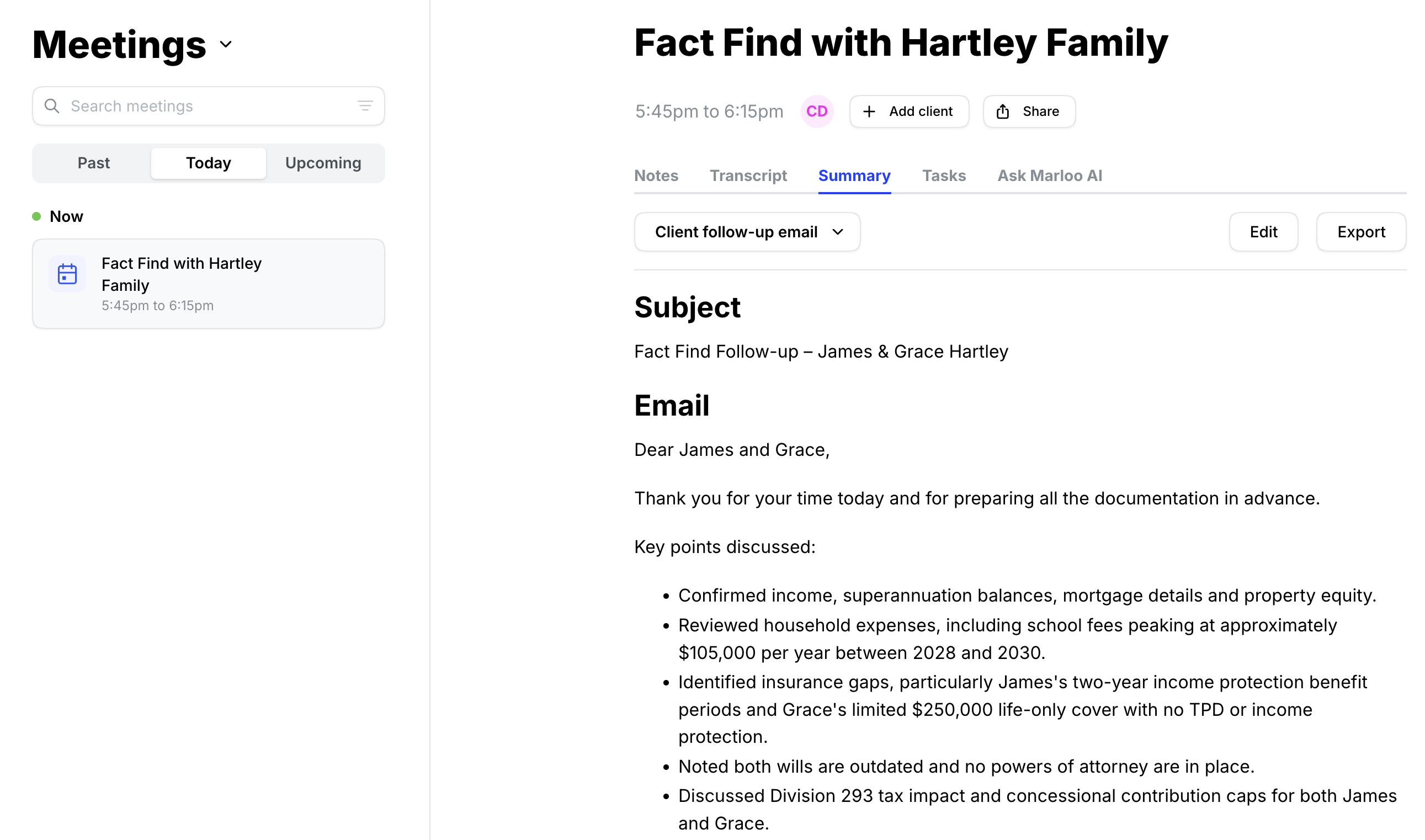
When the Client follow-up email template is generated in Marloo, Make creates an Outlook draft addressed to the clients from the meeting. It does not send the email.
Before you start
You’ll need:
- A Make.com account (Zapier also works)
- A Microsoft 365 account with Outlook
- Webhooks enabled in Marloo
- Email addresses recorded for the clients in Marloo
Set it up
-
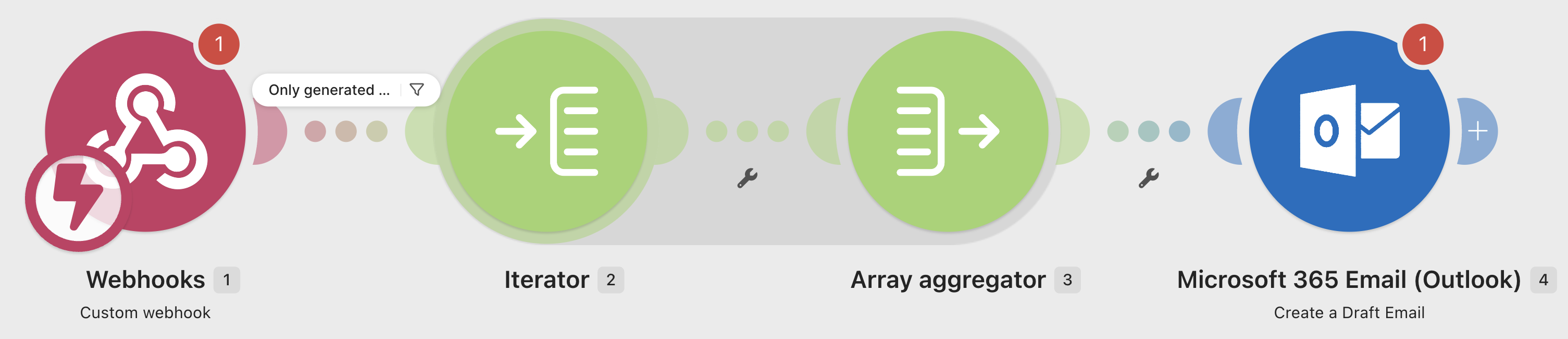
Open the Outlook scenario in Make and select Use this scenario.
-
Open Microsoft 365 Email – Create a draft email and connect your Microsoft account.
-
Open the Custom webhook module and create a new webhook. Copy its URL (for example
https://hook.us2.make.com/xxxyyyzzz...). -
In Marloo, go to Settings > Integrations > Webhooks. Add the Make webhook URL and subscribe to
meeting_synopsis.updated.v0.1.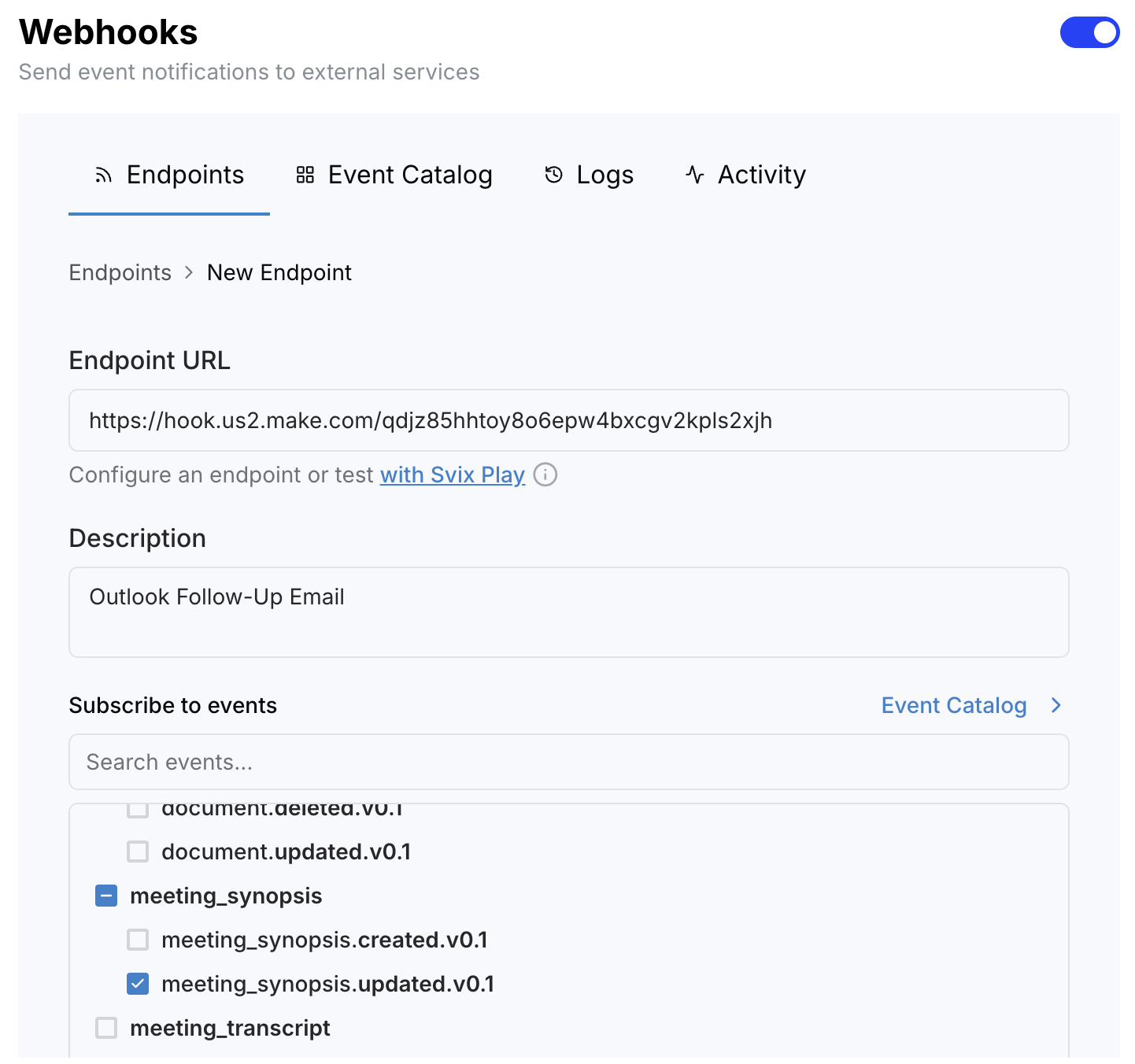
-
Select Run once in Make, then generate a meeting summary using a custom Client follow-up email template in Marloo.
-
Confirm the draft appears in Outlook with the recipients, subject and email body populated, then turn the scenario on.
The draft remains in Outlook for you to review, edit and send.
2. Archive documents to SharePoint
Automatically archive completed Marloo documents in a SharePoint folder using Make.
What this automation does
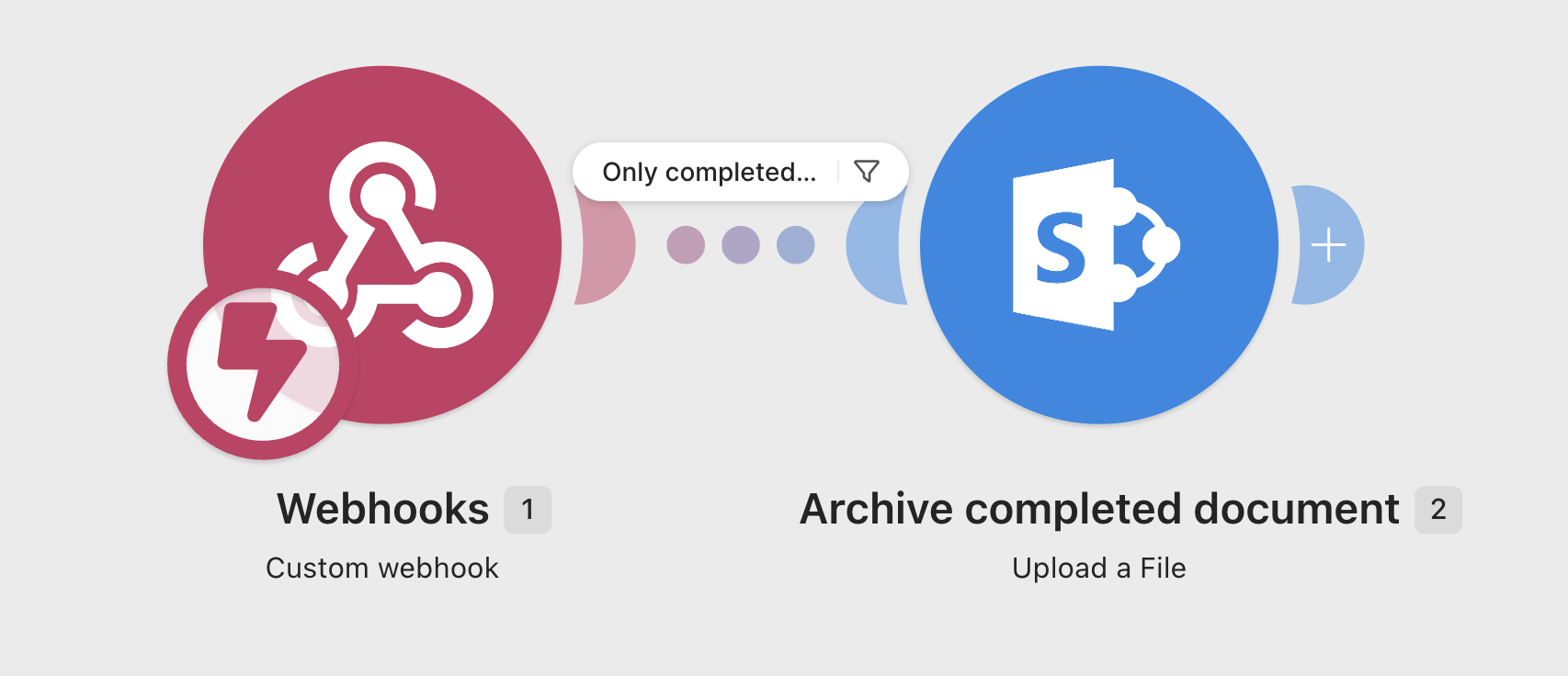
When a Marloo document reaches Complete, Make saves its HTML content to SharePoint as an .html file. Documents that are still being generated are ignored.
Before you start
You’ll need:
- A Make.com account (Zapier also works)
- Permission to upload files to the chosen SharePoint folder
- Webhooks enabled in Marloo
Set it up
-
Open the SharePoint scenario in Make and select Use this scenario.
-
Open the Custom webhook module and create a new webhook. Copy its URL (for example
https://hook.us2.make.com/qdjz85hhtoy8o6epw4bxcgv2kpls2xjh). -
Open SharePoint – Upload a file, connect your Microsoft account and select your site, document library and destination folder.
-
In Marloo, go to Settings > Integrations > Webhooks. Add the Make webhook URL and subscribe to
document.updated.v0.1.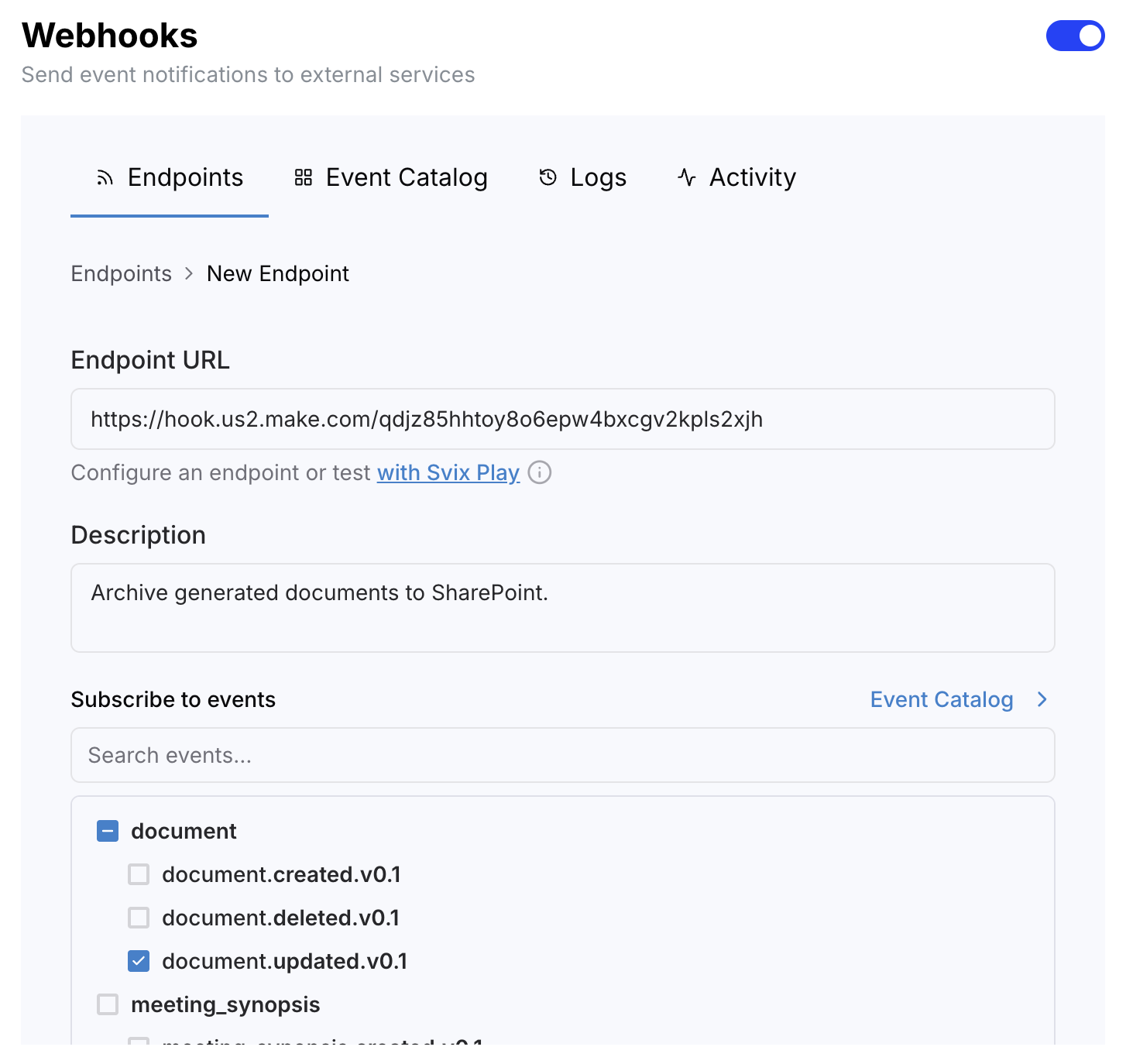
-
Select Run once in Make, then complete a document in Marloo.
-
Confirm the file appears in SharePoint, then turn the scenario on.
Files use the Marloo document name with an .html extension. An existing file with the same name will be replaced.
3. Send a 'Transcript Ready' alert to Teams
Post a message in Microsoft Teams whenever a new Marloo meeting transcript is ready.
What this automation does
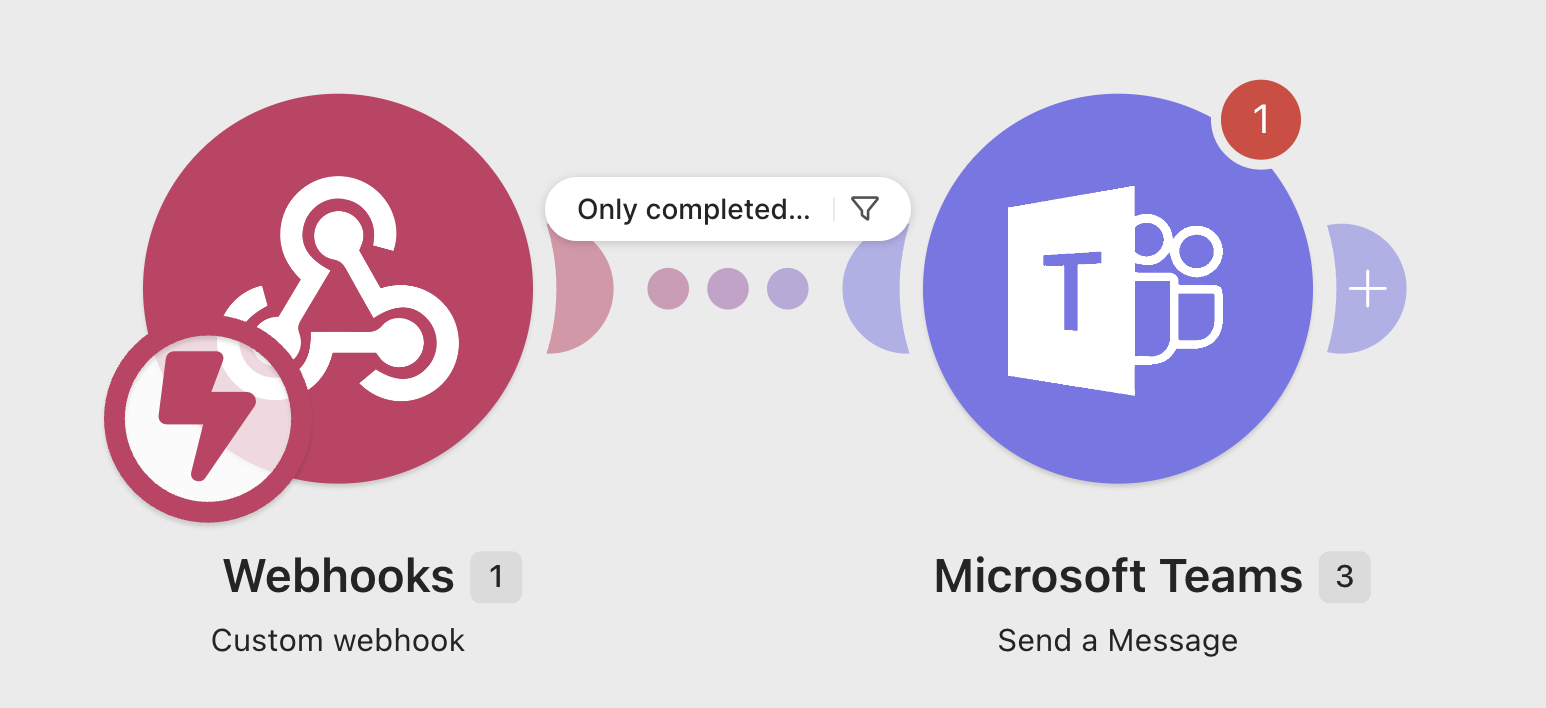
When Marloo finishes transcribing a meeting, Make posts the client names and a link to the meeting in your chosen Teams channel. The transcript itself is not posted.
Before you start
You’ll need:
- A Make.com account (Zapier also works)
- Permission to post in the chosen Teams channel
- Webhooks enabled in Marloo
Choose a channel where it is appropriate to display client names.
Set it up
-
Open the Teams scenario in Make and select Use this scenario.
-
Open the Custom webhook module and create a new webhook. Copy its URL (for example
https://hook.us2.make.com/qdjz85hhtoy8o6epw4bxcgv2kpls2xjh). -
Open Microsoft Teams – Send a message, connect your Microsoft account and select the team and channel that should receive notifications.
-
In Marloo, go to Settings > Integrations > Webhooks. Add the Make webhook URL and subscribe to
meeting_transcript.updated.v0.1.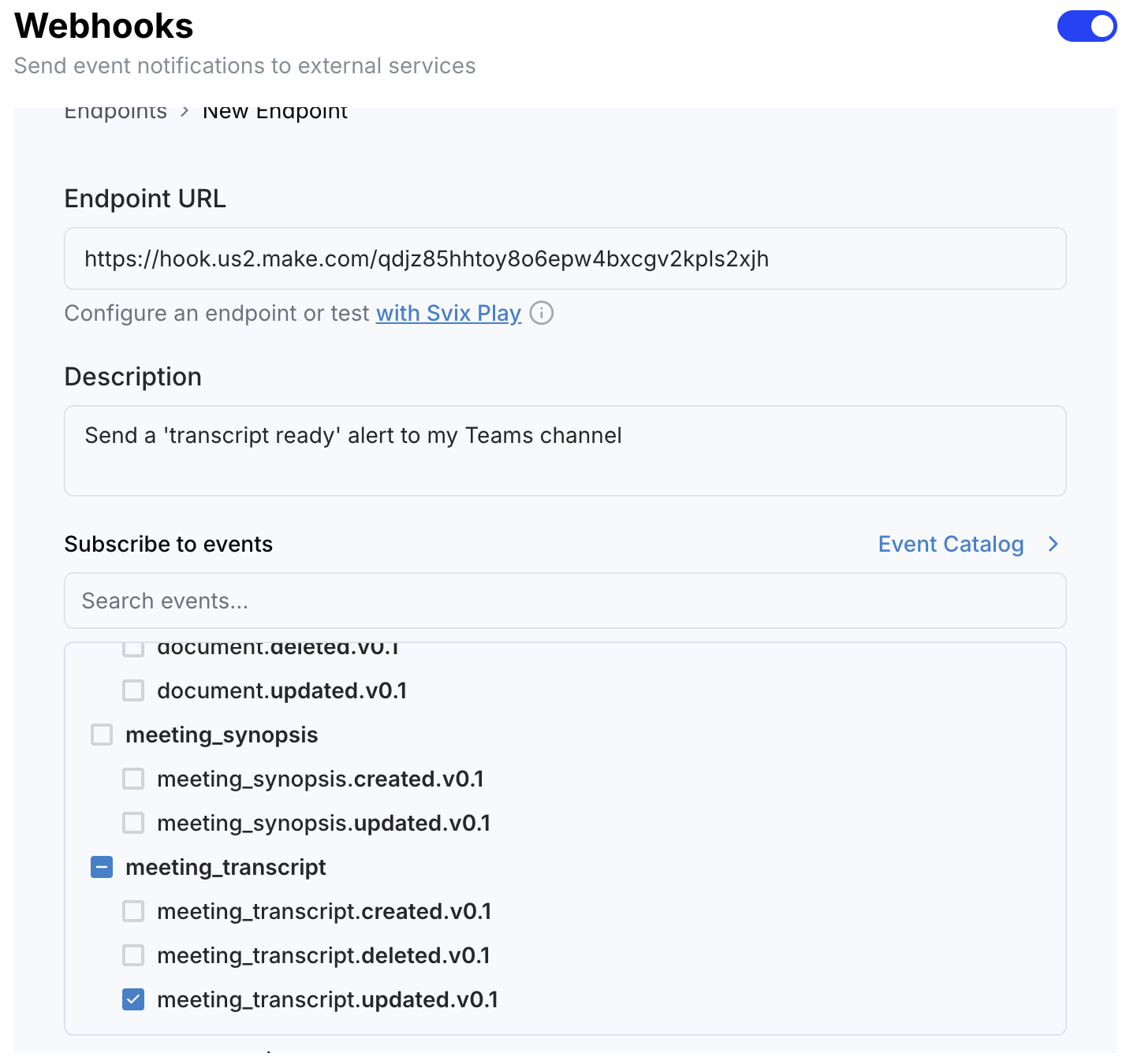
-
Select Run once in Make, then complete a new meeting transcription in Marloo.
-
Confirm the message appears in Teams, then turn the scenario on.
Still stuck? Talk to a human.
Email the Marloo team with what you are seeing. If you are in the app, the blue chat button in the bottom-right corner is the fastest way to reach us.


