
Use your US custodian accounts in Marloo
Link US custodian accounts to clients, ask about their holdings from Home, and compare allocations against your firm's targets.
Let Marloo set this up for you
The quickest way. Marloo opens with this request ready in chat. Send it, and Marloo guides you through the rest.
“Help me connect my custodian”
Connect your US custodians to Marloo and each client's accounts and holdings show on their record, updated daily. Marloo connects to US custodians through Morningstar ByAllAccounts, including Altruist, Fidelity, Pershing, LPL, Raymond James and SEI.
Connect your custodians
-
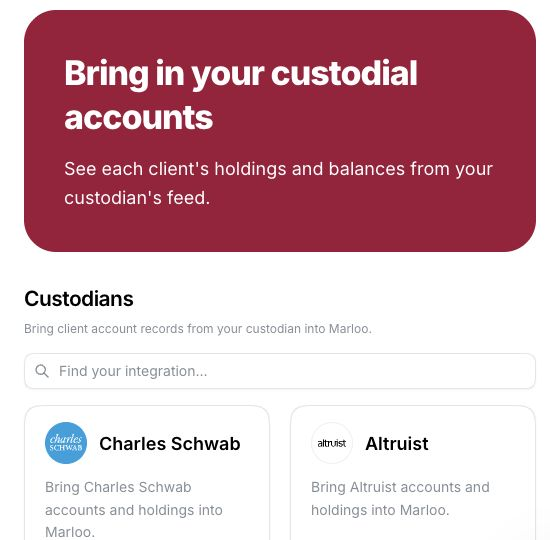
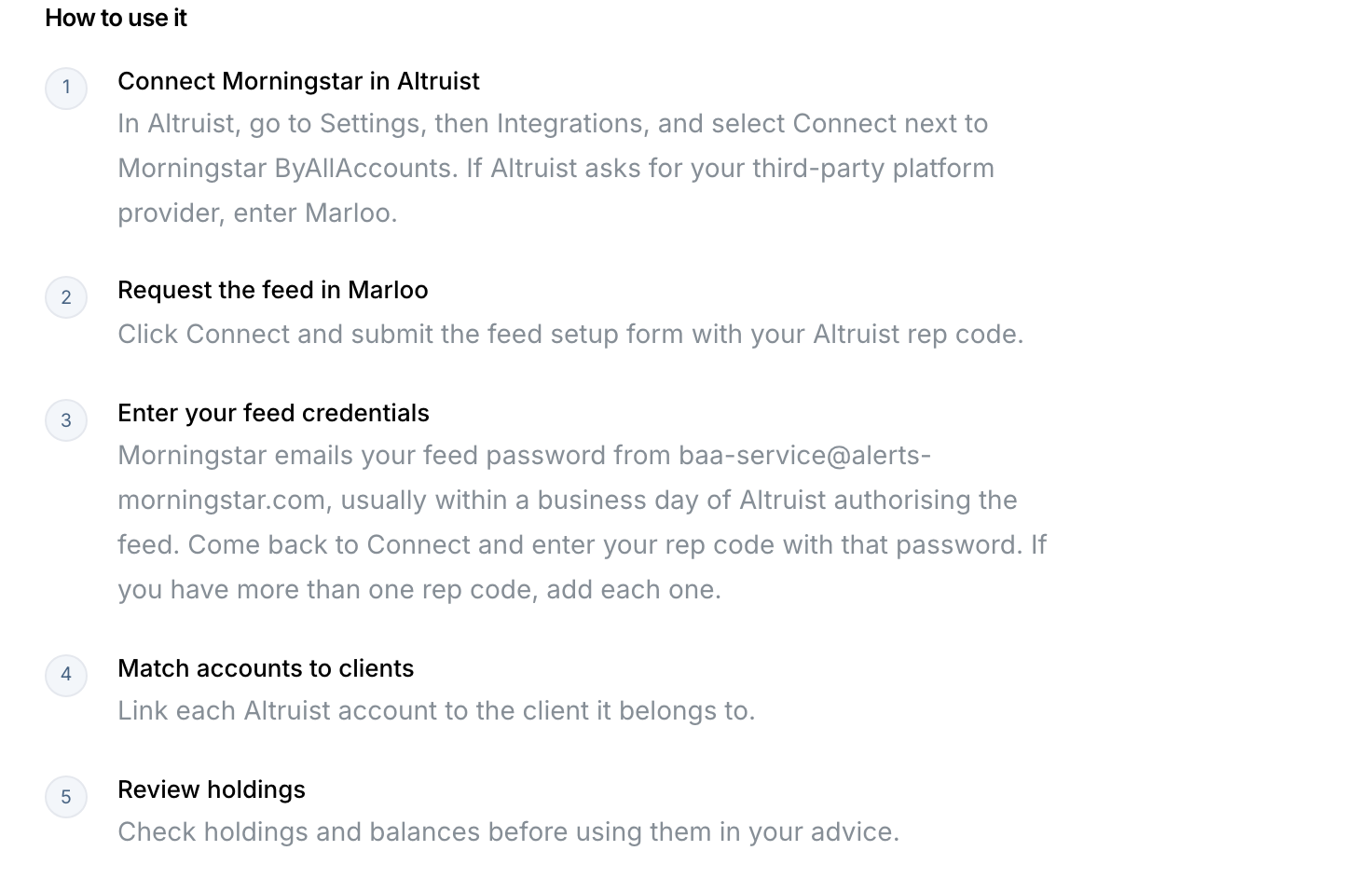
Go to Settings > Integrations and open your custodian under Custodians. Its page lists the steps for that custodian, including anything you need to do with the custodian first, such as authorizing the feed.
-
Under Your connections, click Connect on your custodian's card. The Connect your custodians window opens Morningstar ByAllAccounts on your custodian. Submit the feed setup form with the identifier your custodian's page names, such as your rep code, advisor code or G number.
-
Once your custodian authorizes the feed, Morningstar emails your feed password from baa-service@alerts-morningstar.com. Click Connect again and enter your identifier with that password. If you have more than one, add each one. For BNY Pershing, enter the InfoDirect username and password Pershing sends you instead.
-
While your custodian approves the feed, the card shows Waiting on <custodian> approval and the date you submitted. If it shows that the custodian rejected the login, ask the custodian for a file-access User ID, then click Try again.
-
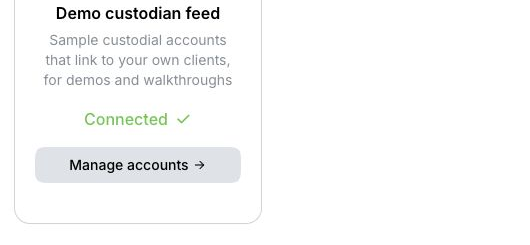
When your accounts arrive, go to Settings > Integrations and open your connected custodian, then click Manage accounts to open Custodial accounts. Link each account to its client, as described below.
If something goes wrong while you connect, get in touch with the team through the chat in the bottom right.
Accounts and holdings from the feed are labeled From custodian feed on the client record and are read-only. Transactions don't come across yet.
Link accounts to your clients
-
Open your connected custodian in Settings > Integrations, then click Manage accounts to open Custodial accounts.
-
On Custodial accounts, check account details against your firm's records and review the Client column.
-
Where Marloo suggests a client for an account, choose one of three actions:
- Link suggested client (the blue check mark) links the account to the suggested client.
- Choose a different client (the pencil) lets you search for and select another client.
- Reject suggestion (the cross) leaves the account unlinked.
-
If there's no suggestion, choose Link client and select the correct existing client.
Note: Matches aren't automatic. Clicking the check mark or selecting a client approves the link straight away, so leave uncertain accounts unlinked. One client can have several accounts.
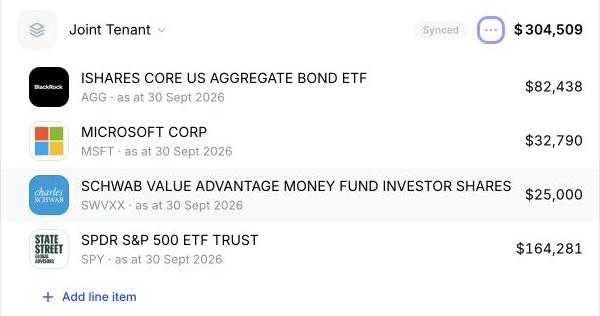
Check linked accounts and holdings in the client's Finances tab. The linked count and Unlinked filter help you track your progress.
Ask about a client's accounts
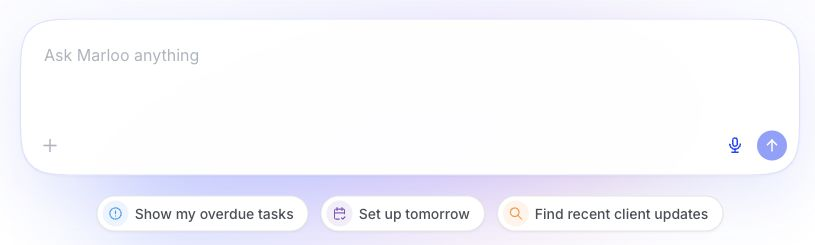
In Home, name a linked client and ask:
"What's in this person's account? Show their accounts, holdings and values."
Try a rebalancing assessment
-
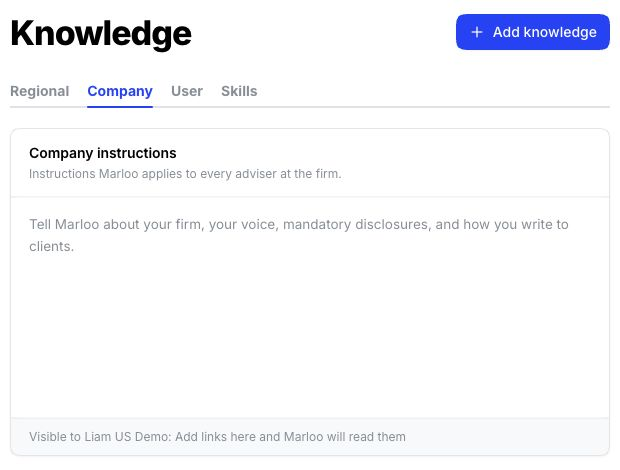
Upload your target allocations or a standard model portfolio to company Knowledge. Include the target percentages and the category for each ETF or investment, but not pre-calculated rebalance results.
-
In Home, name the client and the relevant model, then ask:
"Use this client's custodian holdings and our targets in company Knowledge. Group investments using our category mapping. Compare current and target allocations, show differences in percentage points and amounts needed to reach target. State which accounts you've included and flag holdings you can't categorize."
Before relying on the result, check the account scope, category groupings and calculations against your records.
Disconnecting
Disconnecting Morningstar ByAllAccounts disconnects every custodian in your firm's feed. Assets and liabilities it synced stay on your clients as editable records. To reconnect, get in touch with the team through the chat in the bottom right.
If something needs checking
- Wrong client: choose Unlink client, then link the correct client.
- Earlier manual imports: check for duplicate assets before using totals.
- Missing accounts or access: get in touch with the team through the chat in the bottom right so we can check your connection.
Related articles
Still stuck? Talk to a human.
Email the Marloo team with what you are seeing. If you are in the app, the blue chat button in the bottom-right corner is the fastest way to reach us.


