
Set your notetaker name, auto-join and transcription language
Every setting that controls Marloo in your meetings: the Auto-join meetings toggle, your notetaker's name, your firm's notetaker logo, how the transcription language is detected, and the company Dictionary of keywords and spelling corrections.
Everything that controls how Marloo behaves in your meetings lives in Settings > Account settings > Meetings, except your firm's notetaker logo and the Dictionary, which are company-wide and live in Company settings and Knowledge. This article covers each setting, who can change it, and when a change takes effect.
Auto-join configuration
Auto-join controls whether Marloo automatically attends your scheduled virtual meetings or waits for you to add it manually each time. It is a personal setting and applies to your own meetings.
To configure auto-join, go to Settings > Account settings > Meetings and use the Auto-join meetings toggle:
- Toggle on: Marloo will automatically join your virtual meetings with 6 or fewer attendees.
- Toggle off: You add Marloo to meetings manually on a case-by-case basis.
For details on how auto-join works with your connected calendar, see Connect your calendar. For how to stop Marloo joining one specific meeting, see Get Marloo into your meeting.

Change your notetaker's name
When Marloo joins a virtual meeting on your behalf, it appears in the participant list like any other attendee. You can customize two things: the name it shows, and the logo it displays once it is in the call.
The name is set per user, so each person in your firm can choose their own. The default is Marloo AI.
- Go to Settings > Account settings > Meetings.
- Find Name of your meeting notetaker.
- Enter the name you want. It saves automatically.
This is the name shown in the Zoom, Microsoft Teams or Google Meet participant list when the notetaker joins. Set a name that makes it clear to clients this is your recording notetaker, for example "Jane Smith's Notetaker".
Change your firm's notetaker logo
The logo is set once for your whole firm, so a change applies to everyone's notetaker.
- Go to Settings > Company settings.
- Find the Logo section and click Upload your logo, or drop an image on it.
Recommended size is 1280 x 720 pixels. JPEG, PNG, GIF and WebP files up to 10 MB are supported. The logo is shown by the notetaker once it is in the call.
Note: this logo is used for the notetaker only. It does not appear on exported documents.
Note: if your firm has the notetaker turned off, the notetaker name and auto-join controls will not appear in your account settings.
How transcription language works
Marloo detects the language spoken in each meeting automatically, for live meetings and uploaded recordings alike, and transcribes in that language. There is nothing to set before a meeting: the Transcription language dropdown has been removed from Settings > Account settings > Meetings.
Meetings where people switch between two languages are transcribed as spoken.
Transcript language vs. summary language. The transcript is in the language spoken. The meeting summary Marloo generates from that transcript is always produced in English, even when the meeting was conducted in another language.
Dictionary and keywords
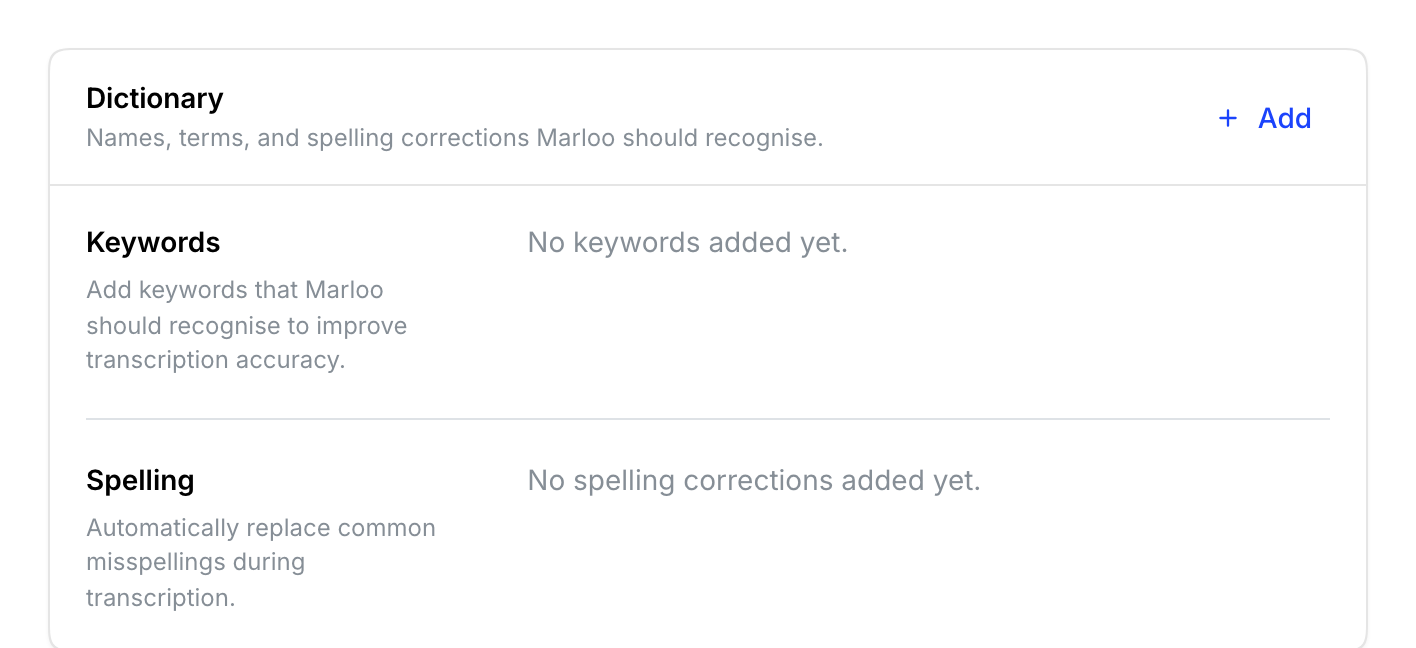
If Marloo frequently transcribes certain words incorrectly, you can use the Dictionary feature to improve accuracy. For words Marloo should get right every time (client names, fund names, firm terminology), use the Dictionary on the Company tab of Knowledge.
- Click Knowledge in the sidebar and open the Company tab.
- On the Dictionary card, click Add.
- Choose Keyword or Spelling correction.
There are two lists, and two ways to improve transcription:
- Keywords. Enter words your company uses regularly, such as your company name or industry-specific terms. This helps Marloo recognize and transcribe this vocabulary more accurately.
- Spelling. Enter how Marloo typically spells the word under Replace, and the correct spelling under With. The correct spelling must be a single word. Marloo will automatically correct these in future transcriptions.
If the same misspelling keeps showing up across meetings, add it under Spelling so Marloo corrects it going forward. Add keywords and spelling corrections before a run of meetings where those terms will come up. Full steps: Company settings.
You can re-upload transcripts from past meetings to apply your dictionary corrections retrospectively. This is useful when you add a new keyword or fix a recurring transcription error.
Frequently asked questions
Can I choose the transcription language?
No. Marloo detects the language spoken in each meeting automatically, so there's nothing to choose before a meeting.
My meetings include two languages.
Marloo transcribes each part in the language spoken. The summary is still produced in English.
I cannot find a save button in settings.
Settings save automatically. Any changes you make in Settings > Account settings > Meetings are applied immediately.
My transcript is blank or in the wrong language.
Check the recording has clear speech. Marloo detects the language from the audio, so a recording with no speech or very poor audio cannot be transcribed. Re-upload a clearer recording if you have one, or contact support with the meeting name.
Related articles
- Connect your calendar - the calendar auto-join reads from
- Company settings - Dictionary keywords and spelling, and other firm settings
- Edit a transcript - fixing a transcript after the meeting
Still stuck? Talk to a human.
Email the Marloo team with what you are seeing. If you are in the app, the blue chat button in the bottom-right corner is the fastest way to reach us.


