
Get started with Marloo as a US advisor
Set up Marloo in ten steps, from signing up to your first documents. For US advisors and their support teams.
Set up Marloo in ten steps, from signing up to generating your first documents. This guide is for US advisors and the people who support them. Marloo is an AI CRM for financial advisors, and it becomes your client record. The more you connect during setup, the more Marloo can do for you.
1. Sign up and add your team
Sign up, then add your team. Advisor, Account owner and Manager seats are paid, and Support seats are free. Support users have full access to Marloo. For plans, see the pricing page. For the full walk-through, see Sign up and set up your account.
2. Ask Marloo to connect your calendar, email and Docusign
The fastest way to set up is to ask Marloo itself. Open the Chat page and type Help me connect my calendar, email and Docusign. Marloo walks you through each connection. Once they are on, Marloo joins your online meetings (Zoom, Teams and Google Meet), shows your meetings in the mobile app and files client emails on each client's profile.

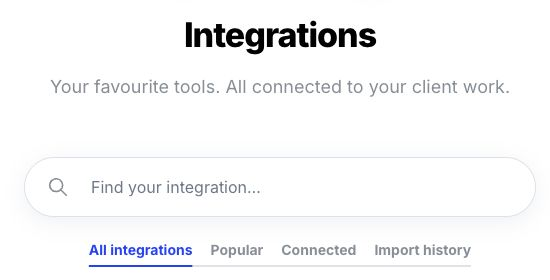
If you prefer to do it yourself, go to Settings > Integrations. See Connect your calendar, Connect Outlook and your Microsoft calendar, Connect Gmail and Google Calendar and DocuSign.
3. Connect your custodian
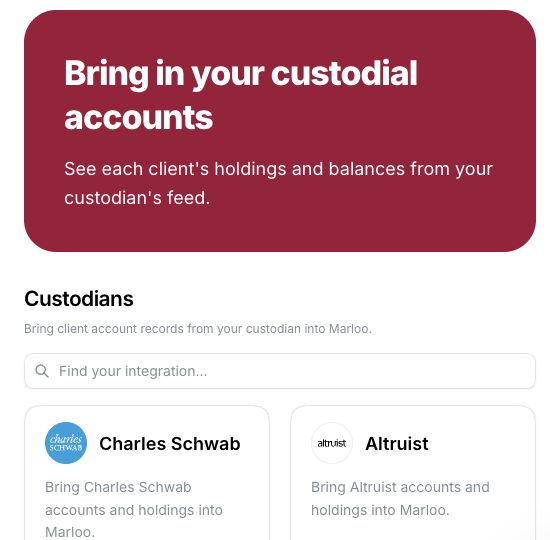
Go to Settings > Integrations, open your custodian under Custodians and click Connect on its card. Follow the steps on its page: you request the feed through Morningstar ByAllAccounts in Marloo, then enter the feed credentials Morningstar emails you once your custodian authorizes it. Marloo connects to US custodians through Morningstar ByAllAccounts, including Altruist, Fidelity, Pershing, LPL, Raymond James and SEI. Holdings update daily. Your custodian has to authorize the feed first, so start early. For the steps, see Use your US custodian accounts in Marloo.
4. Upload your company knowledge
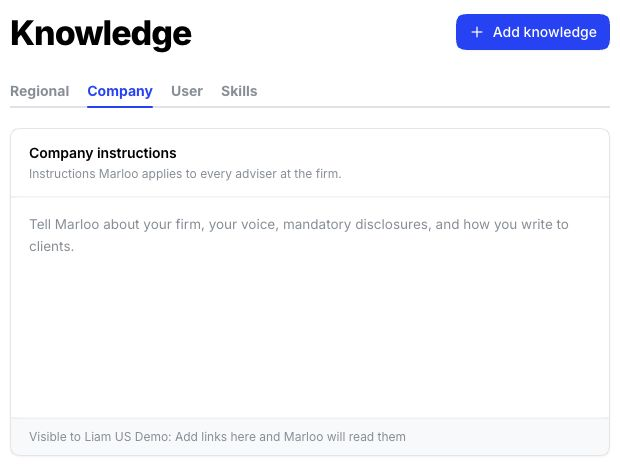
Go to Knowledge > Company and upload your Form ADV, advisory agreement and fee schedule. Ask Marloo uses them whenever a question relates to them.
5. Upload the forms you fill most
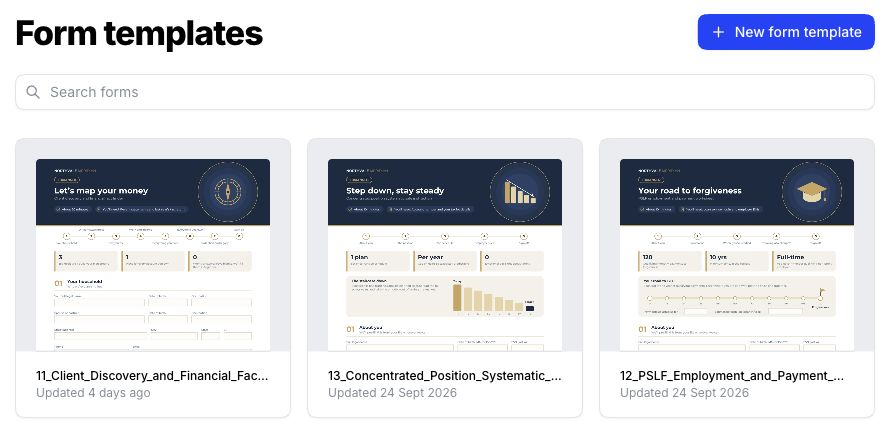
Go to Templates > Forms > New form template and upload the forms you fill most, such as your client intake form or your custodian's account forms. Marloo fills them from your client records, emails and meetings.
6. Import your clients
Bring your clients in from a CRM export or a spreadsheet. See Move your clients to Marloo from another CRM.
7. Link your client files
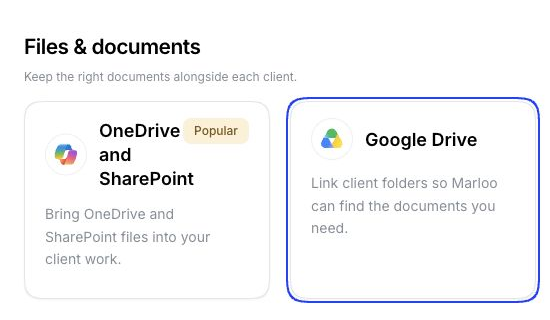
Link SharePoint or Google Drive in Settings > Integrations. See Connect SharePoint or OneDrive.
8. Sync client emails
Open a client, go to Emails and click Import past emails to bring in the last five years of correspondence.
9. Get the mobile app
Download the Marloo mobile app to record in-person meetings, with no internet connection needed. See Get started with the mobile app and record in-person meetings on your iPhone.
10. Put your client data to work
With your setup done, you can fill out forms, generate documents, create slides, and use Ask Marloo to ask questions across your company information.
If you have questions at any point, email support@gomarloo.com or use the blue chat button in the bottom-right corner of Marloo.
Related articles
- Sign up and set up your account
- Connect your calendar
- Connect Outlook and your Microsoft calendar
- Connect Gmail and Google Calendar
- Use your US custodian accounts in Marloo
- Move your clients to Marloo from another CRM
- Connect SharePoint or OneDrive
- Get started with the mobile app and record in-person meetings on your iPhone
Still stuck? Talk to a human.
Email the Marloo team with what you are seeing. If you are in the app, the blue chat button in the bottom-right corner is the fastest way to reach us.


