
Get Marloo into your meeting
How to get the Marloo notetaker into a Zoom, Microsoft Teams or Google Meet meeting: turning Marloo on, auto-join, admitting the notetaker from the lobby or waiting room, Send Marloo now, meetings that aren't on your calendar, and keeping Marloo out.
Quick flowchart: get Marloo into a call in 5 steps
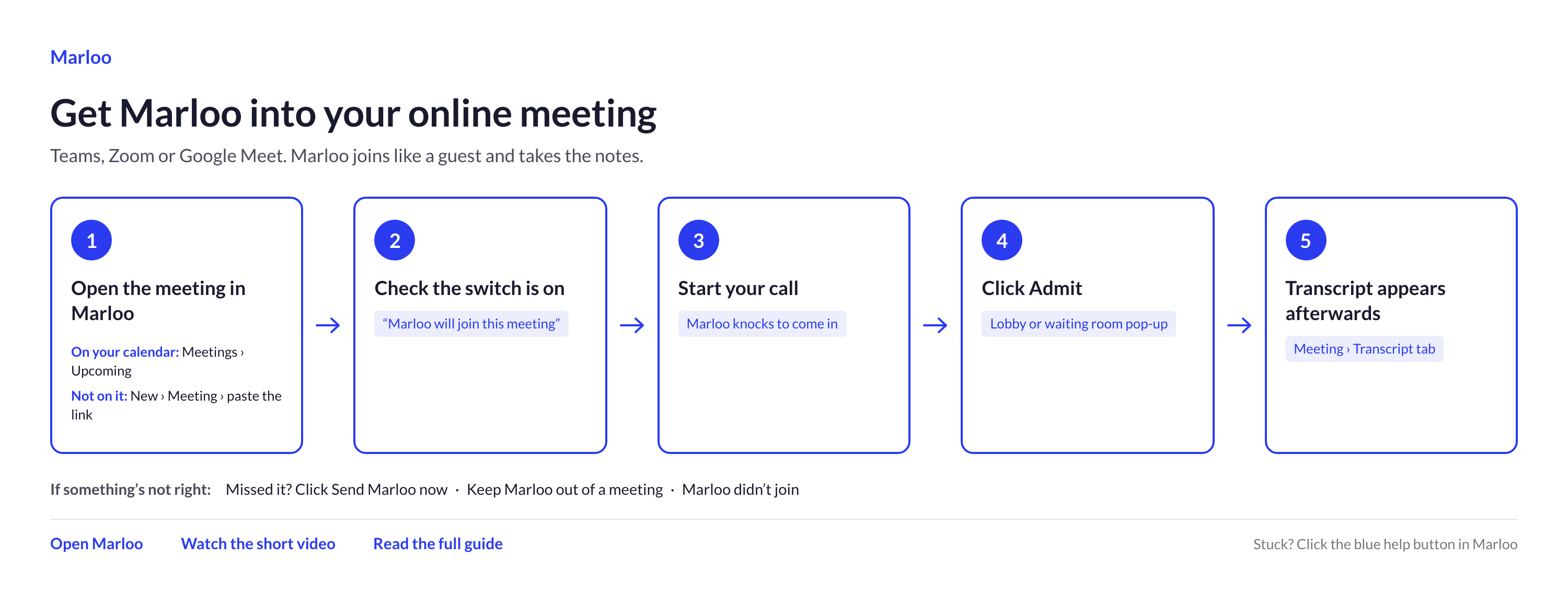
This article shows you how to get Marloo's notetaker into a virtual meeting on Microsoft Teams, Zoom or Google Meet, whether the meeting is on your connected calendar or not. Marloo joins as an external guest. Most meetings hold it in the lobby or waiting room until someone admits it, but if your meeting lets guests straight in, it joins and starts recording without being admitted. You're responsible for telling everyone that the meeting is being recorded and for getting any consent your local rules require.
Turn Marloo on for a meeting
Enable Marloo to record and transcribe your virtual meetings.
- Go to the Meetings page and open Upcoming meetings.
- Find the virtual meeting you want to record and click on it.
- The toggle will show "Marloo will join this meeting" when Marloo is set to join. It will show "Marloo won't join this meeting" when the toggle is off.
Marloo's notetaker works with:
- Microsoft Teams
- Zoom
- Google Meet/Hangouts
Auto-join, and admitting Marloo from the waiting room
Marloo is set to join your meetings automatically. Most meetings hold it in the waiting room until you admit it, but if your meeting lets guests straight in, it joins and starts recording without being admitted.
Important: If Marloo lands in the waiting room, someone has to admit it. Marloo will wait in the waiting room for up to 5 minutes. If you don't admit it before then, it will leave. Make sure to admit Marloo before the 5-minute window closes.
You can re-invite it any time by clicking Send Marloo now, the button on the right of the Marloo panel near the top of the meeting in the Marloo app.
Auto-join only applies to meetings with 6 or fewer attendees. For meetings with 7 or more attendees, Marloo does not join automatically: click Send Marloo now in the meeting to bring the notetaker in.
Microsoft Teams (lobby)
- Open the Teams notification that says someone is waiting in the lobby, or check the People panel.
- Click Admit next to the notetaker.
- If you aren't the host, the host or a co-organizer needs to admit it. Let them know in advance that your notetaker will try to join.
Zoom (waiting room)
- When the notetaker joins, you'll see a notification that someone is in the waiting room.
- Click Admit to let the notetaker into the meeting.
Google Meet (knocking)
Google Meet treats the notetaker as an external guest, so it has to "knock" and be admitted by someone already in the meeting.
- When the notetaker tries to join, a participant will see your Marloo notetaker asking to join, under whatever name your firm has given it.
- Click Admit.
- If the host hasn't started the meeting yet, the notetaker can't get in at all. Send it again once the call is under way, then admit it straight away.
If nobody admits the notetaker, it can't record the meeting, but you don't have to lose the detail. If you have your own recording of the meeting, or a transcript of it, open the meeting's Transcript tab and choose Upload or Paste transcript. Notes you took go on the Notes tab. Marloo will generate a summary from the content you add.
Send Marloo now
You can send Marloo to any meeting at any time using the Send Marloo now button. You don't need to wait for the scheduled start time.
- Open the meeting from the Meetings page and click on the meeting details.
- Click the Send Marloo now button. Marloo will join the waiting room immediately.
- Admit Marloo from the waiting room to begin recording, and continue with your meeting as normal.
Meetings that aren't on your calendar
Marloo only auto-joins meetings that appear on your connected calendar. If you haven't connected Marloo to your calendar, or the meeting wasn't created through it, you can still add Marloo to the meeting by pasting the meeting link directly.
- In Marloo, click New (the + at the top of the sidebar), then Meeting. Or open the meeting if it is already there.
- On the meeting's Transcript tab, under Or send Marloo to the call, paste your virtual meeting link (Zoom, Teams, Google Meet) and click Add Marloo.
- Marloo will join the meeting at the scheduled time, or click Send Marloo now when the meeting is starting.
- Admit Marloo from the waiting room when it joins.
Note: Pasting a link does not work for meetings that have a passcode set. For Zoom meetings with a passcode, the link must include the passcode (it will contain ?pwd=). A Zoom link without the embedded passcode cannot be joined; ask the host for a one-click link or connect your calendar instead so Marloo can pick up the meeting details automatically.
The meeting won't automatically link to an existing calendar event. Tag the client to the meeting manually so it appears in their profile. See Add or remove clients on a meeting.
Recurring meetings. There is no recurring-meeting setting in Marloo. If the meeting is on a connected calendar, every occurrence appears under Upcoming and Marloo joins each one. If your calendar is not connected, create a new meeting each week and paste the same link. You can click Send Marloo now on the same meeting each time instead, but each new transcript is added to that one meeting, so the weeks are not kept separate. If more than one advisor has auto-join on, see Marloo didn't join or record your meeting.
For the best experience long-term, connecting your calendar is recommended. See Connect your calendar.
Keep Marloo out of a meeting
You have a few options:
- Turn off auto-join entirely in Settings > Account settings > Meetings so the notetaker only joins when you click Send Marloo now.
- Stop it joining one specific meeting while keeping auto-join on for everything else: open that meeting in Marloo and toggle it to "Marloo won't join this meeting".
- Deny it on the day: when the notetaker appears in the waiting room or lobby, deny it entry.
You can also take Marloo out of a meeting at any time. While it is recording, click Leave meeting on the meeting in Marloo, or remove it from the call yourself:
- Find Marloo's notetaker in the meeting participant list.
- Click the three dots in the bottom right corner of Marloo's notetaker.
- Select Remove now.
If a client asks for a specific part of the meeting not to be recorded, you can remove Marloo and re-admit it later:
- Kick Marloo out using the three-dot menu on Marloo's notetaker and selecting Remove now.
- When you're ready to resume recording, click Send Marloo now from the meeting in the Marloo app.
- Admit Marloo back into the meeting.
Related articles
- How meetings work in Marloo - the Meetings page and everything a meeting holds
- Marloo didn't join or record your meeting - what to check when the notetaker can't get in or leaves early
- Upload a recording or record a meeting yourself - when there is no notetaker to send
Still stuck? Talk to a human.
Email the Marloo team with what you are seeing. If you are in the app, the blue chat button in the bottom-right corner is the fastest way to reach us.


