
Upload a recording or record a meeting yourself
How to get a meeting into Marloo without the notetaker: upload an audio file, record an in-person meeting in the web app or on the Marloo mobile app, bring in a phone-call recording, or paste a transcript you already have.
This article shows you how to get a meeting into Marloo when there is no notetaker to send: upload an audio file, record an in-person meeting in the web app or on your phone, or paste a transcript you already have. Marloo transcribes and summarizes all of them the same way.
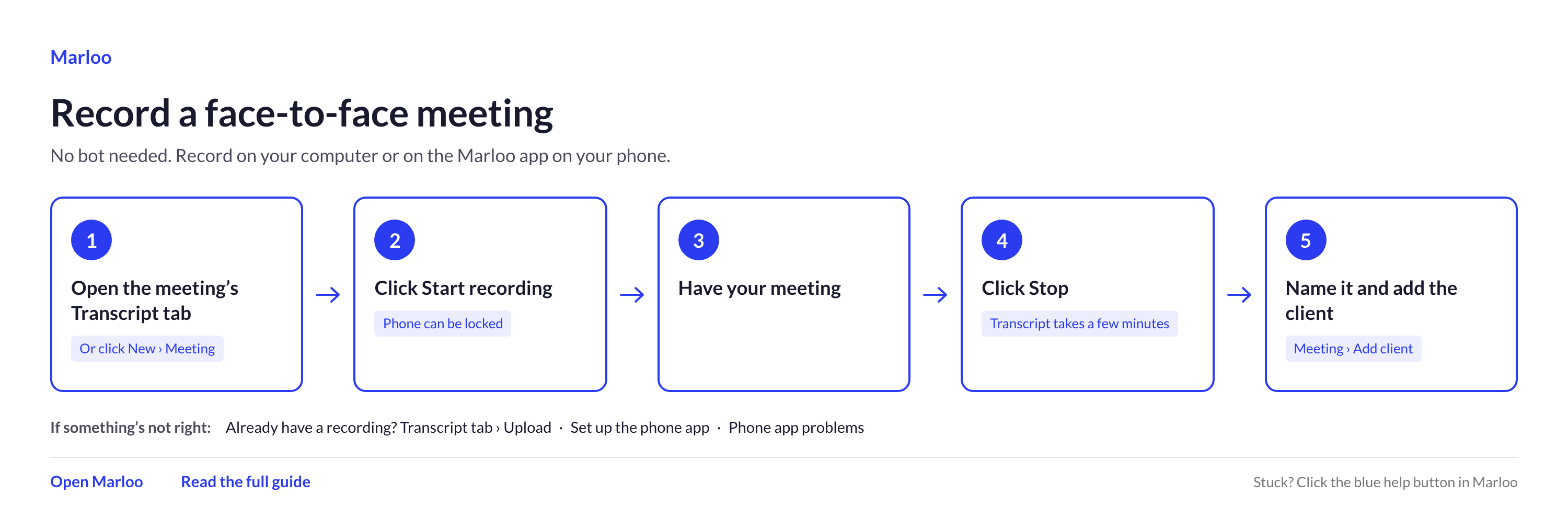
Quick flowchart: record it yourself in 5 steps
Upload an audio file
Upload audio from your phone or computer to create a transcript. Use this for recordings made outside Marloo, for example from a native phone recorder or a standalone recorder.
- Click New (the + at the top of the sidebar), then Meeting. The new meeting opens on its Transcript tab. To add the recording to an existing meeting instead, open that meeting's Transcript tab.
- Select Upload.
- Choose your audio file.
- Marloo processes the file and generates a transcript. Processing time varies with file length.
Note: Upload audio files to a meeting, not the client Files tab. The Files tab is for documents (PDF, Word, Excel) and has a 40 MB limit that does not apply to meeting recordings.
This is also how you bring in a phone-call recording made on your phone: record the call with your phone's own recorder or a recording app, then upload the file to a new meeting. You're responsible for telling everyone that the call is being recorded and for getting any consent your local rules require.
Supported formats
Audio: MP3, M4A, AAC, WAV, OGG, Opus, WMA, AMR and WebM. Video: MP4, MOV, WebM and MKV.
If your file is in a different format, convert it to one of the above before uploading.
Record an in-person meeting in the web app
Capture and transcribe face-to-face client meetings. You can record in-person meetings using either the web app or the Marloo mobile app. You're responsible for telling everyone that the meeting is being recorded and for getting any consent your local rules require.
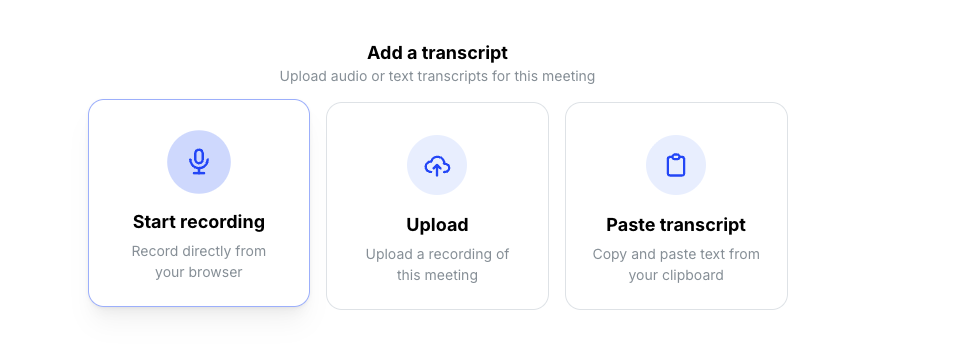
- Go to the Meetings page. Click on the in-person meeting you want to record, or navigate to the relevant client and click the Meetings tab to find it. Then open the meeting's Transcript tab.
- Click Start recording. Marloo will begin capturing audio through your device's microphone, and a recording bar will show that the session is active.
- Click Stop on the recording bar when your meeting is finished. Marloo will process the audio and create a transcript.
If the upload doesn't finish, the recording stays saved in the browser you recorded in. The meeting's Transcript tab shows a red banner: This meeting has a recording that hasn't been uploaded. Open the meeting in the same browser on the same computer, then click here in the banner to upload it. Don't clear your browsing history or site data first. That deletes the recording.
Record on your phone
- Open the Marloo mobile app on your iOS or Android device, and log in with your Marloo credentials.
- Open the In-person meeting from your calendar, or tap New meeting at the bottom of the screen.
- Tap Start recording. You can lock your phone or switch apps during the meeting; recording continues in the background.
- Tap Stop when your meeting is finished.
Allow about a minute for the recording to upload. Once uploaded, the meeting will appear in the web app as an untitled meeting timestamped to when you recorded it.
After uploading: Open the meeting, give it a name, and tag the relevant client. This is required for Marloo to capture the meeting in the client view.
No internet? No problem: If your network cuts out during recording, the recording stays on your device. Go back into the meeting in the app and re-upload when you're back online. If the upload fails due to a recording issue, you can also attempt to re-upload from within the meeting.
To record phone calls: see Record phone calls on iPhone or Record phone calls on Android.
Paste a transcript instead
If you already have a transcript from another source, you can paste it directly and Marloo will generate your summary. Open the meeting's Transcript tab and choose Paste transcript.
Related articles
- Edit a transcript - speaker labels and text corrections
- Delete a transcript, recording or meeting - deleting a recording, its transcript or the whole meeting
- Generate, edit and export a meeting summary - generating a summary from the transcript
- Get started with the mobile app and record in-person meetings on your iPhone - setting up the Marloo app on your phone
Still stuck? Talk to a human.
Email the Marloo team with what you are seeing. If you are in the app, the blue chat button in the bottom-right corner is the fastest way to reach us.


